
Windows 11 Disk Cleanup Not Freeing Space? Find What Is Really Filling Your Drive
Windows 11 cleanup barely changed your free space? Use MangoDisk to uncover large folders, duplicate files, app data and leftovers before deciding what to remove

You removed Temporary files, ran Cleanup recommendations, and perhaps enabled Storage Sense—but the C drive is still almost full. That usually does not mean Windows cleanup is broken. It means the files taking most of the space are outside the categories Windows is designed to clean.
Windows is good at removing known system items such as update cleanup, thumbnails and error reports. It will not decide that a 40 GB game, a video archive, an AppData folder, a virtual machine or five identical downloads are safe to remove. Running the same cleanup again may recover another few hundred megabytes while the real space hog remains untouched.
MangoDisk shows where that space actually went. It scans locally, displays real paths and folder sizes in a list and treemap, and then lets you use the right tool for the job: uninstall an app, move a personal file, compare duplicates or review recognized caches. Nothing is removed just because it is large.
Why is the C drive still full after Windows cleanup?
Windows Storage is a system cleanup tool, not a complete disk space analyzer. Its job is to manage items Windows already understands. Personal files and third-party app data require context that the operating system cannot safely guess.
| What you need to do | Windows Storage | MangoDisk |
|---|---|---|
| Remove known Windows temporary items | The best place to start | Can supplement it with recognized user and app caches |
| See the exact folder using the most space | Usually groups data into broad categories | Shows full paths, folder sizes and a treemap |
| Find large files scattered across the drive | Cleanup recommendations cover only some locations | Filters by size, type, path and date |
| Detect files with identical content | Not included | Groups exact duplicates and always keeps at least one copy selected for retention |
| Review files left after uninstalling an app | Mainly handles the app uninstall | Uses the normal uninstaller, then shows related files for review |
| Decide whether every large file is safe to delete | Cannot do this | Cannot make that personal decision either, but shows the path, size and risk before action |
The useful distinction is simple: Windows cleans system items it recognizes; MangoDisk explains the space that is still unaccounted for. They work best as two steps, not as competing replacements.
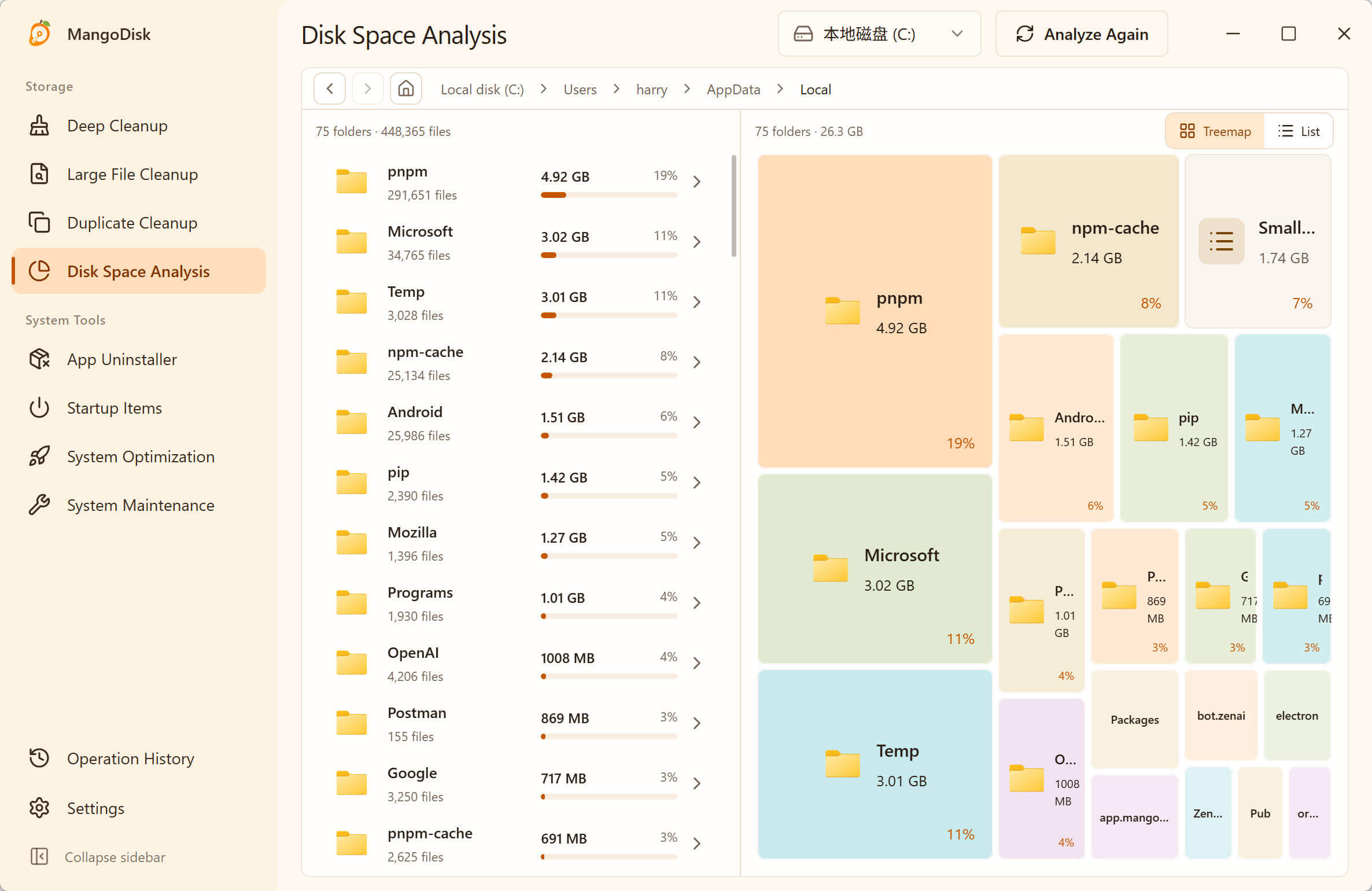
Larger rectangles use more space. Open the largest area and keep drilling down, but do not mistake “large” for “safe to delete.”
What is really taking up the space?
1. Large apps and games
A single game, editor or design suite can use tens or hundreds of gigabytes. Installed apps may show part of that size, but downloaded assets, shared components and game libraries do not always appear under one neat entry.
If you no longer need the software, uninstall it through Windows or its own uninstaller. Do not delete its folder from Program Files; that can leave services, update tasks and other files behind.
2. Downloads, videos, recordings and exports
Old installers, ZIP archives, screen recordings, raw footage and exported projects often provide a much bigger win than clearing caches. Windows leaves these alone because they are personal files and may be the only copy.
MangoDisk's Large Files view can sort them by size and narrow the results by file type or path. Open an unfamiliar item in File Explorer before removing it, and move files you still need to another drive or a reliable backup.
3. AppData and local application data
Browsers, chat apps, game launchers, creative tools and cloud clients keep caches, logs, offline content, settings and sometimes irreplaceable user data inside AppData. Windows may group it under Apps or Other without showing which path is responsible.
Never empty AppData as a whole. Find the largest application folder first, then use the AppData cleanup guide to separate rebuildable cache from settings, saves and local databases.
If Discord is one of the larger app folders, follow the Discord cache cleanup guide to review its caches without removing the whole app.
4. Duplicate downloads and exported copies
The same installer, video or project archive can end up in Downloads, Desktop and a backup folder. Windows cleanup does not compare file contents, so it cannot tell you that differently named files are exact copies.
Duplicate Files in MangoDisk groups files by content rather than name. Smart selection keeps at least one file in each group, but you still decide which location is the original you want to keep.
5. Data left behind by uninstalled apps
Removing an application does not guarantee that its cache, settings, logs and downloaded resources disappear with it. These leftovers can be spread across several user folders and are no longer visible in the Installed apps list.
For software that is still installed, MangoDisk's App Uninstaller starts with the official Windows or app-provided uninstall process, then shows related files it can identify. Anything that may contain user data stays visible for your review instead of being silently removed.
6. Virtual machines, developer tools and local AI data
Virtual disks, container images, build output, package caches and local models are often counted as Other. One folder can be enormous, yet contain a mix of disposable cache, active projects and databases that cannot be recreated.
Use the treemap to identify the owner, then clean the data from the application that created it. Deleting an entire Docker, virtual machine or development folder is rarely the safe shortcut it appears to be.
For Docker, start with build cache cleanup while keeping images, containers and volumes. Check the cache estimate and the cost of rebuilding before removing it.
The fastest way to investigate with MangoDisk
Step 1: Analyze the whole C drive
Open Disk Space Analysis and select the C drive. Compare the top-level folders, then drill into the largest rectangles. Scanning only reads and visualizes the storage layout; it does not delete large files automatically.
If Users is the largest area, check Downloads, Desktop, AppData and cloud-sync folders. If an app or game folder dominates, uninstall or move it through that application. If the largest area is a Windows system folder, leave it to Windows tools.
Step 2: Review recognized cache and temporary data
Deep Cleanup brings recognized system, browser, application and development caches into one view. It separates lower-risk items from those that need review, and shows the path, size, expected effect and apps that should be closed.
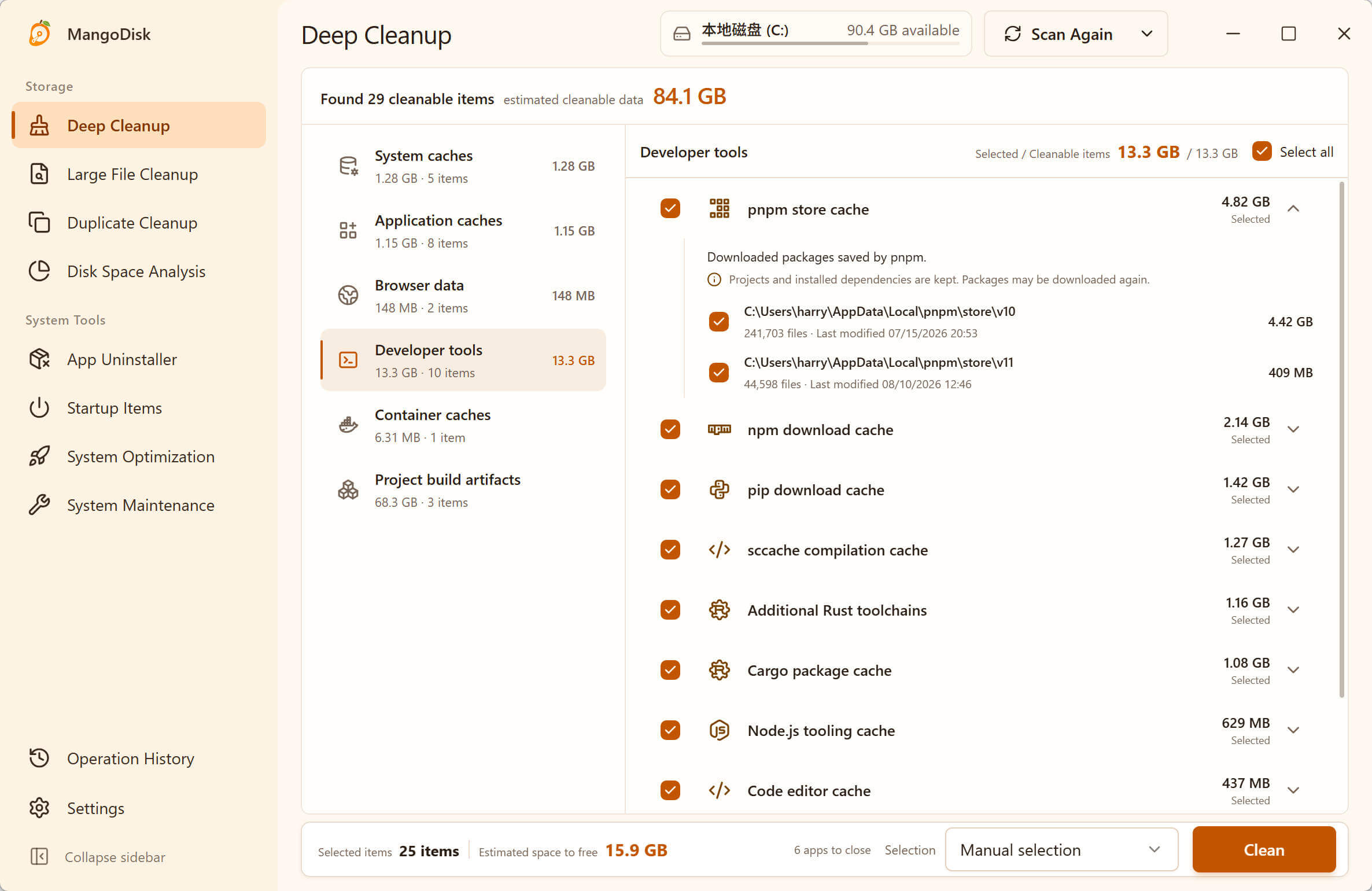
Deep Cleanup is for content MangoDisk can identify. It does not label an entire AppData folder—or every large file—as junk.
Step 3: Match the action to the content
- A few huge videos, installers or archives: review them one by one in Large Files.
- Several exact copies: compare their locations in Duplicate Files.
- A large app you no longer use: uninstall it normally, then review its related files.
- Recognized cache or temporary data: check its risk and effect in Deep Cleanup.
- Personal files you still need: move them to another drive or back them up instead of deleting them.
The real benefit is not “deleting more than Windows.” It is giving each kind of storage the right treatment. Games should be uninstalled or moved, personal files should be organized, and only cache should be treated as cache.
What can you remove, and what should you leave alone?
| Usually reasonable after review | Check carefully first | Do not delete manually |
|---|---|---|
| Installers, archives and recordings you no longer need | Downloads, Desktop, documents and photos | C:\Windows, System32, WinSxS |
| Temporary items explicitly offered by Windows | App folders inside AppData and ProgramData | Unfamiliar files inside Program Files |
| Clearly identified app cache that can be rebuilt | Cloud-sync copies, virtual machines and game libraries | pagefile.sys and hiberfil.sys |
| Duplicate copies after confirming the original | App settings, chat history, saves and local databases | Services, drivers and system components you do not recognize |
| Leftovers from an uninstalled app after checking for personal data | Development projects, containers and local AI models | System files that require forced permissions to remove |
If the large file is hiberfil.sys, see whether you can remove the hibernation file before changing anything. It is a power-setting decision, not a manual file deletion.
Deletion from Disk Space Analysis, Large Files and Duplicate Files is permanent and does not go to the Recycle Bin. Back up anything important, keep anything you cannot identify, and read the MangoDisk safety guide before cleaning.
Keep using Windows cleanup for Windows-managed files
MangoDisk is not a replacement for every Windows storage feature. Continue to use Windows Settings for:
- Windows Update Cleanup, device driver packages and system error reports;
Windows.oldand previous Windows installations;- Recycle Bin retention, cloud-file availability and Storage Sense;
- component storage such as
WinSxS, which Windows maintains itself.
Only remove Windows.old through Windows when you are sure you will not roll back. Never empty WinSxS manually. The safest workflow is: let Windows remove the system items it owns, then use MangoDisk to explain everything the broad storage categories did not.
Why does the drive fill up again so quickly?
If the same folder grows back within hours or days, repeatedly cleaning it only treats the symptom. Common causes include:
- Windows, a game or another large app downloading an update;
- OneDrive or another cloud service restoring local copies;
- recording, backup, chat or mail software continuously writing files;
- a browser, game or creative app rebuilding cache;
- a malfunctioning app producing logs, crash reports or temporary data without stopping.
Note the largest path and compare it again later. Once you know which folder keeps growing, fix the application that creates it instead of deleting unrelated small caches.
Frequently asked questions
Why did Windows 11 Disk Cleanup free only a few hundred megabytes?
It lists items Windows recognizes and is allowed to manage. App data, personal files, games, virtual machines and duplicates may use far more space without being temporary system files.
Can I delete everything listed as Other?
No. Other is a category, not a folder or a safety rating. It can contain cache, projects, virtual disks and personal data at the same time. Find the actual path and identify the application or file type first.
Does a disk space analyzer delete files automatically?
MangoDisk's Disk Space Analysis only scans and displays the result. It does not delete a file because it is large. A deletion happens only after you select and confirm it, and it will not use the Recycle Bin.
Will clearing cache make my PC faster?
Not necessarily. Recovering space can help when the drive is so full that Windows Update or applications cannot work normally. Cache is rebuilt, however, and deleting a small cache is not a general performance fix.
What should I clean first on the C drive?
Start with the largest items you recognize: unused apps, old installers, videos, recordings and duplicate copies whose original is safely stored. Do not begin with an unfamiliar Windows folder.
Official resources and related guides
- Microsoft Support: Free up drive space in Windows
- Microsoft Support: Storage settings in Windows
- Microsoft Support: Manage drive space with Storage Sense
- Microsoft Learn: Clean up the WinSxS folder
- Related: C Drive Full on Windows 11? What to Check and Clean Safely
- Related: Windows 11 Temporary Files: What Is Safe to Delete?
- Related: How to Completely Uninstall Apps on Windows 11
If Windows cleanup has already run and the missing space still makes no sense, download MangoDisk. See the real paths and sizes on your PC first, then decide what should be cleaned, uninstalled, moved or kept.
If you're choosing a cleaner rather than looking for a single cleanup step, see MangoDisk as a free CCleaner alternative for the everyday tasks it covers and its limits.