
Discord Cache on Windows: Where to Find It and What to Clear
Free up Discord cache space on Windows with MangoDisk, or clear common cache folders manually. Check sizes and paths without deleting the whole Discord data folder.

Discord's cache can build up on your C drive over time. To reclaim that space, fully quit Discord and clear its rebuildable caches. You don't need to uninstall the app first.
The awkward part is knowing which folders to touch. Caches sit alongside account data and settings, and the names aren't always helpful. MangoDisk finds the Discord caches it supports and shows their sizes and paths. You can review the results and choose what to remove without digging through AppData yourself.
Find Discord cache with MangoDisk
On Windows, open Deep Cleanup in MangoDisk, run a standard scan, and look for Discord under app caches.
Check the size before deciding whether it's worth clearing. To clean only Discord, choose Select none, then select the Discord entry. Scanning doesn't delete anything, and you don't have to clear other apps at the same time.
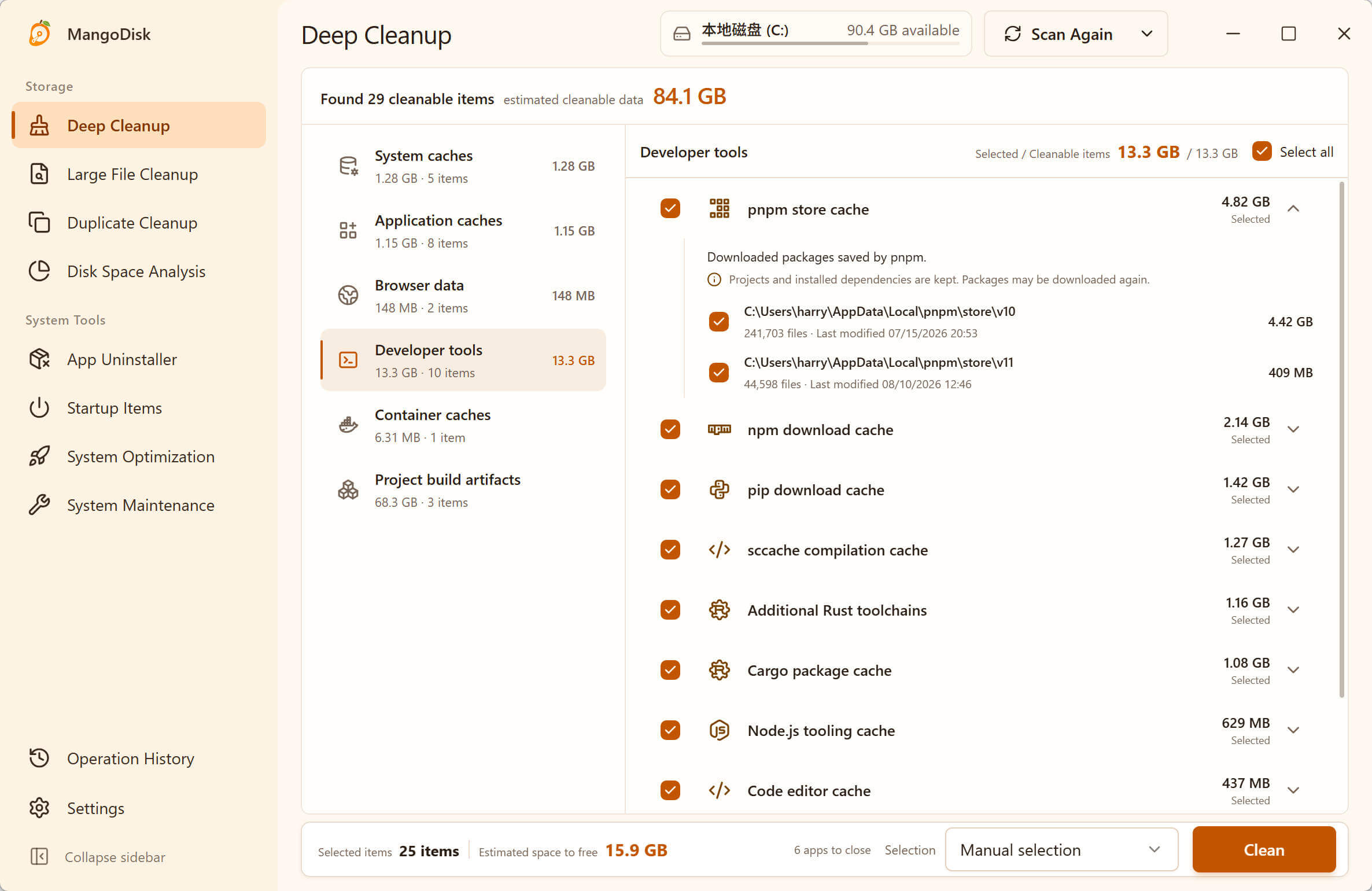
When you're ready:
- Fully quit Discord. Finish any calls or file transfers, then right-click Discord's icon in the system tray and quit. Closing the chat window may leave it running in the background.
- Review your selection. Expand the Discord entry to check the locations and estimated space to be freed.
- Confirm cleanup. Start cleanup, review the confirmation dialog, and reopen Discord once it's finished.
If Discord is still running, quit it before continuing rather than forcing the removal of files in use. The app will rebuild caches as needed, so some content may take a little longer to load the first time. There's no need to clear them every day.
Clear the cache, not the whole Discord folder
MangoDisk's Discord rule targets known cache locations such as Cache, Code Cache, and GPUCache, along with specific diagnostic-log and crash-report folders. It excludes account data, chat state, settings, and application files. It does not treat the entire Discord data folder as disposable.
That lets you remove cached data without turning a cleanup into a reinstall. The exact scope is in the public Discord cleanup rule. If support needs logs or crash reports to investigate a problem, save those diagnostic files before cleaning.
Some guides tell you to delete the whole Discord folder in both %AppData% and %LocalAppData%. Discord includes those steps in its corrupt-installation instructions, followed by a reinstall. Repairing a broken installation is a different task from freeing cache space. You don't need the full reinstall procedure just to tidy up.
How to clear Discord cache manually on Windows
You can also remove the common caches in File Explorer. Fully quit Discord, press Win + R, and enter:
%APPDATA%\discord
Look for these three folders. Right-click each one and open Properties to check its size:
CacheCode CacheGPUCache
Once you've checked the location, open each of these folders and delete the cached contents inside it. Leave the other folders alongside them alone. If Windows warns that files are too large for the Recycle Bin and will be permanently deleted, double-check the path before proceeding. Files sent to the Recycle Bin still occupy space; after confirming the selection was correct, remove those specific files from the bin to reclaim it.
Don't select everything at the top level of %APPDATA%\discord. Folders such as Local Storage, Session Storage, and Network are outside this cleanup. If the path or folder names don't match, don't delete a similar-looking folder instead. These instructions are for the standard Windows desktop app, not PTB, Canary, or every installation variant.
The manual method covers those three common caches. MangoDisk checks additional known locations from its published rule and brings the results into one view, saving you from opening each folder and checking its Properties separately.
Still short on space? Look beyond Discord cache
If the scan finds little Discord cache, there's not much to gain by clearing it again. Videos and archives you've saved from chats to Downloads aren't removed by clearing the app cache. Those files may be a better place to look.
MangoDisk's Large File Cleanup helps you find files by size and type. Deletion in that tool is permanent, so check that files are backed up or no longer needed before removing them. If AppData as a whole is still large, see how to deal with an oversized AppData folder rather than emptying it.
Download MangoDisk to see how much space Discord and other app caches are using. It's free and open source, with no signup or login required. Deep Cleanup runs locally and doesn't require AI. Spend your time chatting or gaming, not hunting for cache folders.
Using Steam as well? How to clear Steam cache explains which interface caches you can tidy up and how they differ from Steam's download cache.
For more on reviewing files before deletion, see the cleanup safety guide.