
Docker Disk Space Cleanup: Clear Build Cache, Keep Your Data
Check Docker build cache estimates with MangoDisk, clear unused cache while keeping images, containers and volumes, and understand rebuild costs and disk image sizes.
If build cache is taking up most of Docker's space, you can clear unused cache while keeping images, containers, networks and volumes. Docker's builder prune command targets build cache. The trade-off is that later builds may need to download dependencies or regenerate cached data. Unused now doesn't mean you won't need it again. See Docker's build cache cleanup reference.
To review that space before deciding, use MangoDisk's Deep Cleanup. It reads cache information from your local Docker service through the default context and shows an estimated size. You choose whether to proceed; Docker's own command performs the cleanup.
Review Docker build cache in MangoDisk
The Docker CLI already provides commands to inspect and clear cache. MangoDisk brings those steps into a graphical interface: review the estimated space and cleanup impact, then decide whether to select the entry. You don't have to remember which prune command removes which objects.
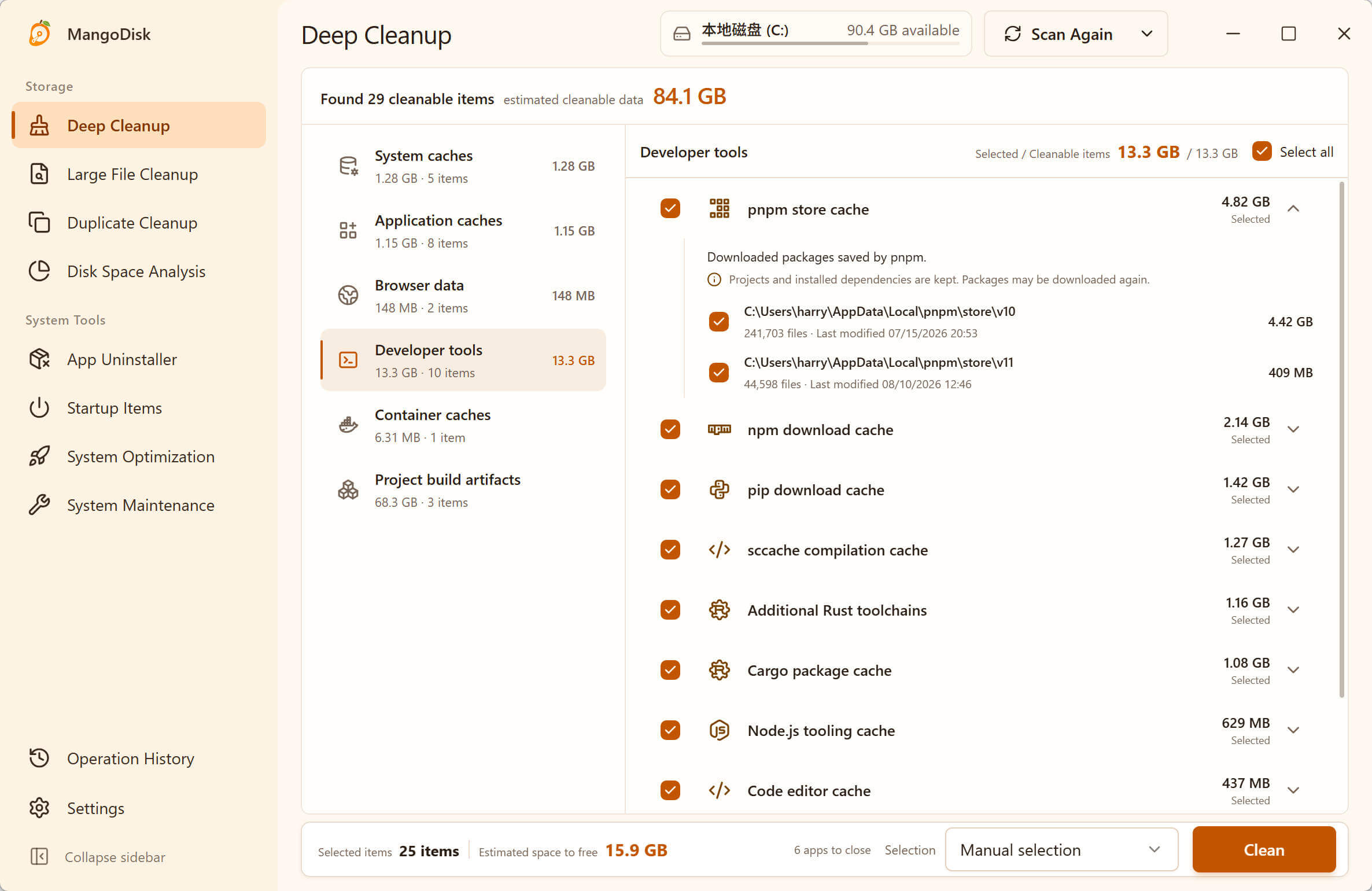
This is an example of the Deep Cleanup interface, not a screenshot of the Docker check described below. Available entries depend on your scan results.
Run a Standard Scan in Deep Cleanup, then look for Docker build cache under Container caches. This entry isn't selected by default. Scanning alone doesn't remove cache.
When you're ready:
- Let active builds finish and keep the Docker service running. If you use Docker Desktop, don't quit it first.
- Review the estimated cache size and decide whether freeing that space is worth the cost of rebuilding or downloading data later.
- Choose Select none, select only Docker build cache, review the cleanup plan and confirm.
This entry keeps images, containers, networks and volumes, but it cannot target cache from a single project. It runs docker --context default builder prune --all --force, removing build cache Docker considers unused in the default context. Don't treat it as a way to clear just one old project's cache. See MangoDisk's Docker cleaner in v1.1.7.
A context specifies which Docker service the client connects to. MangoDisk explicitly uses default rather than following another context you've selected. If that target isn't reachable, the entry cannot produce a normal preview. Other local contexts, custom Buildx builders and remote services need separate checks; this entry doesn't cover them. See Docker's context guide.
Docker must be installed and reachable to inspect and clear its cache. If no result appears, check the service connection before concluding that Docker isn't using disk space.
Understand what the cache estimate means
MangoDisk's preview adds up build cache records Docker reports as unused, unshared and non-zero in size. Shared data isn't included in this estimate. Adding the displayed sizes of every image and cache record won't give a reliable total either.
During a read-only check on October 9, 2026, Docker 29.1.3 on macOS 15.7.7 returned 134 build cache records. Of those, 56 met the conditions above, with displayed sizes totaling approximately 11.6 GB. This was an estimate before cleanup. Nothing was deleted, and 11.6 GB wasn't measured as recovered space.
Use the preview to decide whether cleanup is worthwhile. It isn't a list of cache records you can select individually. When cleanup runs, Docker applies the rules of builder prune --all to decide which unused cache can be removed. Check the host's free disk space afterward to see the actual result.
Separate build cache from data you need
Build cache stores reusable results and related data so later builds can avoid repeating work. It changes as projects, dependencies and build instructions change. A large cache doesn't necessarily indicate a Docker problem. See Docker's explanation of build cache.
| Content | Purpose | What this guide does |
|---|---|---|
| Build cache | Reuse build steps and related data | Clear unused cache when you can accept the rebuild cost |
| Images | Provide the environment used to create containers | Keep them |
| Containers | Running or stopped application instances, which may still contain useful data | Keep them; stopped doesn't mean disposable |
| Volumes | Persist database contents, uploaded files and other data | Keep them; don't treat them as cache |
Volumes have a lifecycle independent of containers. Even if no container currently uses a volume, it may hold data you need. An unused label alone isn't a reason to delete it. See Docker's volume documentation.
The value of build cache also depends on your next task. If you'll repeatedly build the same project soon, or need to work offline, keeping the cache is usually preferable. Consider cleanup when space is tight and you can retrieve the dependencies again.
Inspect and clear cache with the official commands
If you prefer the terminal, you can inspect the same target directly. These commands explicitly use default, matching the MangoDisk entry above. First inspect your connection settings and confirm that the target is your local Docker service:
docker context ls
docker context inspect default
Then check disk usage and expand the details if needed. These commands only read information:
docker --context default system df
docker --context default system df --verbose
Compare images, containers, volumes and build cache. If volumes take up most of the space, clearing build cache won't address the main cause. Identify what the volumes hold first. See Docker's disk usage command.
Once you're ready to remove all unused build cache from this target and accept the rebuild cost, run:
docker --context default builder prune --all
--all includes all unused build cache, rather than only dangling cache. This manual command omits --force, so Docker still asks for confirmation. Cleanup bypasses the Recycle Bin or Trash: removed cache can't be restored from there, and later builds must regenerate the relevant data. See the builder prune options.
MangoDisk uses --force after you confirm cleanup in the app, so there is no additional terminal prompt. The current entry doesn't let you filter by cache age or specify how much cache to keep. For those controls, use the options documented by Docker.
You don't need system prune just to clear build cache. Its scope also includes stopped containers, unused networks and images; adding --volumes extends it to unused anonymous volumes. These commands aren't interchangeable. See the system prune reference.
Check cache usage and host disk space afterward
After cleanup, check the same context again:
docker --context default system df
Compare build cache usage, then check free space in your operating system. Future builds may rerun steps, download dependencies and create new cache. That's expected. Don't clear it after every build just to keep the number small.
On Docker Desktop for Mac, distinguish the disk image's maximum capacity from its actual disk usage. Docker Desktop stores Linux containers and images in a disk image, and some tools report its maximum size. Check both values under Settings → Resources → Advanced. See Docker Desktop's Mac storage FAQ.
Don't delete Docker.raw as though it were an ordinary cache file, or lower the disk image's capacity just to shrink the displayed number. Docker documents that reducing the maximum size deletes the existing disk image, losing its containers and images. That goes well beyond clearing build cache.
If build cache is already small and your drive is still full, use MangoDisk's Disk Space Analysis to find other large directories. Source media, old project dependencies or another tool's build output may need attention. Check their purpose instead of repeatedly clearing the same Docker cache.
For other development tools, see npm cache versus node_modules, Cargo cache versus the target folder, and the developer cleanup guides.
The product behavior described here applies to MangoDisk v1.1.7. Read the cleanup safety guide before confirming a plan, and check which data you want to keep.
Download MangoDisk to review the Docker build cache estimate before deciding whether to clear it. Keep images, containers and volumes, and weigh the space against the cost of your next build.