
Windows Storage
Can You Delete hiberfil.sys on Windows 11?
A large hiberfil.sys file on your C drive? Learn when you can reclaim the space, what turning off hibernation changes, and how MangoDisk helps you find other files to clean.
You've cleared caches and emptied the Recycle Bin, but a large file called hiberfil.sys is still sitting on your C drive. It's a system file, so can you actually get rid of it?
Yes—if you don't need hibernation or Fast Startup, you can turn off hibernation to reclaim that space. Let Windows remove the file. Don't delete it manually or change its permissions to force it.
If you use those features, keep it. MangoDisk can help you find app caches, old installers, and large files worth reviewing instead. You don't have to give up a useful feature just because its file is big.
What is hiberfil.sys doing on your C drive?
Windows uses this hidden file to save your working session when the PC hibernates. Fast Startup uses it too, which is why the file can exist even if you've never chosen Hibernate from the power menu.
It isn't leftover junk. Its size depends on memory, the hibernation file type, and system settings. Someone else's screenshot won't tell you how much space your PC could recover.
The useful question is whether you still need the features behind it.
| How you use your PC | What makes sense |
|---|---|
| You don't use hibernation and can do without Fast Startup | Consider turning hibernation off |
| You use hibernation to resume your session after the PC has powered off | Keep it enabled |
| Your laptop hibernates when you close the lid or the battery runs low | Review those power settings before changing anything |
| You're not sure which power features you use | Leave them alone for now and look for other files to clean |
Turning hibernation off also disables Fast Startup and hybrid sleep. Without hybrid sleep's protection, losing power during sleep can mean losing unsaved work. Sleep and hibernation aren't the same thing; laptop users should check their lid-close and low-battery actions first. See Microsoft's explanation of Windows power states.
Turn off hibernation instead of deleting the file
Save your work. Right-click Start in Windows 11, open Terminal (Admin), and approve the permission prompt.
First, check the power states available on your PC:
powercfg.exe /a
This only reads the current configuration. If hibernation is already disabled, turning it off again isn't a new way to free space. Also, “hibernation not supported” doesn't always mean there is no hibernation file: Fast Startup can still use one.
If you've decided you don't need hibernation or Fast Startup, run:
powercfg.exe /hibernate off
After the command completes, check the free space on your C drive in This PC. The gain depends on the file's previous size. If the command fails, check that the terminal is running as administrator rather than trying to force-delete the file.
To enable hibernation again later, use an administrator terminal and run:
powercfg.exe /hibernate on
Windows will allocate space for the file again. Available power options still depend on your hardware and configuration. These commands are the method described in Microsoft's hibernation guide.
Keep hibernation and find space elsewhere
A big file isn't automatically the best file to remove. If hibernation is part of your daily routine, unused caches and old installers are a better place to start.
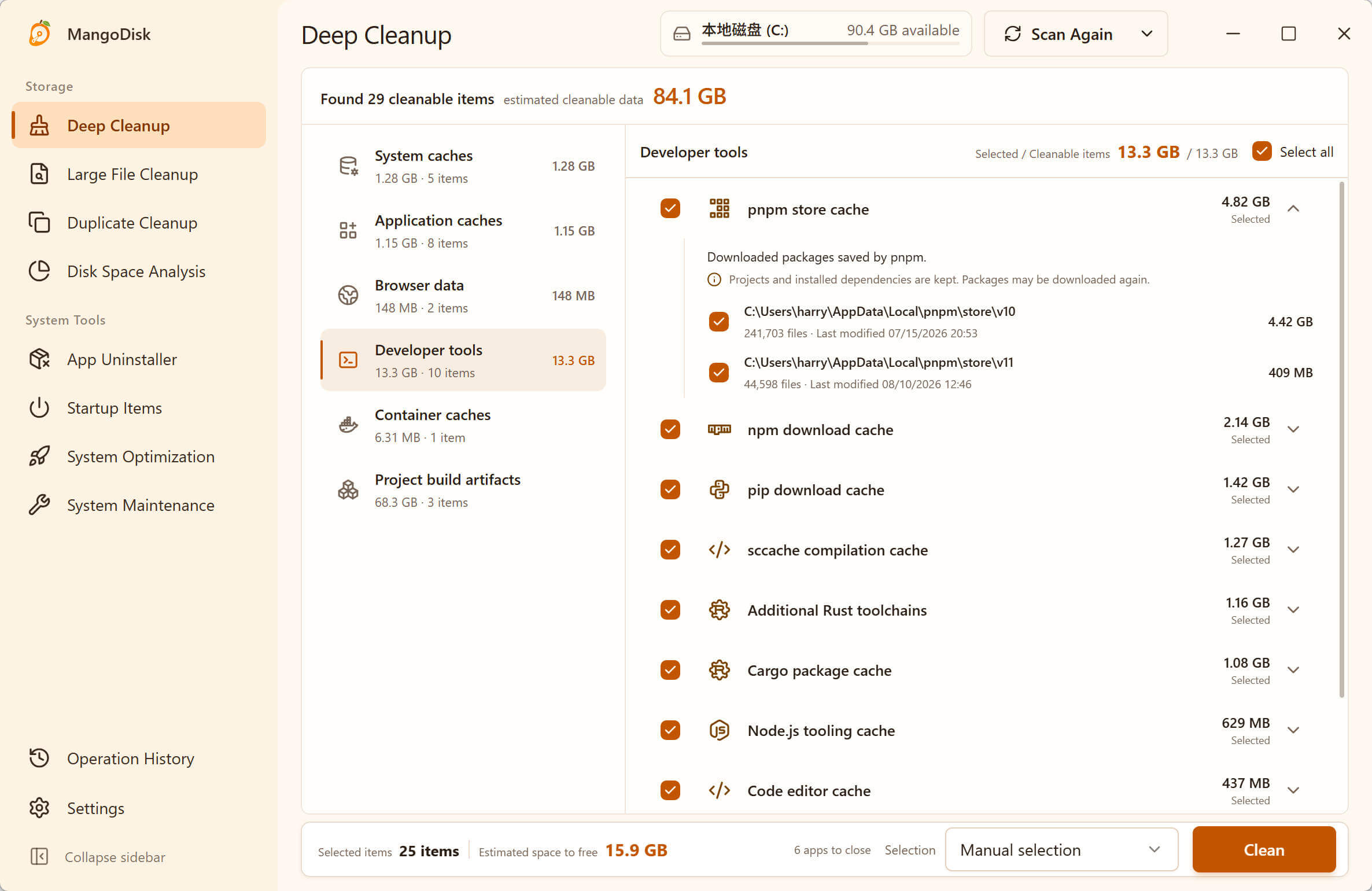
MangoDisk's Deep Cleanup checks supported system and app caches, temporary files, and app leftovers in one scan. You can compare sizes and paths without opening every app's settings or guessing your way through unfamiliar folders. Scanning doesn't delete anything; you review and confirm what to clean.
If those items are small, use Disk Space Analysis to look at the whole drive. Its folder list and treemap help you find where the space is going—perhaps a video folder, an old installer collection, or a game you no longer play.
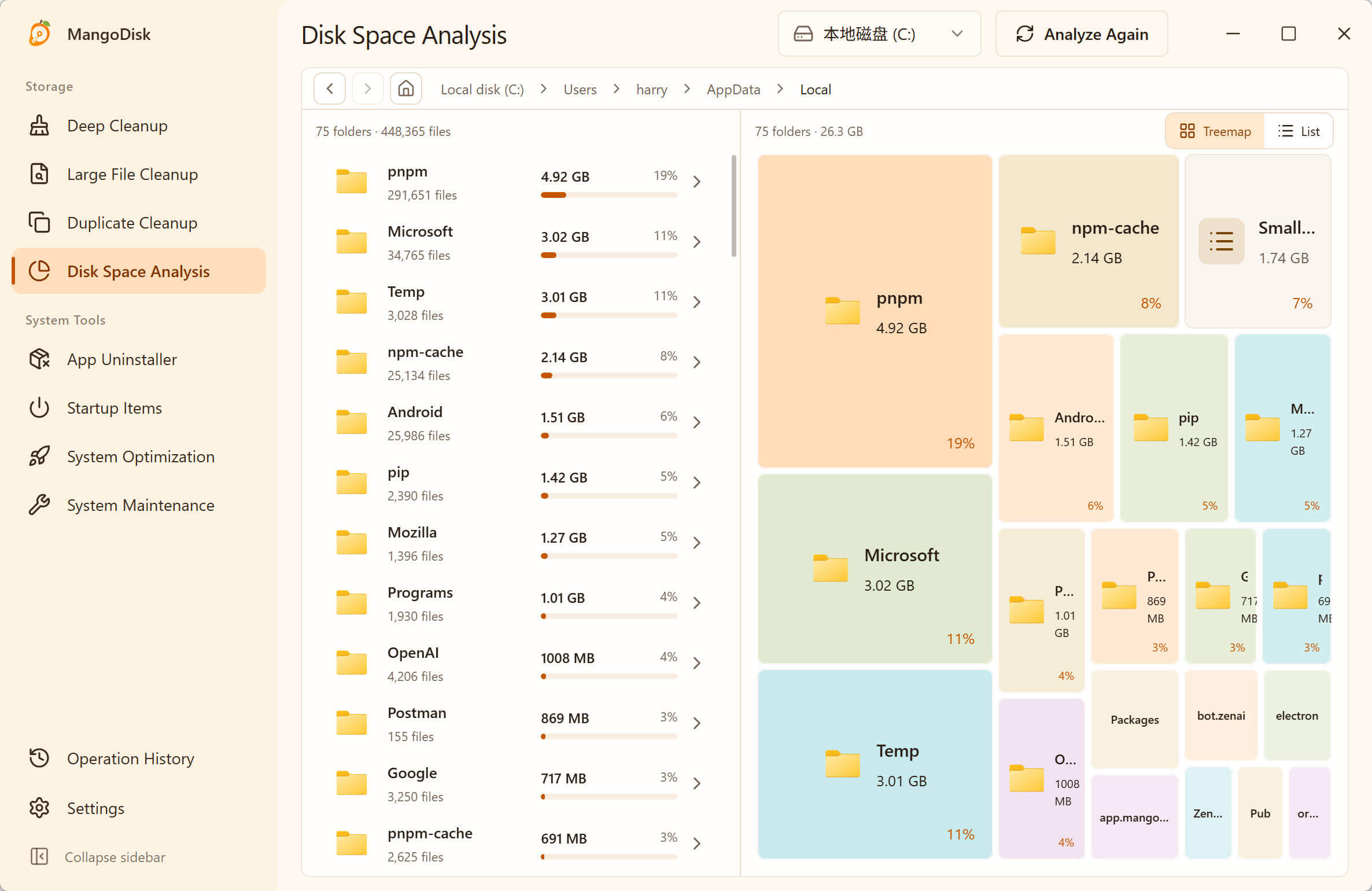
Deleting files from Disk Space Analysis is permanent and bypasses the Recycle Bin. Back up personal files first, uninstall games through their launcher, and leave Windows-managed files alone. The cleanup safety guide explains the boundaries.
MangoDisk's System Optimization also includes a setting to disable hibernation, with an explanation of its effect on hibernation and Fast Startup. Changing power settings is separate from clearing caches; don't enable every tweak just to save space. For removing the hibernation file in this guide, use the Windows command above.
Download MangoDisk to find other space worth reclaiming without hunting through folders. It's free and open source, with no signup or login required.
For more ways to inspect your drive, see how to find large files on Windows 11 and what to check when Disk Cleanup isn't enough.