
AppData Folder Too Large? What Can You Safely Delete?
Find what is making AppData so large, separate disposable caches from important app data, and safely reclaim C drive space with MangoDisk
If AppData has grown to tens of gigabytes and your C drive is running out of space, do not delete the entire folder. AppData can contain disposable caches, but it also holds app settings, sign-in data, chat history, game saves, local databases and files that may not exist anywhere else.
The fastest safe approach is to find the largest app folder first, then separate data that can be rebuilt from data you cannot replace. You recover the space that actually matters without breaking every app that uses the folder.
If you would rather not dig through layers of hidden directories, MangoDisk can analyze AppData or the whole C drive, then gather recognized caches and app leftovers for review. The scan stays on your PC, and nothing is removed until you choose it.
The short answer: clean inside AppData, never delete AppData itself
AppData is where Windows applications store data for your user account. Its default location is:
C:\Users\your-name\AppData
It normally contains three folders:
| Folder | What it often contains | How to treat it |
|---|---|---|
Local | App caches, logs, temporary files, machine-specific settings and downloads | The most likely to grow, but still not safe to empty as a whole; inspect the app and subfolder first |
Roaming | Preferences, extensions, account state and some user data | A careless deletion is more likely to reset an app or sign you out, so review it closely |
LocalLow | Data from games, browser components and apps running with restricted access | Do not delete it simply because the name is unfamiliar |
The useful cleanup targets are usually much narrower: one application's cache, old logs, crash reports, obsolete updater files or leftovers from software you already removed. The goal is not to make AppData empty. It is to recover the most space with the smallest possible deletion.
Why does AppData become so large?
A large AppData folder does not necessarily mean Windows is broken. More often, one application has been storing data there for months or years. Common causes include:
- browser and chat-app caches containing images, video and GPU data;
- downloaded assets and previews from game launchers, design tools and video editors;
- old installers or version files left behind after updates;
- caches, logs and settings from applications you uninstalled;
- logs, crash reports or temporary files that keep growing after an app failure;
- offline content, local databases, game saves and files you deliberately downloaded.
The last category needs particular care. A folder can be very large and still contain valuable user data. Size is a clue about where to investigate, not proof that something is safe to delete.
Stop guessing: find the largest folder first
Settings → System → Storage can show broad categories such as Installed apps, Temporary files and Other. It usually does not tell you which individual folder inside AppData is responsible for tens of gigabytes.
To inspect it manually:
- Press Windows + R, enter
%LOCALAPPDATA%, and openAppData\Local. - Run the dialog again with
%APPDATA%to openAppData\Roaming. - Check suspicious app or vendor folders for their size, recent activity and file types.
- Start with the largest folders. Do not risk unfamiliar data to recover a few megabytes.
File Explorer does not show every folder's total size in the list, so comparing a busy AppData directory quickly becomes tedious. Disk Space Analysis in MangoDisk can scan the entire C drive or focus on AppData. The largest rectangles represent the largest items, letting you drill into the folders that deserve attention first.
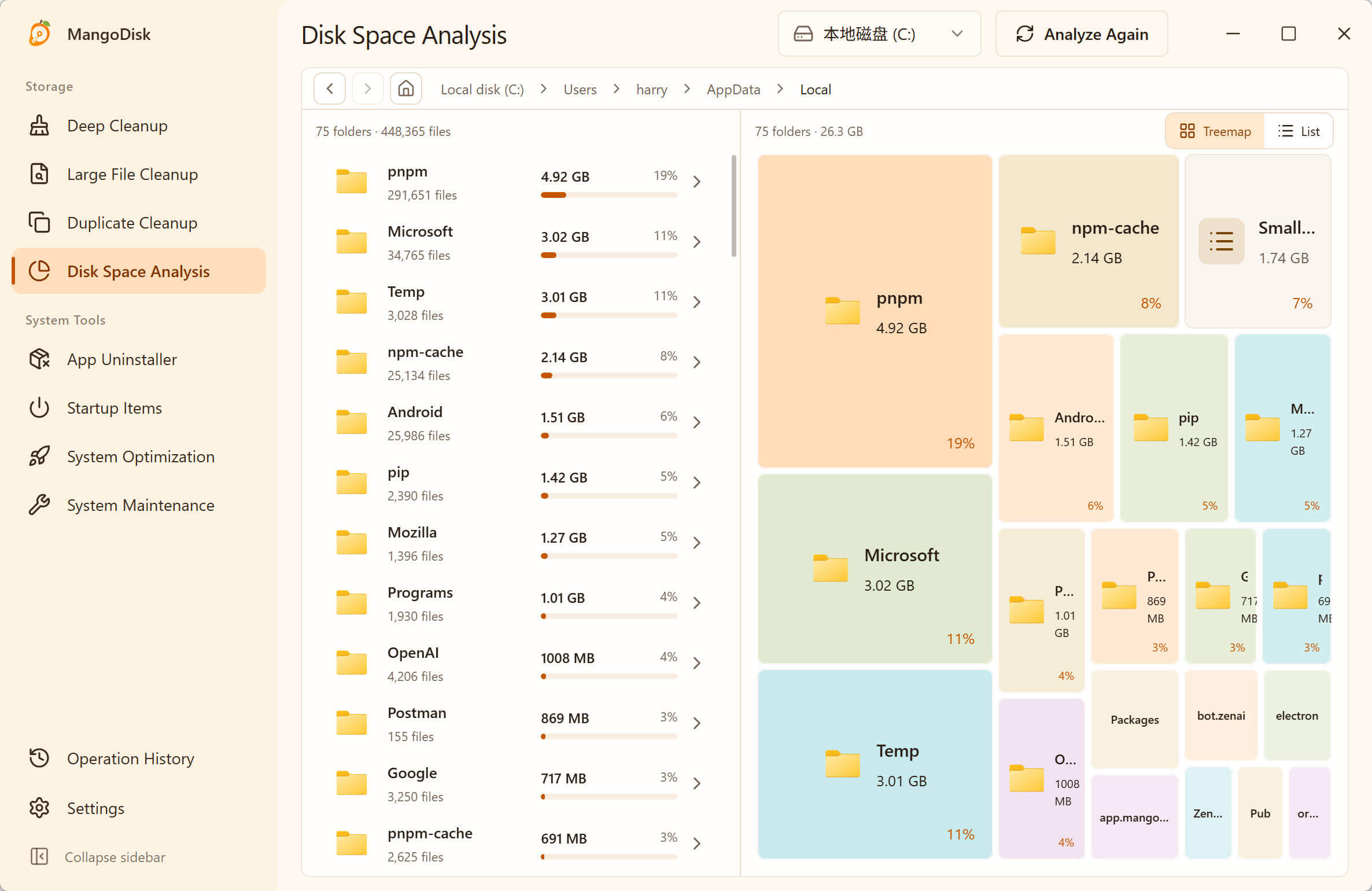
Use the treemap to locate the largest folder before deciding what it contains. A large rectangle is not, by itself, a recommendation to delete it.
This changes the task from “What can I wipe?” to “Which application is actually using my space?” Deletion from Disk Space Analysis is permanent and does not use the Recycle Bin, so back up anything important and read the MangoDisk safety guide first.
What can usually be removed from AppData?
Use the table to narrow the search, but confirm which application owns the path before deleting it.
| Content | Recommendation | What happens afterward |
|---|---|---|
App-specific folders clearly named Cache, Code Cache, GPUCache or thumbnails | Usually removable after closing the app | The app rebuilds them; its next launch or first load may be slower |
| Logs, crash reports and diagnostic files | Usually removable when you are no longer investigating a problem | Evidence from the earlier failure is lost |
Unlocked files inside Local\Temp | Usually removable after saving work and closing apps | Files still in use may fail to delete and should be skipped |
| A dedicated cache folder from an uninstalled app | Usually removable after confirming it contains no personal data | A reinstall will need to recreate or download the data |
| Preferences, extensions, templates and sign-in data | Back up first; do not remove casually | Settings may reset, extensions may disappear, or accounts may be signed out |
| Game saves, chat history, projects, local databases and offline files | Keep unless you are certain they are no longer needed | These may be irreplaceable user files |
All of Local, Roaming, LocalLow, or an entire vendor folder | Never delete in bulk | Multiple applications may break and user data may be lost |
If the large files are in CrashDumps, see which Windows crash dumps you can delete before removing them. App dumps and blue-screen dumps serve different purposes.
If you cannot identify a folder, leave it alone. A good AppData cleanup is not the one that deletes the most. It is the one that frees space while your applications and files still work afterward.
What MangoDisk adds beyond manual browsing
Windows Storage is the right first stop for system-managed temporary files. MangoDisk helps when the unexplained space is spread across application caches and leftovers inside AppData.
1. See where the space went before touching anything
Disk Space Analysis combines folder hierarchy with actual size. Scan AppData by itself and begin with the largest branch. Even if you delete nothing, you still leave with an answer instead of a guess.
2. Bring recognized caches into one review
Deep Cleanup matches specific cache, temporary and diagnostic locations. Results are separated into lower-risk items and items that need review. Being inside AppData does not automatically turn a folder into junk.
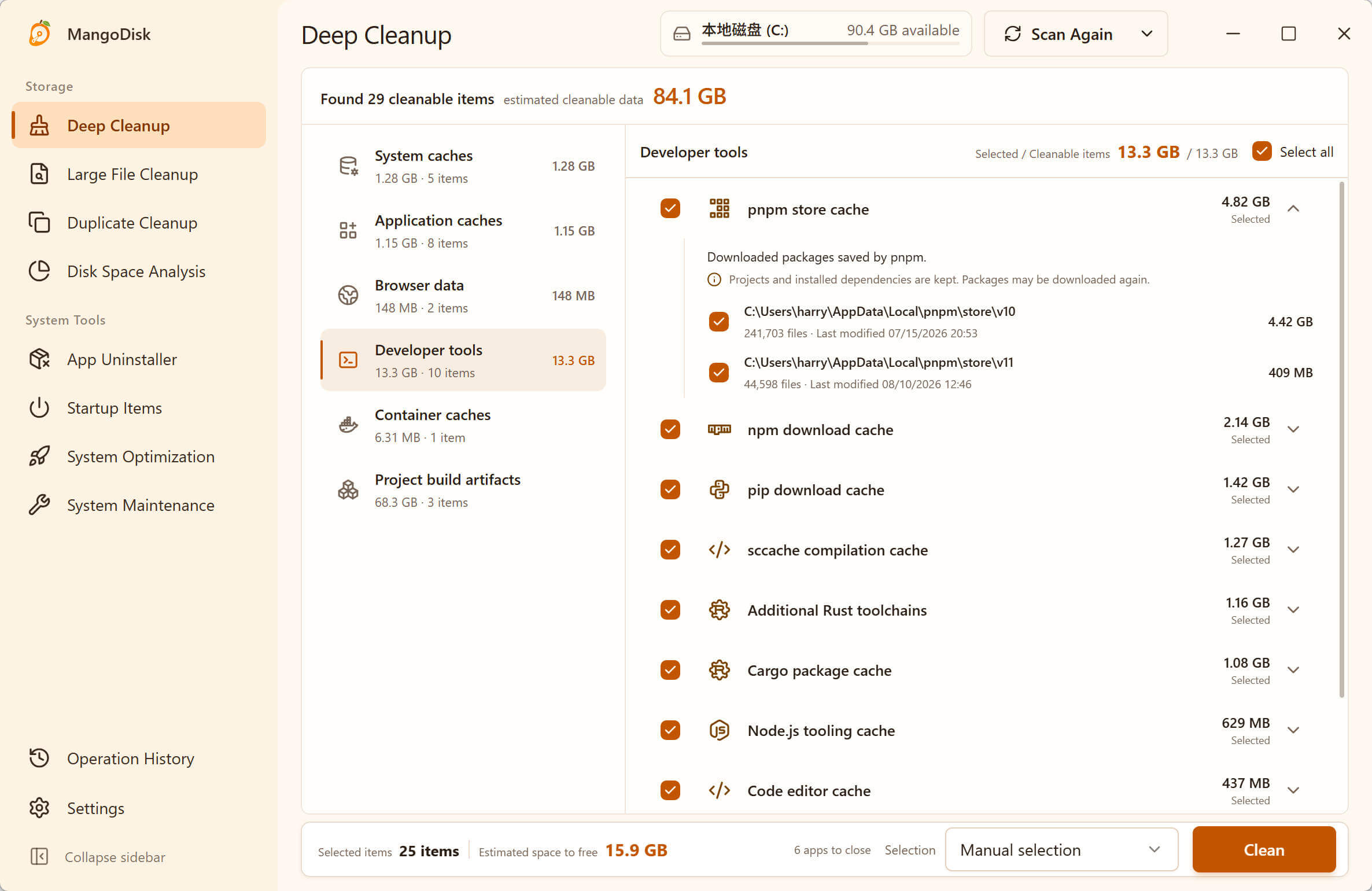
Deep Cleanup shows recognized caches together with their paths, sizes and risk levels before removal.
That distinction matters. A single application's directory can contain both rebuildable cache and unique user data. Searching for folders named “cache” does not tell you what else depends on them.
3. Review leftovers while uninstalling an app
If the largest folder belongs to software you no longer use, App Uninstaller shows the application and any related paths MangoDisk can identify. On Windows, it still prefers the system or vendor-provided uninstaller, then lets you review caches, settings and items that may contain user data separately.
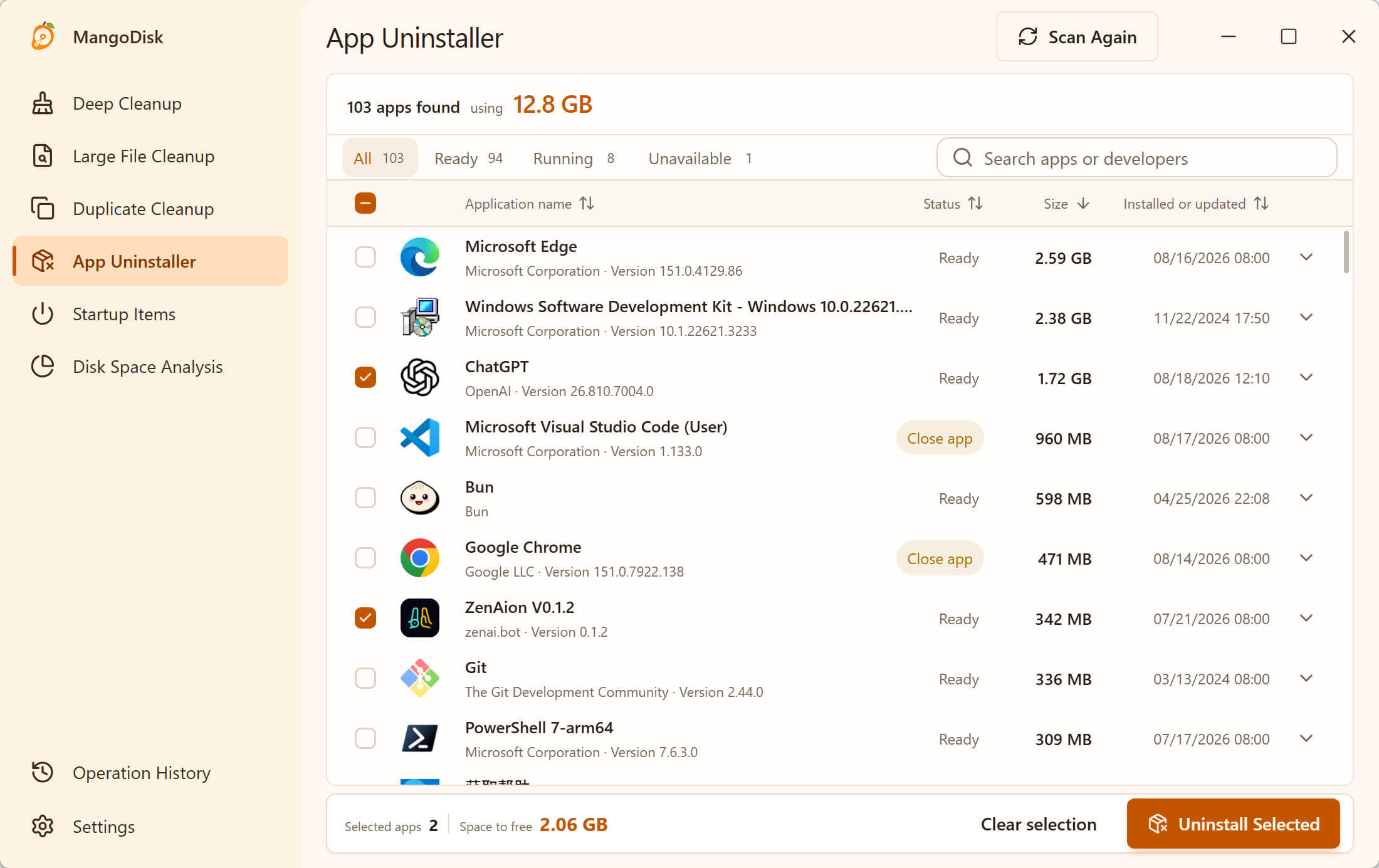
Sort unused applications by size, then review related caches and data that may be worth keeping.
4. Keep the final decision before the deletion
MangoDisk does not require an account. Your files and scan results stay on your PC, and AppData is not emptied after a scan. Expand a path, check the size and choose only what you understand. Unknown data should remain untouched.
If your goal is to get space back rather than memorize the AppData layout, download MangoDisk and use this sequence:
- Find the largest path with Disk Space Analysis.
- Use Deep Cleanup for caches MangoDisk recognizes.
- Remove unused software and review its leftovers with App Uninstaller.
A safe order for manual cleanup
Whichever tool you use, keep these checks in the process:
- Save your work and close the application and its background processes.
- Identify which app owns the folder instead of judging by its name alone.
- Look for projects, saves, chat history, offline files and local databases.
- Prefer a built-in Clear cache option when the application provides one.
- Clean one source at a time, then reopen the app and confirm it still works.
- Back up irreplaceable data. Do not delete anything you cannot identify or restore.
If a cache returns immediately and grows just as quickly, repeated deletion only buys a little time. Find the application that is writing to it and check its download, offline-content, logging or update settings.
Will clearing AppData make the PC faster?
The main benefit is reclaimed C drive space. When free space is critically low, Windows Update, application installs and temporary writes can all become harder. Restoring enough working room can make those tasks more reliable.
Clearing cache is not a permanent speed boost, however. Browsers, games and other apps rebuild the data they need, and the first launch may actually be slower. Remove abnormally large, obsolete or ownerless data instead of repeatedly wiping every cache.
Frequently asked questions
Can I delete the AppData folder?
No. AppData stores caches alongside preferences, sign-in information and user data. Only remove a specific subfolder after identifying its application and the consequence.
Can I empty AppData\Local\Temp?
After closing applications, you can remove temporary files that are no longer in use. Skip files that are locked, protected or unfamiliar rather than forcing permissions to empty the folder.
What should I do when AppData\Roaming is too large?
Find the largest application folder first, then determine whether it contains cache or preferences, extensions and user data. Roaming data generally deserves more care than an ordinary cache and should not be deleted in bulk.
Can I delete an AppData folder after uninstalling the app?
Yes, after confirming it belongs only to the uninstalled application and contains no settings, projects or saves you want to keep. A vendor folder may still be shared by other installed software.
Why did AppData grow again after cleanup?
Applications recreate caches as you use them. If one path grows unusually fast, inspect that application's downloads, offline files, logs and update settings instead of repeatedly emptying the same folder.
If Adobe's folders are taking up space, see how to clear Premiere media cache without deleting footage.
If Figma is taking up space, check its cache paths before clearing them, and keep unsynced design changes separate from disposable caches.
Official sources and related guides
- Microsoft Learn: Known folders and the default AppData paths
- Microsoft Support: Storage settings in Windows
- Microsoft Support: Free up drive space in Windows
- Related: C Drive Full on Windows 11? How to Free Up Space Safely
- Related: Windows 11 Temporary Files: What Is Safe to Delete?
- Related: How to Completely Uninstall Apps on Windows 11
Still hunting through hidden folders one by one? Download MangoDisk, map AppData first, and clean only the items you have reviewed.
Using Teams on this PC? See how to clear Teams cache without reinstalling, including what differs from resetting the app.
If Discord is taking up space in Roaming, see how to clear Discord cache on Windows without deleting its whole data folder.
For Spotify, separate playback cache from downloads and interface caches before deciding what to remove.