
How to Completely Uninstall Apps on Windows 11
See how MangoDisk improves app removal on Windows 11 by showing sizes, status and related files before you safely clean up leftovers
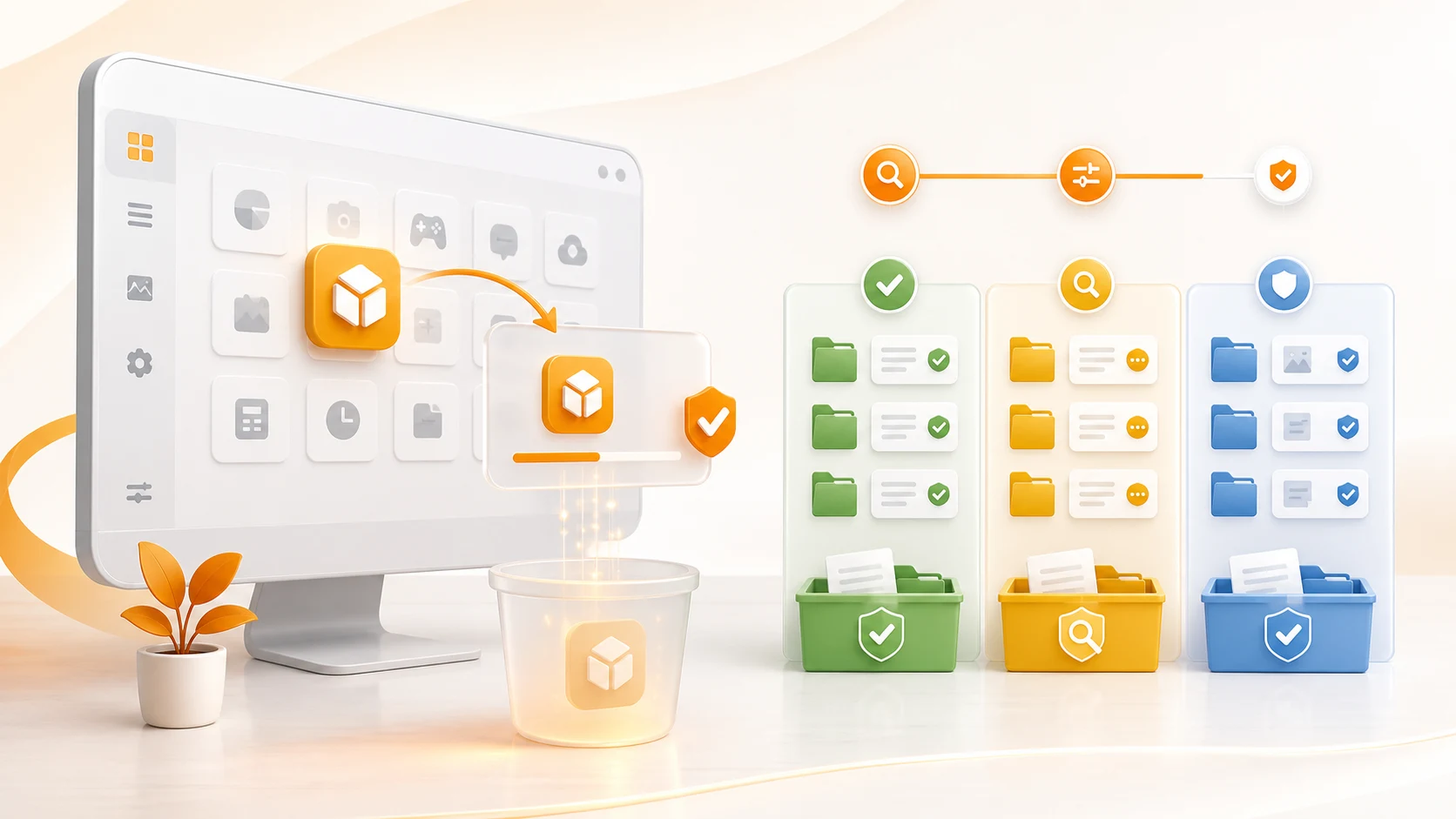
To completely uninstall an app on Windows 11, first use Settings → Apps → Installed apps or the app's own uninstaller. Only after that process finishes should you review files left behind. App-specific caches and logs are usually removable, but settings, projects, saved games and shared vendor folders may contain data you still need. Do not delete the whole AppData folder or clean the registry just to make an uninstall feel more complete.
What Windows uninstall does not show you
Windows Settings can launch the app's uninstaller, but its list does not bring the app's caches, settings and local data into the same review. Those files may remain after the app itself is gone.
| Before uninstalling | Windows Settings | MangoDisk |
|---|---|---|
| Find space-heavy apps | Shows an app size when Windows has one | Shows total detected app storage and sorts by size, status, name or date |
| Know whether removal can start | Offers the uninstall action | Separates ready, running, administrator-required and unavailable apps |
| See related files | Does not group them with the uninstall entry | Shows identified caches, logs, settings and local data by actual path |
| Judge what to keep | Leaves this to the app's own screens | Marks items as required, rebuildable or possibly containing user data |
| Plan a larger cleanup | Handles apps individually | Supports multiple selections and shows the combined estimated space to free |
MangoDisk's advantage is not a different, more aggressive uninstaller. It keeps the proper Windows or publisher-provided removal method, while adding the storage context that is usually missing before you make a decision.
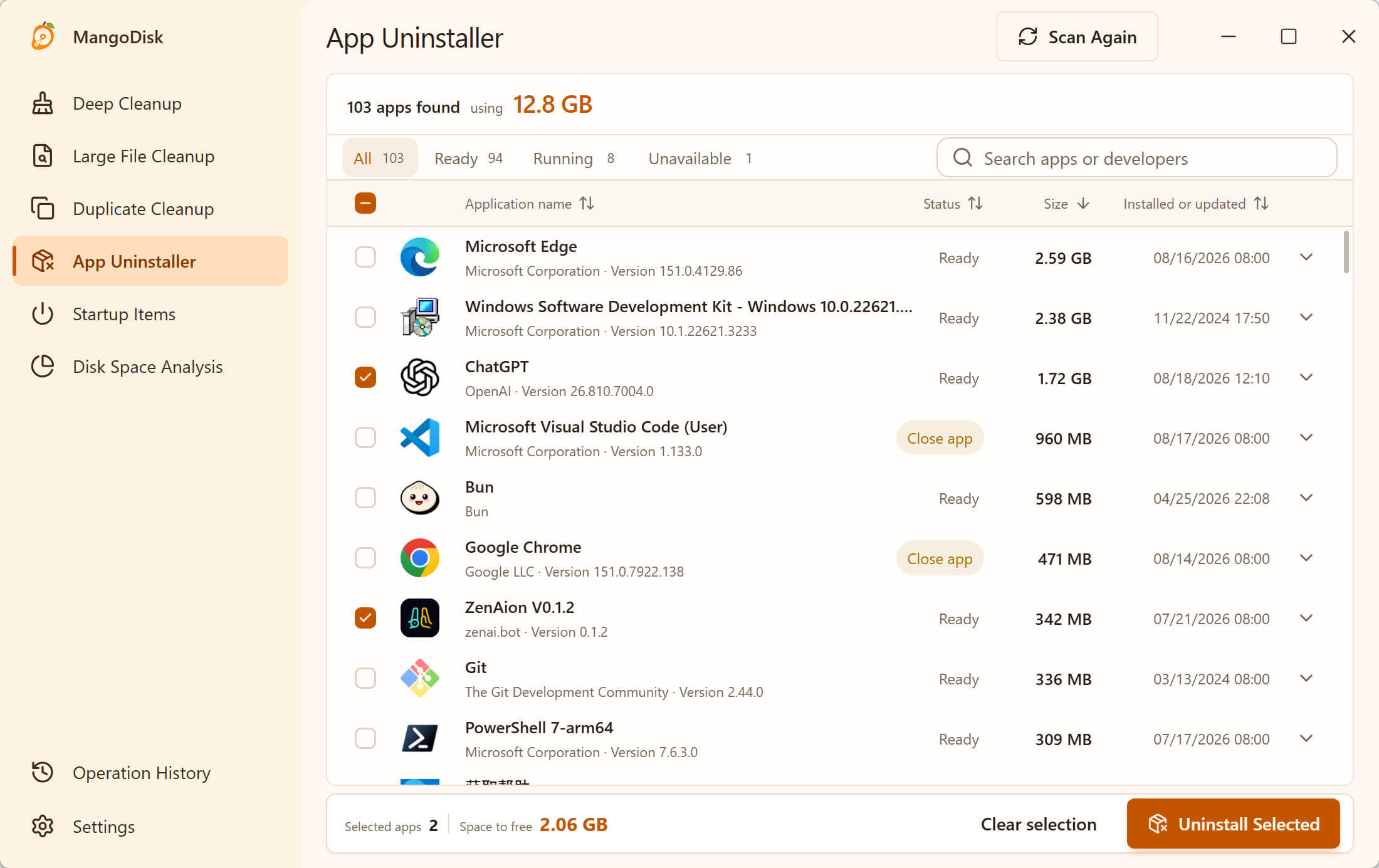
When MangoDisk can identify related paths, you can remove a rebuildable cache, keep settings for a future reinstall, and leave shared user data untouched instead of treating every leftover the same. The displayed size is an estimate, and folders that may be shared by several apps are shown for review rather than removed automatically. Download MangoDisk to review the app and its related files before uninstalling it.
For details about the review labels and confirmation flow, read the App Uninstaller guide and MangoDisk safety guide.
What does a “complete uninstall” actually remove?
An installed program is rarely a single folder. It may include:
- the application files under
Program Files; - a Windows Installer or publisher-provided uninstall record;
- caches and logs under your user profile;
- preferences, plug-ins, templates or downloaded content;
- documents, projects, game saves or other personal data;
- components shared with other apps from the same publisher.
The normal uninstaller should remove the program and the components it owns. It may intentionally preserve settings or personal files so they are available if you reinstall. A leftover folder is therefore not automatically junk.
A safe complete uninstall has two separate stages: run the supported uninstaller, then identify the remaining data before deleting anything else.
Before uninstalling: save anything you may need
Close the app and save your work first. If the app stores valuable data locally, check whether you need to export or back up:
- projects, documents and saved games;
- custom templates, presets, brushes or plug-ins;
- account profiles, local mail or chat history;
- license files and activation information;
- settings you want to restore after reinstalling.
Do not assume all user data is stored in Documents. Many apps keep it under AppData, inside a vendor folder, or in a custom location chosen during setup.
Step 1: uninstall the app through Windows
The primary Windows 11 method is:
- Open Start → Settings → Apps → Installed apps.
- Find the app, select the three-dot menu, then choose Uninstall.
- Follow the app's confirmation screens and allow administrator access if you trust the app and Windows requests it.
- Restart the PC if the uninstaller asks you to.
Microsoft also documents two alternatives: right-click an app under Start → All apps, or open Control Panel → Programs → Programs and Features. Some traditional desktop programs can only be removed from Control Panel or by their own uninstaller.
Avoid deleting the application's folder before running its uninstaller. Doing so can leave services, scheduled tasks, shortcuts and uninstall records behind while also removing the files needed to complete the uninstall.
Step 2: check how much space was actually freed
After the uninstall and any requested restart, check Settings → System → Storage. If you removed the app mainly to recover disk space, compare the free space rather than assuming every related file disappeared.
Large games and creative tools may keep downloaded content, project files or shared libraries. If the expected space did not return, use a disk space view to locate the large directory before deleting it. The Windows 11 C drive cleanup guide explains how to check the main storage categories.
Step 3: review leftover files without deleting blindly
App leftovers commonly appear in these locations:
| Location | What may be stored there | How to treat it |
|---|---|---|
%LOCALAPPDATA% | Caches, logs, local settings and downloaded content | Remove only an app-specific folder whose contents you understand |
%APPDATA% | Roaming settings, profiles, plug-in data and account state | Back up settings or profiles you may want after reinstalling |
%PROGRAMDATA% | Data shared by users or several related apps | Be cautious; a vendor folder may still be in use |
C:\Program Files and C:\Program Files (x86) | Application files and shared components | Do not remove a publisher folder if other installed apps use it |
| Documents, Saved Games and custom folders | Projects, exports, saves and personal files | Treat as personal data, not uninstall residue |
Press Windows + R, enter one of the %...% paths above, and select OK to open it. Search for the exact app or publisher name, then inspect the folder contents and modified dates.
The folder name alone is not enough. A publisher directory may contain data for several products, and a folder named after an uninstalled app may hold the only copy of a project or game save.
What can you safely delete after uninstalling?
Use the following table as a decision guide, not as permission to remove every matching item.
| Leftover item | Recommendation | Reason |
|---|---|---|
| Empty folder named only for the removed app | Usually safe | It contains no remaining data |
| App-specific cache or thumbnail folder | Usually safe after confirming the app is gone | The removed app no longer needs rebuildable cache data |
| App-specific logs and crash reports | Usually safe if you are not troubleshooting | They are diagnostic records, not the program itself |
| Old shortcut that no longer opens anything | Usually safe | It only points to a missing target |
| Preferences and configuration | Review or back up first | They can save setup time after reinstalling |
| Plug-ins, presets, templates or downloaded models | Review carefully | They may have been installed or created separately |
| Projects, saves, local databases and offline files | Keep unless you deliberately want to erase them | These are user data and may not be recoverable |
| Publisher folder shared by several apps | Keep until every dependent app is identified | Deleting it can damage software that remains installed |
| Unknown system files, services or registry entries | Do not delete manually | Ownership and dependencies are difficult to verify by name |
If you are unsure, leave the folder in place or move a backup copy to another drive before making an irreversible change. A few megabytes of uncertain data are not worth losing a project or breaking another app.
Should you clean the Windows registry after uninstalling?
Usually, no. Small obsolete registry entries do not meaningfully consume disk space, and deleting the wrong key can affect another application or Windows feature.
If a broken installer or uninstall record is the problem, use Microsoft's troubleshooting steps instead of a generic registry cleaner. Microsoft's install and uninstall guidance covers incomplete uninstall data and corrupted installer-related registry keys.
Manually editing the registry is only appropriate when a software publisher or Microsoft provides exact instructions for that specific problem and you have a backup.
What if the app will not uninstall?
Try these steps in order:
- Close the app and its background processes, then restart Windows.
- Try Settings, Control Panel, or the publisher's uninstaller.
- If you only need to fix the app, check whether Advanced options → Repair is available before uninstalling. Microsoft notes that not every desktop app supports repair or reset.
- Reinstall the same version from the official publisher, then run its uninstaller again. This can restore missing uninstall files.
- Follow Microsoft's installation and removal troubleshooting guide or contact the publisher.
Do not force-delete the program directory as the first response. It can make a repair or clean uninstall harder.
Frequently asked questions
Why are files left behind after I uninstall an app?
Many uninstallers preserve preferences, logs, saves or downloaded data on purpose. Some folders are also shared with other apps from the same publisher. Leftovers are not proof that the uninstall failed.
Can I delete an app's folder from AppData after uninstalling it?
Only after confirming that the folder belongs exclusively to the removed app and does not contain data you want to keep. Never delete the whole AppData folder. Back up settings, projects, saves and profiles first.
Can I delete a leftover folder from Program Files?
An empty folder named only for the removed app is usually safe. A publisher folder, driver component or shared runtime may still be required by other software, so identify its contents before deleting it.
Will uninstalling an app free all of the space it used?
Not always. Personal files, downloaded content, shared libraries and caches may remain. Check Storage or a disk space analyzer to find what still occupies the drive rather than deleting folders by name.
Why does an uninstalled app still appear in Installed apps?
Its uninstall record may be incomplete or damaged. Restart first, then use the publisher's installer or Microsoft's troubleshooting guidance. Deleting more files will not repair the registration.
Do I need a registry cleaner after uninstalling software?
No for normal cleanup. Registry remnants use negligible disk space, while an incorrect deletion can cause real problems. Use a targeted official fix only when an uninstall record is broken.
Official sources and related guides
- Microsoft Support: Uninstall or remove apps and programs in Windows
- Microsoft Support: Fix problems that block programs from being installed or removed
- Microsoft Support: Repair apps and programs in Windows
- Related: C Drive Full on Windows 11? How to Free Up Space Safely
- Related: Windows 11 Temporary Files: What Is Safe to Delete?
- Related: Clear recent files and browsing history on Windows 11
Want to see an app's related files before making a decision? Download MangoDisk to scan locally, review the paths and choose what should be kept.