
C Drive Full on Windows 11? How to Free Up Space Safely
Find what is filling your Windows 11 C drive, safely remove temporary files and unused apps, and avoid deleting system files your PC needs
If your Windows 11 C drive is full, start with Settings → System → Storage. Check which category is actually large, then review Cleanup recommendations, temporary files, installed apps and your Downloads folder. Do not begin by deleting unfamiliar folders under C:\Windows, Program Files, ProgramData or AppData.
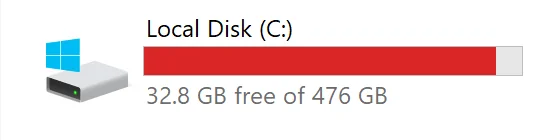
Why is the C drive suddenly full?
The C drive normally contains Windows, installed applications, user profiles and many apps' working data. It can fill up even when you have not deliberately saved anything large to the root of C:.
Common causes include:
- large games and applications installed on C:;
- videos, archives and installers left in Downloads, Desktop or Documents;
- temporary files and files left from Windows Update;
- local copies of OneDrive or other cloud files;
- app data under your user profile, including browser caches and creative-app projects;
- virtual machines, game libraries or development tools grouped under Other;
- previous Windows installation files after an upgrade;
- a temporary folder that keeps growing because an app or Microsoft Store process is failing.
Low disk space can make Windows updates harder to install and may affect normal system operation. The goal is not to make every category as small as possible. It is to recover enough working space without removing files Windows or your applications still need.
Step 1: check what is using the C drive
Open Start → Settings → System → Storage. Windows divides the used space into categories such as Installed apps, Temporary files, System & reserved, Documents and Other.
Select Show more categories if the first few rows do not explain the total. A large System & reserved category is not automatically a cleanup target: it can include Windows itself, reserved storage, virtual memory and other system-managed data.
Before moving on, note the two or three largest categories. This prevents spending time clearing tiny caches while a forgotten game, video folder or virtual-machine image occupies most of the drive.
Step 2: review Cleanup recommendations and temporary files
Go to Settings → System → Storage → Cleanup recommendations. Windows can suggest temporary files, large or unused files, cloud-synced files and apps you rarely use.
Review each item instead of selecting everything at once:
- Recycle Bin: usually safe after checking that it contains nothing you need;
- Temporary files: many are disposable, but read every checkbox;
- Downloads: personal files may be included, so do not treat this as a cache;
- Previous Windows installation(s): removable if you no longer need to return to the previous Windows version;
- Large or unused files: verify the filename and location before deletion;
- Unused apps: uninstall them through Settings rather than deleting their folders.
Deleting Previous Windows installation(s) removes Windows.old. Microsoft warns that this cannot be undone and you will no longer be able to roll back to the previous Windows version. If the upgrade is recent or the PC is unstable, keep it until you are confident you will not need the rollback.
Step 3: uninstall large apps and games properly
Open Settings → Apps → Installed apps, sort by size, and review software you no longer use. Games, creative suites, offline maps and multiple versions of the same tool can consume far more space than temporary files.
Use the app's Uninstall action. Do not free space by deleting a folder from C:\Program Files or C:\Program Files (x86): that can leave services, shortcuts, registry entries and supporting data behind while breaking the installation.
Some launchers let you move a game library to another drive. If you have a second internal drive, moving a supported library is safer than manually dragging its folders in File Explorer.
Step 4: check Downloads and personal files
Open File Explorer and review Downloads, Desktop, Videos, Documents and any folder where you save screen recordings or exported projects. Sort by size and look for:
- old installers and ZIP archives;
- duplicate exports;
- finished video projects and recordings;
- disk images and virtual-machine files;
- game captures;
- files already backed up elsewhere.
Move files you still need to another disk or verified backup. Do not delete the only copy of a personal file simply because it is large.
For OneDrive files, right-click a file or folder and choose Free up space to keep the cloud copy while making the local copy online-only. The file will require an internet connection the next time you open it. Do not choose this for files you must always have offline.
Step 5: configure Storage Sense without surprising yourself
Storage Sense can remove unnecessary temporary files and items that have been in the Recycle Bin for a chosen period. Microsoft says the default settings do not touch Downloads or cloud content unless you configure those options.
Open Settings → System → Storage → Storage Sense, then check:
- when Storage Sense should run;
- how long Recycle Bin items should be kept;
- whether Downloads should ever be cleaned automatically;
- when inactive cloud files may become online-only.
If you use Downloads as a permanent filing area, leave its automatic cleanup disabled. Storage Sense works on the system drive, normally C:, so other drives still need to be reviewed separately.
When Windows categories do not explain the total
The Other category can be frustrating because it may combine unrelated folders. A disk-space analyzer shows which paths are actually large without asking you to open every folder manually.
In the example below, MangoDisk found 159 GB across 13 top-level folders. The Users folder occupied 108 GB, while Program Files used 21.0 GB and Windows used 11.0 GB. The result points to the user profile as the first place to investigate without suggesting that system folders should be deleted.
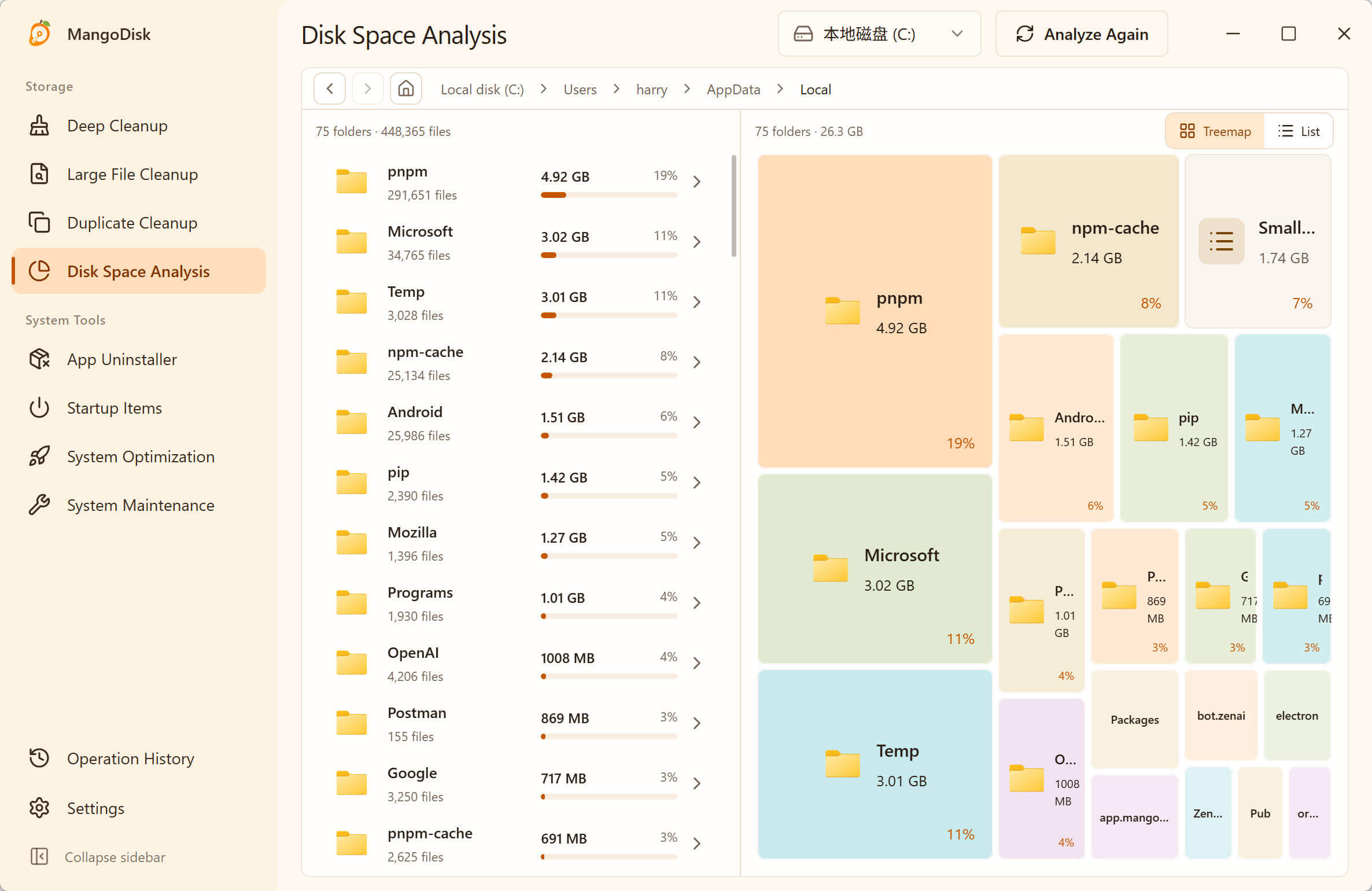
A treemap makes unusually large folders visible. It is an investigation view, not a recommendation to delete every large block.
When you find a large folder, ask three questions before deleting anything:
- Which application or user created it?
- Is it personal data, reproducible cache, or a required system component?
- Is there a supported cleanup, uninstall or move action inside the owning app?
What can you safely delete from the C drive?
| Usually safe after review | Confirm the consequence first | Do not delete manually |
|---|---|---|
| Recycle Bin contents you no longer need | Downloads and personal files | C:\Windows and System32 |
| Temporary files selected individually in Settings | Windows.old and previous installations | C:\Windows\WinSxS |
| Old installers and archives you recognize | Local copies of cloud files | Program Files and Program Files (x86) folders |
| Apps removed through Windows uninstall | Large app data, game libraries and virtual machines | Unknown folders in ProgramData or AppData |
| Files already verified in another backup | Restore points and system protection data | pagefile.sys, hiberfil.sys and other protected system files |
In particular, never manually empty WinSxS. Microsoft warns that deleting files from this component store can severely damage Windows, prevent the PC from booting and make updates impossible. Let Windows maintain it, or use supported system tools if an advanced repair guide specifically requires them.
Why does the C drive fill up again after cleanup?
If the free space disappears quickly, do not repeat the same deletion blindly. Check what changed:
- Windows or a large app may be downloading an update;
- a browser, editor or game may be rebuilding its cache;
- OneDrive may be downloading files marked Always keep on this device;
- screen recording or backup software may be writing to C:;
- the Temp folder may be filling repeatedly because an app process is stuck;
- an app may have recreated data that was deleted outside its own settings.
Compare the Storage categories again after a restart. If the same folder keeps growing, investigate the application that owns it rather than deleting the folder on a schedule.
Use MangoDisk when you need a clearer map
If Windows' categories still do not explain the total, MangoDisk can scan the C drive locally and show folders as both a list and a treemap. You can inspect the path and size before deciding what to remove; the scan itself does not automatically delete the large files it finds.
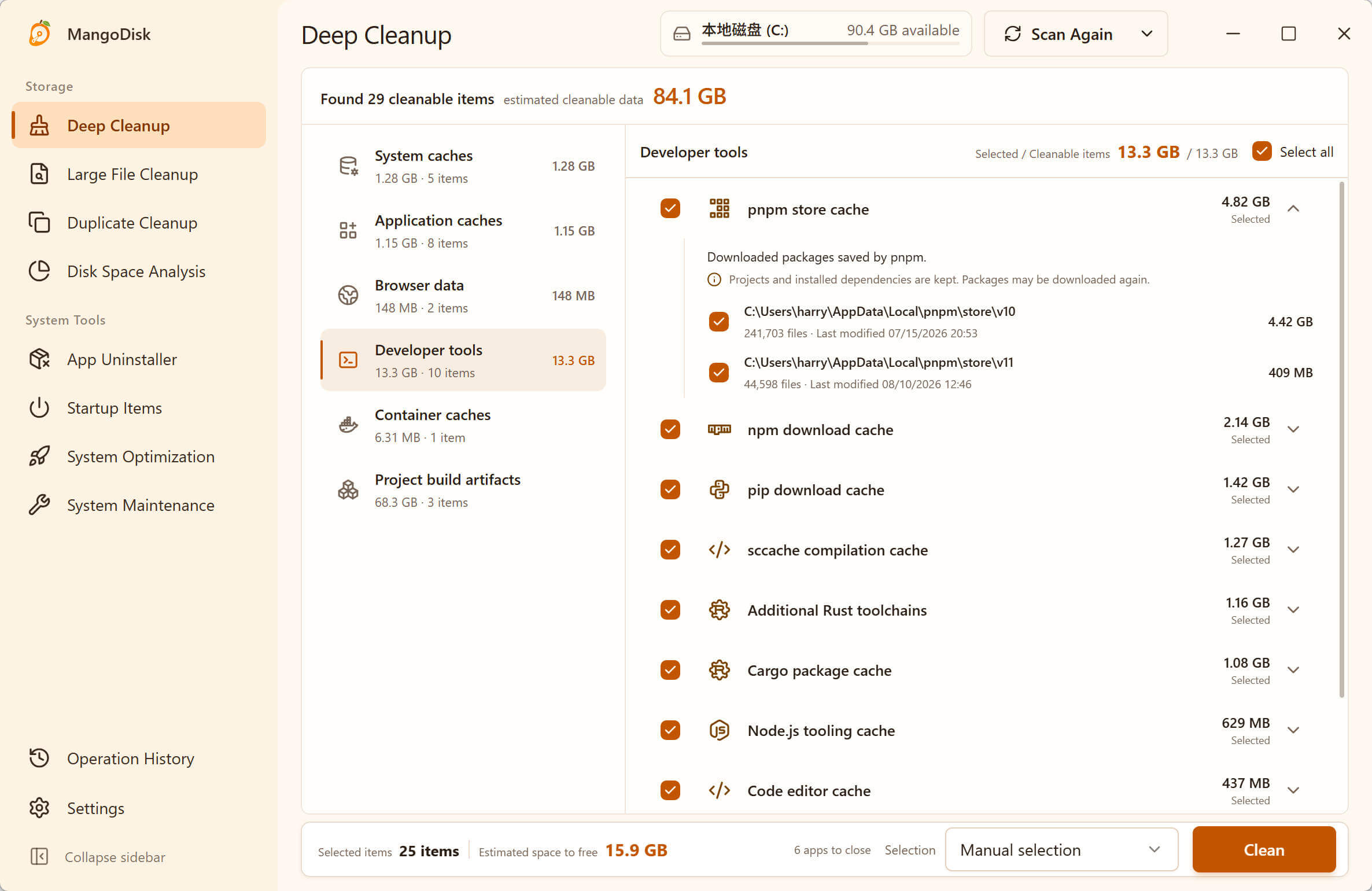
Deep Cleanup shows the detected items and estimated reclaimable space before removal. Review the selection and expand any item you do not recognize instead of treating the estimate as a guaranteed result.
Start with Disk Space Analysis, use Large Files to review individual files, or open Deep Cleanup for caches and other detected cleanup items. Deleting from the analysis and large-file views is permanent, so read the MangoDisk safety guide and keep a backup of anything important.
Frequently asked questions
Can I delete Windows.old?
Yes, if you no longer need to return to the previous Windows version. Remove it through Temporary files or Cleanup recommendations, not by forcing the folder out in File Explorer. The rollback option cannot be restored after deletion.
Can I delete the WinSxS folder?
No. Do not manually delete files from C:\Windows\WinSxS. Windows uses the component store for servicing, recovery and updates. Use Windows' built-in maintenance only.
Is Storage Sense safe?
Its default behavior is conservative, but your configuration matters. Review the retention periods for Recycle Bin, Downloads and cloud content before enabling automation.
How much free space should the C drive have?
There is no single percentage that fits every PC. Windows considers the drive size and operational thresholds when showing a low-space state. Keep enough room for your normal work and upcoming updates, and act before the storage bar turns red.
Will cleaning the C drive make the PC faster?
It can help when very low storage is interfering with updates, temporary files or normal operation. It is not a guaranteed performance upgrade, and deleting system files can make the PC less reliable rather than faster.
Official sources and related guides
- Microsoft Support: Free up drive space in Windows
- Microsoft Support: Storage settings in Windows
- Microsoft Support: Manage drive space with Storage Sense
- Microsoft Support: Save disk space with OneDrive Files On-Demand
- Microsoft Learn: Clean Up the WinSxS Folder
- Related: Windows 11 Temporary Files: What Is Safe to Delete?
- Related: Mac System Data Too Large? How to Reduce It Safely
For the trade-off between freeing space and recompiling shaders, see when to delete DirectX Shader Cache.
If WeChat is taking up a large part of that space, see how to clear WeChat caches while keeping chat files separate.