
Windows 11 Temporary Files: What Is Safe to Delete?
Learn which Windows 11 temporary files are safe to remove, which entries need review, and what changes after cleanup

Most entries under Settings → System → Storage → Temporary files can be removed, but you should not select everything without reading it. Temporary files, thumbnails, Delivery Optimization files and DirectX shader cache are usually safe to clear. Review Downloads, Recycle Bin, previous Windows installations, driver packages and diagnostic files first because they may contain personal files or remove a rollback and troubleshooting option.
What does “Temporary files” mean in Windows 11?
The Temporary files page is not a view of one folder. Windows groups several kinds of removable content there, including caches, update leftovers, diagnostic reports and—in some configurations—personal files from Downloads or Recycle Bin.
That distinction matters. A cache can normally be recreated. A file in Downloads may be the only copy of a document. A previous Windows installation is removable, but deleting it also removes the option to return to that version of Windows.
The amount and categories shown vary by PC. Read the description under each entry instead of treating the page as a single “junk files” switch.
Which temporary files are safe to delete?
| Windows category | Recommendation | What changes after deletion |
|---|---|---|
| Temporary files | Usually safe after closing active apps | Apps recreate files they still need; files currently in use may be skipped |
| Thumbnails | Usually safe | File Explorer rebuilds previews, so image folders may open more slowly at first |
| DirectX Shader Cache | Usually safe | Games and graphics apps rebuild shaders; the next launch may stutter or take longer |
| Delivery Optimization Files | Usually safe | Windows can download update content again if it is needed |
| Windows Update Cleanup | Usually safe after the update is working normally | Superseded update files are removed; keep diagnostic data while investigating an update problem |
| Microsoft Defender Antivirus files | Usually safe when offered by Windows | Temporary data that Defender no longer needs is removed; protection continues to work |
| Windows error reports and memory dumps | Safe if you are not diagnosing a crash | Debugging evidence for earlier failures is removed |
| Recycle Bin | Review every item | Files are permanently removed from the Recycle Bin |
| Downloads | Review every item | Personal installers, documents, archives and other downloads are permanently deleted |
| Previous Windows installation(s) | Delete only when you no longer need to go back | Windows.old is removed and rollback to the previous Windows version is no longer available |
| Device driver packages | Keep while testing a recent driver change | Removing older packages may reduce your driver rollback options |
| Windows upgrade log files | Keep while troubleshooting an upgrade | Upgrade diagnostics are removed |
“Usually safe” does not mean “always worth deleting.” If a cache is small and the app is working normally, clearing it may only make Windows or the app rebuild the same data.
How to delete temporary files with Windows Settings
- Save your work and close games, browsers, creative apps and installers.
- Open Start → Settings → System → Storage.
- Select Temporary files and wait for Windows to finish calculating the categories.
- Expand or read every item you plan to select. Pay special attention to Downloads, Recycle Bin and Previous Windows installation(s).
- Select only the categories whose effect you understand, then choose Remove files.
- Return to the Storage page and check the available space again.
If Temporary files shows little space but the C drive is still full, do not keep clearing the same categories. Use the storage overview to see whether installed apps, personal files or another directory is the real cause. The Windows 11 C drive cleanup guide explains that broader check.
What happens after you clear a cache?
Removing a cache frees its current disk space; it does not stop Windows or an app from creating the cache again.
- Thumbnail cache: File Explorer recreates previews as you browse folders.
- DirectX and graphics caches: Games rebuild shaders as needed. The first launch or first visit to an area may be less smooth.
- Delivery Optimization files: Windows Update can download required content again.
- Browser and app caches: Pages or apps may load more slowly once, then return to normal as the cache fills.
- Error reports and dump files: Normal use is unaffected, but the files will no longer be available for crash analysis.
This is why repeatedly clearing every cache is not useful routine maintenance. Clean when you need space, a cache is unusually large, or you are fixing a specific problem.
Be careful with these similarly named locations
Windows contains folders that look temporary or old but should not be emptied manually:
- do not delete the contents of
C:\Windows\WinSxSby hand; - do not clear
C:\Windows\SoftwareDistributionwhile Windows Update is running or based on a generic cleanup tip; - do not treat all of
AppDataas cache—many apps store profiles, messages, projects and settings there; - do not manually remove
pagefile.sys,hiberfil.sysor other protected system files; - do not delete an unfamiliar folder just because its name contains “temp” or “cache.”
Use Windows Settings, the app's own cleanup option, or a rule that targets a verified cache location. If you cannot explain what creates a folder, leave it alone until you identify it.
Should you enable Storage Sense?
Storage Sense is useful for conservative automatic cleanup. With its default behavior, Windows removes unnecessary temporary files and can delete older Recycle Bin items. Downloads and cloud content are not managed unless you configure them.
Before enabling it, check:
- how often Storage Sense should run;
- how long files should remain in Recycle Bin;
- whether Downloads should ever be cleaned automatically;
- when locally available cloud files may become online-only.
Storage Sense primarily manages the system drive, normally C:. It does not replace reviewing other drives or identifying an app that continuously produces data.
What if temporary files will not delete?
A file may be open, an update may still be running, or the size shown by Settings may be stale. Try these steps in order:
- close the app most likely to be using the files;
- restart Windows and run Temporary files again;
- finish any pending Windows or app update;
- recheck the category size after Windows recalculates storage;
- if the Temp folder quickly fills with Microsoft Store
.appxfiles, follow Microsoft's steps to reset the Store, runwsreset.exe, and use the Windows Update troubleshooter.
Do not use an administrator command to force-delete an entire system folder. A folder that fills up again is evidence of an active process or failed update, not proof that Windows needs a more aggressive deletion command.
Review more Windows caches with MangoDisk
Windows Settings is the best first stop for system-managed cleanup. Application, browser and tool caches can still be spread across many locations, especially under the current user's profile.
MangoDisk uses specific, reviewed rules instead of treating every file under AppData as disposable. For example, its Windows rules:
- keep files from the Windows-designated user temporary directory when they were modified within the last three days;
- target explicitly named DirectX, NVIDIA, AMD and Intel shader-cache directories rather than driver packages;
- match only Windows thumbnail and icon cache databases in the Explorer cache directory;
- separate low-risk caches from downloads and other items that need review.
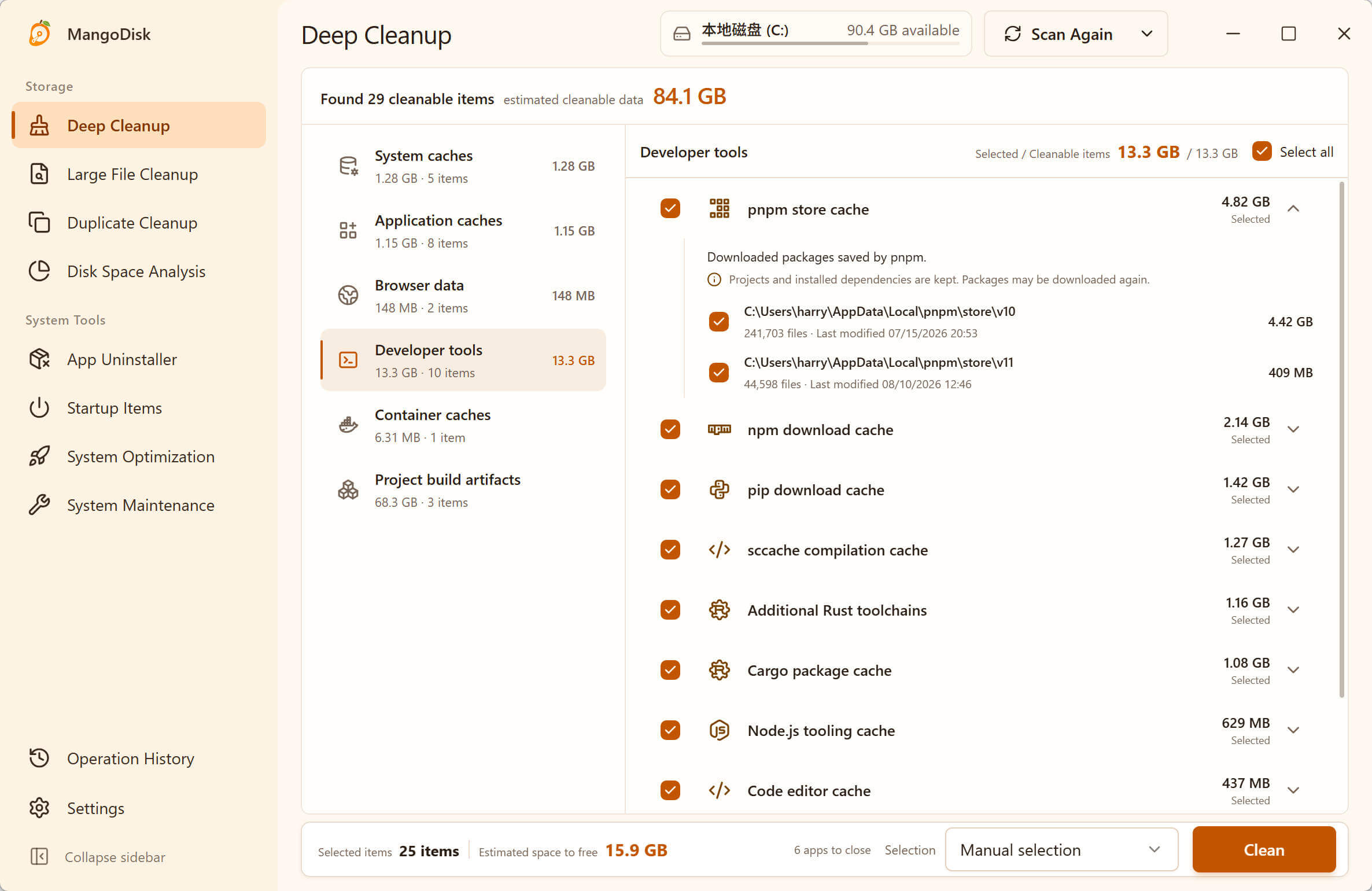
The scan stays on the device and does not delete anything automatically. Open Deep Cleanup to review paths, sizes and risk labels before selecting items. Save your work and read the MangoDisk safety guide before confirming a cleanup.
Frequently asked questions
Can I select every item on the Windows 11 Temporary files page?
No. Downloads, Recycle Bin and previous Windows installations can have consequences beyond rebuilding a cache. Review every selected category, even when Windows presents it on the same page as temporary files.
Is it safe to delete DirectX Shader Cache?
Usually, yes. Windows and the graphics driver can rebuild it. A game may take longer to start or stutter while shaders are compiled again, so there is little reason to clear a small shader cache routinely.
Is it safe to delete Windows Update Cleanup?
Usually, once the update is complete and the PC is working normally. If you are investigating an update failure, finish troubleshooting before removing update logs or related diagnostic files.
Can I delete Previous Windows installation(s)?
Only when you are sure you do not need to return to the previous version. Microsoft states that deleting Windows.old cannot be undone and removes the rollback option.
Before removing it, recover any personal files you still need. Our Windows.old guide explains when to keep it and how to review the previous installation in MangoDisk or Windows Settings.
Why do temporary files come back?
They are working data, not a one-time defect. Windows, browsers, games and other apps recreate caches and temporary files as they run. Investigate the responsible app only when a category grows unusually fast or repeatedly consumes significant space.
Official sources and related guides
- Microsoft Support: Free up drive space in Windows
- Microsoft Support: Storage settings in Windows
- Microsoft Support: Manage drive space with Storage Sense
- Microsoft Learn: Windows temporary path API
- Related: C Drive Full on Windows 11? How to Free Up Space Safely
- Related: How to Find and Delete Duplicate Files on Windows 11
- Related: Is It Safe to Let an AI Agent Clean Your Disk?
Prefer to see the exact paths before deciding? Download MangoDisk to scan Windows caches locally and review every selected item before cleanup.
For the trade-off between freeing space and recompiling shaders, see when to delete DirectX Shader Cache.