
Disk Space Changes
Compare two saved scans of the same disk or folder to see which files and folders grew, shrank, appeared, or disappeared.
Updated 2026/11/22
Space changes compares two scans of the same disk or folder. The list shows how much space each item used at both times and how much changed. For example, compare Downloads before and after a cleanup to see which items got smaller or are no longer in the folder.
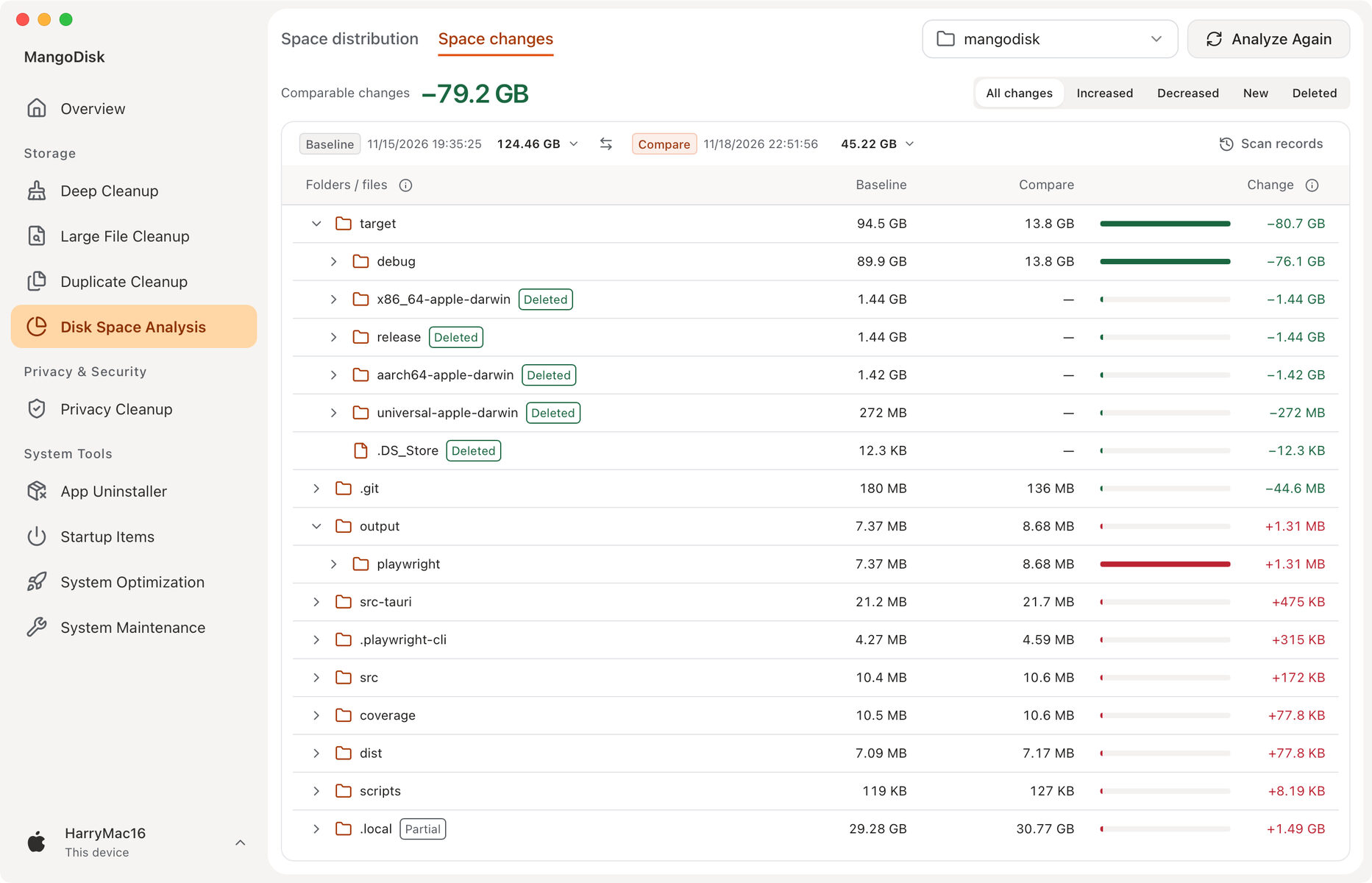
Save and compare two scans
- In MangoDisk, open Disk Space Analysis, select the disk or folder, then open Space changes. When prompted, choose Enable and scan. You can also turn on Keep a record after each scan in Scan records.
- Complete the first scan. After the files change, select Analyze Again for the same location. On Windows, use the same scan mode both times so the size measurements are comparable.
- Click the records next to Baseline and Compare above the list to choose the two times. Usually the older record is the baseline and the newer one is the comparison. Use the swap button between them to reverse the comparison.
With one record, the view shows storage usage from that scan. Scan records are stored locally and contain paths, sizes, and other analysis information. Only saved scans are available for comparison.
Read the results
- Increased and Decreased show items whose sizes changed between the two scans. New and Deleted show items that appeared or are no longer present in the scanned location.
- Expand a folder with a large change to see which subfolders or files contributed to it. A parent folder already includes its contents, so count each amount only once.
- If you see Comparable changes at the top or Partial on a row, the change includes only data that can be compared across both scans. Check access permissions, exclusions, and the selected location before drawing conclusions.
Moving files elsewhere on the same disk can also reduce the size of the original folder. Check the system's available storage to see how much disk space you actually recovered.