
AI explanations guide
Use MangoDisk AI explanations to understand cleanup and startup items before making changes. Set up the free service or connect your own model provider.
Updated 2026/09/11
Not sure what an item does or whether to clean it up or disable it? AI explanations help you understand its purpose and the impact of your choices.
Choose a service · Set up a custom service · Advanced settings · FAQ
What AI explanations do
In Deep Cleanup, Privacy Cleanup, Startup Items, System Optimization, and System Maintenance, hover over an item and click AI explanation. Responses appear as they are generated. You can copy them or minimize the window to read them later.
AI offers guidance only. It never cleans files or changes settings automatically. You decide whether to act.
Understand before you act
- Can I clear this cache? Learn what it does and whether it will need to be downloaded or generated again
- Can I disable this startup item? Understand its source and how disabling it could affect syncing, updates, or other background features
- Should I run this maintenance task? See which problems it addresses and what permissions or precautions it involves
Explanations use information about the selected item, but AI cannot decide which files matter to you. Custom rules in Deep Cleanup do not currently support AI explanations.
Choose a service
- MangoDisk free service: No API key required. Select it and save to get started. Check the app for your remaining allowance and reset time.
- Custom service: Connect an OpenAI-compatible provider using your own model and API key. Your provider handles billing; requests do not use your MangoDisk free allowance.
Set up a custom service
Open Settings → AI explanations → Custom service and fill in three fields:
| Field | What to enter |
|---|---|
| Base URL | Your provider's API root, without the trailing /chat/completions |
| Model name | The model ID from your provider, which may differ from its display name |
| API Key | A key created in your provider's console; use the eye icon to check what you entered |
For example, if the full endpoint is https://api.example.com/v1/chat/completions, enter https://api.example.com/v1 as the Base URL. This is a format example—use your provider's actual API address, not its chat website.
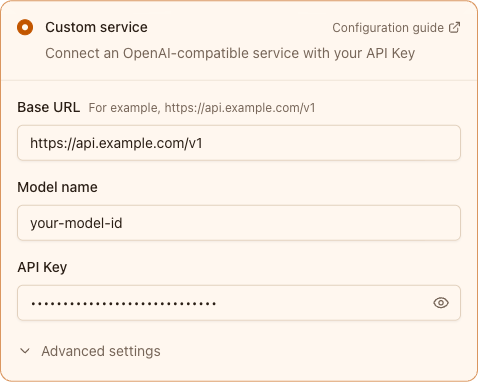
Click Save and test to check the connection. This sends a short request and may incur a small charge. Choose Save to store your settings without testing.
Advanced settings
The defaults are usually enough. Expand these options when needed:
- Reasoning mode: Disable reasoning to reduce waiting if your provider supports it. Restore the default if the option is incompatible.
- Temperature: Controls response variation. Leave it empty to use your provider's default.
- Max Tokens: Limits response length; some models also count reasoning toward this limit. Start with it empty, as a low value may cut replies short. Provider limits still apply.
AI explanations and your privacy
AI explanations never upload file contents, clean files, or change settings for you. Using AI is your choice.
To explain what an item does and how an action might affect it, the free service sends details such as its name, full path, and status through MangoDisk to the model provider. MangoDisk's servers do not store or process this information.
With a custom service, requests go directly to the service you configure. MangoDisk's servers do not receive or store those conversations; the service's own data policies apply. See our privacy policy for more details.
FAQ
Where do I get an API key?
Sign in to your provider's website and create one in its API or key management section. A chat subscription may not include API usage. Keep your key private.
Why does authentication fail?
Check that the key is complete, valid, and issued by the provider matching your Base URL. When switching providers, update the key too.
Why is the model or endpoint not found?
Check the Base URL and model ID, and make sure your provider supports an OpenAI-compatible Chat Completions API with streaming.
Why is the response slow or interrupted?
An unstable connection, a busy service, or model reasoning can cause delays. Try again later or disable reasoning if supported. If replies keep ending early, check whether Max Tokens is set too low.
What if I run out of credits or hit a rate limit?
For a custom service, check your balance and request limits in the provider's console. For the free service, follow the allowance or reset information shown in the app.
Are local models and HTTP addresses supported?
Yes. Start your local model service and enter its compatible API address. Leave API Key empty if the local service does not require one. Both HTTP and HTTPS work; HTTPS is recommended for remote services.