
Clear Teams Cache on Windows Without Resetting the App
Review Teams cache sizes and paths with MangoDisk, then clear supported caches without resetting the whole app. Find the new Teams cache folder on Windows 11.

You need Teams for work. You don't necessarily need to keep all the cache it leaves behind. To reclaim that space, fully quit Teams and clear supported, rebuildable caches. You don't have to uninstall the app or reset it first.
MangoDisk finds the Teams caches it supports and shows their sizes and paths before you decide what to remove. That saves you digging through hidden folders and guessing which ones hold disposable data rather than your account or settings.
See how much space Teams cache is using
On Windows 11, open Deep Cleanup in MangoDisk, run a standard scan, and look for Teams entries under app caches.
Scanning doesn't delete anything. Expand an entry to review its location and size. If you only want to clean Teams, choose Select none, then select the Teams entry yourself. You don't need to clean other apps at the same time.
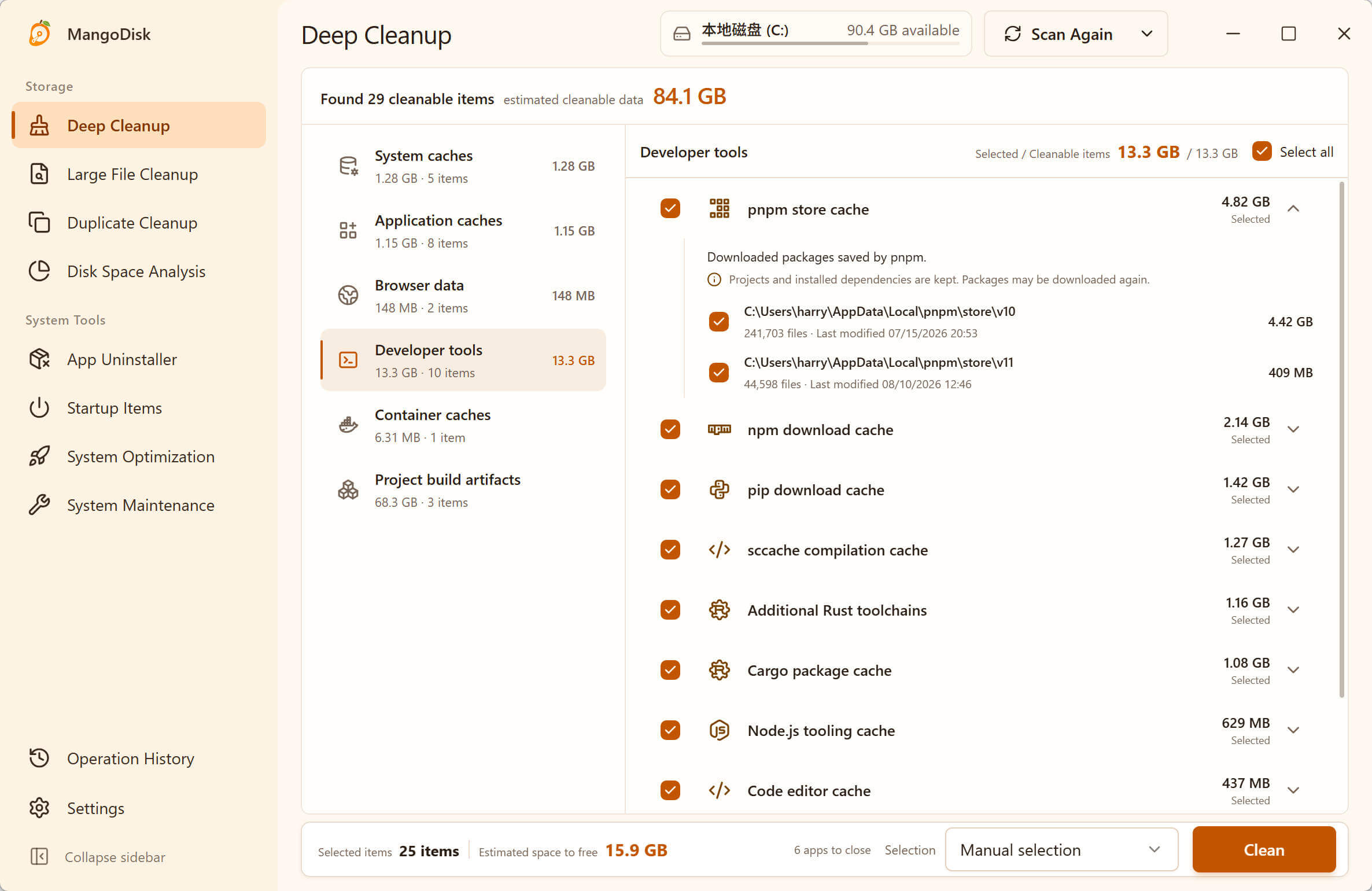
For the new Teams app, MangoDisk targets known rendering-cache locations, including folders such as Cache, Code Cache, and GPUCache. This rule excludes account sign-in data, chat state, downloaded files, and personalization settings. It does not empty the entire Teams data folder.
When you're ready:
- Finish any meetings and file transfers, save your work, and fully quit Teams. Closing its window may leave it running in the background.
- Review the selected Teams caches and the estimated space to be freed in MangoDisk.
- Click Clean, check the confirmation dialog, and proceed if the selection is right.
- Open Teams again after cleanup finishes.
If Teams is still running, its cleanup entries may be skipped. The first launch after cleanup may also take longer while the cache rebuilds. That's expected and doesn't mean you need to reinstall. Microsoft's cache guidance notes this startup delay too.
Clearing cache is not the same as resetting Teams
Many Teams troubleshooting guides point to Reset in Windows Settings. That goes further than removing rendering caches: Microsoft says resetting the app deletes app data, including personalization settings.
If you just want to reclaim cache space, start by reviewing the supported cache entries in MangoDisk. A reset may be worth considering for a separate startup or sign-in problem, following Microsoft's guidance or your IT team's advice. Cache cleanup won't fix every Teams issue.
Don't assume everything inside LocalCache is disposable, either. MangoDisk selects specific cache locations within it, not whole folders simply because their names contain “cache.” You can inspect the published Teams cleanup rule for the exact scope.
Where is the new Teams cache folder?
To inspect the folder yourself, press Win + R, paste this path, and open it:
%LOCALAPPDATA%\Packages\MSTeams_8wekyb3d8bbwe\LocalCache\Microsoft\MSTeams
This is the new Teams location listed in Microsoft's documentation. You can use folder Properties to check its size. The whole folder's size is not the amount MangoDisk can clean. It can also contain app state worth keeping; don't delete the remaining contents just to make the numbers match.
If the path doesn't exist, don't delete a similarly named folder instead. Classic Teams uses a different path, and the installation can affect the location. Check Microsoft's instructions for your Teams version before making manual changes.
Need more space? Look beyond Teams
Teams cache may only account for a small part of a full drive. Other apps, downloads, or duplicate files could be using much more. Repeatedly clearing the same Teams cache won't address that.
MangoDisk's Deep Cleanup lists other supported app caches too, so you can spend your time on the entries that matter. To track down bigger files, see how to find large files on Windows 11. If the wider AppData folder is the problem, start with what to do when AppData is too large.
Download MangoDisk and scan before deciding what to clean. It's free and open source, with no account or login required. Deep Cleanup runs locally and doesn't require AI explanations to be enabled.
Before handling important files, review the cleanup safety guide.