
Windows Storage
Can You Delete Crash Dump Files on Windows 11?
CrashDumps taking up space on C:? Learn which Windows crash dump files you can delete, which to keep for troubleshooting, and how to review them first.

Found a pile of .dmp files on C:, or a “System error memory dump files” entry in Windows cleanup? It's reasonable to hesitate before deleting either one.
If you no longer need a dump to investigate a crash, you can usually remove it to reclaim space. It won't fix the app or driver that crashed, though. If your PC has recently blue-screened or an app keeps closing unexpectedly, keep the relevant dump until you've finished troubleshooting. First, check where the file lives.
CrashDumps and Windows blue-screen dumps aren't the same thing
| Location | What it may contain | What to do |
|---|---|---|
%LOCALAPPDATA%\CrashDumps | Dumps from apps that crashed under your Windows account | Review old files and remove ones you no longer need. This is the folder MangoDisk's CrashDumps rule targets. |
C:\Windows\MEMORY.DMP and C:\Windows\Minidump | Dumps Windows may create after a system crash or blue screen | Keep them if you're investigating a recent blue screen. The MangoDisk rule above does not target these files. |
Microsoft describes CrashDumps as the default location when local user-mode dump collection has been configured. That collection isn't enabled by default, so there's nothing wrong if the folder doesn't exist on your PC. System crash dumps use different locations. Microsoft's app dump documentation · Microsoft's blue-screen troubleshooting guide
Find out whether CrashDumps is worth cleaning
Press Windows + R, enter %LOCALAPPDATA%\CrashDumps, and look at the filenames, sizes, and modification dates in File Explorer. If the folder isn't there, move on—don't create it just to clean it.
If you don't know what's filling C:, MangoDisk's Disk Space Analysis can help locate large folders first. Once you've identified CrashDumps, Deep Cleanup shows the supported cleanup item and how much space it uses. That gives you something concrete to review before removing files from a hidden folder.
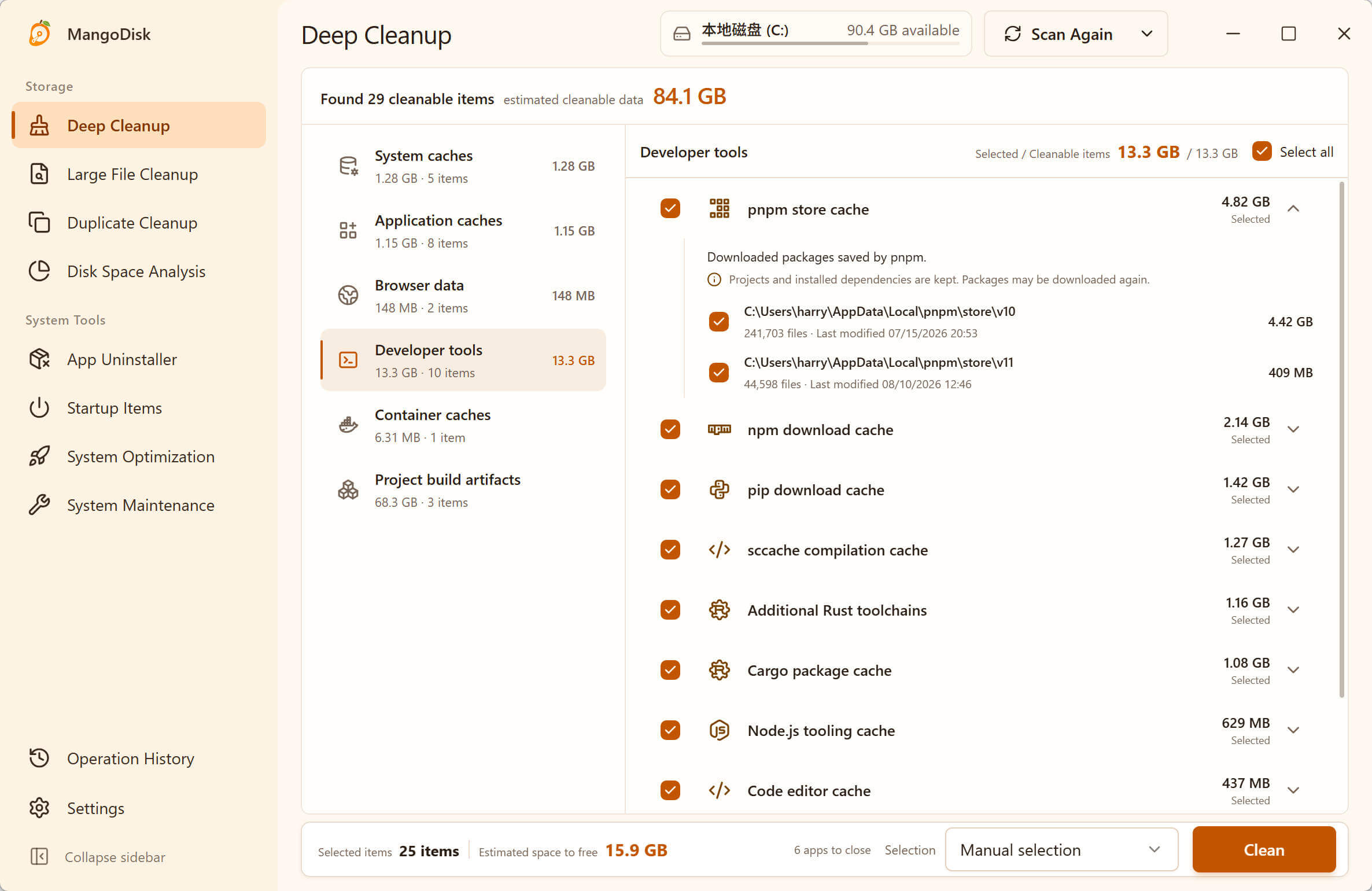
One important limit: MangoDisk's current rule covers the current user's %LOCALAPPDATA%\CrashDumps folder, not every .dmp file under C:\Windows. It also does not filter out recent dumps by age. The item is selected by default, so if you're still diagnosing an app crash, deselect it before you run cleanup. A scan alone does not delete anything; check the selection again before confirming. You can inspect the public cleanup rule.
When should you keep the files?
- A recent blue screen: Keep the corresponding system dump while you investigate a driver or hardware problem.
- An app that still crashes: Its dump may help the developer or support team identify the cause. Deleting it removes a clue, not the crash.
- A file in an unfamiliar location: Check the path and the app it belongs to before assuming every
.dmpis disposable.
If the files are old and you no longer need them, you can also select those specific files in File Explorer. There's no reason to delete the whole AppData folder. Our AppData cleanup guide covers other things that can grow there.
For System error memory dump files shown in Windows' Temporary files screen, use Windows' own storage controls to review that separate category. If you're troubleshooting a blue screen, keep the dump for now. See which Windows 11 temporary files are safe to delete for the other entries on that screen.
If dumps keep coming back, focus on the app or system problem creating them. Clearing the same files every few days won't stop another crash.
Want to see where the space went before making a decision? Download MangoDisk to scan locally, and leave anything you're unsure about in place. The cleanup safety guide explains what to review before deleting.