
How to Find Large Files on Mac and Free Up Space
Find the largest files on your Mac with Storage settings, Finder, and a visual disk map, then decide what is safe to delete or move
To find large files on a Mac, first open System Settings → General → Storage and review Documents and Applications. For a more precise search, open Finder, press Command-F, choose This Mac, add a File Size filter, and look for files larger than 1 GB. Check each file's location before deleting it; a large file is not necessarily an unnecessary file.
Where do large files usually hide on a Mac?
A small number of videos, disk images or app libraries can use more space than thousands of ordinary documents. Start with places you recognize instead of searching hidden system folders at random.
| Common location | What you may find | Best next step |
|---|---|---|
| Downloads | DMG and PKG installers, ZIP archives, videos | Delete installers you no longer need; open archives before removing them |
| Movies, Desktop and Documents | Screen recordings, exports and project files | Move finished work to an external disk or verified backup |
| Applications | Games, creative software and unused tools | Uninstall through the app's supported method |
| Photos or video libraries | Original photos, videos and editing assets | Manage or move the entire library through the owning app |
| iPhone and iPad backups | Old local device backups | Review the device and backup date in Finder |
| Virtual machines | Parallels, VMware, UTM or Docker disk images | Remove or compact them from the app that created them |
| iCloud Drive | Local copies of cloud files | Use Remove Download when you want to keep the cloud copy |
| Library folders | App support data, caches and local databases | Identify the owning app before changing anything |
Method 1: use macOS Storage settings
Open Apple menu → System Settings → General → Storage. The page groups disk usage into Applications, Documents, Photos, Mail, Messages and other categories.
Open Documents and check Large Files, Downloads and File Browser when those options are available. Sort by Size, then use Show in Finder if you need to understand where a file came from. Also sort Applications by size to spot large software you no longer use.
This is the best first step for most people because macOS shows the file category or owning app. Its main limitation is that a broad category such as System Data may still combine many unrelated folders. If that number is the real problem, read why Mac System Data becomes so large before touching Library or system folders.
Method 2: find files larger than 1 GB in Finder
Finder can search the whole Mac by file size without installing another app:
- Open Finder and press Command-F.
- Select This Mac above the search results.
- Open the first search-condition menu, choose Other, then select File Size.
- Set the condition to is greater than, enter
1, and choose GB. - Switch to List view and sort the results by Size.
- Select a result and press the Space bar for Quick Look, or open its enclosing folder before deciding what to do.
Try 500 MB if the 1 GB search returns too few results. You can also add another condition, such as Kind is Movie, to focus on videos.
Finder is useful for individual files, but it does not always explain a large folder made from many smaller files. Search results can also omit protected or app-managed content. Do not grant extra permissions or run deletion commands merely to make every hidden file appear.
Method 3: use a treemap when folders do not add up
When Storage settings and Finder still do not explain the missing space, scan by folder. A treemap gives every folder an area proportional to its size, so the biggest few locations stand out immediately.
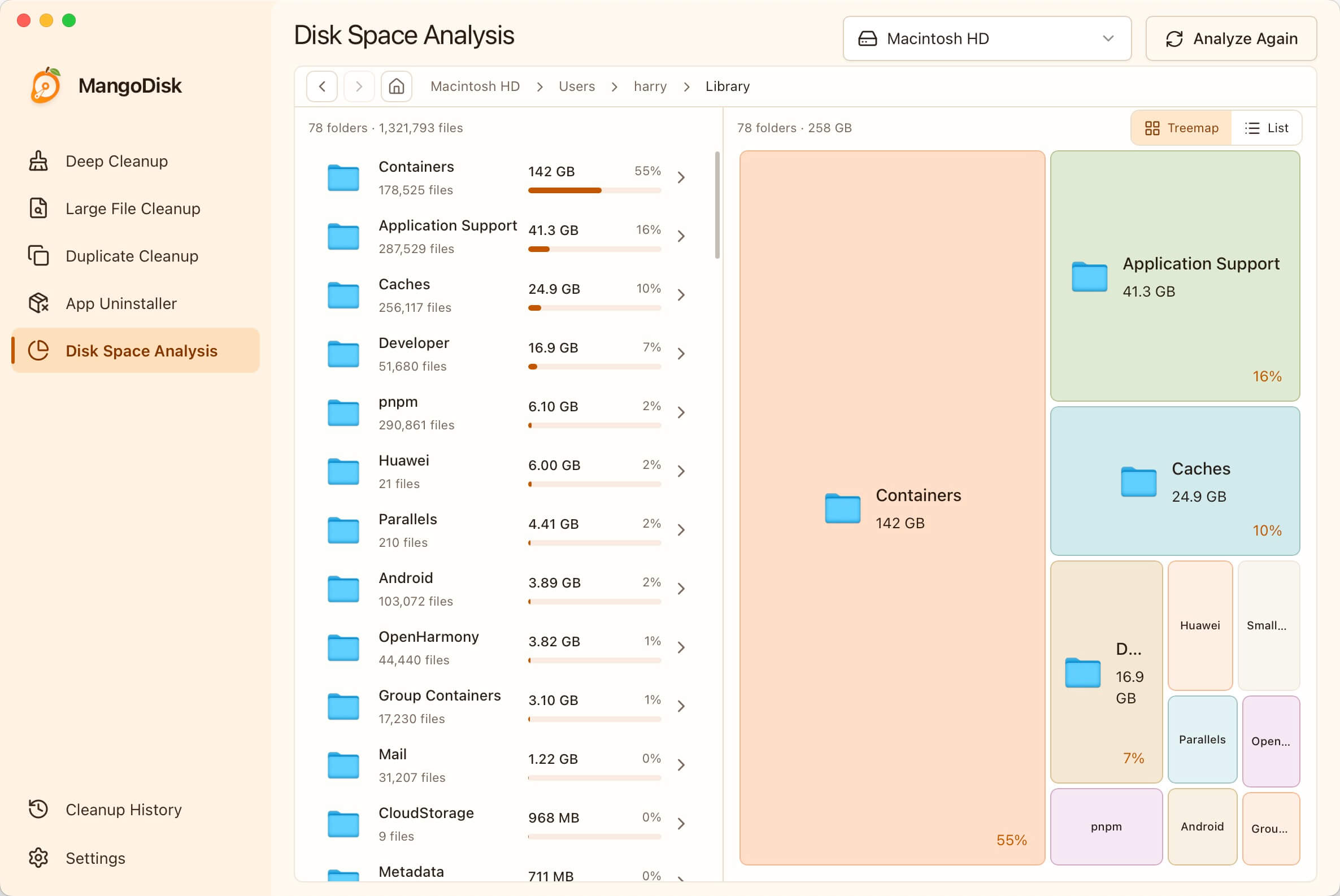
Follow the largest block into its subfolders, then open the location in Finder. The treemap shows where space went; it does not decide that the folder is safe to delete.
MangoDisk Disk Space Analysis scans locally and lets you move through the treemap and folder list together. This is especially useful when a large app library, virtual-machine image or cache is buried several levels deep.
Decide whether to delete, move or keep the file
Finding a large file is only the diagnosis. Use its path and owning app to decide what should happen next.
| Usually safe after review | Confirm the consequence first | Do not delete manually |
|---|---|---|
| Old installers and archives you recognize | Photos and video libraries | /System, /usr, /private or /var |
| Finished exports already backed up | iPhone and iPad backups | The entire /Library or ~/Library folder |
| Duplicate media you have opened and compared | Virtual-machine and container disks | Files inside an app bundle or system package |
| Apps removed with their uninstaller, with related files checked | iCloud Drive files and local downloads | App data whose purpose you cannot identify |
For personal files, moving them to an external drive is often better than deleting them. Open several files from the destination and confirm your backup before removing the originals.
For iCloud Drive, Delete and Remove Download are different. Deleting a synced file removes it from other devices using the same Apple Account, while Remove Download keeps it in iCloud and releases only the local copy. Make sure you choose the action you actually intend.
Review large files by type and age
If you already know that individual files are the problem, MangoDisk Large File Cleanup can filter results by minimum size and type, including videos, audio, images, archives and AI models. Each row shows the path, size and modification time so you can inspect the file before selecting it.
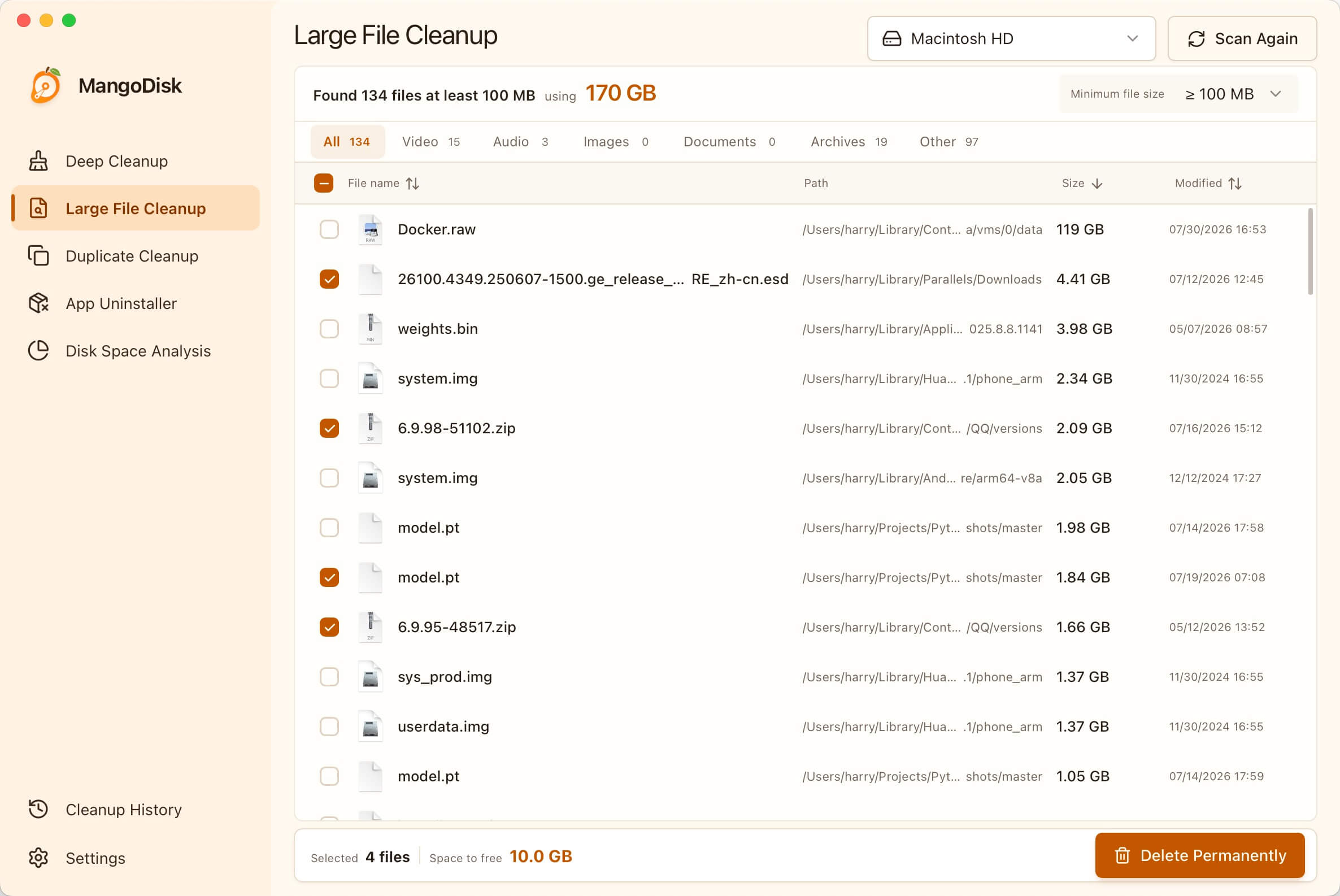
The largest result may be important app data. Review the path and open the enclosing folder instead of selecting every result.
Files removed from Large File Cleanup or Disk Space Analysis are permanently deleted and do not go to the Trash. Keep important data backed up and read the MangoDisk safety guide before deleting anything you cannot replace.
Frequently asked questions
How do I find all files larger than 1 GB on a Mac?
Press Command-F in Finder, search This Mac, add the File Size criterion, and set it to greater than 1 GB. Sort the results by size and inspect each file's enclosing folder.
Why does Finder not show every large folder?
Finder searches files through macOS indexing and permissions. A folder can also be large because it contains many smaller files, none of which pass your size filter. Use Storage settings or a folder-size analyzer for that case.
Can I delete DMG and PKG files after installing an app?
Usually yes. They are normally installer files, not the installed application. Keep them only if you need an offline installer or a specific older version.
Does moving a file to the Trash free space immediately?
No. The file still uses disk space until you empty the Trash. Review the Trash first because emptying it permanently removes those items.
Should I delete the largest file I find?
Not automatically. It could be a Photos library, virtual-machine disk, device backup or important project. Identify the file and its owner first, then delete, move or manage it through the relevant app.
Official sources and related guides
- Apple Support: Find and delete files on your Mac
- Apple Support: Free up storage space on Mac
- Apple Support: Add your Desktop and Documents files to iCloud Drive
- Related: Mac System Data Too Large? How to Reduce It Safely
- Related: C Drive Full on Windows 11? How to Free Up Space Safely
- MangoDisk as a free, open-source CleanMyMac alternative
Need a clearer view than Finder can provide? Download MangoDisk to scan the disk locally and review the largest folders and files before deciding what to remove.
If the same videos or installers turn up in several folders, find duplicate files on your Mac to compare their contents and choose which copies to keep.
If Zoom recordings are among the largest files, see how to free up space used by Zoom without treating meeting recordings as disposable cache.
If local AI models are the largest files, see how to remove unused Ollama models while keeping the ones you still use.