
Uninstall Mac Apps and Remove Unwanted Leftover Files
Uninstall unused Mac apps with MangoDisk, review related caches and data, and keep files you still need. Free and open source, with no signup or login.

Old trial apps, games you no longer play, tools you've replaced: uninstalling them is an easy place to start when your Mac needs more space. But removing the app itself can leave caches, settings, and local data behind.
MangoDisk helps you check those files before you uninstall. See which apps take up space, expand an app to review the related files it finds, and remove what you no longer need. You can keep settings and personal data without leaving every cache behind.
Find the apps you no longer need
Open App Uninstaller in MangoDisk, scan your apps, then sort by size or search for a name. You can compare their storage use in one list instead of checking each app in Finder.
Start with apps you know you won't use again. Save your work and fully quit any running app before removing it.
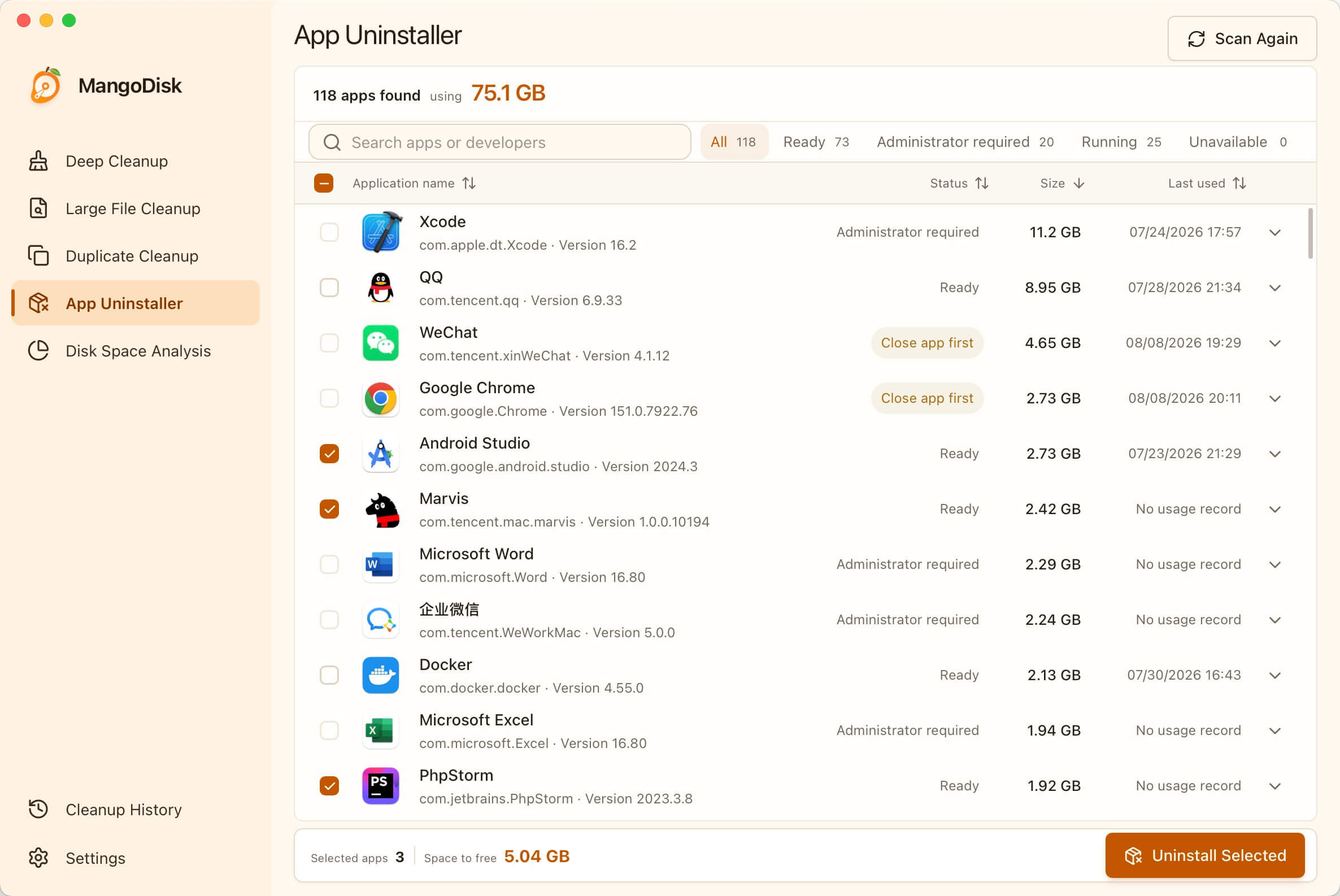
Review related files, not just the app
Deleting the app is usually the easy part. Finding the files it keeps elsewhere is what takes time.
Expand an app in MangoDisk to see the related items it identifies, including caches, logs, preferences, and app data, along with their locations and sizes. You don't have to hunt through Library folders or guess which filenames belong to the app.
You don't need to delete everything on the list:
| What you find | What to consider |
|---|---|
| Caches, logs, saved window state | Usually worth removing with an app you no longer use, unless you need its logs to troubleshoot a problem |
| Settings and preferences | Keep them if you plan to reinstall and want to retain your setup |
| Folders that may contain personal data | Check for local files, templates, or game saves. Back up anything important before selecting them |
If you're unsure about an item, open its location and take a look first. Removing an app doesn't have to mean throwing away everything you made with it.
MangoDisk checks supported file associations; it doesn't guarantee that it will find every file from every app. If an app has its own uninstaller, particularly for drivers or extensions, use that first. Apple recommends the app's own uninstaller for removing components it has installed elsewhere.
Check your selection, then uninstall
Once you've reviewed the related items, choose Uninstall Selected Apps and check the scope and estimated size in the confirmation dialog. Follow any prompts for administrator permission.
MangoDisk permanently deletes the apps and related files you confirm. They do not go to the Trash. Back up important data and deselect anything you're unsure about. The App Uninstaller guide and safety guide explain the process.
The advantage over simply dragging an app away is that you can deal with its identified related files at the same time, rather than returning later to work out what's still taking up space.
Already deleted the app, but still short on space?
Check the Trash first. An app moved there through Finder still takes up space until you delete it from the Trash. After checking that you no longer need it, you can remove that item without emptying everything else.
If the Trash isn't the issue, don't assume the remaining space is all app leftovers. Downloaded installers, saved videos, and documents you created won't disappear when you uninstall an app.
MangoDisk's Disk Space Analysis can help you locate the larger folders and files. See how to find large files on Mac for the steps. The map shows where the space is going; it doesn't decide whether a file is disposable. A similar name alone isn't a reason to delete a folder.
If System Data accounts for much of the storage, start with what to check when Mac System Data is too large instead of repeatedly removing small apps.
Remove unused apps without the folder hunt
MangoDisk puts app sizes and the related files it identifies in one place. You can decide what to uninstall, what to remove with it, and what to keep.
Download MangoDisk and see how much space your unused apps are taking up. Free and open source. No signup or login required. App scanning and removal run locally; you don't need to enable AI.