
Mac Storage
How to Find and Delete Duplicate Files on Mac
Find duplicate files on your Mac by content, not just name. MangoDisk groups matching copies so you can compare locations, choose what to keep, and clear the extras.

An installer downloaded twice. A video saved on your desktop and in Downloads. An old folder copied over while sorting out your files. Extra copies can take up space on your Mac without being obvious.
To find them, use a tool that compares file contents rather than names. MangoDisk groups matching files and shows where each copy lives, along with the estimated space you could free. Renamed copies can still be found. You decide which ones to keep and which you no longer need.
Find matching contents, not just matching names
Installer.dmg and Installer (1).dmg might be the same download, or they might be different versions. Meanwhile, a renamed video in another folder can contain exactly the same data as the original.
For a handful of files, sorting by name or size in Finder and opening them to check is often enough. Once they're scattered across folders, MangoDisk's Duplicate File Cleanup saves you the back-and-forth: files with identical contents appear together.
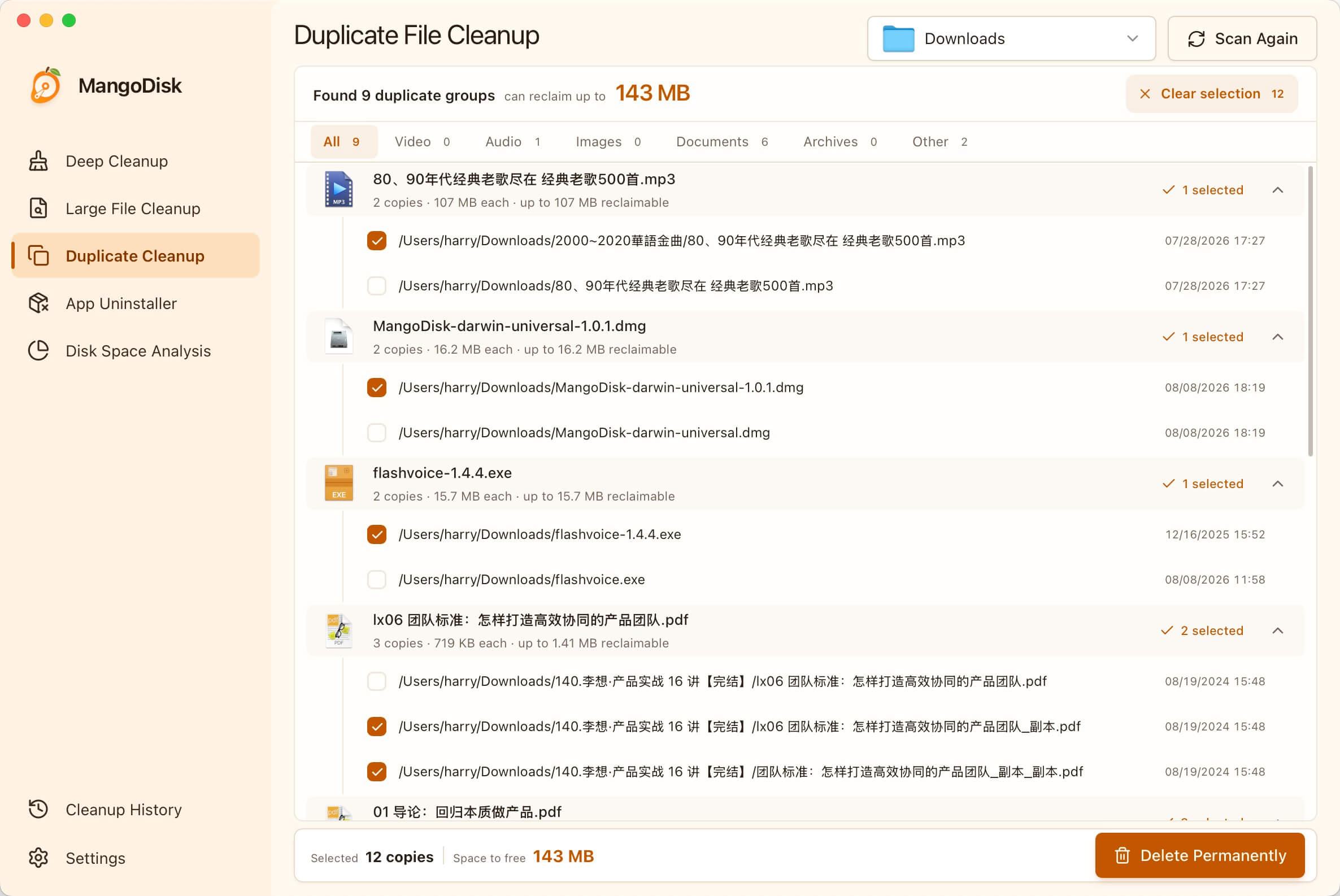
You can see how many copies there are, where they're saved, and how much space the extras account for. That makes choosing a copy to keep easier than guessing from its filename.
Start with Downloads and old personal folders
Open Duplicate File Cleanup, choose Downloads or a personal folder you want to sort out, and start a scan. Scanning doesn't delete anything.
If you mainly want more storage, raise the minimum file size to focus on larger files first. Duplicate videos, archives, and installers are often more worth your time than tiny documents. You can also filter the results by type, such as videos, images, or documents, and work through one category at a time.
Start somewhere familiar. Don't treat system folders, app internals, or an entire backup drive as a pile of unwanted duplicates.
Select extra copies without checking every box
Smart Select uses your chosen keep rule to leave a copy in each group and select the other copies eligible for cleanup. It saves clicks; it doesn't run the deletion.
Expand each group and check that you're keeping the copy in the right place. If a video is already filed away in your main collection, an extra download may be unnecessary. But if a video-editing project uses a particular copy, keep it at that path, even if the same file exists elsewhere.
Keeping one copy doesn't mean every other copy is expendable. Leave intentional backups alone, and check whether deleting a file in a synced folder also removes it from other devices. Deselect anything you're unsure about.
Review the paths and selected count before choosing Delete Permanently. MangoDisk's duplicate-file deletion does not move files to the Trash. Back up important files first; the safe cleanup guide covers what to check.
What about duplicate photos?
MangoDisk can find identical photo files you've repeatedly imported or copied into ordinary folders. It doesn't pick the best shot from a set of similar photos. Cropped, compressed, or re-exported images aren't necessarily exact duplicates.
For photos managed by Apple's Photos app, use its Duplicates feature to merge items within the app. Don't open the photo library package and delete files inside it. See Apple's guide to removing duplicate photos and videos for the steps.
Not many duplicates? Look for large files instead
There's little point spending an afternoon removing tiny copies if the results show little to reclaim. MangoDisk's Disk Space Analysis can show which folders take up the most space. From there, find large files on your Mac to review old videos, installers, and archives. If app caches are the main issue, see the Mac System Data guide.
Download MangoDisk for free and see which files you've saved more than once. It's open source, requires no signup or login, and scans duplicate files locally.