
Mac System Data Too Large? How to Reduce It Safely
Learn why System Data can grow so large on a Mac, how to find what is using the space, and what you can safely reduce without damaging macOS

If System Data is taking hundreds of gigabytes on your Mac, do not try to delete it as if it were one folder. System Data is a category, not a single location. It can include caches, logs, temporary files, app support data, virtual-machine files and other content that macOS cannot place in a more specific category.
The safest way to reduce it is to find the actual large files first, remove content you recognize, and let macOS manage resources such as swap files and Time Machine local snapshots. Never delete /System, /private or the entire Library folder to make the number smaller.
This guide was checked on macOS 15.7.7 on August 16, 2026. Storage totals can change while macOS recalculates categories, so compare the available disk space as well as the System Data number.
What is System Data on a Mac?
Apple describes System Data as files that do not fit into the other storage categories. It primarily includes logs, caches, virtual-machine files, temporary files, fonts, app support files, plug-ins and other runtime resources.
That explains two confusing details:
- System Data is not the same as macOS. The Storage page lists the operating system separately.
- There is no single “System Data” folder or button that can safely delete everything in the category.
On the Mac used for this article, System Data was reported as 432.52 GB while macOS itself used 45.51 GB. The unusually large number is a reason to investigate, not permission to remove every hidden file.
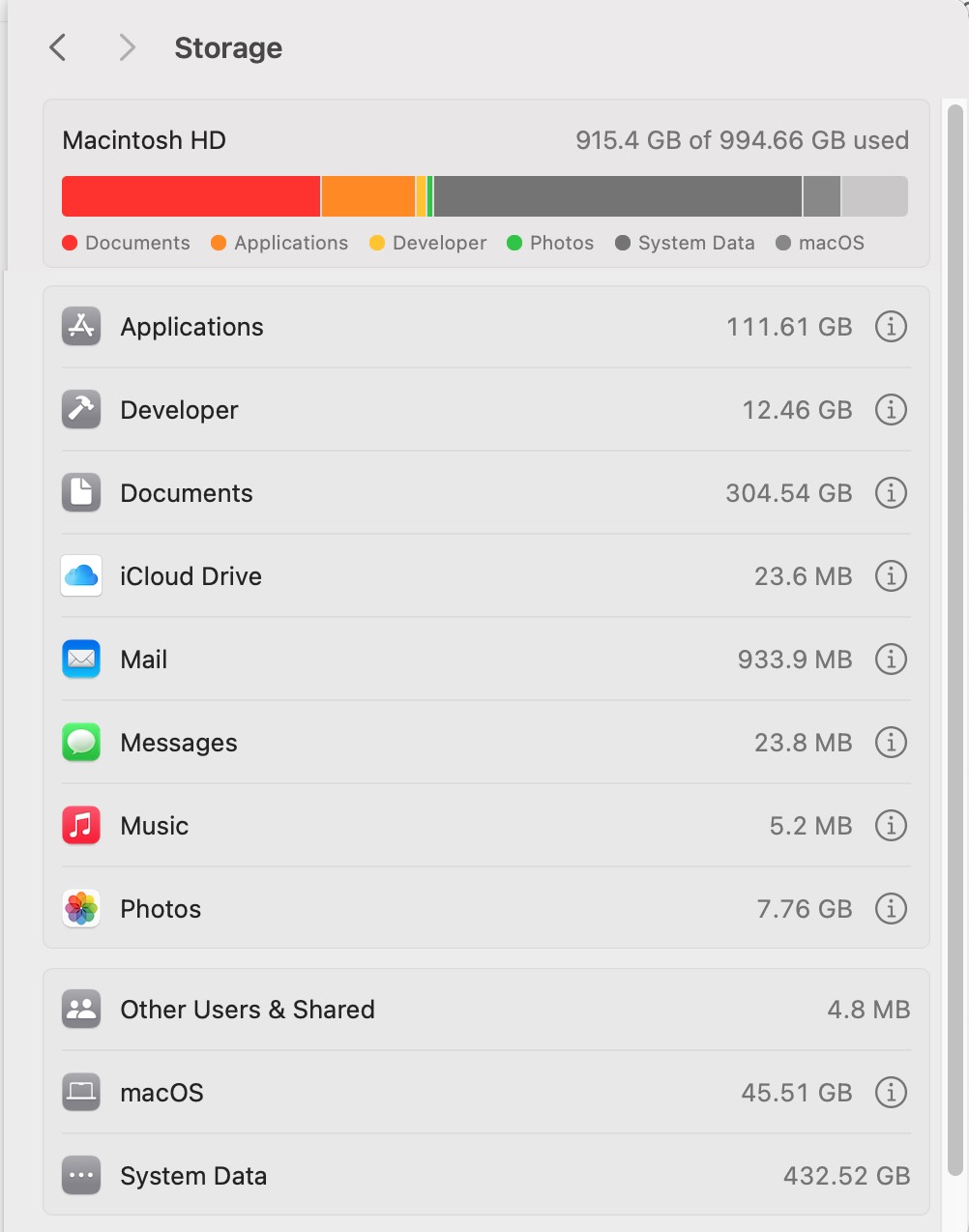
System Data is a collection of many kinds of files. In this example it occupies 432.52 GB, but it still cannot be removed as one item.
Why can System Data become so large?
The cause is usually one or more large data sets that macOS has grouped into this catch-all category.
| Possible cause | What to look for | Should you remove it? |
|---|---|---|
| App and browser caches | Data under your user Library created by apps you use | Usually reproducible, but quit the app and review the exact folder first |
| Logs and crash reports | Old diagnostics that keep accumulating | Older user logs are often removable; keep recent logs while troubleshooting |
| iPhone or iPad backups | Backups for old devices or multiple dates | Yes, after confirming you no longer need that restore point |
| Virtual machines | Large Parallels, VMware, UTM or Docker disk images | Only through the owning app or after confirming the VM is disposable |
| Creative-app media caches | Adobe, video, audio and rendering caches | Usually through the app's own cache settings |
| Developer data | Xcode Derived Data, simulators and project build output | Often reproducible, but the next build or simulator launch will take longer |
| Local AI data | Downloaded models and inference caches | Some caches are reproducible; model files may be expensive to download again |
| Time Machine local snapshots | Local recovery snapshots on the startup disk | Normally leave them alone; macOS removes them when space is needed |
| Swap and temporary runtime data | Files whose size follows current system activity | Do not delete manually; restart and let macOS manage them |
The largest item may not have “system” in its name. A video editor cache, a virtual-machine disk or an abandoned developer directory can be counted as System Data even though a third-party app created it.
Step 1: make sure the number is current
Before deleting anything:
- Finish large downloads, backups and app updates.
- Empty the Bin only after reviewing its contents.
- Restart the Mac.
- Open Apple menu → System Settings → General → Storage and give the page time to recalculate.
A restart clears some temporary runtime state, and the category may change as macOS finishes classifying files. If you only need enough room to install an update, Apple also recommends starting in safe mode as a way to make some temporary space available.
Focus on the free-space figure at the top of the page. A delayed category label can look alarming even after the underlying disk space has already been released.
Step 2: use Apple's storage categories first
The Storage page can manage several categories directly even though System Data itself has no delete button. Review these before opening hidden folders:
- Applications: uninstall unused apps and review their related files;
- Documents: sort large files and downloads by size;
- iOS Files: review device backups and firmware when this category appears;
- Mail and Messages: remove attachments you no longer need;
- TV, Music and Podcasts: remove downloaded media that can be downloaded again;
- Bin: confirm and permanently remove items already placed there.
This is the lowest-risk place to begin because the file type and owning app are visible. Moving large photo or video libraries to an external disk may recover more space than clearing hundreds of small cache files.
Step 3: find the folders that are actually large
If the built-in categories do not explain the total, inspect the disk by folder size. The important question is not “Where is the System Data folder?” but “Which folder is using hundreds of gigabytes?”
MangoDisk Disk Space Analysis displays folders as a list and a treemap. Large rectangles expose the few directories that deserve attention, while small files remain visually small. Scanning and analysis happen locally.
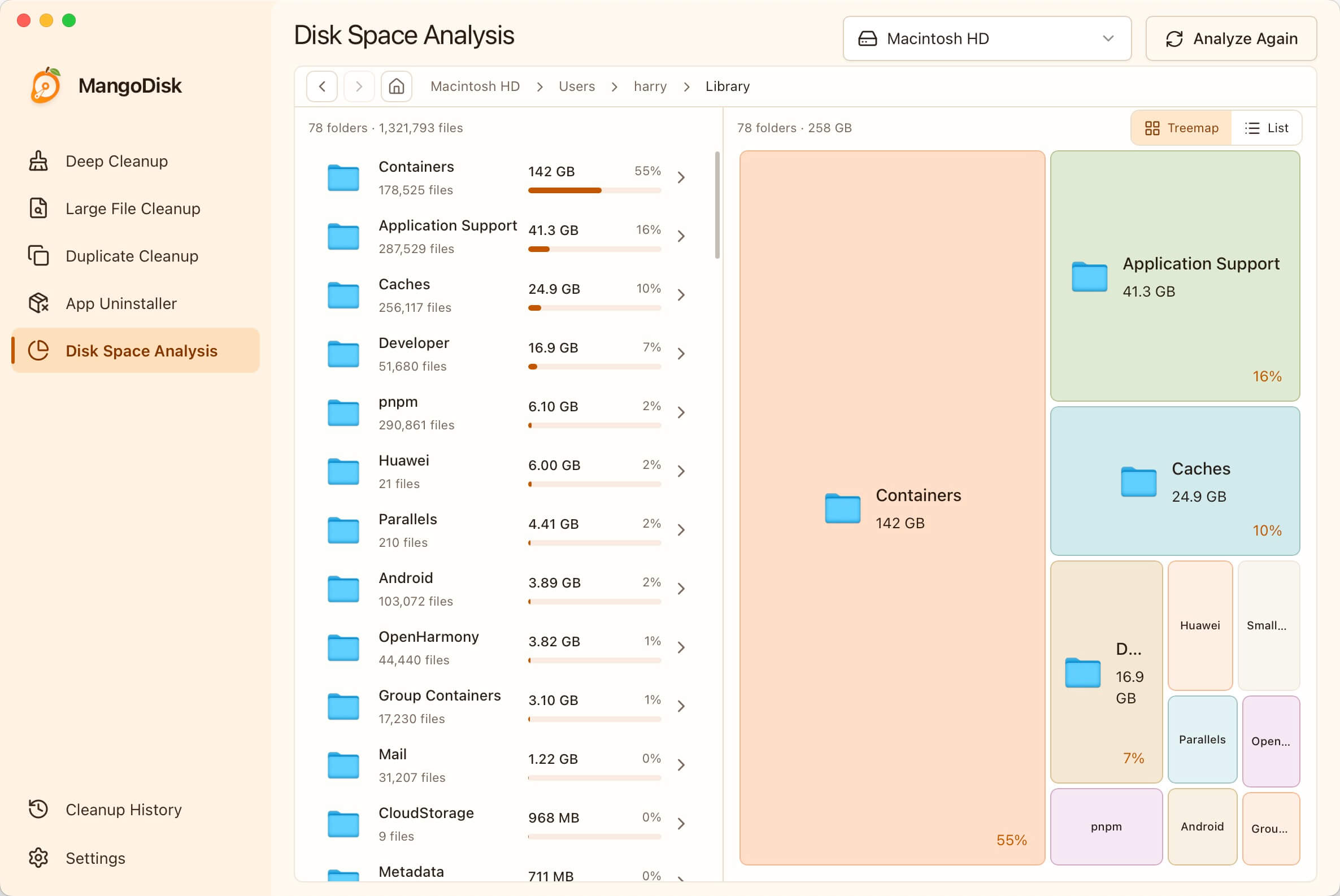
Start with the largest rectangle, identify the app or project that owns it, and open it in Finder before deciding whether to delete anything.
You can also use Finder and Apple's Documents category to sort known files by size. If you prefer a read-only Terminal check, the following commands only measure common user locations:
du -sh "$HOME/Library" "$HOME/Downloads" "$HOME/Documents" 2>/dev/null
du -sh "$HOME/Library"/* 2>/dev/null | sort -h | tail -20
These commands do not delete anything. Some protected folders may be skipped unless Terminal has Full Disk Access; do not grant additional access unless you understand why it is needed.
Step 4: remove old device backups through Finder
Local iPhone and iPad backups can be large. Use Apple's management interface instead of deleting folders by name:
- Connect the device and select it in Finder.
- Open the General tab.
- Click Manage Backups.
- Check the device name and backup date.
- Delete only a backup you are sure you no longer need.
Apple documents the default backup location as ~/Library/Application Support/MobileSync/Backup/, but managing backups through Finder makes it easier to see which device and date you are removing. An encrypted backup may contain data unavailable elsewhere, so treat it as personal data rather than disposable cache.
Step 5: clean caches selectively
Caches are designed to be recreated, but “cache” does not mean “delete every folder under Library.” Quit the related app, inspect the path and size, and expect the next launch to be slower while data is rebuilt or downloaded again.
MangoDisk Deep Cleanup recognizes verified cache and diagnostic locations instead of selecting the entire Library directory. Results are grouped by application and risk level, and you can review each path before cleanup. Potentially expensive, recoverable data is not selected by default.
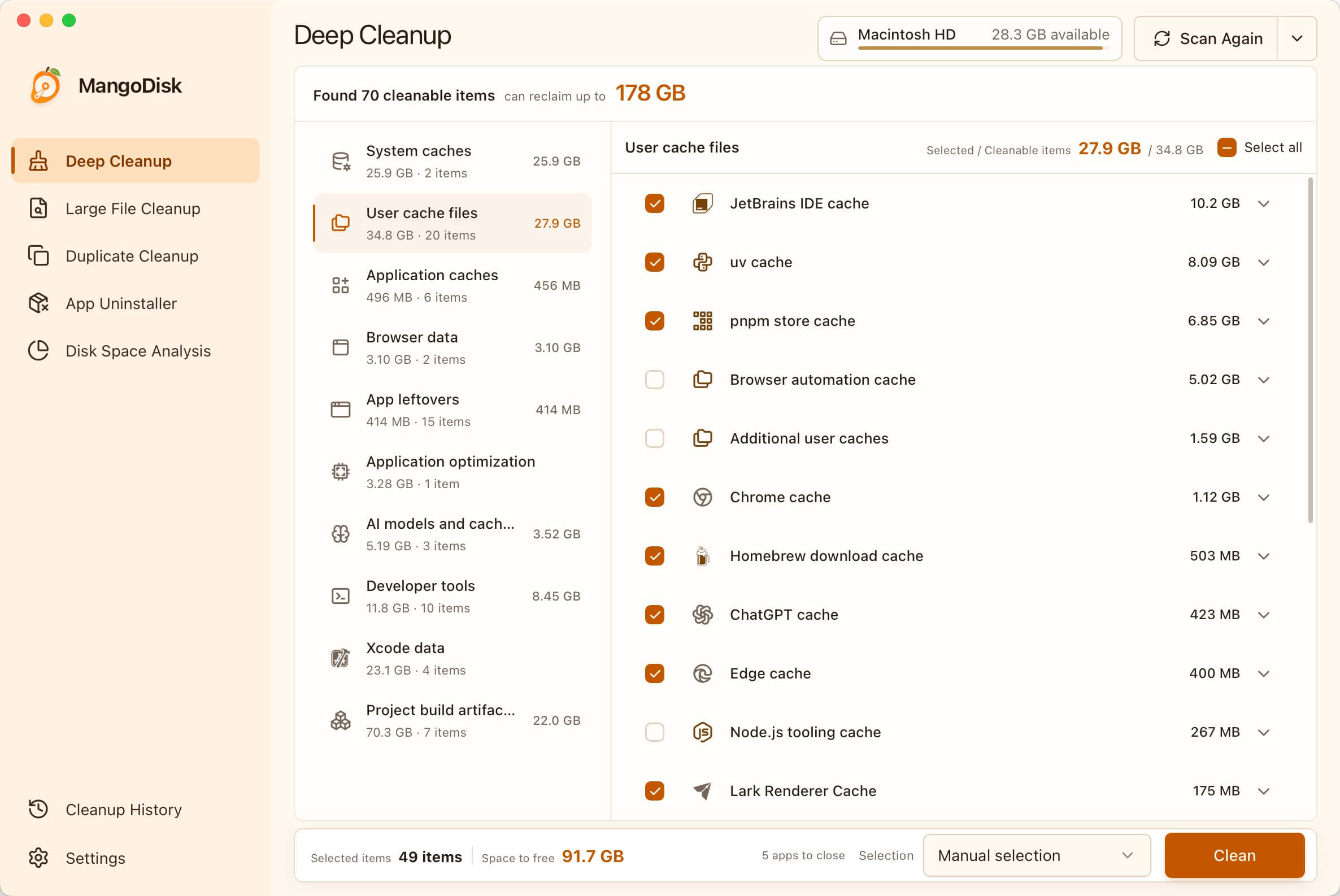
Review the owning app, path, size and selection state before cleaning. MangoDisk does not treat the whole Library folder as disposable.
Large files, duplicates and items removed from Disk Space Analysis are permanently deleted rather than moved to the Bin. Read the MangoDisk safety guide and keep a backup before removing important data.
What about Time Machine local snapshots?
Time Machine can keep local snapshots on an APFS startup disk when automatic backups are enabled. Apple says they are generally retained for up to 24 hours and removed automatically when space is needed. macOS also counts their space as available for normal tasks.
For that reason, manually deleting snapshots should not be the first response to a large System Data number. Connect the regular Time Machine backup disk and allow a backup to complete. Investigate ordinary files, app data and backups first. Only use snapshot-management commands when you have a specific backup problem and understand the recovery trade-off.
What should you never delete manually?
Do not remove any of the following simply because System Data looks large:
/System,/usr,/bin,/sbin,/privateor/var;- the entire
/Libraryor~/Librarydirectory; - random files found by a command that uses
sudo; - virtual-machine disks without checking the owning app;
- current iPhone backups without another restore path;
- app support folders whose purpose you do not recognize.
If a guide tells you to disable system protections or recursively delete a broad hidden directory, stop. The potential space saving is not worth losing application data or making macOS unstable.
Why didn't the System Data number drop immediately?
Storage categories are estimates and can be recalculated after files change. After cleanup:
- confirm that the available space increased;
- close and reopen Storage settings;
- restart if the category still appears stale;
- allow macOS time to finish indexing and classification.
Some caches will also return as applications run. The goal is not to keep System Data at zero—it cannot and should not be zero—but to remove clearly unnecessary data and preserve enough free space for normal work and updates.
Frequently asked questions
Can I delete all System Data on a Mac?
No. System Data includes active system resources and app data as well as removable caches. It is a category, not a disposable folder.
How much System Data is normal?
There is no universal number. It changes with installed apps, current workloads, backups, virtual machines and available disk space. Investigate when it grows continuously, consumes an unexpectedly large share of the disk, or prevents normal updates and downloads.
Will clearing caches damage my Mac?
Deleting a verified cache normally causes an app to rebuild or download it again. Deleting an entire Library directory can remove settings, databases, local projects or account data. Always clean a specific known path rather than a broad parent folder.
Can MangoDisk clear the entire System Data category?
No—and a safe tool should not claim that it can. MangoDisk helps identify large folders, known caches, logs, app leftovers and developer artifacts. You still decide what to remove, and macOS controls how the remaining files are classified.
Sources and related guides
- How to clear Slack cache on Mac
- Apple: Change Storage settings on Mac
- Apple: Free up storage space on Mac
- Apple: About Time Machine local snapshots
- Apple: Locate and manage iPhone and iPad backups
- How to Find Large Files on Mac and Free Up Space
- How to Clear Xcode Derived Data Safely
- How MangoDisk protects files during cleanup
- MangoDisk as a free, open-source CleanMyMac alternative
Want to see what is actually using the space before deleting anything? Download MangoDisk and review the disk locally.