
A Free DaisyDisk Alternative: Explore Disk Usage with MangoDisk
Looking for a free DaisyDisk alternative? Explore disk usage with MangoDisk's sunburst charts and treemaps, then review large files, duplicates, and caches.

Looking for a free DaisyDisk alternative that shows where your disk space goes? MangoDisk is free and open source. Switch between a sunburst chart and a treemap, explore folders alongside a file list, and use its large-file, duplicate, and cache cleanup tools to review what you no longer need. No account or login is required, and it runs on macOS, Windows, and Linux.
I'm the developer of MangoDisk. This guide focuses on everyday storage tasks on a Mac and the differences that matter when choosing between the two tools.
Follow folders with a sunburst, compare sizes with a treemap
When a disk fills up, finding the cause can take longer than removing the files. Old downloads, app data, and build artifacts may be spread across folders. Opening each one to check its size soon becomes tedious.
Open Disk Space Analysis in MangoDisk and select a disk or folder to analyze.
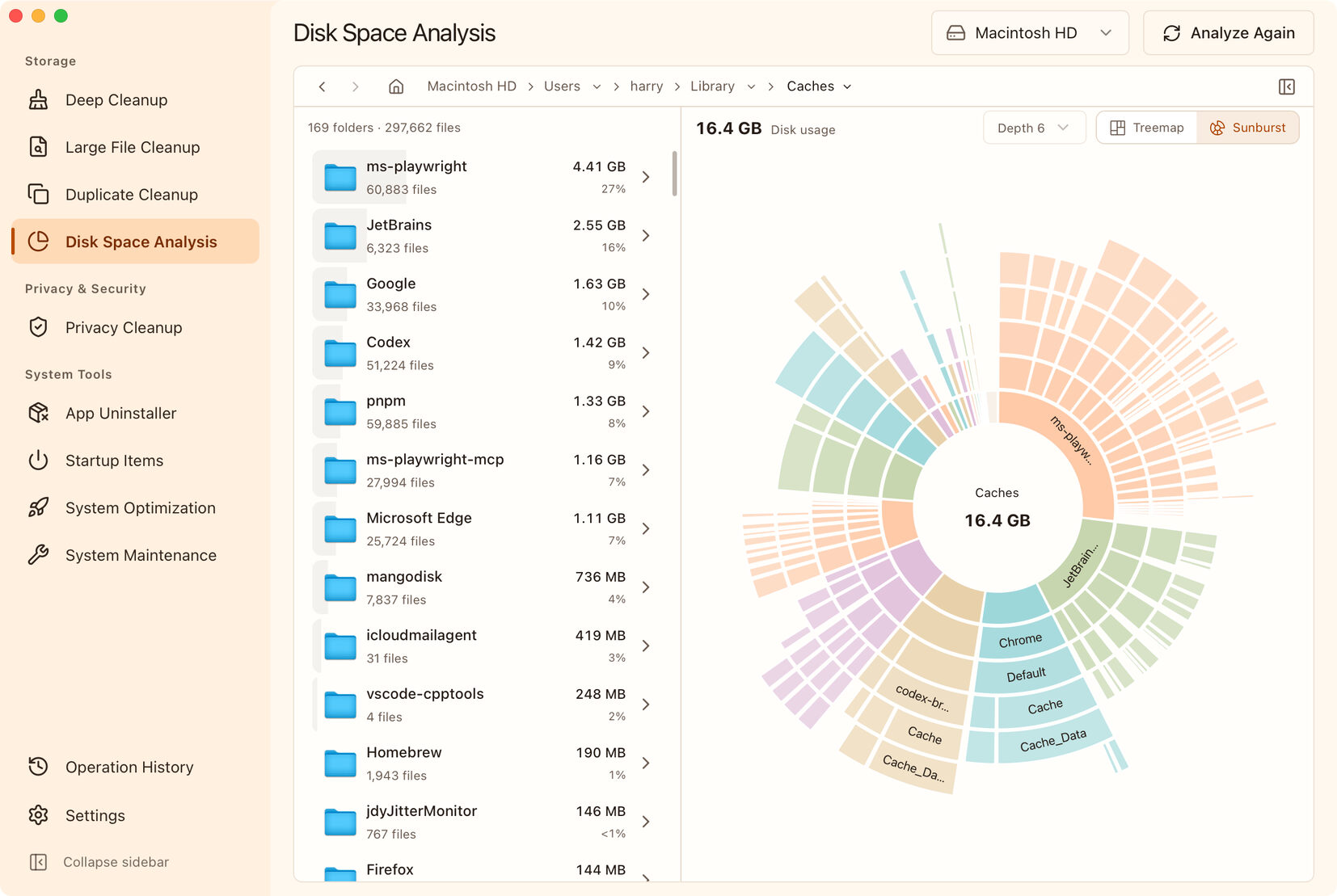
The sunburst chart helps you follow the folder hierarchy. Each ring farther from the center shows another level of detail. Within the same ring, wider segments represent more space. The adjacent list gives you names and sizes so you can decide which folder to explore next.
The treemap makes it easy to compare folders at the same level. Larger rectangles represent more space. Start with one level, open the largest folders, and increase the displayed depth when you want to see more of the structure at once.
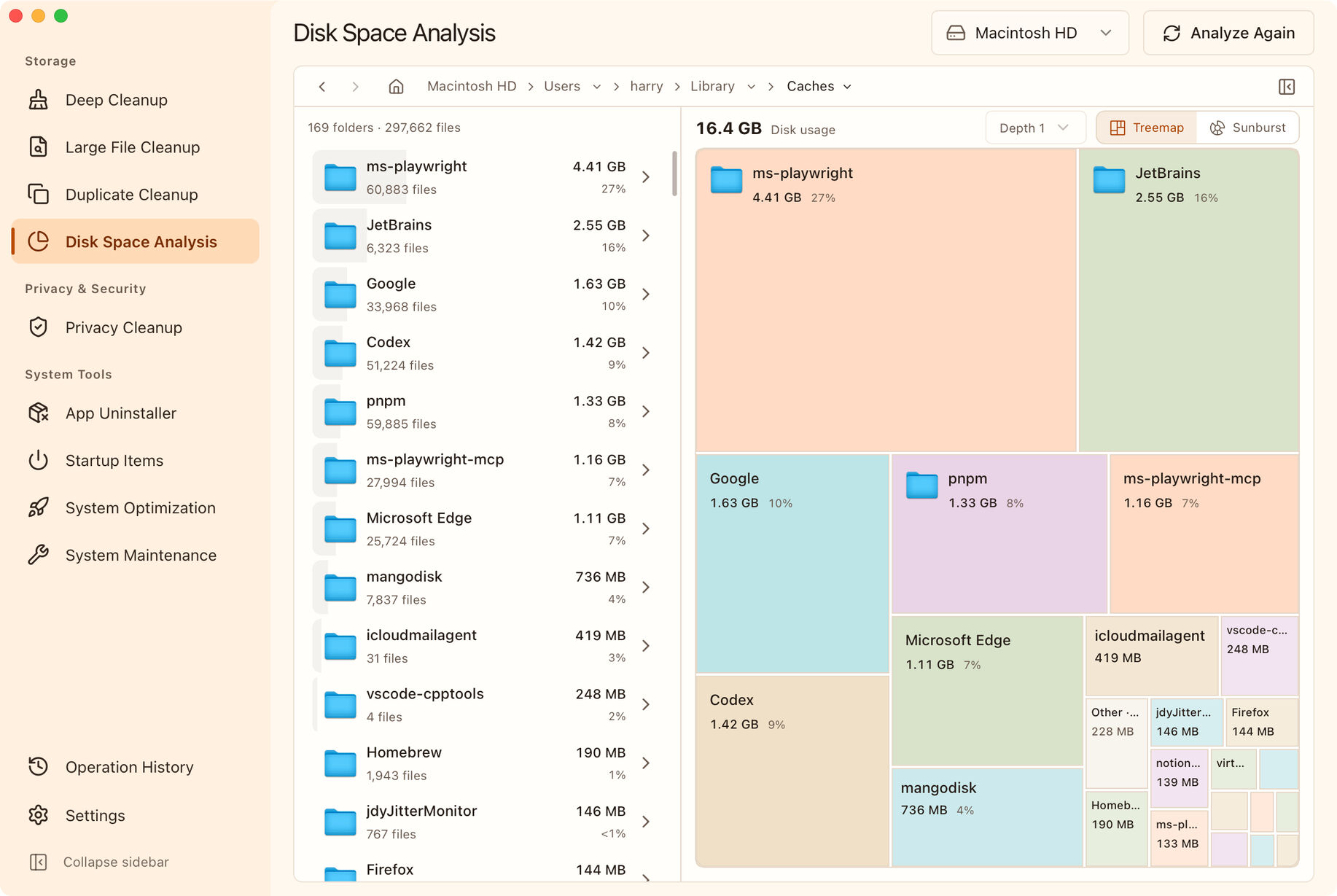
These screenshots show two views of the same cache folder. The figures are disk usage at the time of the screenshots, not space recovered or a recommendation to delete everything shown. The charts tell you where to look; you still need to check what the files are for.
Choose the next step based on what you find
Locating a large folder is a starting point. Old installers, duplicate videos, and app caches call for different approaches.
| What you find | What to review in MangoDisk |
|---|---|
| Downloaded videos, installers, or archives | Filter by type and size in Large File Cleanup, then check which files you still need |
| Several copies of the same file | Use Duplicate Cleanup to group identical content, check each location, and choose the copy to keep |
| Browser, app, or development-tool caches | Review supported items in Deep Cleanup, including their paths and cleanup effects |
A few old installers in Downloads may be straightforward to assess. A large app folder needs a closer look: it can contain caches, settings, and personal data together.
MangoDisk keeps disk analysis and these cleanup tools in one app. Switching tools still requires choosing the appropriate location or running another scan and reviewing the results. Clicking a large segment doesn't automatically classify or delete its contents.
Scanning doesn't delete files. Caches can be rebuilt or downloaded again, and duplicate files may be backups you meant to keep. Deletion in Disk Space Analysis, Large File Cleanup, and Duplicate Cleanup is permanent and bypasses Trash or the Recycle Bin. Back up important files before confirming a deletion. See the safety guide for the full limits.
Choosing between DaisyDisk and MangoDisk
If your main goal is to visualize local disk usage, locate large folders, and organize files you no longer need, MangoDisk is a free option. It's also worth considering if you use more than one of macOS, Windows, and Linux and want the same tool across them.
| What matters to you | DaisyDisk | MangoDisk |
|---|---|---|
| Price | US$9.99 for the personal license on its website, paid once | The desktop analysis and cleanup features described here are free |
| Platforms | macOS | macOS, Windows, and Linux |
| Exploring disk usage | An interactive radial map | Sunburst charts, treemaps, and a folder list |
| Deleting files you find | Supported | Supported; the file deletion described here bypasses Trash |
DaisyDisk is a one-time purchase, not a subscription. Check its official licensing page for current terms. It also offers more than a disk map, including cloud storage scanning and local snapshot management.
If those features are part of your workflow, check them individually before switching. This guide covers MangoDisk as an alternative for local disk analysis and everyday file organization, rather than a replacement for every DaisyDisk feature.
Start with a folder you know
Download MangoDisk and analyze Downloads, Documents, or a project folder. Use the chart to find the larger items, then check their names, sizes, and paths in the list. Reveal anything unfamiliar in Finder before deciding what to do with it.
There's no need to shrink every large shape on the chart. A few files you know you no longer need are a better place to start than an unfamiliar folder full of data.
The scans and cleanup described here run locally and don't require AI. The source code and release history are on GitHub, where you can inspect the implementation, report issues, or contribute.