
What's Taking Up Disk Space? Find Out with MangoDisk
Not sure what's filling up your computer? Use MangoDisk's treemap, sunburst and folder list to see disk usage, follow large folders and decide what to keep.

Your computer says it's running out of space. You delete a few files, but the warning comes back. A quick look through Downloads, Pictures and Documents doesn't reveal anything obvious.
To see what's taking up disk space, start with folder sizes and follow the largest folders down to their contents. You'll be able to tell whether a handful of videos are using most of the space or an app has accumulated thousands of smaller files.
MangoDisk's Disk Space Analysis puts folder sizes on a visual map. Bigger blocks mean more space used. A list alongside the chart shows names and sizes, so you can follow the folders to the files inside. MangoDisk is free and open source, works on Windows, macOS and Linux, and requires no signup or login.
Choose a drive or folder to check
Open MangoDisk and select Disk Space Analysis in the sidebar. Choose the drive that's running low, or add a folder you'd like to inspect.
If you don't know where to start, analyze the drive to see where the space is concentrated. If you already suspect downloaded files, photo backups or one app's data, start with that folder for a more focused view.
The scan runs locally. Analyzing a folder doesn't delete its files. System permissions may prevent some folders from being read, so the results cover what the app can access.
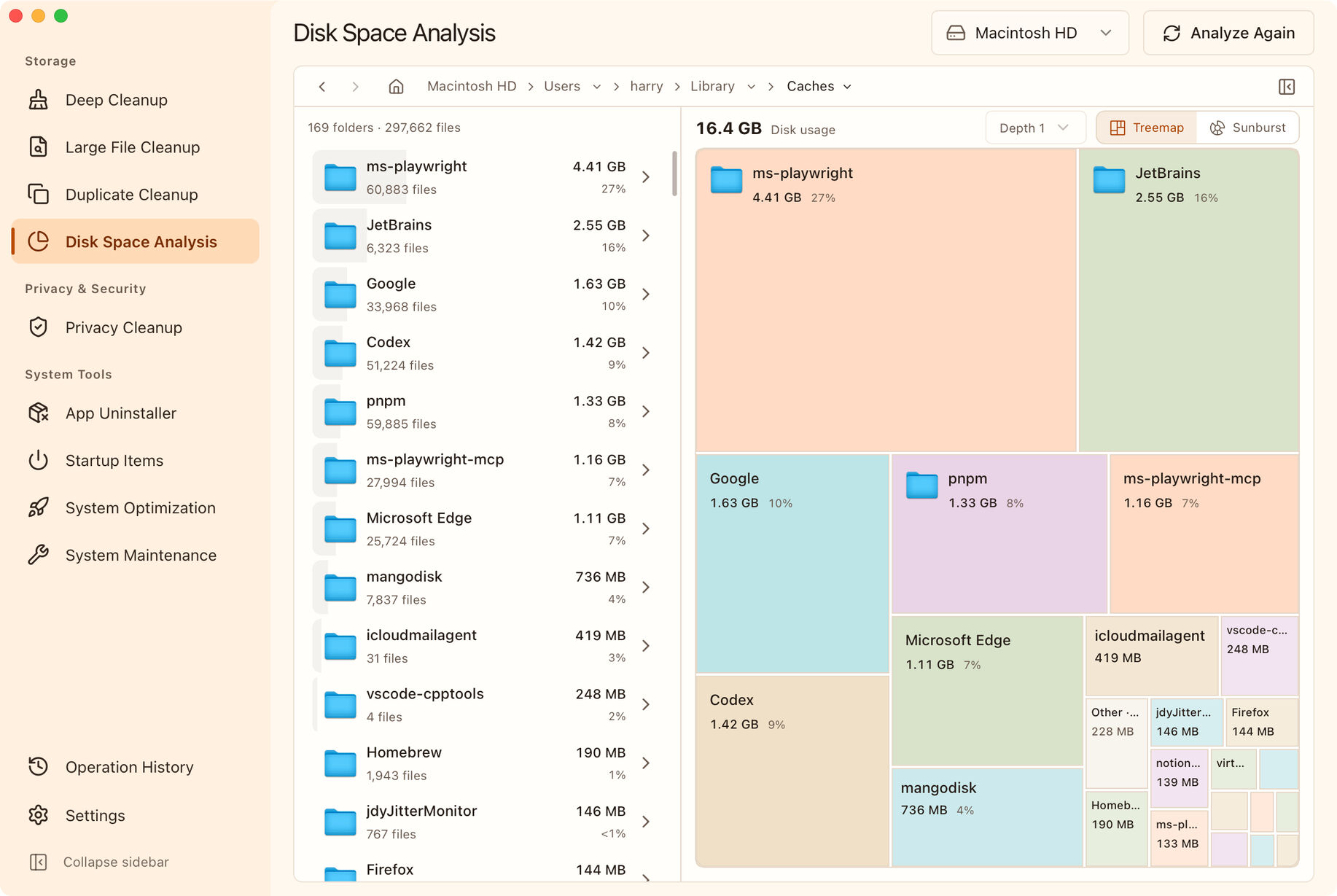
This screenshot shows a cache folder on a Mac. The 16.4 GB is the space used by that folder, not the whole computer, and it isn't a promise of space you can reclaim. The views below show the same folder in different ways.
Start with the biggest blocks
You don't need to identify every small block in a treemap. Find the largest ones, then check their names and sizes in the folder list.
In this example, the largest folder uses 4.41 GB, about 27% of the current folder's total. That's a useful place to investigate first. You don't need to know what every app in the screenshot does; use the same approach with your own folders.
Open a folder to see which items inside it use the most space. The path at the top shows where you are, so you can go back up and explore another branch.
For example, suppose your Videos folder is large. Inside, you find separate folders for meeting recordings, phone imports and editing footage. Comparing those folders gives you a starting point without opening every video.
A large video may still be worth keeping. Back it up or move it if you need it; if it's an old recording you no longer want, inspect the actual file before removing it.
Small files can add up too
A folder can be large even when none of its individual files stands out. Space may be spread across many small files and subfolders, which a search for large files alone can miss.
Increase Depth above the chart to show more folder levels in the same treemap. A large outer block contains smaller blocks representing its contents. Those inner blocks are already included in the outer folder's total; don't add them again.
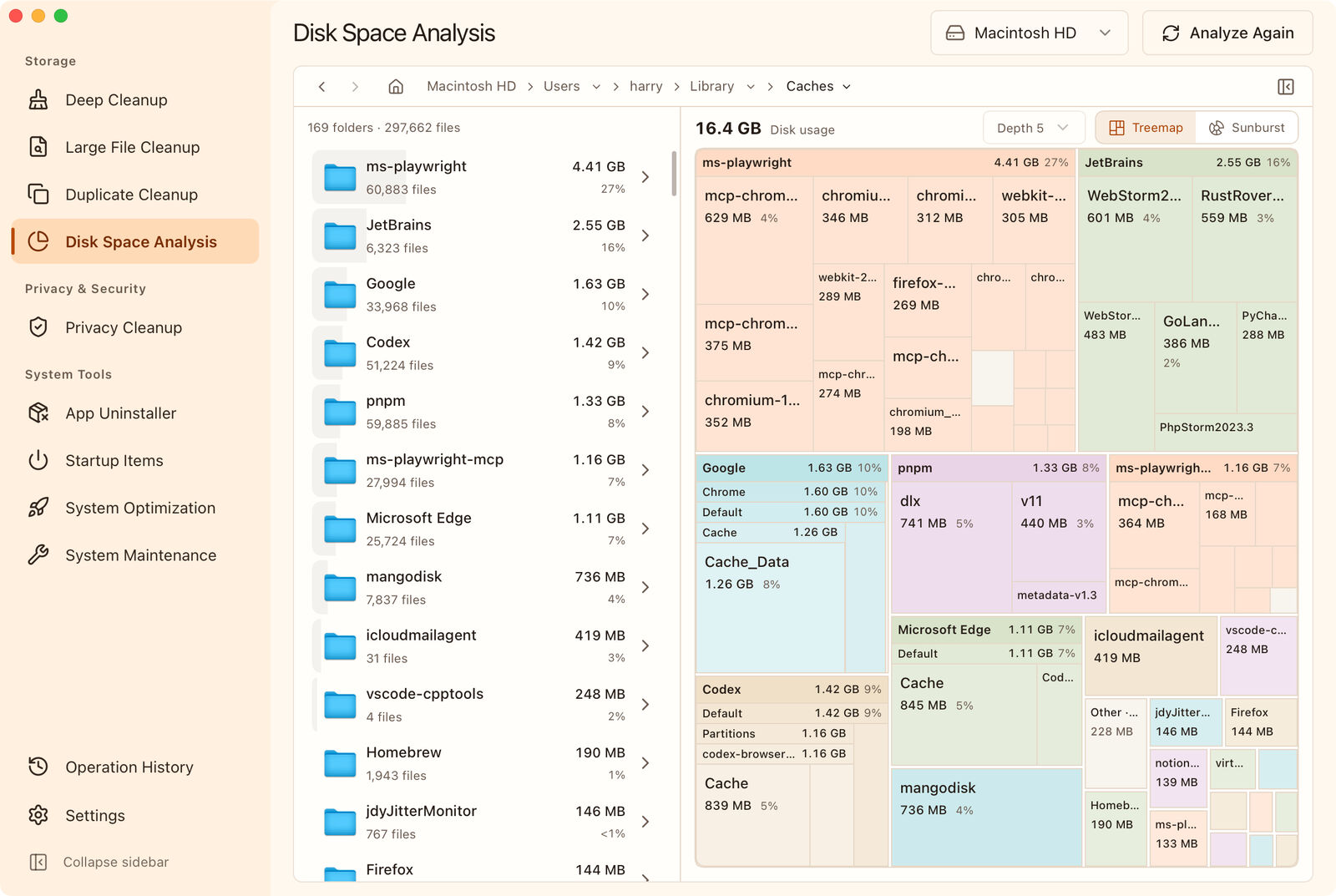
Compare this with the first view. The single Google block now reveals Chrome and the cache folders beneath it. Changing the view hasn't added any disk usage; it has made the breakdown visible.
If the chart feels crowded, lower the depth or open one folder to inspect it on its own. A focused view is often easier to work with than seeing every level at once.
Use the sunburst to follow nested folders
The treemap makes size comparisons easy. If you're trying to understand where a large folder sits within several layers of folders, switch to Sunburst.
The current folder is at the center, with its contents extending outward in rings. Within the same ring, a wider segment represents a larger share of space.
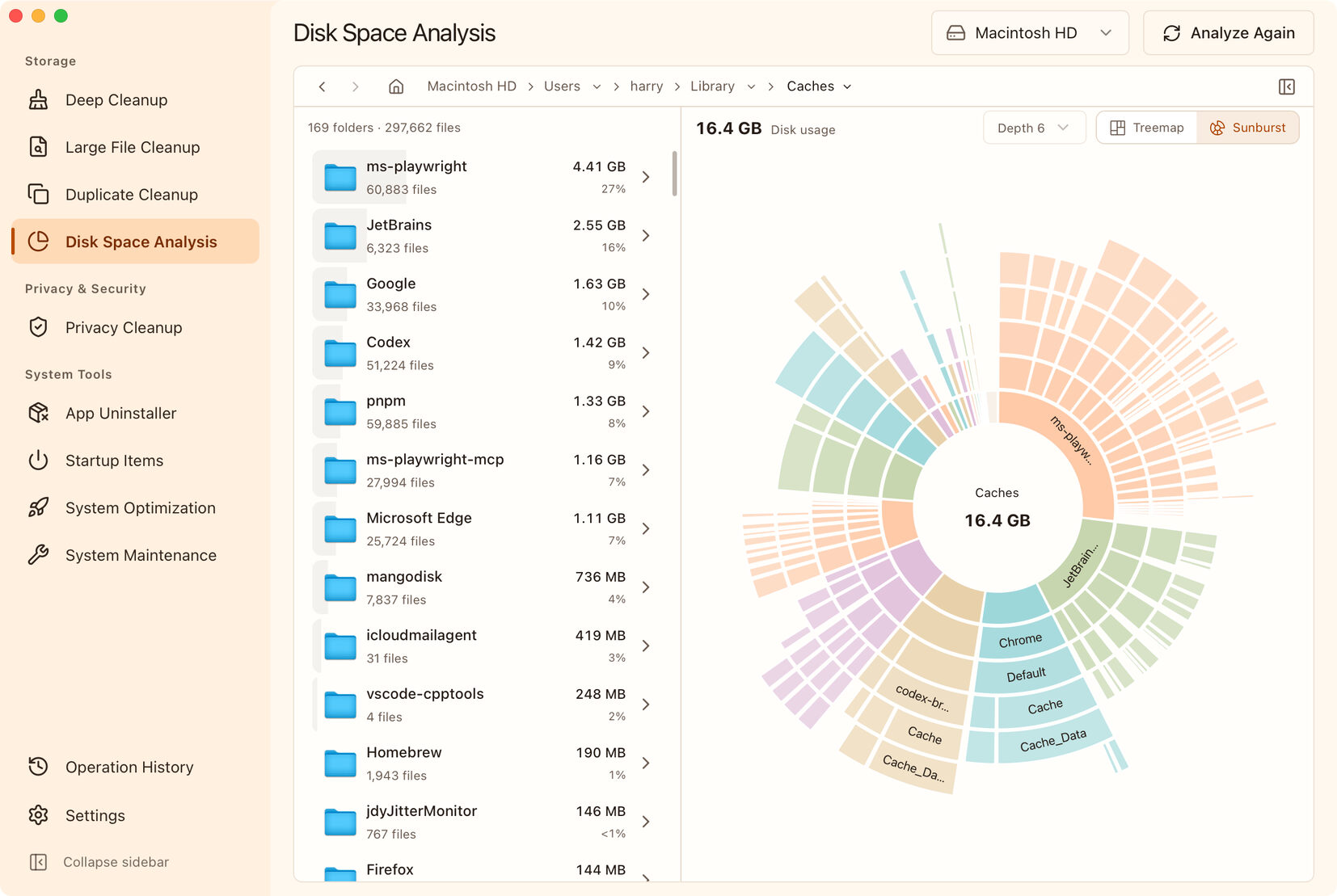
This is the same folder as in the previous two screenshots. Follow a branch from the inner ring outward to see how an app's disk usage is divided among its subfolders. Use the list to confirm names that don't fit on the chart.
Use the treemap to compare sizes, and try the sunburst to follow the folder hierarchy. Both let you change the depth. Choose whichever is easier for you to read.
Decide what to do with what you find
Once you've located a large folder, check its contents before deciding how to handle it. Size tells you where to investigate, not whether the files are disposable.
| What you find | What to do next |
|---|---|
| Downloaded videos, archives and old installers | Open their location and check what they are. Back up or move anything you need, then review files you no longer use. |
| A large app cache | Check whether MangoDisk's Deep Cleanup has a matching item. Read its paths and guidance rather than deleting the app's entire data folder. |
| Photos or files that may exist in several places | Use Duplicate Cleanup to check for exact copies and choose which one to keep. Similar-looking photos aren't necessarily identical files. |
| An app you no longer use | Uninstall it through the normal process instead of just deleting its data folder. |
| Unfamiliar system files, app databases or photo libraries | Leave them in place until you understand their purpose. |
To narrow down individual videos, archives and other large files, see the guides for Windows or Mac. If caches are taking up the space, check what MangoDisk Deep Cleanup supports.
Deleting an item from MangoDisk's Disk Space Analysis permanently deletes it; it doesn't go to the Recycle Bin or Trash. Back up important files and leave uncertain items alone. See the cleanup safety guide for the details.
When space is tight, knowing which folders account for most of it gives you a clearer starting point. Download MangoDisk and check a drive or folder to see where your storage is going.