
Zoom Taking Up Space? Clear Cache and Review Old Recordings
Find large Zoom recordings and review cache or old logs with MangoDisk on Windows and Mac. Keep the meetings you need and remove files you no longer want.

Still need Zoom, but running short on disk space? Before reinstalling it, check what's actually taking up room: app data or recordings from past meetings.
Treat recordings and disposable app data separately. Choose which recordings you no longer need, then review supported cache or old log files. There's no need to wipe the whole Zoom folder and risk losing meeting material.
MangoDisk's Large File Cleanup lets you sort recordings by size and see where each one is stored. Deep Cleanup checks supported Zoom cache or logs separately. You can compare the sizes without opening folders one by one, and your recordings aren't treated as cache.
Start with recordings saved on your computer
If you record meetings locally, check that folder first. A cleanup tool can't decide whether a meeting is still worth keeping.
In Zoom, open Settings → Recording and find the local recording storage location. Open the folder shown there. Unless you've changed it, the default is usually:
| System | Default recording folder |
|---|---|
| Windows | C:\Users\YourUsername\Documents\Zoom |
| macOS | /Users/YourUsername/Documents/Zoom |
Use the location shown in your settings; you may have saved recordings to another drive. Cloud recordings are managed separately from files on your computer. Zoom's recording management guide
Select that folder in MangoDisk's Large File Cleanup, scan it, and sort the results by size. Check the largest files first, then decide which meetings to keep. It's easier than hunting through each meeting folder separately.
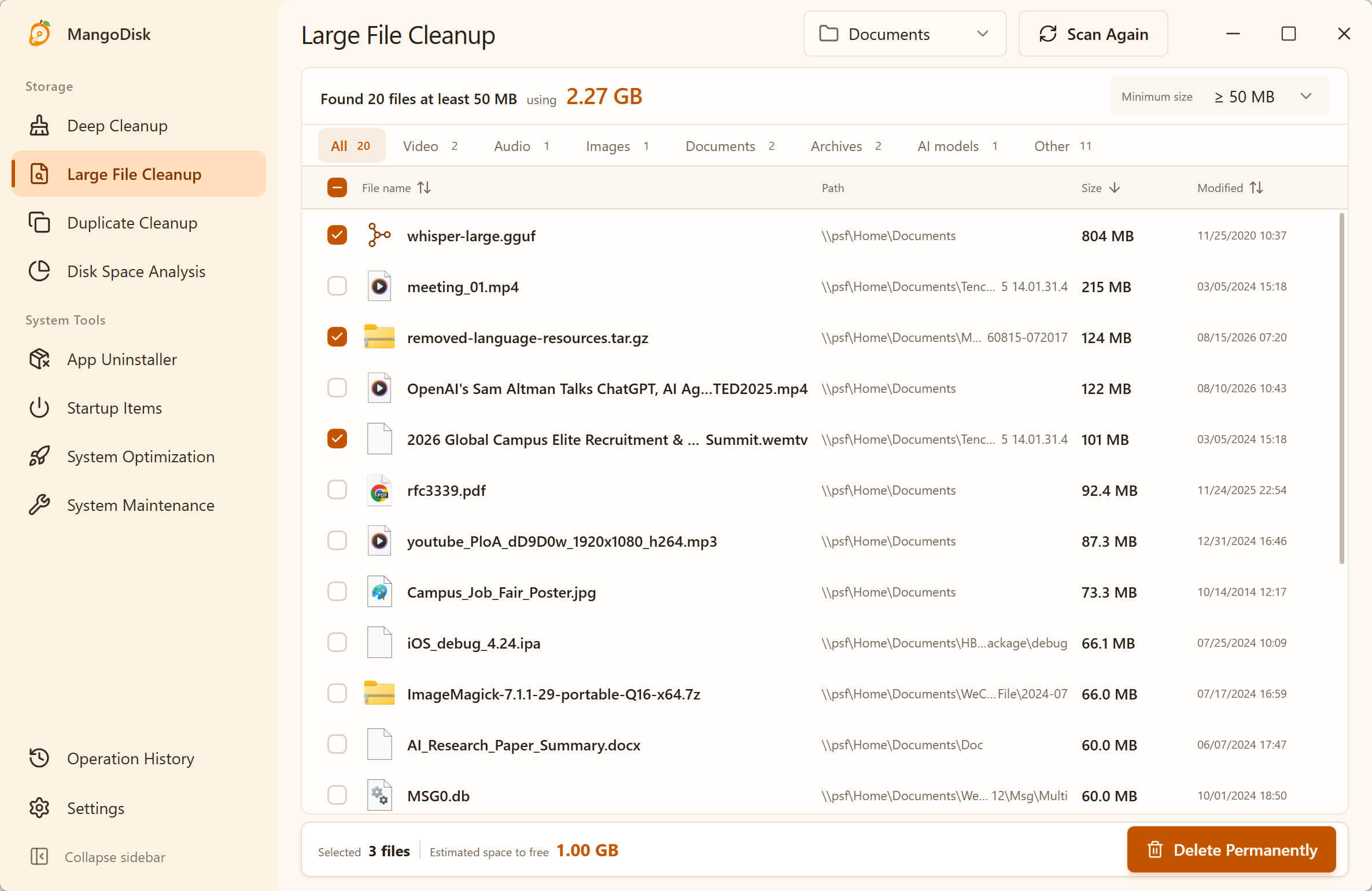
For recordings you want to archive, open their location from the results and copy them to an external drive using File Explorer or Finder. Check that the copies play correctly before removing the originals. Leave recordings alone while they're still being recorded or converted.
Only delete recordings you're sure you don't need. MangoDisk's Large File Cleanup deletes files permanently, without sending them to the Recycle Bin or Trash. If you're unsure, keep them for now, or use your system's file manager to move them to the Recycle Bin or Trash instead.
Clear Zoom cache or old logs separately
Even if you don't record meetings, you can check Zoom's cache and logs. They aren't always large, so look at the scan results before deciding whether to clean them.
MangoDisk handles different data on each platform:
| System | What the Zoom cleanup rule covers | What it leaves out |
|---|---|---|
| Windows | Diagnostic logs older than 14 days in %AppData%\Zoom\logs; the most recent 14 days are kept | Recordings, chat files, downloads, and account configuration |
| macOS | App cache in ~/Library/Caches/us.zoom.xos | Recordings, chat data, and account configuration |
Open Deep Cleanup in MangoDisk and run a standard scan. If a Zoom item appears, expand it to check the size and path. To clean only Zoom, deselect the other items before choosing what to remove.
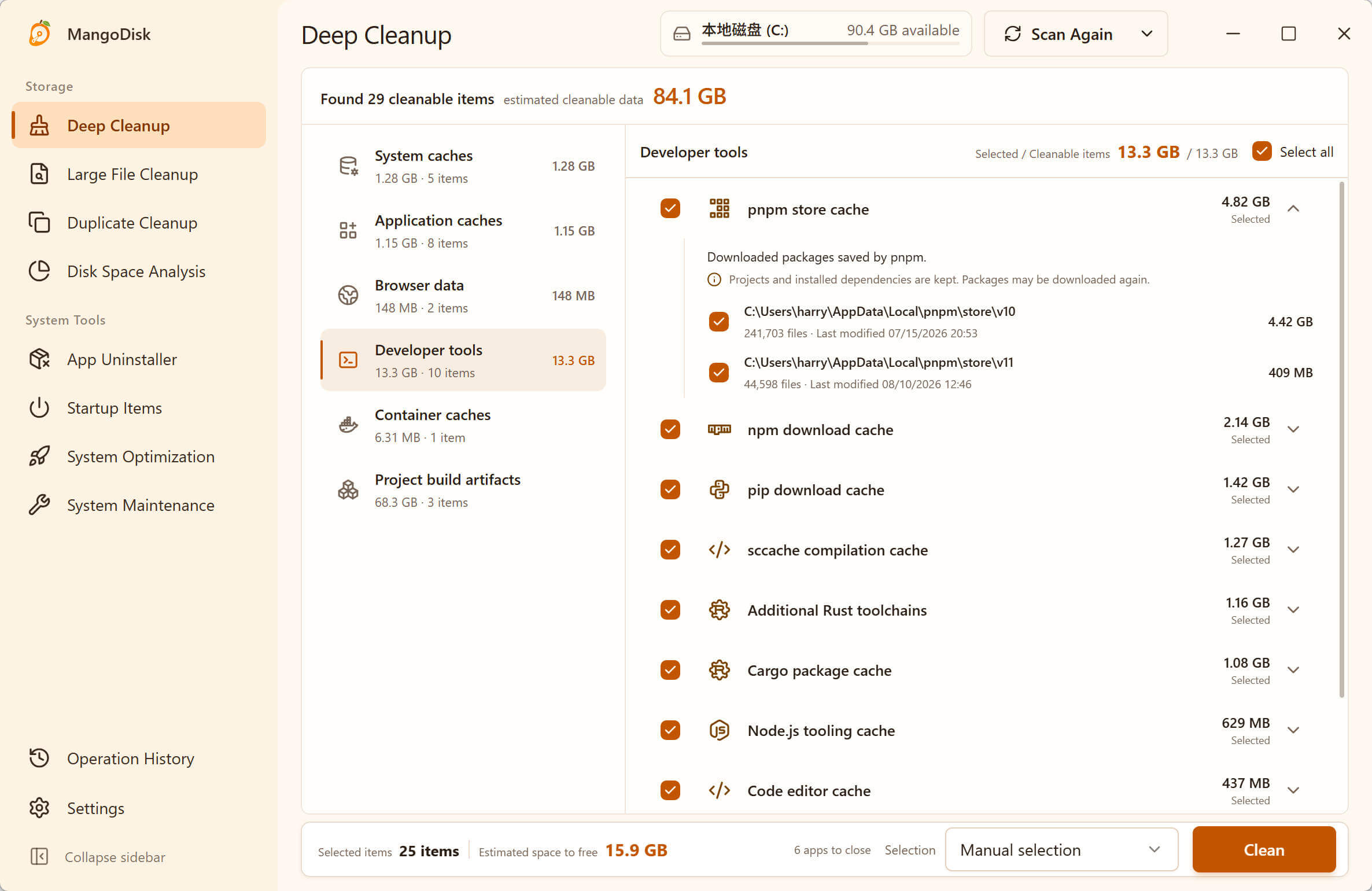
Let any meeting, recording, or conversion finish, then quit Zoom and review the confirmation before cleaning. Scanning alone doesn't delete files; see the cleanup safety guide for more detail. Mac cache may be recreated later. Deleted diagnostic logs won't be available for investigating past problems, so keep relevant logs if you're working with support on an issue.
You can inspect MangoDisk's open-source Windows log rule and macOS cache rule. Neither requires emptying the whole Zoom data folder.
Trying to fix sign-in or meeting problems instead?
People also search for “clear Zoom cache” when Zoom won't start, sign in, or join a meeting. That's a different problem from running out of storage.
Zoom has official cache-clearing instructions for those issues. They cover a data folder that isn't part of the MangoDisk rules above. Follow Zoom's troubleshooting guidance for those symptoms; removing old logs isn't a substitute.
If Zoom isn't the main problem
If its recordings, cache, and logs add up to very little, leave Zoom alone and look elsewhere. MangoDisk's Disk Space Analysis shows which folders actually occupy the most space. For a wider search, see how to find large files on Windows 11 or find large files on Mac.
Download MangoDisk to find large recordings and scattered cache files, keep what matters, and remove what you no longer need. Free and open source, with no signup or login required. Available for Windows and macOS.