
Is It Safe to Delete DirectX Shader Cache? When It's Worth Clearing
Decide whether DirectX Shader Cache is worth clearing, understand the recompilation trade-off, and use MangoDisk to review supported cache locations and sizes.

DirectX Shader Cache is generally safe to delete, but it doesn't need clearing every time you tidy your PC. It holds compiled data that games and graphics apps can recreate, not your game installation or saves. Deleting it reclaims the space it occupies; the trade-off is that rebuilding it may cause longer loads or temporary stuttering.
You don't have to learn your way around GPU cache folders first. MangoDisk brings supported DirectX and GPU caches into one Deep Cleanup view, with sizes and paths. Check how much space is involved, then decide whether clearing it is worthwhile.
Clear it when space is tight; keep it when things are running well
Shader caches do useful work. They let games reuse compilation results instead of repeating that work. NVIDIA's documentation explains how this can reduce compilation-related stuttering.
The decision comes down to what you need:
| Your situation | What makes sense |
|---|---|
| Your C drive is nearly full and the cache takes up meaningful space | Clear it if you can accept some rebuilding time when you next play |
| You have room and your games run normally | Leave it alone; there's no need for routine clearing |
| A game's support team recommends rebuilding the cache for your specific problem | Follow that game's or GPU vendor's troubleshooting steps |
If the cache is only a few dozen MB, repeatedly clearing it won't make much difference. Try finding large files instead: an old installer or recording you no longer need may be a better place to start.
Use MangoDisk to clear just this cache
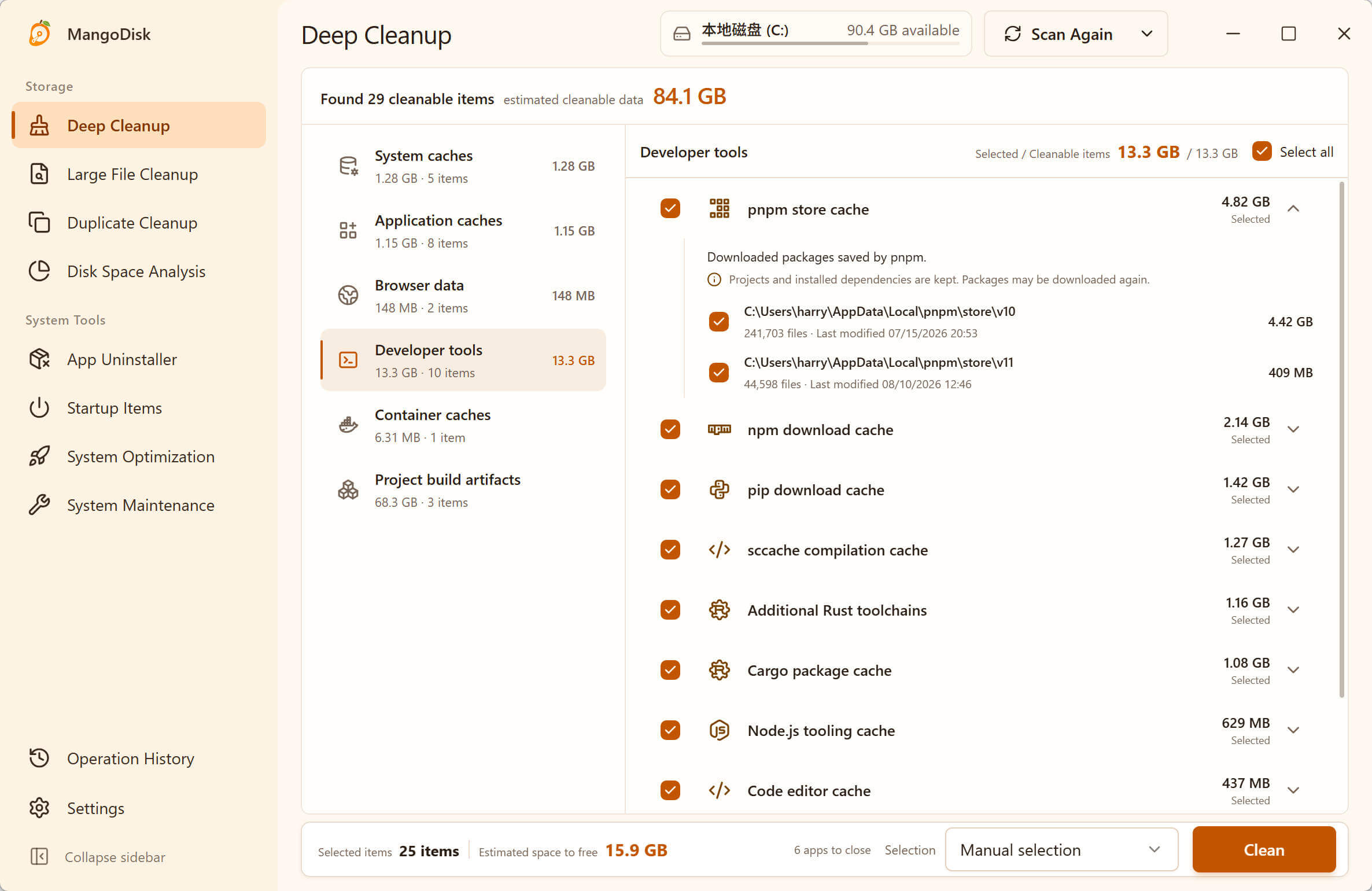
Open Deep Cleanup, run a standard scan, and look for DirectX Shader Cache under system caches. Expand it to review the paths and sizes without opening each folder's properties separately.
Before cleaning, save your progress and quit games and graphics apps. Choose Select none, then select only DirectX Shader Cache. Check the estimated space, start cleanup, and review the confirmation. This keeps other scanned items out of that cleanup.
MangoDisk checks known locations such as D3DSCache and selected NVIDIA, AMD, and Intel cache folders. It does not treat the entire GPU vendor folder as disposable. Game installations, saves, driver packages, and control-panel settings are outside this rule's scope.
Locations can change between driver versions, so MangoDisk does not claim to find every shader cache. If files are in use, skip them rather than changing permissions or forcing deletion. Scanning does not delete files; cleanup runs only after confirmation. See the cleanup safety guide before proceeding.
A stutter after clearing isn't a reason to clear it again
The first launch or visit to a new scene may trigger shader compilation. Clearing the files again immediately just makes that work start over.
Epic's Fortnite support guide notes that the first match after clearing may still stutter while new shaders compile. If problems persist, follow the relevant game or GPU vendor's guidance. Clearing caches is not a general FPS boost, and it won't fix every driver, network, or game issue.
Windows Settings can clear the entry it lists, too
Go to Settings → System → Storage → Temporary files and wait for the scan. If DirectX Shader Cache appears, check its size, select only that entry, and choose Remove files. Don't select everything else along with it, especially Downloads, Recycle Bin, or previous Windows installations. The temporary-files guide explains those differences.
Settings is useful for the items it lists. MangoDisk brings additional supported cache locations together so you can compare sizes, check paths, and choose individual entries. The two tools scan different scopes, so their totals need not match.
Steam's interface cache is another separate category. See how to clear Steam cache before treating it as game shader data.
Wondering whether the Thumbnails entry affects your photos? Read what clearing the thumbnail cache actually deletes.
Download MangoDisk to review scattered caches in one place and clear the ones worth clearing. Free and open source, with no signup or login. These scans and cleanup actions run locally; you don't need to enable AI.