
Windows Installer Folder Too Large? What to Do
Learn why C:\Windows\Installer grows, what not to delete, and how to inspect disk usage with MangoDisk before choosing safer ways to free space.

Do not manually delete files from C:\Windows\Installer to free up space. This folder holds cached installation files that apps may need for updates, repairs, or removal. An app might still open after you delete its cache, only to fail when you next try to update or uninstall it. Microsoft's Windows Installer cache guidance
If the folder is large, start by checking how much of your C: drive it occupies and whether other folders offer better cleanup options. MangoDisk can show folder sizes in a visual map and a list, so you can compare usage and explore the largest directories. Size alone does not tell you whether something is safe to delete.
Map the space before deciding what to remove
To check just the Installer folder, enter C:\Windows\Installer in File Explorer's address bar and view the folder's properties. You do not need to change hidden-file settings or directory permissions to try this.
To compare it with personal files, downloads, and app data, open MangoDisk's Disk Space Analysis, select C:, and choose Start Analysis:
- Check the top-level folders, such as
WindowsandUsers, to see where most of the space is used. - Open
Windowsand inspectInstallerif your account has permission to read it. You can also switch to List and sort by Size, largest first. - Return to the analysis root and compare downloads, videos, and app data in your user folder before choosing where to look next.
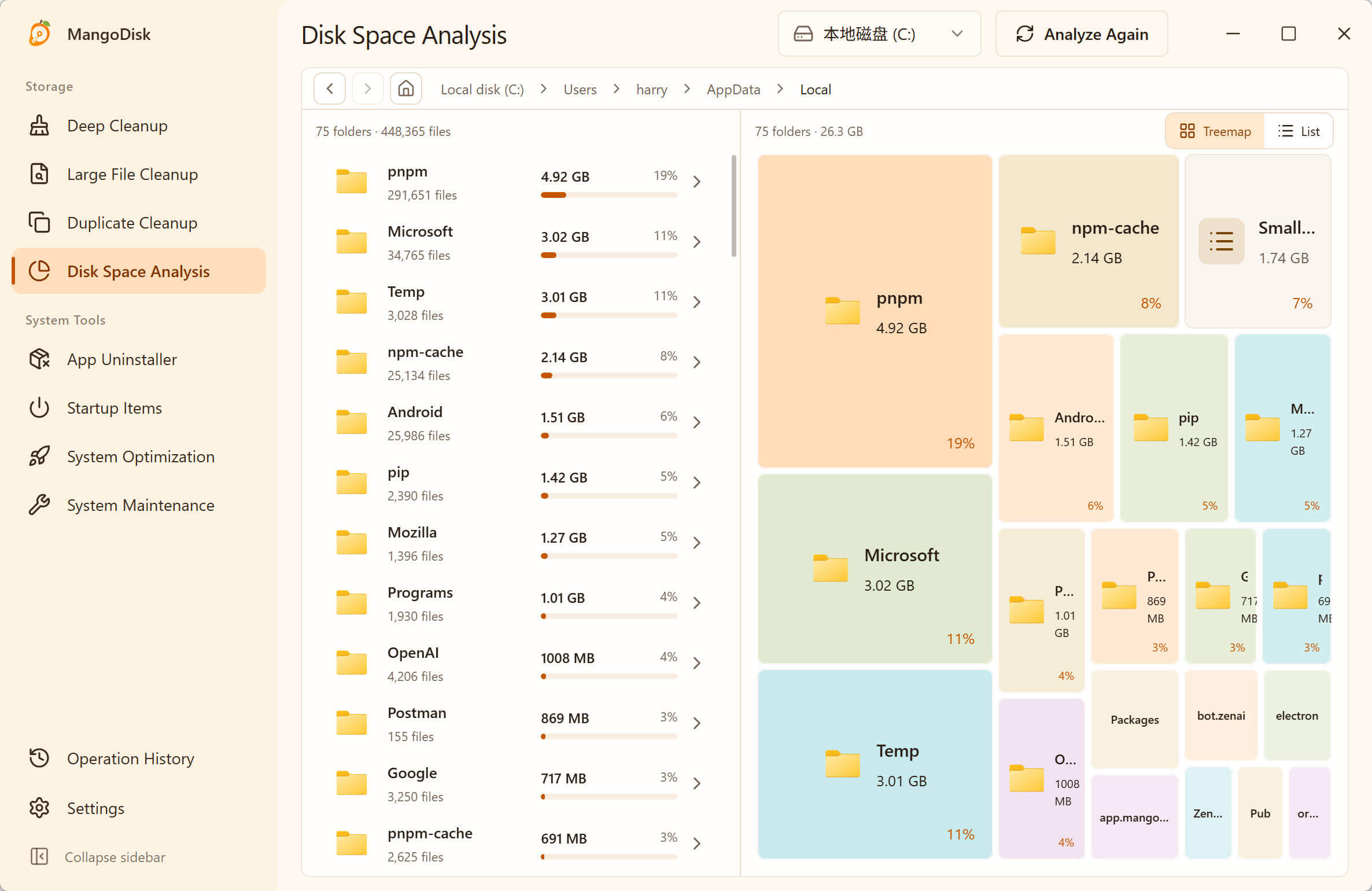
This Windows screenshot shows AppData\Local, not an Installer scan. The figures show space used, not space that can all be reclaimed. Do not empty the entire AppData folder.
MangoDisk saves you from opening each folder's properties and keeping a separate tally. It does not determine whether an MSI or MSP file is no longer needed. Read permissions and exclusion settings also affect the results: a folder missing from the view may still occupy space.
The steps here are for inspection only. Delete Permanently in Disk Space Analysis bypasses the Recycle Bin; do not use it to try removing Installer files. See the Disk Space Analysis documentation and cleanup safety guide for the feature's behavior and deletion limits.
What is in the Installer folder, and why does it grow?
Windows Installer is a Windows mechanism for installing and maintaining software. Apps installed or updated through it leave cached information needed for later maintenance.
Two file types you may encounter in C:\Windows\Installer are:
- MSI: cached files associated with software installation packages.
- MSP: patch packages used by Windows Installer to update installed software. Microsoft's patch package documentation
Repeated software updates can increase the cache's size. Filenames may not identify the app, and an old date does not mean a file is obsolete. Names, dates, and sizes are not enough to decide which files to remove. Microsoft Japan's Windows support guidance
An important distinction: an installer you downloaded and Windows' installation cache have different cleanup rules.
| Location | What it contains | How to handle it |
|---|---|---|
C:\Windows\Installer | Installation files needed to maintain installed apps | Do not delete manually; ask the app vendor for a supported way to reduce the cache |
| Your Downloads folder | Installers, archives, and other files you downloaded | Review individually once you no longer need them for offline installation, repair, or backup |
C:\Windows\WinSxS | The Windows component store | Use supported Windows maintenance tools; do not empty it manually |
C:\Windows.old | Files from a previous Windows installation | Use Windows settings after checking for files you still need and deciding you no longer need to roll back |
WinSxS cleanup procedures do not apply to Installer. Removing Windows.old also removes the corresponding option to return to your previous Windows version. Being on the same drive does not make these folders interchangeable. Microsoft's WinSxS guidance, Windows storage cleanup guidance
If you need to reduce Installer, identify the app first
Microsoft does not provide a universal procedure for safely deleting this cache by hand. To reduce it, first identify the software involved and look for a maintenance method supported by its vendor.
For administrators or users familiar with installation packages, Microsoft describes how to inspect an MSI's product information with Orca, an MSI database editor available through the Windows SDK. Orca documentation
Copy the MSI to a working folder, then open that copy's Property table to inspect fields such as ProductName, Manufacturer, and ProductVersion. Close it without saving changes. Do not move, rename, or edit the original cached file. MSP files have a different structure, so the same procedure may not work for them.
These fields help you find the app and its support team; they do not establish that a file can be deleted. Manufacturer is not the same as a publisher verified by a digital signature. Follow Microsoft's full inspection procedure and precautions.
Once you identify the app, check whether its vendor supports removing old patches or provides another maintenance option. Uninstalling and installing the latest version may reduce historical patch data for some products, but the requirements, backup steps, and results vary. Do not reinstall an important app just to shrink this folder without checking its supported procedure.
Need space now? Review other cleanup options
Leaving Installer intact does not mean you have to leave C: full. Work through these options first:
- Windows Cleanup recommendations: On Windows 11, open Settings → System → Storage → Cleanup recommendations. Review temporary files and large or unused files, and select only items you have confirmed you no longer need. Microsoft's instructions
- Downloads and large personal files: Use MangoDisk to check their paths and sizes. Start with familiar old installers, screen recordings, videos, and archives. Move files you need to keep to another storage location you have checked. See our Downloads cleanup guide.
- Unused apps and app caches: Use Windows or the app's own controls to uninstall or clean up. Do not delete whole Program Files, ProgramData, or AppData folders. Check the scope and consequences before clearing any cache. See our Windows app removal guide.
These steps free other space; they are not a shortcut to emptying Installer. If space remains tight, use the usage map to decide whether to move personal files, use an app's supported installation-location options, or add storage. Our full C: drive guide covers the broader investigation.
Common questions about deleting Installer files
Can I keep one copy of duplicate MSI or MSP files?
Do not use that approach here. Identical contents do not prove that installation maintenance needs only one of the file paths. MangoDisk can find files with identical contents, but it does not resolve Windows Installer dependencies. Treating this cache like duplicate downloads can break later maintenance.
Is it safe if a tool labels a file “orphaned”?
That label alone is not enough. Microsoft advises checking support with the relevant app vendor before using tools that identify orphaned files through registry comparisons or clean the installation cache in bulk. Microsoft's support guidance
I already deleted some files, but my apps still work. What now?
Stop deleting further files. An app opening successfully does not mean its next update, repair, or uninstall will succeed. Record what you removed, the affected software, and any errors, then follow the vendor's recovery instructions. Do not fill the gaps with same-named files from another PC: the cache depends on the installation state of this computer. Microsoft's missing-cache guidance
See where the space went with MangoDisk
MangoDisk is a free, open-source disk cleanup and analysis app for Windows, macOS, and Linux. For this Windows Installer problem, it helps you compare folder sizes and find other places worth reviewing. Maintenance of the Installer cache should still follow the app vendor's supported procedures.
Download it from the official website, or inspect the source on GitHub. Start with a map of your storage, then remove only files you have confirmed you no longer need.