
4 Free Disk Space Analyzers for Windows
Compare MangoDisk, WinDirStat, WizTree and TreeSize Free to find what's filling your drive. See which tool fits your needs, what's free and how to follow up with cleanup.
Your C: drive is almost full, but opening a few folders doesn't explain where all the space went. Checking “Properties” one folder at a time gets tedious. A disk space analyzer shows folder sizes and the largest files together, so you can start with the things that matter.
There are several free options for Windows. Try MangoDisk if you want disk analysis and everyday cleanup in one app. Choose WinDirStat if you prefer an open source analyzer. Consider WizTree for local NTFS scans, or TreeSize Free if you like browsing folder sizes in a tree.
This guide is written by MangoDisk's developer. It compares the tools by what you want to do, so you can choose one that suits you.
| Tool | A good fit for | What's free |
|---|---|---|
| MangoDisk | Checking disk usage, then clearing caches, finding duplicates or removing unused apps | Free and open source; the features covered here need no signup or login |
| WinDirStat | Exploring folder sizes, file types and charts with an open source tool | Free and open source |
| WizTree | Analyzing Windows drives, particularly local NTFS disks | Free for personal use; commercial use needs a license |
| TreeSize Free | Browsing folder sizes in a familiar tree view | Free for personal, non-commercial use on Windows desktops |
MangoDisk: find what's taking space, then deal with it
Open MangoDisk's Disk Space Analysis and select your C: drive or a folder. The results show folders and their sizes alongside a treemap. Bigger blocks mean more space used. Start with the largest ones.
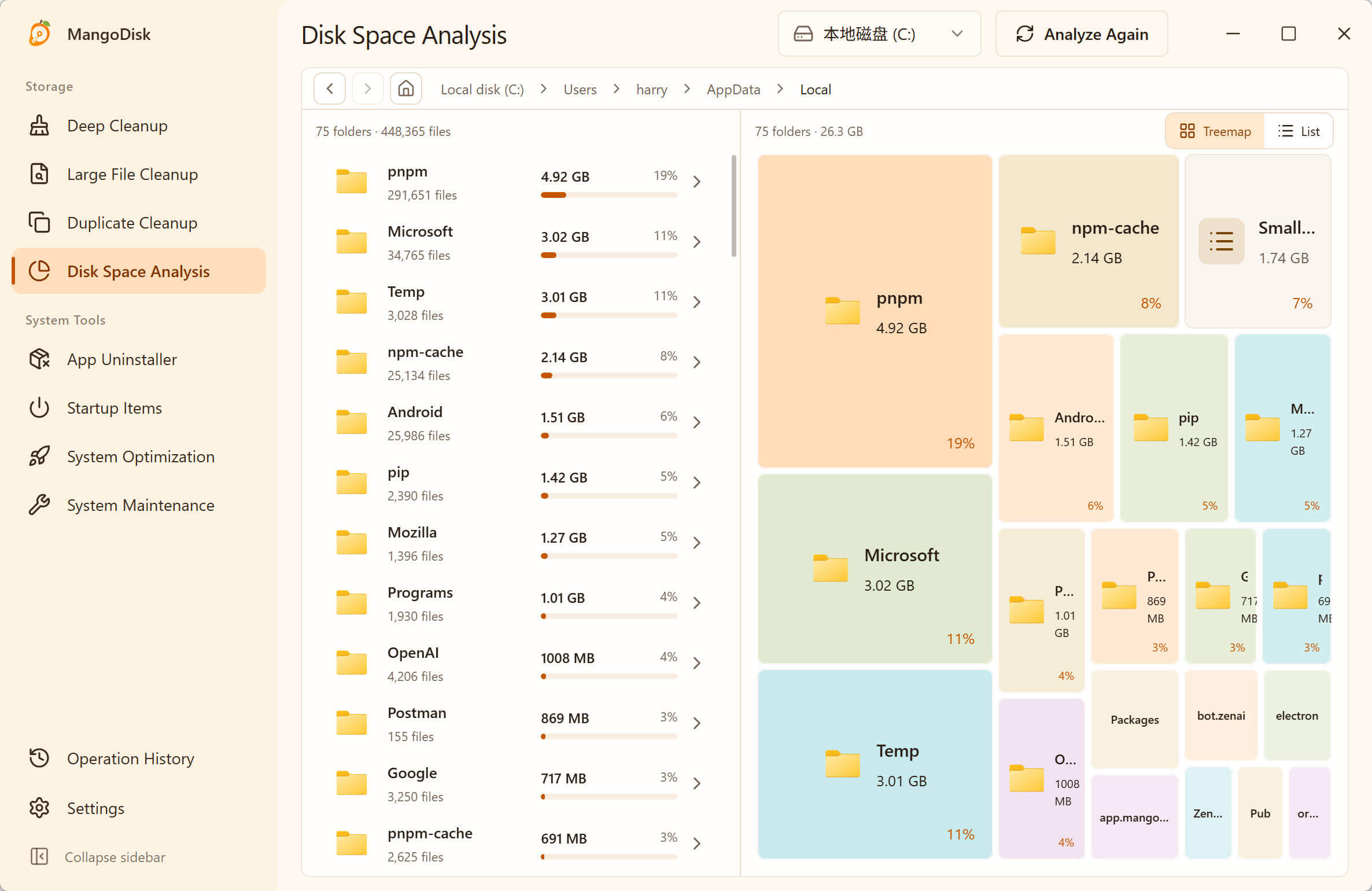
Open a folder to explore what's inside. You can also switch to a sunburst chart, where rings show the folder hierarchy. Both charts let you adjust how many levels are visible, so you can see several layers of folders together.
Finding a large folder often leaves another question: what can you actually clear? Old videos and installers are usually easy to recognize. An app's data folder can contain caches, settings and personal files together.
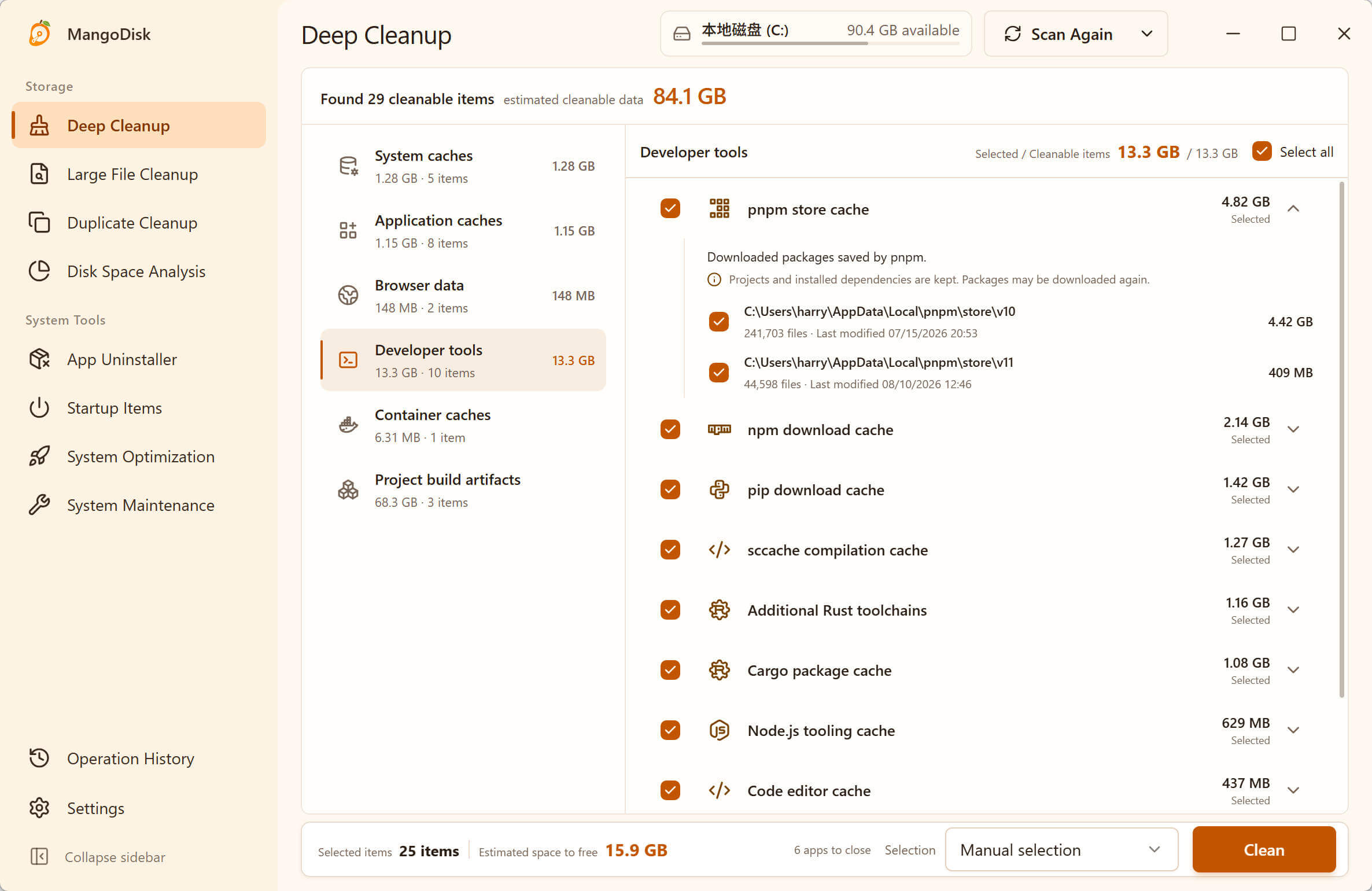
That's where MangoDisk's Deep Cleanup helps. It groups supported system, app and browser caches by category, with sizes, paths and cleanup guidance. You can review the space used and choose what to clear without hunting through several hidden folders.
If your own files are taking up the space, you have other ways to sort them out:
- Use Large File Cleanup to filter videos and installers by size and type.
- Use Duplicate File Cleanup to find copies with exactly the same contents.
- Use App Uninstall to remove unused software through its normal uninstaller and review the associated files MangoDisk can identify.
MangoDisk is a good fit if you want to check disk usage, clear caches and organize files in one app. These scanning and cleanup features run locally, are free and open source, and need no account. MangoDisk works on Windows and Mac. Website and download · Source on GitHub
WinDirStat: an open source view of your disk usage
WinDirStat brings folder sizes, file types and charts together. If you want to know whether videos, archives or a particular file type are taking up the most room, its file type list and treemap help you locate them.
The current version also offers sunburst charts, duplicate detection and cleanup tools. It's worth considering if you regularly analyze drives and prefer open source software. It can clean up files directly as well as show where the space goes.
WizTree: locate large files on Windows
WizTree offers folder lists, a treemap and file results you can sort by size. When scanning an NTFS drive, it reads the file system's Master File Table directly to find disk usage.
Consider it if your main task is finding large files and folders, especially on local NTFS drives. Scan time still depends on the drive, permissions and what you're scanning.
WizTree is free for personal use. Work or commercial use requires the appropriate license.
TreeSize Free: browse folders by size
TreeSize Free shows disk usage in a folder tree you can sort by size and expand level by level. If a list of folders and their sizes makes more sense to you than a chart, this is an approachable option. The free edition includes a treemap too.
Check the edition before downloading. Free, Personal and Professional have different features; duplicate file search, for example, belongs to the paid editions.
TreeSize Free is for personal, non-commercial use on Windows desktops. For business use or Windows Server, choose an edition licensed for that purpose.
TreeSize's official website and edition details
Start with files you know you no longer need
Scan the drive that's short on space and inspect the largest items. Old videos, installers and duplicate copies may be worth deleting or moving to another drive. Look up unfamiliar app folders before removing anything. Don't delete Windows, Program Files or the entire AppData folder as if they were junk.
Scanning with MangoDisk doesn't automatically delete files. Deletion in Disk Space Analysis, Large File Cleanup and Duplicate File Cleanup is permanent and bypasses the Recycle Bin. Back up important files, and follow the prompts to close relevant apps before clearing caches. See the safe cleanup guide for details.
Download MangoDisk to see where your disk space is going and handle the follow-up cleanup with less folder hunting.
More: Windows cleanup guides.