
How to Find and Delete Duplicate Files on Windows 11 Safely
Find duplicate files on Windows 11, verify identical content, choose which copy to keep, and remove extras without deleting backups or app files
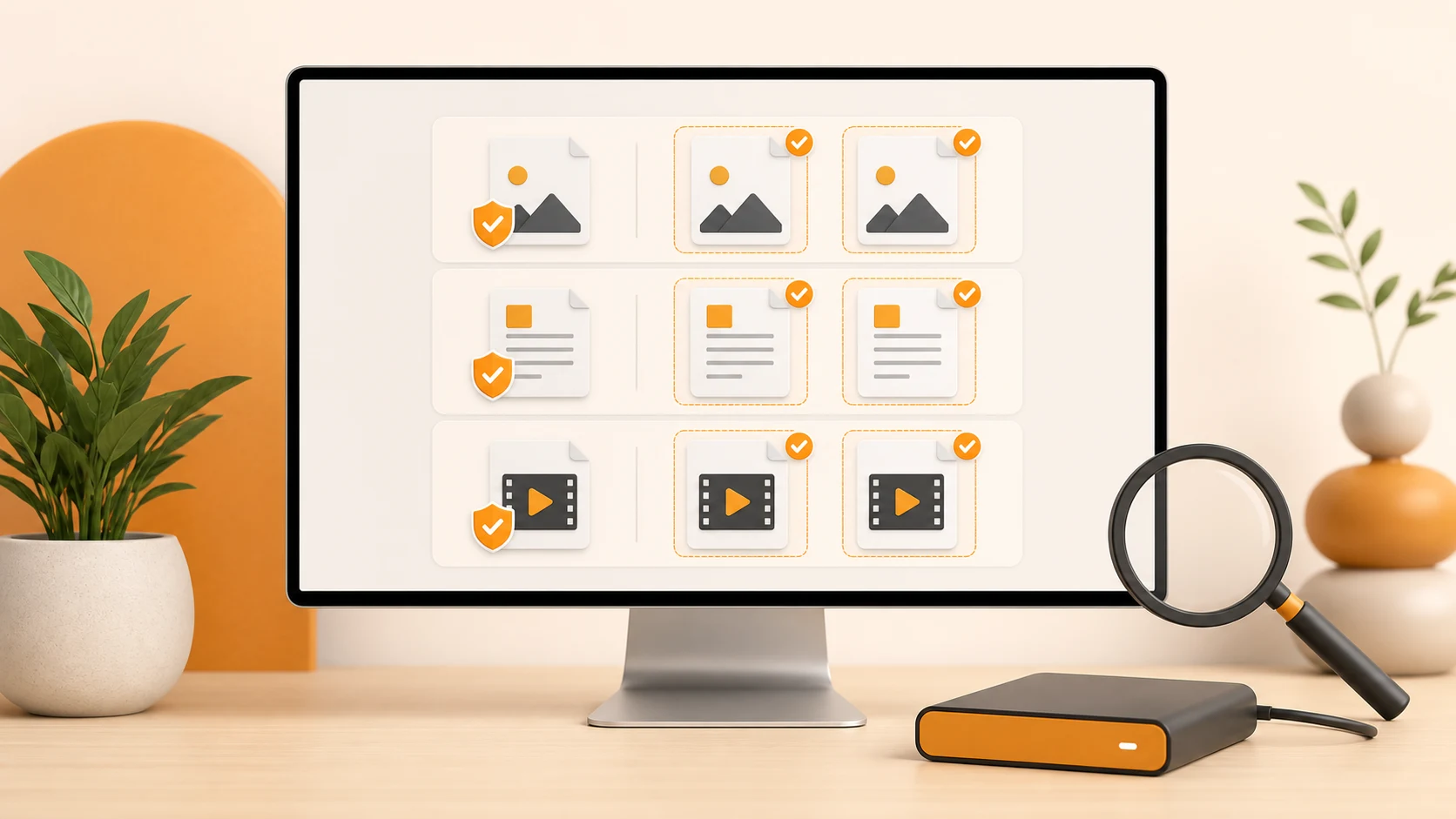
To find duplicate files on Windows 11, start with folders you control—such as Downloads, Documents, Pictures, videos, and old backup imports. Use File Explorer to narrow the list by name, type, size, and date, then open the files and compare their locations. Matching names or sizes are only clues. For an exact duplicate, verify the file contents before deleting any copy.
Do not search for duplicates by deleting matching files from C:\Windows, Program Files, ProgramData, or application folders. Windows and installed apps may intentionally keep identical files in different locations.
What counts as a duplicate file?
An exact duplicate has the same file content as another file. Its name, folder and modified date can be different.
That is not the same as:
- two photos that look similar but were taken separately;
- two documents with the same name but different edits;
- a smaller exported video and its full-quality source;
- an original file and a deliberately stored backup.
Deleting by filename alone is risky. photo.jpg and photo (1).jpg may be identical, but Budget.xlsx in two folders may contain different versions. Content comparison is the reliable way to confirm exact duplicates.
Where duplicate files usually accumulate
Start with personal folders where copying and exporting happen often.
| Location | Common duplicates | What to check |
|---|---|---|
| Downloads | Repeated installers, ZIP archives, PDFs and email attachments | Whether the file is still needed and whether a newer installer has replaced it |
| Pictures | Repeated imports, edited exports and messaging-app downloads | Whether copies have different resolution, metadata or edits |
| Videos | Screen recordings, exported projects and downloaded media | Whether one copy is the original or a smaller export |
| Documents and Desktop | Files copied between projects or renamed with “copy” and numbers | Open each document and check its folder before deleting |
| External drives and imported backups | Multiple snapshots of the same personal files | Whether the extra copy is part of your backup plan |
A backup is supposed to be redundant. If the only second copy is on another drive for recovery, treating it as clutter defeats the purpose of the backup.
Method 1: find obvious copies with File Explorer
File Explorer is useful when you know roughly where the duplicates are.
- Press Windows + E to open File Explorer.
- Open a focused folder such as Downloads or Pictures instead of searching the whole PC first.
- Switch to Details view.
- Sort by Name, Size, Type, or Date modified.
- Use the search box and Search options to narrow results by file kind, size or date.
- Preview or open suspected copies, then compare their full paths in Properties.
Names such as report - Copy.pdf, photo (1).jpg, or several installers with version numbers are good candidates for review. They are not proof of identical content.
Searching This PC is broader but slower. Begin with one folder so that every result has understandable context. File Explorer can help you find likely copies, but it does not automatically prove that two files have identical contents.
Method 2: verify a suspected pair with PowerShell
If two files may be identical even though their names differ, compare their hashes. A hash represents the file contents; PowerShell's Get-FileHash command uses SHA-256 by default.
Open PowerShell and run one command for each file:
- First file:
Get-FileHash -LiteralPath "C:\Users\YourName\Downloads\report.pdf" - Suspected copy:
Get-FileHash -LiteralPath "D:\Backup\report-copy.pdf"
If the two Hash values match, the file contents match. If they differ, keep both until you understand the difference.
This check is practical for a few important files. It is not a friendly way to review thousands of photos, videos and archives, and the hash cannot tell you which location should be kept. Avoid scripts that automatically delete every repeated hash; the copy in a particular project, synced folder or backup may be the one you need.
Decide which copy to keep
After confirming an exact duplicate, use its location—not only its date or name—to choose the keeper.
Prefer the copy that:
- lives in the folder where you normally organize that type of file;
- is referenced by a project, media library or application;
- has the clearest name and the metadata you want to preserve;
- is already included in a verified backup;
- is not inside a temporary export or repeated download folder.
Modified dates can change during copying, downloading or restoring a backup. The newest date does not necessarily identify the best copy.
What is safe to remove?
| Usually reasonable after review | Confirm the purpose first | Do not remove as ordinary duplicates |
|---|---|---|
| Repeated installers and archives in Downloads | Photos and videos in OneDrive or another synced folder | Matching files under C:\Windows |
| Exports you opened and compared with the source | Project assets used by video, design or development tools | Files under Program Files or Program Files (x86) |
| Personal documents copied into an obsolete folder | Files on a backup or recovery drive | Unknown files in ProgramData or AppData |
| Extra copies left by repeated manual imports | Game saves, virtual-machine data and app libraries | Files whose owning application you cannot identify |
When cloud sync is involved, deleting a local file may also delete it from the cloud and other devices. Check the sync provider's status and deletion behavior before removing a copy.
Scan exact duplicates by content with MangoDisk
When duplicates are spread across many folders, MangoDisk can scan one local disk or folder and group files whose contents are identical. Files can appear in the same group even when their names differ.
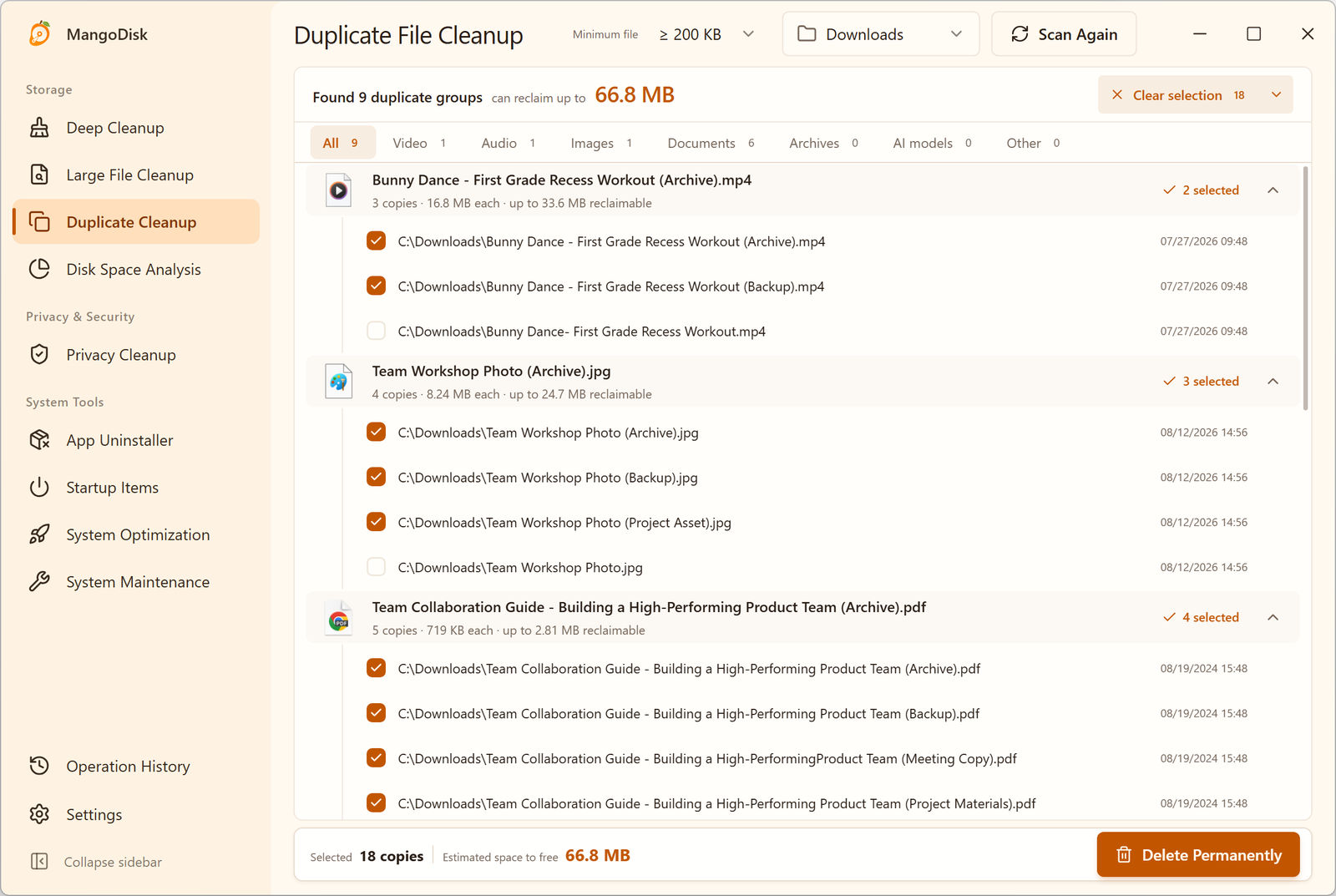
Each group shows the number of copies, the size of one file, the maximum reclaimable space and the full location of every copy. The example uses the English interface.
Choose a focused scan location and a sensible minimum file size first. Large videos, archives, disk images and repeated photo exports usually provide more useful results than thousands of tiny files.
The type filters help narrow the results to videos, audio, images, documents, archives, installers and other files. Smart Select keeps at least one file in each group and selects the additional copies, but it cannot know which folder matters to you. Expand the group, compare every path and adjust the selection before deleting.
See the Duplicate File Cleanup guide for the complete workflow.
Important: deletion is permanent
MangoDisk permanently deletes the duplicate copies you confirm. They do not go to the Windows Recycle Bin.
Before deleting:
- open important documents, photos and videos;
- check every selected path;
- keep at least one usable copy in the location you want;
- verify backups independently;
- exclude application and system folders you do not understand.
Read the MangoDisk safety guide before removing anything that cannot be replaced.
Frequently asked questions
Does Windows 11 have a built-in duplicate file finder?
File Explorer can search and sort files by properties such as name, type, size and date. It is useful for finding likely copies, but you still need to open or compare the files to confirm that their contents are identical.
Are files with the same name always duplicates?
No. They may be different revisions saved in separate folders. Conversely, exact duplicates may have completely different names. Compare content before deleting.
Can I delete duplicate files from Windows or Program Files?
No, not as a general cleanup method. Windows and applications may require separate copies in specific folders. Restrict ordinary duplicate cleanup to personal data and locations you understand.
Should I delete duplicate photos from OneDrive?
Only after checking the sync status and opening the photos. Deleting a synced file may remove it from the cloud and other connected devices. Also confirm that one file is not an edited or higher-resolution version.
Why did deleting duplicates free less space than expected?
The reclaimable amount should count only the extra copies, not every file in the group. Space may also remain unavailable until another process releases the file or Windows refreshes its storage total.
Is a backup copy a duplicate?
It may be content-identical, but it serves a different purpose. Keep verified backup copies on separate storage unless you have deliberately replaced the backup.
Official sources and related guides
- Microsoft Support: Find your files and apps in Windows
- Microsoft Learn: Get-FileHash
- Microsoft Support: Free up drive space in Windows
- Related: C Drive Full on Windows 11? How to Free Up Space Safely
- Related: Is AI Disk Cleanup Safe? Don't Let an AI Agent Delete Files
Want a clearer review than File Explorer provides? Download MangoDisk to scan exact duplicates locally, compare their paths and choose which copies to keep.
If old downloads are the main problem, see how to clean up your Downloads folder, including which installers to keep and how to spot extra copies.