
A Free TreeSize Alternative: Find Large Files with MangoDisk
Looking for a free TreeSize alternative? Compare editions, explore folder sizes, and filter large files with MangoDisk. See where it fits and how deletion works.
MangoDisk is a free, open-source TreeSize alternative for local disk analysis and everyday file organization. You can explore disk and folder sizes, filter large files, find identical copies, and review supported cache cleanup items. No account or login is required, and it runs on Windows, macOS, and Linux.
TreeSize already has a free edition, though. Whether switching makes sense depends on whether you just need folder sizes or also want tools for finding and organizing files.
I'm the developer of MangoDisk. This guide focuses on everyday storage tasks on Windows and the differences that matter when choosing a tool.
Which TreeSize edition do you need?
TreeSize Free already shows folder sizes, includes a treemap, and exports PDF reports. It's a practical option for finding a few large folders on a personal PC.
Duplicate searches, more detailed search criteria, and scheduled reports call for a closer look at the edition. According to TreeSize's official edition comparison, the main differences include:
| Edition | Scope and relevant features |
|---|---|
| TreeSize Free | Personal, non-commercial use on Windows desktops; folder sizes, treemaps, and PDF exports |
| TreeSize Personal | A paid edition with additional large-file search criteria, duplicate searches, and scan comparisons |
| TreeSize Professional | A paid edition with more advanced storage management, including scheduled scans, command-line support, and report exports |
This is a short selection of differences relevant to everyday file organization. Check the official site for the full features and license terms. If TreeSize Free suits you and you only need folder sizes, it can keep doing that job.
MangoDisk is worth considering if you want local disk analysis, large-file filtering, and exact duplicate checks without paying to unlock those features. You can choose the appropriate tool within the same app based on what you're organizing.
Browse folder sizes or go straight to a file type
If you don't know where the space is going, open Disk Space Analysis in MangoDisk and select a disk or folder. The folder list gives you names and sizes, while the treemap helps you compare how much space each part uses. Open a folder to explore further, or reveal it in File Explorer to inspect its contents.
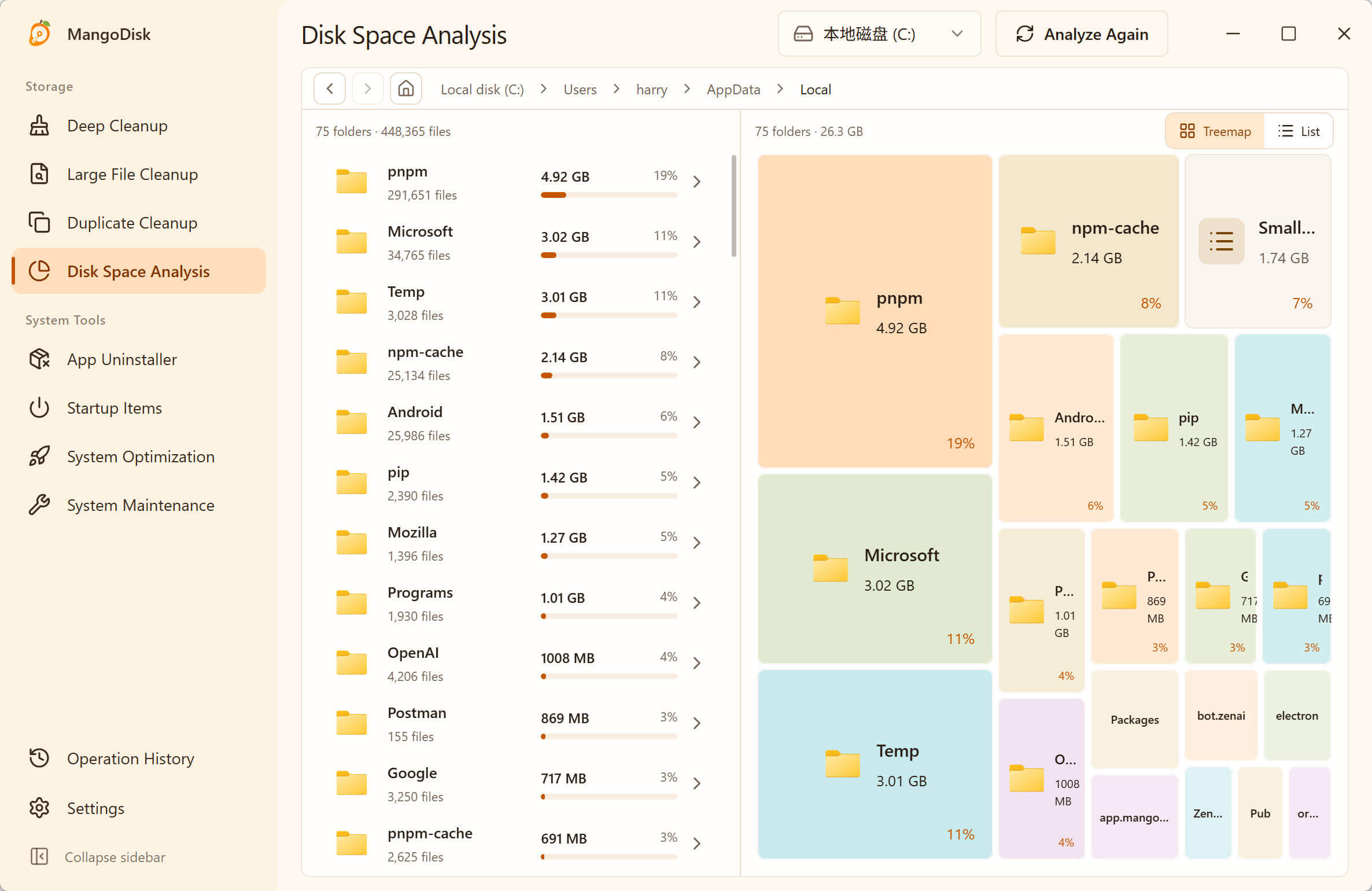
The screenshot analyzes AppData\Local, not the whole C: drive. It contains temporary files alongside programs, settings, and app data. A large rectangle means high usage; it isn't a reason to delete that entire folder.
If you already know what you're looking for, such as downloaded archives or recorded videos, use Large File Cleanup directly. Select the location, set a minimum file size, and scan. Then filter by file type and sort by size or modification date.
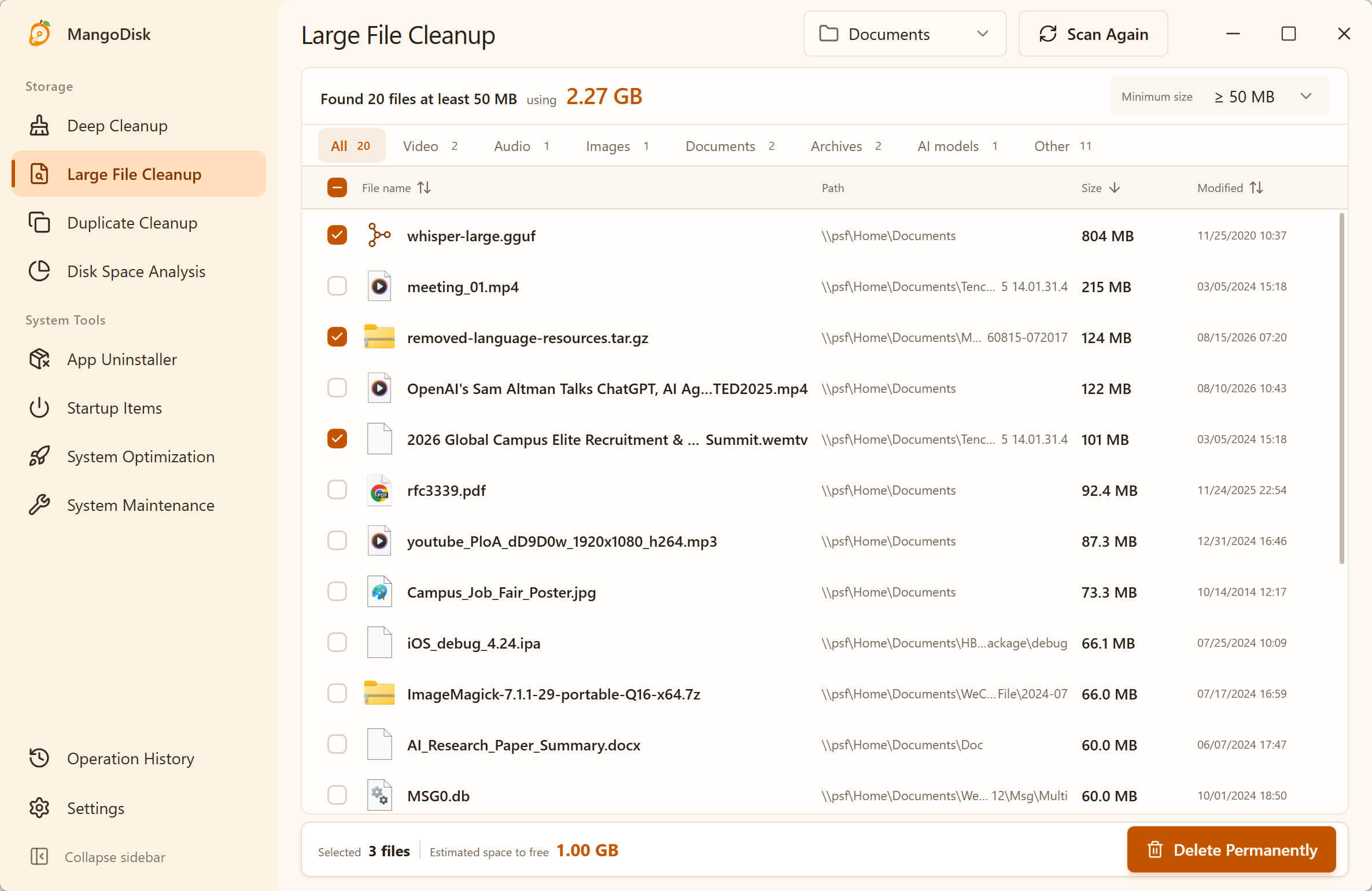
For meeting recordings, for example, start with the video category and check each file's name, location, and date. Reviewing similar files together saves you from searching through several subfolders. Modification dates are only a clue: an unchanged document may still be important years later.
Folder analysis and file filtering can be used separately. Switching from analysis to Large File Cleanup still requires selecting the relevant scope and scanning it. The chart doesn't automatically identify files that are safe to delete. For a full walkthrough, see how to find large files on Windows.
The sizes, file counts, and selections in these screenshots reflect those scans. They aren't typical savings or a recommendation to select the same items.
When copies or caches are the issue
You may still need a large file, but have several copies of it. Duplicate Cleanup groups files with identical content, even when their names differ. Expand a group, check each location, and decide which copy to keep. Copies in a backup folder may be there deliberately.
App folders need a different kind of review. Deep Cleanup checks supported cache items and shows their paths and cleanup effects. Results depend on the operating system, installed apps, and how the computer is used. Not every large app file is a cache.
These tools help with everyday organization, but you still need to understand what the files are for. Apps may rebuild or download caches after cleanup. Back up data and settings you want to keep.
When keeping TreeSize makes more sense
If you rely on scan comparisons, detailed reports, network or cloud storage analysis, scheduled scans, or command-line workflows, check the features of your current edition before migrating. TreeSize's official feature overview covers these professional storage tasks.
This guide presents MangoDisk as an alternative for local disk analysis and everyday cleanup. It doesn't treat it as a complete replacement for TreeSize Professional. We haven't run a same-machine scan-speed comparison, so speed isn't a reason for switching offered here.
To compare other free options, see four free disk space analyzers for Windows. For NTFS scanning, source access and use across systems, see the WizTree alternative guide.
Check how deletion works before switching
Deleting files in MangoDisk's Disk Space Analysis, Large File Cleanup, and Duplicate Cleanup is permanent and bypasses the Recycle Bin. There's a confirmation step, but that doesn't make deleted files recoverable. Keep this in mind if you normally leave files in the Recycle Bin for a few days before emptying it.
Scanning doesn't delete anything. You can review the results, inspect files in File Explorer, or move files you want to keep to another drive yourself. Before deleting, back up important data and close apps when prompted. Leave uncertain items alone. See the safety guide for the full limits.
To try a free, open-source tool for local analysis and file organization, download MangoDisk and start with a familiar documents or downloads folder. File scans run on your device, and these tasks don't require AI. The source code and release history are on GitHub.
For a comparison of free and paid features, read TreeSize vs WizTree for disk analysis, reports and the differences between free and paid use.