
Why Is pagefile.sys So Large, and Can You Delete It?
A large pagefile.sys isn't ordinary junk. Learn why Windows keeps it, when to leave its size alone, and how MangoDisk helps you find other space to reclaim.

You're looking for space on your C drive when you spot pagefile.sys. It's several gigabytes in size, perhaps larger than some of your apps. With an unfamiliar name and so much space tied up, it's tempting to delete it.
Don't delete it manually. pagefile.sys is a Windows-managed page file, not ordinary junk. For most people, leaving its size under system control makes sense. If you need storage space, look for other files worth reviewing first.
MangoDisk helps you see where that space is going. Compare folders in a treemap or sunburst chart, then open the larger ones to inspect their contents. It's free and open source, with no signup or login required. MangoDisk doesn't resize pagefile.sys, and it blocks direct deletion of the file at a Windows drive's root.
What is pagefile.sys, and why does it get so big?
Apps use memory while you're browsing, editing documents, and switching between tasks. Windows can move some less frequently used memory data into the page file, leaving RAM available for more active work. The file can also help Windows save diagnostic information after a system crash. It serves a different purpose from an old installer or an app cache. Microsoft's introduction to page files explains these uses.
Its size isn't fixed. By default, Windows manages it automatically, taking account of installed memory, workload, and crash-dump requirements. A large file alone doesn't mean something is wrong, and there isn't one ideal page file size for every PC. See Microsoft's page file sizing guidance for the factors involved.
You might also see hiberfil.sys nearby. That file is used for hibernation, so the advice is different. Read whether you can remove hiberfil.sys if that's the file you're investigating.
Find other space worth reclaiming with MangoDisk
The largest file you notice isn't always the best one to remove. Old recordings, installers you've downloaded more than once, and accumulated app caches may be spread across several folders.
In MangoDisk, open Disk Space Analysis, choose a drive or folder, and use Standard scan to check its disk usage. Start with the larger blocks, then use the folder names and paths in the list to work your way through them.
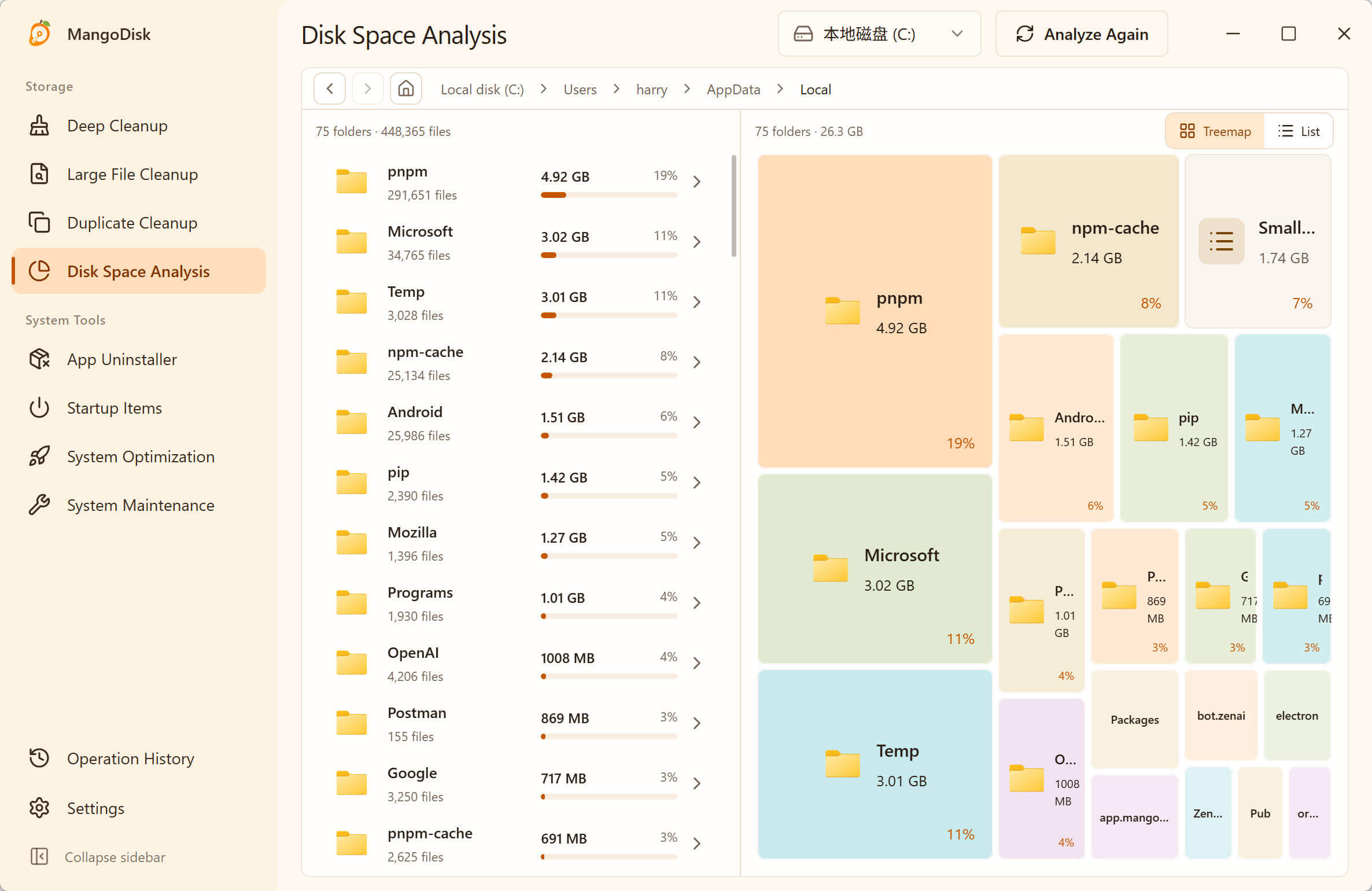
This screenshot shows folders inside AppData\Local. The blocks help compare sizes; they don't mean everything inside is safe to delete. App data folders can also contain settings and personal data, so don't empty a whole folder just because it's large.
For example, you might open a large video folder and find recordings you no longer need. If an app's folder is taking up space, check what it contains before deciding what to do. You can make a more informed choice about familiar files than an unfamiliar system file.
The scan can only count items it can read that haven't been excluded. Its total may differ from the drive's used space in Windows. An item missing from the chart doesn't mean it takes up no space. The Disk Space Analysis guide explains the controls and scan scope.
For caches, try Deep Cleanup. It brings supported cache items and estimated reclaimable space into one view, so you can inspect the results before selecting anything. Scanning doesn't delete files, and you don't need to select everything.
You can organize unwanted personal files in File Explorer first. If you choose permanent deletion in Disk Space Analysis, the files bypass the Recycle Bin. Back up important data before proceeding; the cleanup safety guide covers these precautions.
Will closing apps shrink pagefile.sys immediately?
Not necessarily. Memory usage and disk usage measure different things. Closing an app and deleting a file address different needs. A drop in memory usage doesn't mean the page file will shrink straight away.
If your PC also feels sluggish, MangoDisk's system resource panel lets you check memory usage and the app list. You can see which apps use more memory, save your work, and close ones you don't need. That gives you a view of what's running; the size of pagefile.sys alone can't identify the cause of a slowdown. Nor should you treat memory release as a way to shrink the file.
For storage space, keep inspecting files and folders. To look for videos, archives, and other large files by type, see how to find large files on Windows.
Should you change the page file size yourself?
If the PC works normally and the only concern is a large pagefile.sys, you can usually leave Windows in charge. There's no need to copy a fixed size from someone else's settings or disable the page file just to make space.
If you do need to change it, use Windows' virtual memory settings and base the choice on your PC's actual needs. Setting it too small can contribute to out-of-memory errors or app failures under load, and may prevent Windows from saving crash information. When you're unsure, system management is the simpler choice.
Download MangoDisk to see which folders take up the most space, then decide what to keep, move, or remove. The source code and cleanup rules are available on GitHub.