
A WinDirStat Alternative: Disk Analysis and Cleanup with MangoDisk
Looking for a WinDirStat alternative? See how MangoDisk combines a treemap, cache cleanup and app removal, plus the differences that matter before you switch.

You've found the biggest folder on your nearly full C drive. Now what? An app directory can hold caches, settings, downloads and data you still need. Knowing its size doesn't tell you which parts you can remove.
If you want a WinDirStat alternative that brings disk analysis, cache cleanup and app removal together, MangoDisk is worth a look. It runs on Windows, macOS and Linux. The desktop cleanup features covered here are free to use, with no signup or login required.
This guide is published by MangoDisk's developer. It focuses on what comes after finding a large folder: choosing a sensible way to deal with its contents.
Find where the space went
MangoDisk's Disk Space Analysis shows a treemap alongside a folder list. Bigger blocks mean more space. Open a folder to explore the next level, rather than checking each folder's properties separately.
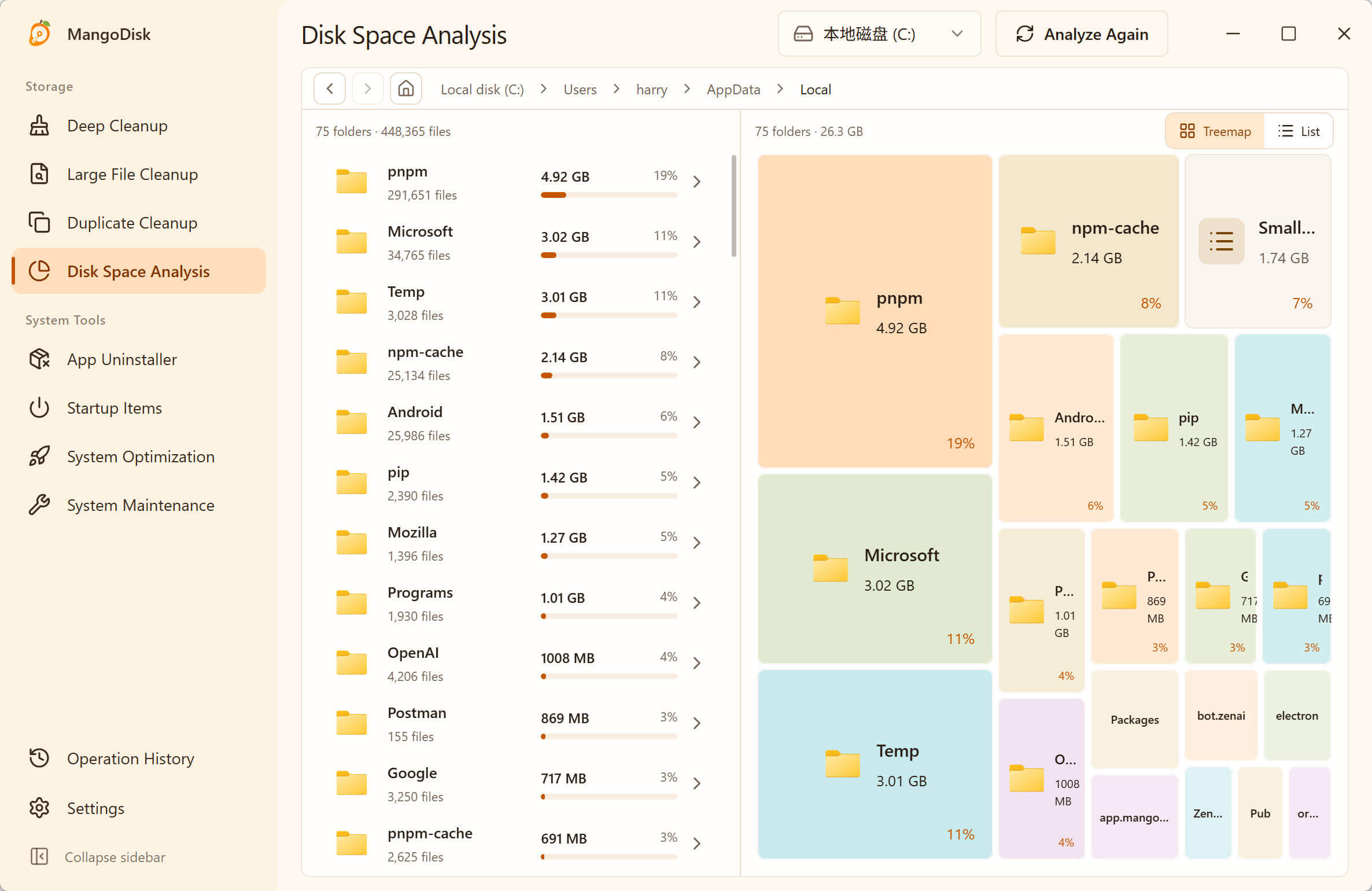
Start with the largest blocks. Are they downloaded videos, old installers or an app's data folder? When you need a closer look, open the item's location in File Explorer.
A treemap is also a core part of WinDirStat. The reason to consider MangoDisk is having everyday cleanup tools alongside that storage view. Once you find the files, you don't have to treat them all the same way.
Review caches without researching every folder name
An old video is usually easy to recognize. An app folder is another matter. Its name alone may not tell you whether it holds disposable caches or settings and personal data.
Switch to Deep Cleanup to scan the system, app and browser cache categories MangoDisk supports. Results bring sizes, paths, risk labels and cleanup notes together, so there's less digging through hidden folders and looking up what each one does.
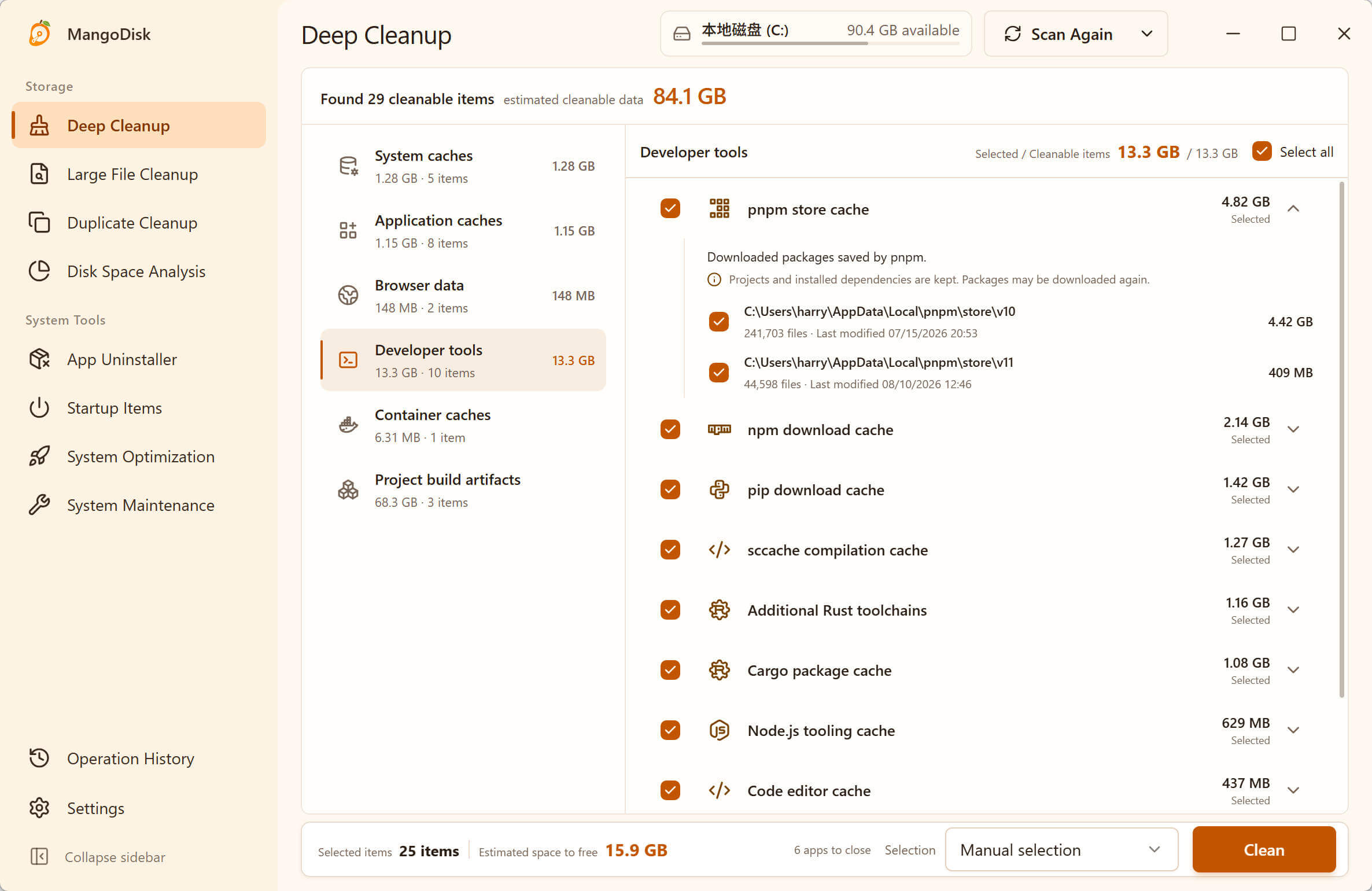
You don't need to understand every folder in AppData before getting started. Review the identified items, select what you no longer need and close any apps indicated before confirming cleanup. Caches may be rebuilt the next time you use an app; settings and local data need a more careful decision.
Scanning doesn't delete anything, and you don't need to select every result. The benefit is fewer folders to hunt down and fewer file names to decipher—not a promise that everything found should go.
Remove unused apps and review their associated files
If an app you no longer use is taking up space, deleting its installation folder isn't a proper uninstall. Services, settings and user data can remain behind.
MangoDisk's App Uninstaller lists installed apps and checks for associated files it can identify. Expand an app to review its main files, regenerable items and files that may contain user data before deciding what to keep.
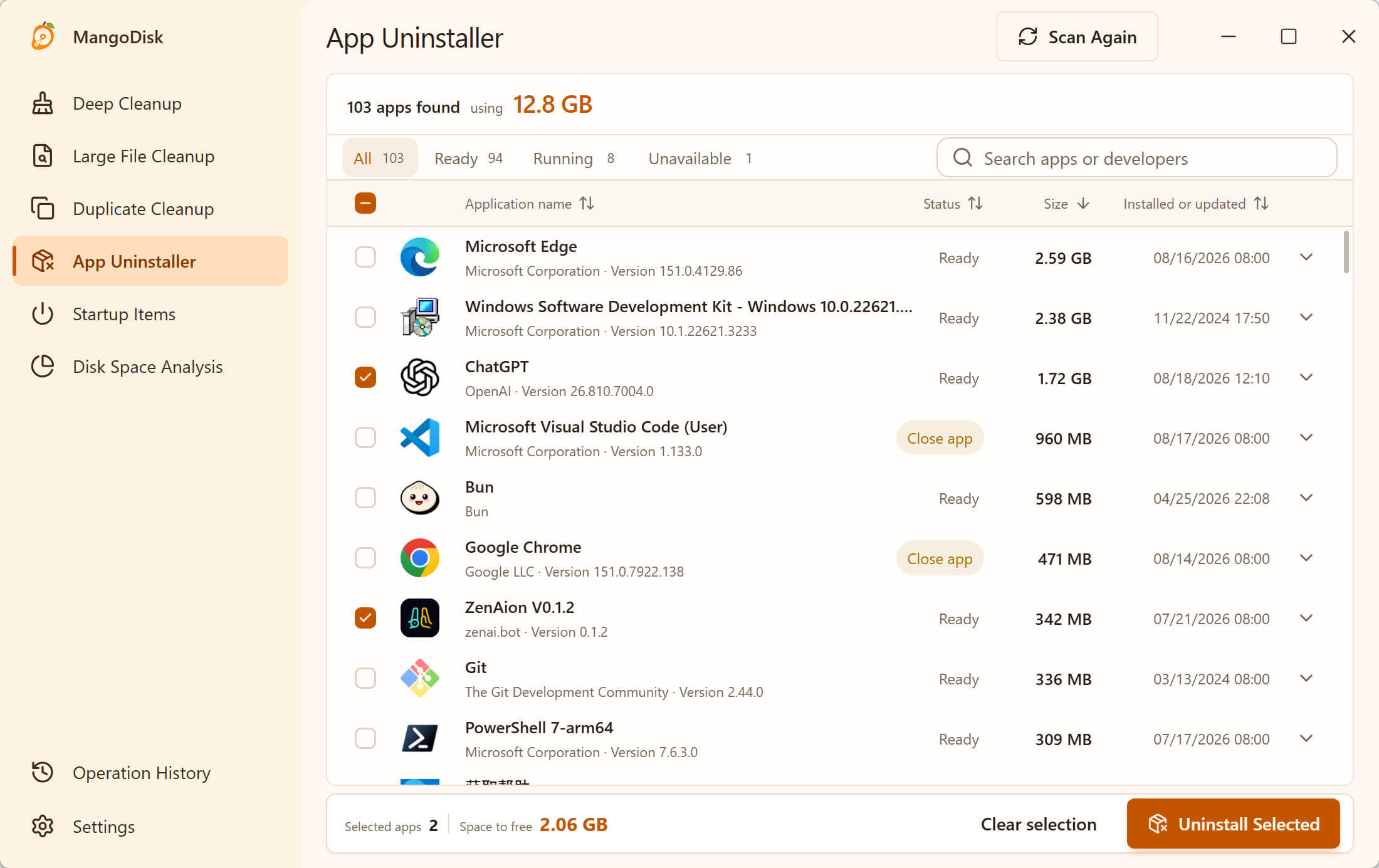
On Windows, MangoDisk uses the system's or app's own uninstall mechanism first. It doesn't simply delete the installation folder. The useful part is reviewing app removal and associated files in one workflow, with less manual searching for leftovers afterward.
Data shared by multiple apps isn't automatically removed, and the files MangoDisk can identify vary by app. Back up settings, templates, game saves and local files you want to keep. See the Windows app removal and leftovers guide for the process.
If the real space hogs are your videos, installers or duplicate copies, use the large-file and duplicate tools instead of uninstalling software you still need. The Windows large-file guide explains how to narrow the list by file type and size.
When is it worth switching from WinDirStat?
If all you need is a folder-size view and a way to locate large files, WinDirStat already does that. It isn't a read-only viewer: its current official feature list includes content-based duplicate detection and file moves and deletions. Its cleanup documentation also lists shortcuts to Windows cleanup and app removal tools.
MangoDisk makes more sense if you want to:
- Follow up a disk scan by reviewing supported app and cache categories, without searching hidden folders yourself.
- Keep routine cache cleanup and app removal in the same interface.
- Use one app to manage storage on both Windows and Mac.
It isn't a feature-for-feature replacement for WinDirStat, and this isn't a claim that it scans faster. Check any specific feature you depend on before switching.
Deletion behavior is an important difference. WinDirStat offers both Recycle Bin and permanent deletion options. MangoDisk's Disk Space Analysis, Large Files and Duplicate Files tools delete permanently, bypassing the Recycle Bin. Back up important files and leave unfamiliar folders alone. The safety guide explains the limits.
Go from spotting large folders to reclaiming space
You don't need another account or a tour of every feature. Download MangoDisk and start with Disk Space Analysis. Review recognized caches in Deep Cleanup, remove unused software through App Uninstaller, and sort or keep personal files according to what you need.
The features covered here scan and process files locally, and the source code is available on GitHub. Less folder hunting and fewer guesses about what to do next—that's a practical reason to try a different cleanup tool.
If you haven't chosen an analyzer yet, compare four free disk space analyzers for Windows, including their free-use limits and cleanup options.
Choosing between the two analyzers? See WizTree vs WinDirStat for everyday file searches, duplicate checks and free-use limits.