
Windows 11 Problems? Fix Search, Sound, Blank Icons and More
Windows 11 search not working, no sound, blank icons or stuck updates? Use MangoDisk System Maintenance to run the right built-in Windows repair task

When Windows 11 suddenly stops finding files, taskbar icons turn blank, sound disappears or Windows Update gets stuck, reinstalling Windows is rarely the best first move. These problems are often tied to the search index, a system service, a stale cache or protected Windows files. Repairing the affected component may be enough to get things working again.
The awkward part is that every fix lives somewhere different. One requires the Services console, another uses a Windows utility, and another needs an administrator command. System Maintenance, added in MangoDisk 1.0.8, brings these checks and repairs into one place. Choose the task that matches the symptom, review what it changes, and run only that task—without pasting an unfamiliar command from the web.
What the 11 Windows maintenance tools actually fix
MangoDisk System Maintenance is not a vague “speed up my PC” button. It contains 11 clearly scoped tasks, and each one works on a specific Windows component.
| What is going wrong | Maintenance task | What happens when it runs |
|---|---|---|
| Files are missing from search, results are incomplete or search does not respond | Rebuild Windows Search index | Recreates the file index; results may be incomplete while Windows rebuilds it |
| File icons are blank, thumbnails are wrong or previews never refresh | Rebuild icon and thumbnail caches | Recreates File Explorer caches; thumbnails return gradually as folders are opened |
| Speakers or headphones suddenly produce no sound | Restart audio services | Restarts Windows Audio; apps that are playing or recording audio are briefly interrupted |
| Windows Update cannot check for updates or its services are stuck | Restart Windows Update services | Restarts the required services and asks Windows to check for updates again |
| A print job cannot be cancelled and blocks everything behind it | Repair print queue | Clears stuck print jobs and restarts the Print Spooler |
| Microsoft Store will not open, downloads are stuck or pages fail to load | Reset Microsoft Store cache | Runs the built-in Windows cache reset; installed apps are not removed |
| Some websites stop opening while they still work on other devices | Refresh DNS cache | Removes stale DNS records so Windows looks them up again |
| The system clock keeps drifting, causing sign-in or certificate errors | Synchronize system time | Connects to the Windows Time service and resynchronizes the clock |
| Task Manager or monitoring apps show missing performance data | Repair system performance data | Rebuilds Windows performance counters and resynchronizes their data |
| Windows features fail or protected system files may be damaged | Repair Windows system files | Runs the built-in DISM and SFC tools in the recommended order |
| You suspect file-system errors on the C drive | Check Windows system drive | Runs an online error scan without scheduling an automatic repair at restart |
More is not better here. If your PC does not have a matching symptom, there is no reason to run all 11 tasks. The point of System Maintenance is to pick the repair that matches the current problem, not to make routine “repairs” feel like a requirement for keeping Windows fast.
Why MangoDisk is easier than looking up repair commands
Windows already includes DISM, SFC, CHKDSK, wsreset.exe and the Services console. MangoDisk does not pretend to replace them with a secret repair engine. It addresses a more practical problem: most people do not know which tool applies to which symptom, whether it needs administrator access, or what should happen after it finishes.
When you open System Maintenance, MangoDisk first checks which tasks and related components are available on the current PC. This scan does not repair anything automatically, and it does not run every task in the background.
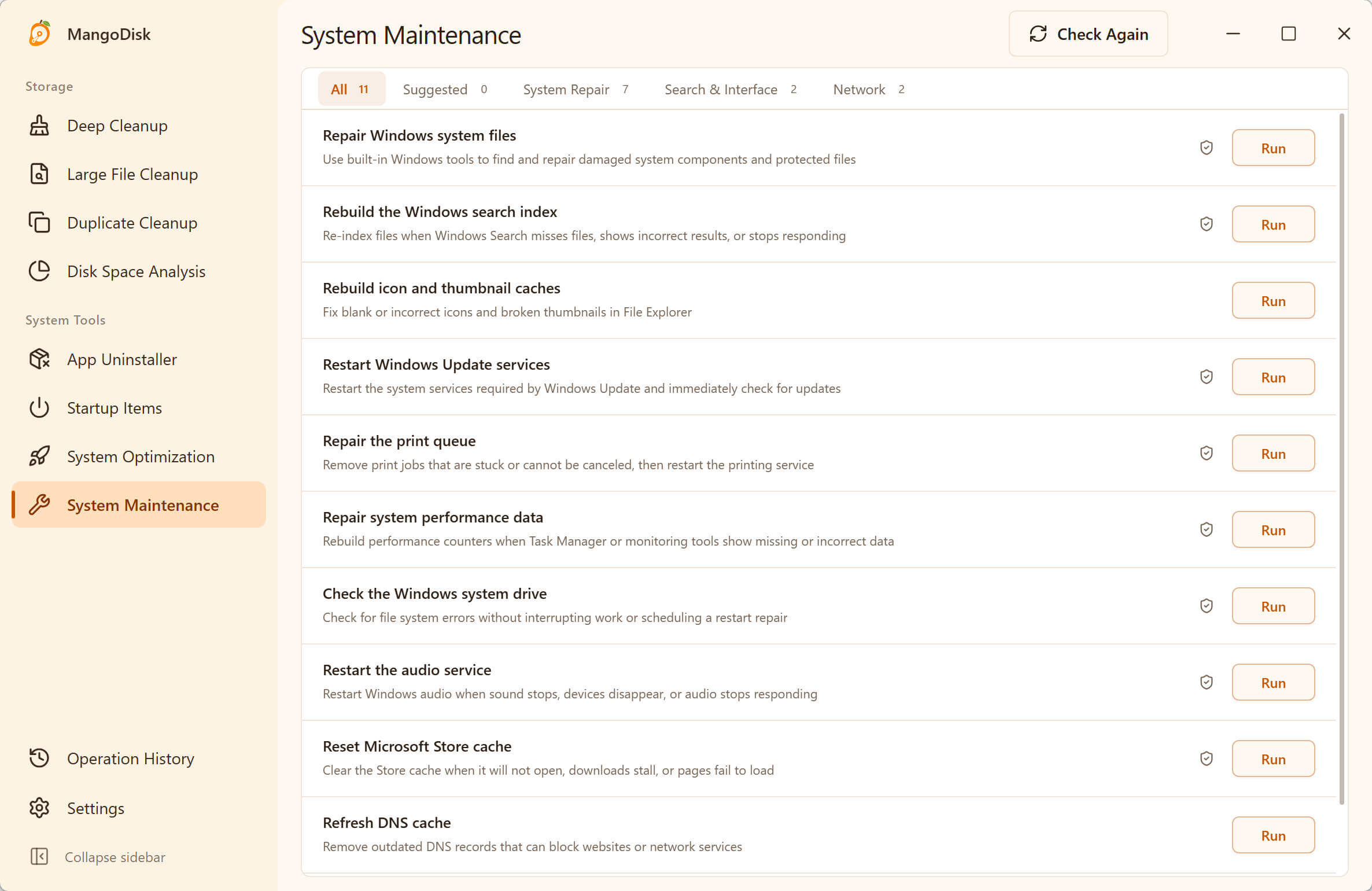
Compared with searching for commands one at a time, it gives you a clearer way to work:
- Choose by symptom: each task explains the problem it is meant to address, so you do not need to learn service names and command flags first;
- Run one task at a time: only the item you select is executed; unrelated settings are left alone;
- Know when admin access is needed: MangoDisk asks clearly and does not continue without permission;
- See what is happening: the current stage, progress and elapsed time remain visible instead of disappearing into an unexplained console window;
- Check the result: after a task finishes, MangoDisk rechecks the relevant component instead of showing an unsupported “fixed” message;
- Stay within a fixed scope: System Maintenance runs only built-in, reviewed tasks. It does not accept arbitrary PowerShell, terminal commands or Registry paths from the user.
You can download MangoDisk, open System Maintenance, and inspect the available tasks before choosing one. See the System Maintenance guide for the full set of states and controls.
Search cannot find files: rebuild the Windows Search index
If a file definitely exists but Start or File Explorer cannot find it—or results have stopped updating—the search index may be out of date or damaged.
Rebuilding makes Windows catalog searchable files again. It does not delete your files, but results can remain incomplete until indexing finishes. A PC with many files will take longer, so repeatedly starting the same repair because nothing changed in the first few minutes will only slow the process down.
If the problem affects only Outlook, a cloud drive or a network location, the cause may instead be that app's settings, sync state or the folders included in indexing. Rebuilding the entire Windows index is not the answer to every search problem.
No sound: check the output device, then restart audio services
First make sure Windows is not muted and that the correct output device is selected. If the speakers, headphones and volume settings all look right but audio still does not respond, restarting the Windows audio services is a reasonable next step.
Microsoft also lists restarting Windows Audio and Windows Audio Endpoint Builder as an audio troubleshooting step. MangoDisk performs those service operations and checks that the audio services are running again, saving you from finding them manually in services.msc.
Restarting the services briefly interrupts playback, recording and calls. Save any recording and leave an important meeting before you run it. If sound still does not return, check the driver, cable or port, Bluetooth connection and hardware instead of repeating the same task.
Blank icons or thumbnails: rebuild File Explorer caches
After an app is installed, updated or removed, Windows may keep showing an old icon. Photos and videos can also appear with blank or incorrect thumbnails. That does not necessarily mean the original files are damaged; File Explorer may simply be reading an outdated cache.
Rebuilding the icon and thumbnail caches restarts File Explorer and lets Windows create previews again as they are needed. The desktop and taskbar may disappear briefly during the restart. A large photo or video library will not regain every thumbnail instantly; previews are regenerated as folders are reopened.
Windows Update stuck: restart the services it depends on
When Windows Update cannot check for updates or a download stays at the same percentage, one of its supporting services may not be responding. MangoDisk restarts services such as BITS, Cryptographic Services and Windows Update, then asks Windows to check again.
“Started checking again” is not the same as “the update is fixed.” Windows still controls scanning, downloading and installation. MangoDisk does not bypass Windows Update and cannot promise that a particular update will install.
If it still fails, note the error code and check the network connection, available disk space, driver compatibility and Microsoft's guidance for that code. If the C drive is short on space, see how to safely free up space on a full Windows 11 C drive.
Microsoft Store will not open: reset its cache
When Microsoft Store will not launch, pages fail to load or downloads remain stuck, Microsoft recommends running wsreset.exe to reset the Store cache. MangoDisk uses the same built-in Windows capability and presents its purpose and status in the System Maintenance screen.
Resetting the cache does not uninstall Microsoft Store or apps you already installed. If the actual cause is your Microsoft account, a proxy, incorrect system time or a Store service outage, you may still need to fix that underlying problem.
Damaged Windows files: run DISM and SFC in the right order
When Windows features repeatedly fail, system components will not open or protected files may be damaged, Microsoft recommends using DISM to repair the Windows component image before running SFC to check protected system files.
This is one of the longer maintenance tasks and requires administrator access. Do not force-quit MangoDisk or restart the PC just because the progress appears unchanged for a while. It is meant for Windows component problems, not for an ordinary third-party app crash.
MangoDisk uses predefined Windows tools with fixed arguments. It never turns web content, chat text or user input into an administrator script. That boundary matters much more for a high-privilege repair than the convenience of copying an unknown PowerShell command.
Why there is no “repair everything” button
The tasks have different side effects. Rebuilding search can take a long time, repairing the print queue removes unfinished print jobs, restarting audio interrupts active sound, and system-file checks can use significant resources. Bundling everything into one unreviewed button would not make repairs safer.
MangoDisk groups tasks under Recommended, System Repair, Search & Interface, and Network, but you still choose what runs. Administrator access is requested only when needed, and the relevant component is checked again when the task finishes.
This is also different from System Optimization. Optimization changes selected performance, privacy and usability settings; System Maintenance addresses search, sound, interface, network or Windows component failures that are already happening.
Problems System Maintenance cannot fix
Do not keep repeating maintenance tasks in these situations:
- the drive makes unusual noises, disconnects repeatedly or reports a SMART warning;
- the PC repeatedly shows the same blue-screen stop code;
- files can no longer be read or important data appears to be missing;
- an audio device, drive, memory module, printer or network device has a hardware fault;
- the problem is caused by a third-party driver, malware, company policy or account permissions;
- Windows can no longer start normally.
Back up any important files that are still readable, then investigate the error code, driver, hardware or Windows recovery options. System Maintenance can address common software-component failures, but it is not a replacement for data recovery, hardware diagnostics or professional repair.
Frequently asked questions
Does broken Windows 11 search always require rebuilding the index?
No. First make sure the file has synced to the PC, the Windows Search service is running, and the folder is included in indexing. Rebuild the index when the file exists and the scope is correct but results remain incomplete or outdated.
Will restarting audio services erase my sound settings?
It does not delete personal files or uninstall audio devices. It briefly stops and restarts Windows audio services, so active playback, recording or calls may be interrupted.
Can I run all 11 maintenance tasks at once?
It is not recommended. Each task targets a different fault and may restart services, clear a cache or take considerable time. Running only the task that matches the symptom makes the result easier to evaluate and the next problem easier to diagnose.
Does MangoDisk run repair scripts downloaded from the internet?
No. System Maintenance only runs fixed tasks built into the app and Windows' own tools. It does not accept arbitrary commands, scripts or Registry paths.
Will System Maintenance delete personal files?
These are not personal-file cleanup tasks and they do not scan and delete documents, photos or downloads. Repairing the print queue does remove stuck print jobs, and cache resets remove the relevant temporary data, so read the task description and save your work first.
What should I do if the problem is still there?
Do not run the same task over and over. Record the symptom and error code, then check drivers, hardware, third-party software and Microsoft's documentation. If a drive reports errors or important files cannot be read, back up data before doing anything else.
Official references and related guides
- Microsoft Support: Fix sound or audio problems in Windows
- Microsoft Support: Microsoft Store doesn't open
- Microsoft Support: Troubleshoot problems updating Windows
- Microsoft Support: Use the System File Checker tool to repair missing or corrupted system files
- Feature guide: MangoDisk System Maintenance
- Safety guide: How MangoDisk handles risky operations
- Related: Windows 11 slow to start? Check these startup apps
- Related: Windows 11 temporary files: what is safe to delete?
If you would rather not jump between Command Prompt, Services, File Explorer options and Windows Settings, download MangoDisk, review the System Maintenance tasks and their effects, then run only the repair that matches the problem you are seeing.