
Windows 11 Slow to Start? Check These Startup Apps
Learn which Windows 11 startup apps are safe to disable, why some apps return, and how MangoDisk reveals startup sources Windows does not show together
Windows may show the desktop long before the PC is actually ready to use. The pointer still spins, the fan speeds up, and chat apps, game launchers, cloud drives and update helpers all open at once. When that happens, too many startup apps are often competing for the same CPU, memory and disk resources right after sign-in.
The answer is not to disable everything.
A regular app is usually safe to remove from startup if you do not need it immediately after signing in and can open it yourself later. Keep security, accessibility, input, backup and hardware utilities enabled until you understand what they do.
Disabling a startup entry does not uninstall the app or delete its files. It only stops that entry from launching automatically.
Why use MangoDisk when Windows already has startup settings?
Settings → Apps → Startup and Task Manager are the right places to manage common startup apps. The limitation is that an app can register itself in more than one place. Its main toggle may be off while another startup-folder shortcut, scheduled task or background service still launches it.
That is why some apps return the next time you start Windows even after you thought you disabled them.
| What you need to check | Windows Settings or Task Manager | MangoDisk |
|---|---|---|
| Common startup apps | Yes | Yes |
| Multiple entries from the same app | Must be found in separate Windows tools | Grouped under the app for review |
| Startup source and target | Limited detail | Shows the source, target and control status |
| Services, scheduled tasks and other sources | Not collected on the regular Startup page | Scanned and shown together; system-managed items remain read-only |
| Broken entries left by removed apps | Usually requires manual investigation | Detects and labels leftovers within a safe scope |
| Understand what can be changed | Relies mainly on your own research | Separates controllable, administrator-required and system-managed items |
MangoDisk scans several Windows startup sources locally and groups related entries by app. The scan is read-only: it does not switch anything off for you. You can inspect the app name, source and target before making a change.
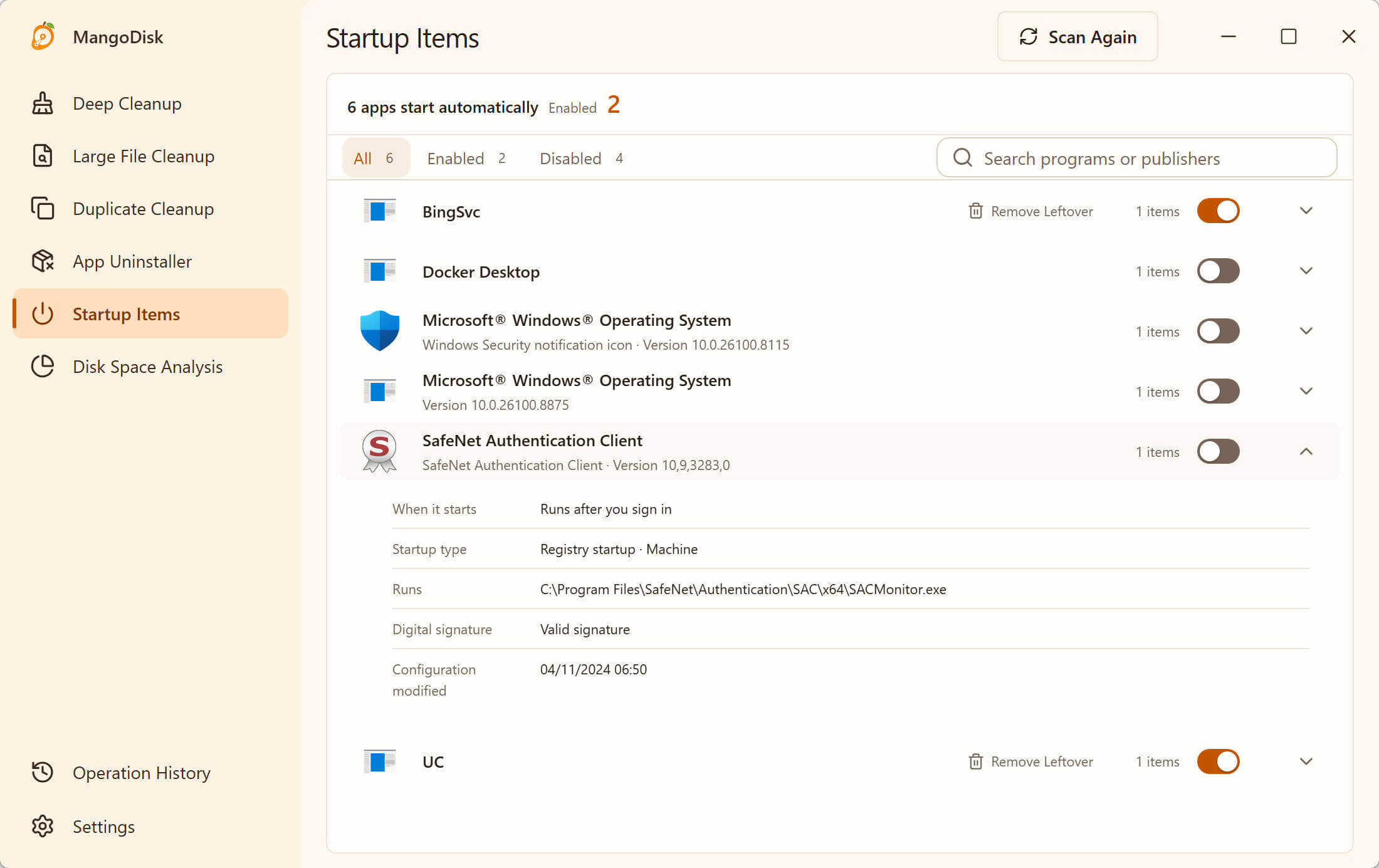
If Windows manages an item, MangoDisk shows it for context but does not bypass system protection. Broken entries from apps that are no longer installed are marked separately instead of treating every unfamiliar item as junk.
You can download MangoDisk, run a scan, and expand each app before deciding what to disable. The Startup Items guide explains each source and status in more detail.
Startup apps that are often safe to disable
Do not decide by app name alone. Ask one question instead: does this app need to be running as soon as I sign in?
These are often reasonable candidates once you recognize them:
- chat and meeting apps you do not need all day;
- Steam, Epic Games and other game launchers;
- music, video and download utilities;
- launch helpers for creative or office software;
- ordinary update checkers when the main app can be updated manually;
- apps you rarely use but do not want to uninstall;
- broken startup entries whose target file no longer exists.
The app will still be available from the Start menu. The trade-off is straightforward: a chat app will not receive messages until you open it, and a game launcher will not update games in the background before then.
Avoid copying a universal “safe to disable” list from the web. OneDrive, Teams or Steam may be essential to one person and unnecessary to another. The best candidates are the apps that add no immediate value to your own morning but consume resources at every sign-in.
Startup items to review before disabling
The following are not always required, but turning them off without checking can break a feature you rely on:
| Type | Why it needs a closer look |
|---|---|
| Windows Security, antivirus and company security tools | Real-time protection, compliance checks or company access may stop working |
| Accessibility tools, input utilities and password managers | Typing, assistive features or autofill may not be ready after sign-in |
| OneDrive, Dropbox and other backup or sync tools | Files may stop syncing and scheduled backups may not run |
| Graphics, audio, touchpad and peripheral utilities | Shortcuts, gestures, profiles, lighting controls or notifications may disappear |
| VPN, remote-work and device-management software | Company resources, remote access or managed-device policies may be affected |
| Unknown services with no clear publisher or path | Disabling an entry before identifying it can create a new problem |
A “High impact” label is not a recommendation to disable the app. It tells you that the app used more resources during startup. A backup tool that protects current work may still deserve to start automatically.
How to disable startup apps in Windows 11
For a short list, use the built-in Windows controls first:
- Open Start → Settings → Apps → Startup.
- Sort by startup impact and review the high-impact apps you recognize.
- Choose an app you do not need immediately after sign-in.
- Turn its switch off.
- Restart or sign out and back in, then see how soon the desktop becomes usable.
You can also press Ctrl + Shift + Esc, open Startup apps in Task Manager, select an item and choose Disable.
Change two or three obvious items at a time rather than turning off the whole list. After restarting, verify that networking, sound, input, sync and the apps you rely on still behave normally. If something changes unexpectedly, you will know which small group to revisit.
Why does an app still open after you disable it?
Common explanations include:
- the app's own “start with Windows” option is still enabled;
- the same app created more than one startup entry;
- a scheduled task or background service launches it;
- Windows is set to save restartable apps and reopen them after you sign in;
- an old entry is broken, but an app update created a new one.
Start inside the app and turn off options such as Start with Windows, Launch at startup or Open at login. If it still returns, inspect its other startup sources. Do not delete registry keys, services or scheduled tasks simply to stop an ordinary app from opening.
This is where MangoDisk is useful: it brings the sources it finds into one view and clearly separates items you can control from those that need administrator access or are managed by Windows. You do not need to learn the Registry Editor and Task Scheduler just to understand why an app keeps coming back.
Will disabling startup apps always make Windows faster?
If the PC is overloaded immediately after sign-in, reducing unnecessary startup apps can make the desktop usable sooner and reduce early CPU, memory and disk activity. It cannot fix every slow boot.
If the obvious startup clutter is gone but the PC is still slow, check:
- whether the C drive is nearly full;
- which process is continuously using CPU, memory or disk in Task Manager;
- whether Windows Update or a driver installation is still working;
- whether malware or an unusual background process is present;
- whether a hard drive, limited memory or another hardware bottleneck is involved.
For low disk space, continue with the Windows 11 C drive cleanup guide. If a large app is no longer needed, uninstall it normally and use the complete Windows app removal guide to review its related data.
Frequently asked questions
Can I disable every startup app in Windows 11?
It is not a good default. Windows itself will usually still start, but security, accessibility, sync, backup and hardware features may not work as expected. Disable only apps you recognize and do not need immediately.
Does disabling a startup app uninstall it or delete files?
No. It only prevents that startup entry from running automatically. The app and your files remain, and you can open the app manually or enable startup again.
Which startup apps should I check first?
Start with high-impact apps you recognize, especially chat, meeting, music, game launchers and creative-software helpers. They are easy to open manually and their effect is usually easy to evaluate.
Why is an automatically launched app missing from Task Manager?
It may be using its own setting, a scheduled task, a service or another autorun mechanism. Check the app's preferences first, then inspect the other sources. Avoid editing unfamiliar registry entries and services directly.
Does MangoDisk disable recommended items automatically?
No. Scanning only reads the current configuration, and you decide what to change. MangoDisk does not force changes to system-managed items, and you can scan again after a change to confirm the result.
Official references and related guides
- Microsoft Support: Configure startup applications in Windows
- Microsoft Support: Tips to improve PC performance in Windows
- Feature guide: MangoDisk Startup Items
- Safety guide: How MangoDisk protects your files
- Related: C Drive Full on Windows 11? How to Safely Free Up Space
- Related: How to Completely Uninstall Apps on Windows 11
Instead of jumping between Windows Settings, Task Manager, Startup folders and Task Scheduler, download MangoDisk to review startup sources and broken entries in one place—then disable only what you no longer need.
See how MangoDisk AI explanations help with caches and startup items.