
A BleachBit Alternative for Disk Analysis and Cleanup
Looking for a free, open-source BleachBit alternative? See how MangoDisk combines disk usage analysis, cache cleanup and file organization, and where the tools differ.

You cleared the caches, but your drive is still nearly full. The next thing to check might be an old installer, a folder of videos or several copies of the same files. Another round of cache cleaning may barely change the situation.
If you want a BleachBit alternative that combines disk usage analysis, cache cleanup and file organization, try MangoDisk. It helps you find where the space went, then choose an appropriate way to handle it. It is free and open source, with no account required. Scanning shows results without deleting anything; cleanup still needs your confirmation.
BleachBit is also free and open source, and it already offers a preview before cleaning. The reason to consider a change is the workflow you need, rather than price or a larger estimated cleanup total. Its official feature list describes its cleaning and preview capabilities.
I am MangoDisk's developer. This article explains the tasks it can help with and the cases where keeping your existing tool makes sense.
Start with a disk usage map when you do not know what to clean
A low-space warning does not tell you which app or folder needs attention. Checking folder properties one by one works, but it gets tedious when the files are spread across several locations.
In MangoDisk's Disk Space Analysis, choose a drive or folder and start the analysis. The directory list sorts entries by size, while a treemap represents their usage as rectangles: larger blocks take more space.
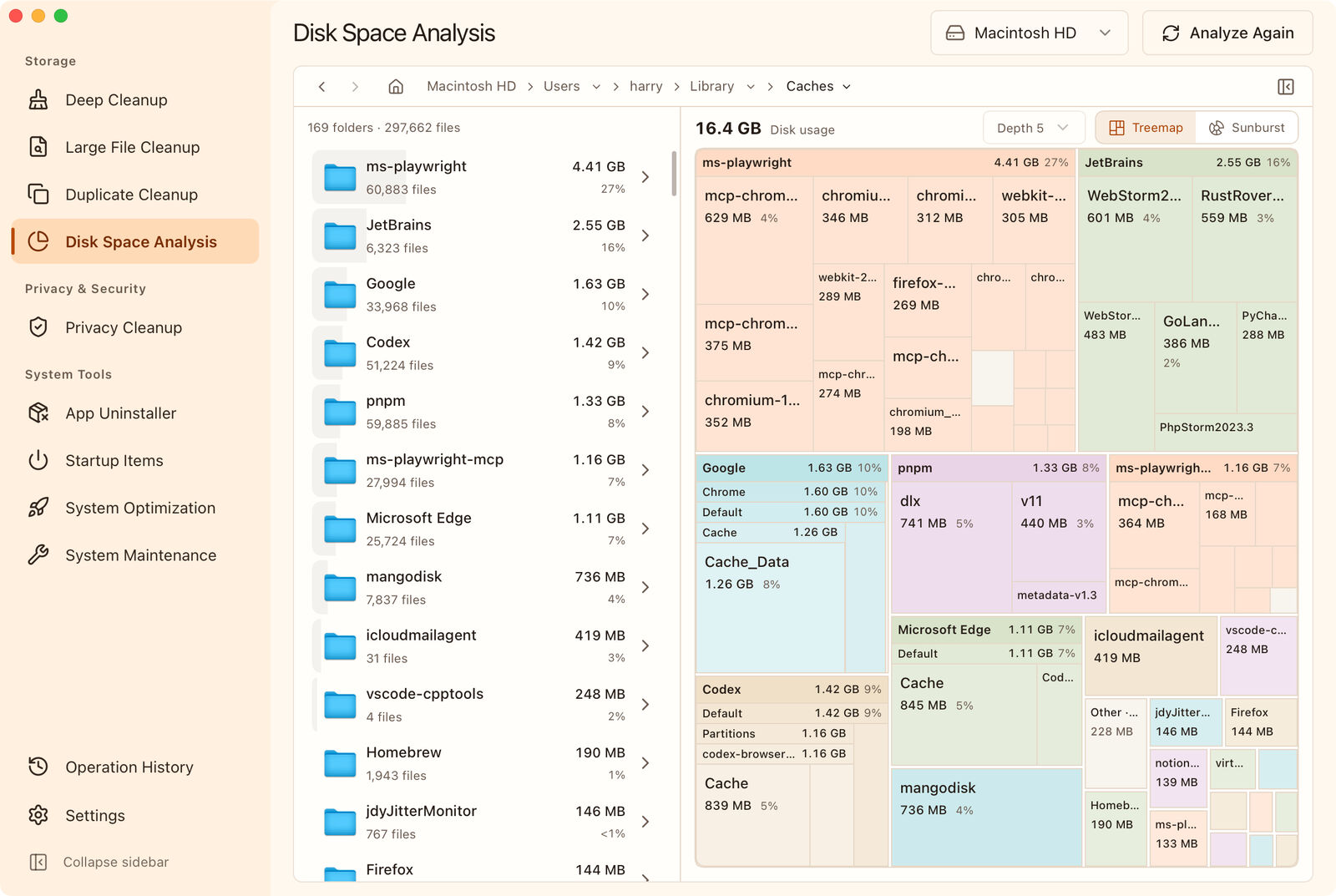
Open a larger folder to see what is inside. You can then decide which kind of work is needed:
- Videos, downloads and personal documents call for file organization.
- A large app folder needs a closer look at caches, settings and personal data.
- Development tools may have download caches or project build artifacts worth reviewing.
The map finds large folders; it does not decide that their contents are disposable. An app's data folder can contain both caches and important local files. Do not delete the entire folder simply because it is large. Permissions and exclusions can also leave some locations out of the results.
Review supported caches in Deep Cleanup
If caches and temporary data are the issue, switch to Deep Cleanup. It groups supported system, application and browser caches, along with some development caches and project build artifacts. Review the size, expand an entry to check its paths and explanation, then choose what to remove.
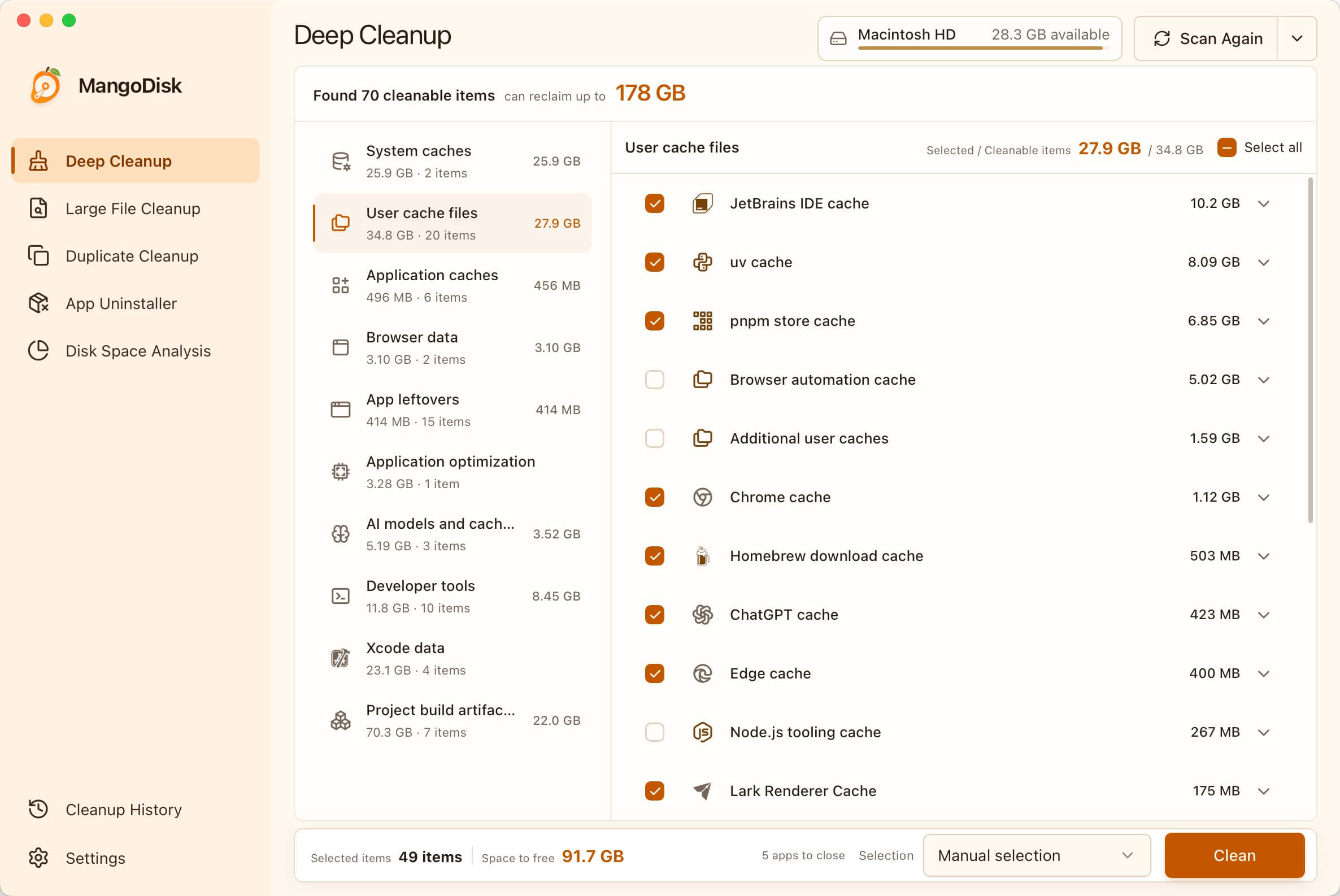
If you only want to clean one item, choose Select none from the selection menu, then select the entries you understand. Supported items are not all selected by default; risk labels help with review but do not replace it. Leave unfamiliar entries alone. Save your work and close the apps indicated before cleaning. Deleted caches may be downloaded or generated again, and the next launch, installation or build can take longer.
BleachBit also lets you preview files and adjust your choices before deletion, as its usage guide explains. With MangoDisk, you can combine that kind of review with a view of where disk space is actually being used, instead of starting every low-space investigation with another cache cleanup.
When personal files take the space, change the task
If the large items are videos, archives, installers or duplicate documents, repeated cache cleaning is unlikely to solve the main problem. Choose a tool that matches the contents you found:
| What you find | A useful next step |
|---|---|
| Old installers and archives in Downloads | Use Large File Cleanup to review files by type, size and location |
| Several copies of the same video or document | Use Duplicate Cleanup to find files with identical contents |
| A large app data folder with an unclear purpose | Inspect its location, then review supported caches or associated app files |
| Assets or projects you still need | Consider moving them to another drive or adding storage |
Exact duplicates are different from similar photos or different edits of a video. Even identical files can be intentional backups or files used by another project. Check which copy to keep and where it belongs before deleting anything.
Each feature needs its own scan scope. A disk usage map does not automatically turn its results into a deletion list in another tool. For a practical walkthrough, see how to find large files on Windows.
Deletion in MangoDisk's disk analysis, large-file and duplicate-file tools is permanent and bypasses the Recycle Bin or Trash. Deep Cleanup can also remove data that cannot be restored. Inspect unfamiliar items in your file manager and back up important files first. The safety guide explains the limits.
When keeping BleachBit makes sense
If you know BleachBit's options and it handles the apps you use, you can keep that routine. It also offers command-line automation, custom cleaners and features for shredding files or wiping free space.
Those secure-erasure tasks have a different purpose from ordinary space cleanup: they aim to make deleted data harder to recover. BleachBit's secure-erasure documentation explains its capabilities and limitations.
The ordinary deletion and Privacy Cleanup discussed here should not be treated as equivalent replacements for secure overwriting. If you depend on those features, scripts or custom rules, check your existing workflow before changing tools. This article does not claim feature-for-feature compatibility.
You can also keep BleachBit for a familiar cleanup routine and use MangoDisk to investigate space usage. There is no need to run both cleaners repeatedly just to compare their totals.
Try a familiar folder first
MangoDisk has Windows, macOS and Linux desktop versions. Available cleanup items vary by platform, installed apps and permissions. File scans run locally, and the analysis and cleanup described here do not require AI.
Start with Downloads or another folder you know:
- Analyze its space usage and inspect the largest items.
- Choose the appropriate file or cache tool for what you found.
- Remove only the contents you have confirmed you no longer need.
If you want a free BleachBit alternative for visual disk analysis and everyday file cleanup, download MangoDisk and review a folder before deciding what to delete.
Still choosing between BleachBit and CCleaner? Read the everyday cleanup comparison. If disk analysis is your main need, see the Windows disk space analyzer comparison.