
Can You Delete Files in Downloads? Clean Up Windows 11 with MangoDisk
Clear out old installers, large videos and duplicate downloads with MangoDisk. Find what's worth removing from Downloads without losing files you still need.
The app is installed, the video is watched and the ZIP is extracted. But the downloads are still there. Eventually, old installers, attachments and large videos pile up, and clearing space means sorting through them all.
You can delete files from Downloads, but the folder isn't a cache you can safely empty without checking. Start with ordinary installers you've finished using, videos you no longer want and extra copies. Keep important documents, backups and any software you run directly from that folder.
MangoDisk makes the sorting easier: find the largest files first, then check for identical downloads. You can review files across subfolders without opening each one or guessing from filenames. Scans run locally, and the app is free and open source, with no signup or login required.
Start with the files that take up the most space
Old installers, offline videos, disk images and archives are worth checking before you spend time deleting tiny files.
Open Large File Cleanup in MangoDisk and choose your Downloads folder as the scan location. Sort the results by size, then filter by installer, video or archive to focus on one type of file at a time.
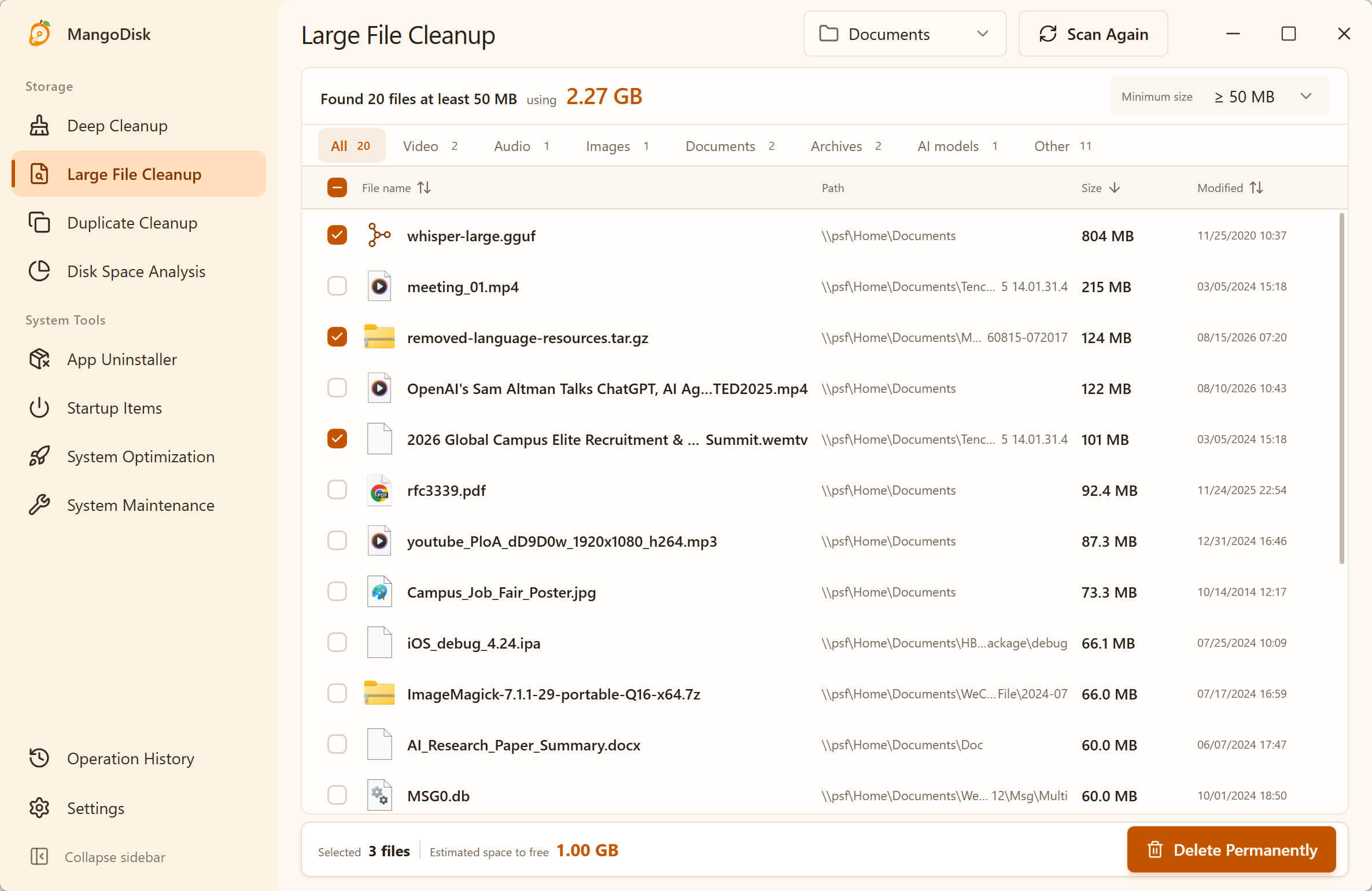
Each result shows its size, location and modification time. If you're unsure about a file, open its containing folder to check what it belongs to. As you select files, the footer shows the estimated space you could reclaim.
See whether the cleanup is worth doing before deleting anything. You don't need to scan the whole PC just to sort out Downloads. See the Large File Cleanup guide for the available filters.
Can you delete an installer after installing the app?
Usually, yes—provided it's the installer, not the app itself. If the app is installed elsewhere, runs normally and you don't need the downloaded file for offline installation or reinstallation, you can usually remove that installer. Doing so isn't the same as uninstalling the app.
| What's in Downloads | What to check before removing it |
|---|---|
| An ordinary installer you've already used | Keep it if you need it for repair, offline installation or reinstallation, or if the software's instructions say to retain it |
| An extracted ZIP or RAR archive | Make sure you've extracted everything you need, the files open correctly and the archive isn't your only backup |
| A video you've finished with or temporary media files | Check whether you still need them for another task or want to keep an archive |
| A portable app that runs without installation | Its folder may contain the actual program and your data, not installation leftovers |
| Contracts, photos, receipts and work documents | Move them to a permanent home and back them up; age alone isn't a reason to delete them |
This advice is about files you downloaded yourself, not the Windows Installer cache in C:\Windows\Installer. Microsoft warns against deleting that cache because apps may need it for updates, repairs and uninstallation. Windows Installer cache guidance If this cache is large, see our Windows Installer folder guide for the safe next steps.
Downloaded the same file more than once? Check the contents
setup.exe, setup (1).exe and setup (2).exe might be extra copies—or different versions. Two attachments with completely different names might contain exactly the same data.
MangoDisk's Duplicate File Cleanup groups files with identical contents. Choose Downloads as the scan location to check for repeated installers, videos and attachments within that folder.
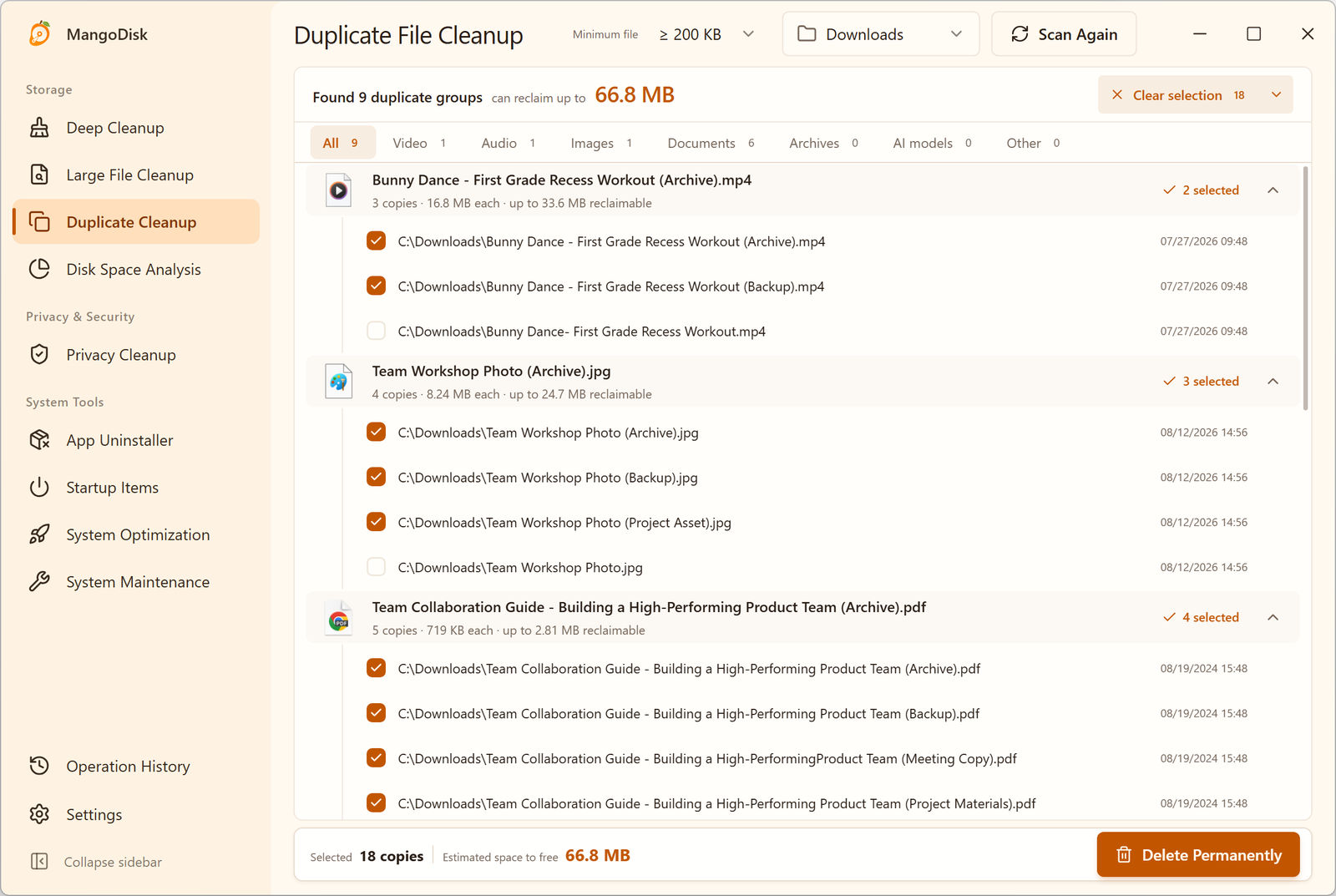
Expand a group to compare the locations. Smart Select keeps one copy in each group and selects the others, saving you from ticking every extra file yourself. You can adjust the selection to keep the copy in the folder you actually use.
These are exact matches, not similar-looking photos. Different installer versions won't be grouped together unless their contents are identical. See the Windows duplicate file guide for more help choosing which copy to keep.
Check the paths and your backups before deleting
You don't have to select everything to make progress. Start with files you recognize and no longer need. Leave important documents and anything you can't identify alone.
MangoDisk's large-file and duplicate-file cleanup permanently deletes selected files; they do not go to the Recycle Bin. Check the full paths and back up important files first. Keeping one copy in a duplicate group is not a substitute for a separate backup. See the safety guide for details.
For files you want to keep but rarely use, move them to another drive with File Explorer. Moving a file from Downloads to Documents on the same C: drive won't free space on that drive.
Why use MangoDisk when File Explorer can sort by size?
For a small folder, File Explorer may be all you need: open Downloads, switch to Details and sort by Size. Microsoft's storage cleanup guide also recommends checking personal folders such as Downloads and Videos.
MangoDisk is useful when the files have piled up across several subfolders:
- Less folder hopping: see matching large files from the scan in one list and filter by type and size.
- Less manual comparison: find identical copies by content, not by similar names.
- A clearer payoff: review the estimated space for your selection before committing to cleanup.
If Downloads isn't particularly large, don't keep clearing it in the hope of fixing a full drive. Use disk space analysis to find what's actually filling the drive instead.
Why hasn't Storage Sense cleared Downloads?
With its default cleanup settings, Windows Storage Sense leaves Downloads alone unless you configure it otherwise. It can remove downloads based on how long they've gone unopened, but an old file may still be important. Microsoft's Storage Sense documentation
If you keep contracts, photos or offline software in Downloads, reviewing large files and duplicate groups in MangoDisk lets you make that decision file by file instead of relying on age alone.
Reclaim the space your forgotten downloads are using
Start with one folder, not the whole computer. Open Large File Cleanup, choose Downloads and review the biggest files. Then check Duplicate File Cleanup for extra copies.
Download MangoDisk for free and spend less time opening folders and comparing filenames. See what you could clear out before deciding what to delete.