
How to Speed Up Windows 11
Windows 11 running slow? See what’s using the CPU, memory, or disk, then check free space on C: and adjust the settings that match your symptoms.
If Windows 11 takes a long time to open apps or stutters when you switch windows, press Ctrl + Shift + Esc to open Task Manager. On the Processes tab, watch CPU, memory, and disk usage while the slowdown is happening. Then open Settings → System → Storage to see how much room is left on your C: drive. These checks help you decide whether to close unused apps, free up space, or change a setting.
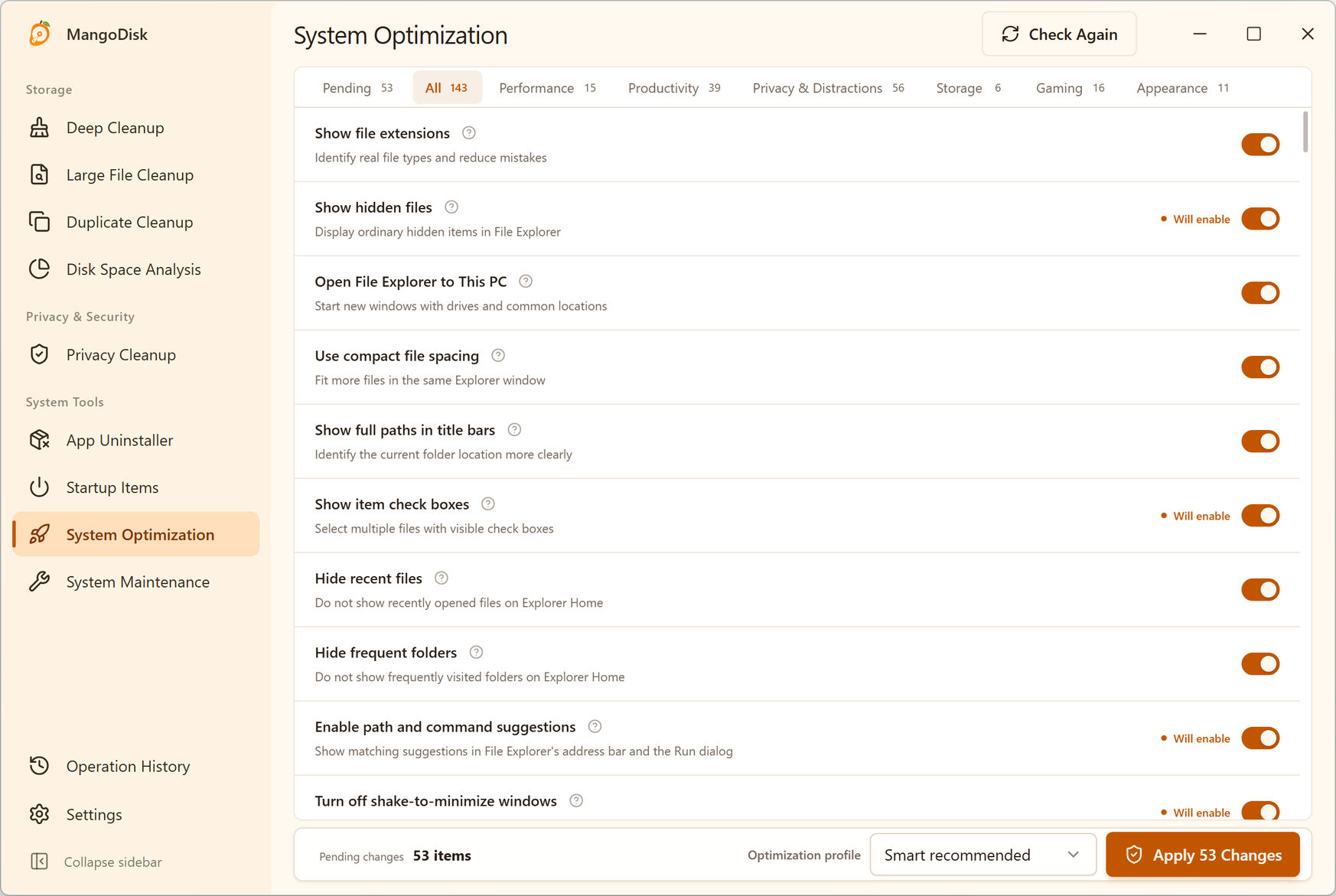
If you’ve already closed most apps but the desktop still feels sluggish, open Performance in MangoDisk’s System Optimization. For example, you can select Turn off taskbar animations if you’d prefer fewer transitions, then review the change under Pending before applying it.
Check what’s using resources when apps open slowly
Keep the Processes tab open and repeat the action that felt slow, such as launching your browser or opening a document. Sort by CPU, Memory, or Disk. Watch for apps that stay near the top as the slowdown continues.
- High CPU usage. Check for work in progress, such as a video export. Let it finish, then try the slow action again.
- Memory is nearly full. Save your work and close a few apps or browser tabs you can do without. Then repeat the action.
- The disk stays busy. Check for file copies, cloud sync, or updates. Let them finish and check again. If the same app always stalls as it opens, see whether it keeps reading or writing to the disk.
If one app is consistently slow, quit it normally and reopen it to see if it happens again. Look up unfamiliar processes before ending them. Microsoft’s guide to improving PC performance
Restart and open apps one at a time
A PC can feel fine when you first sign in and slow down a few hours later. Save your files and choose Restart from the Start menu’s power options. Open one of your regular apps, then add the rest one at a time. Notice when the slowdown returns as you open more browser tabs, start cloud sync, or work with large files.
If your Windows 11 laptop feels slow only on battery power, check Settings → System → Power & battery. If the current power mode favors battery life and you’d prefer a more responsive system, try Balanced. Microsoft’s guide to power modes
If the slowdown is confined to the first few minutes after signing in, check which apps start with Windows. How to check startup apps in Windows 11
Find what’s filling up your C: drive
The Disk column in Task Manager shows how busy the drive is. For free space, open This PC in File Explorer or check Settings → System → Storage for a breakdown. See whether installed apps, temporary files, or your own files account for most of the space.
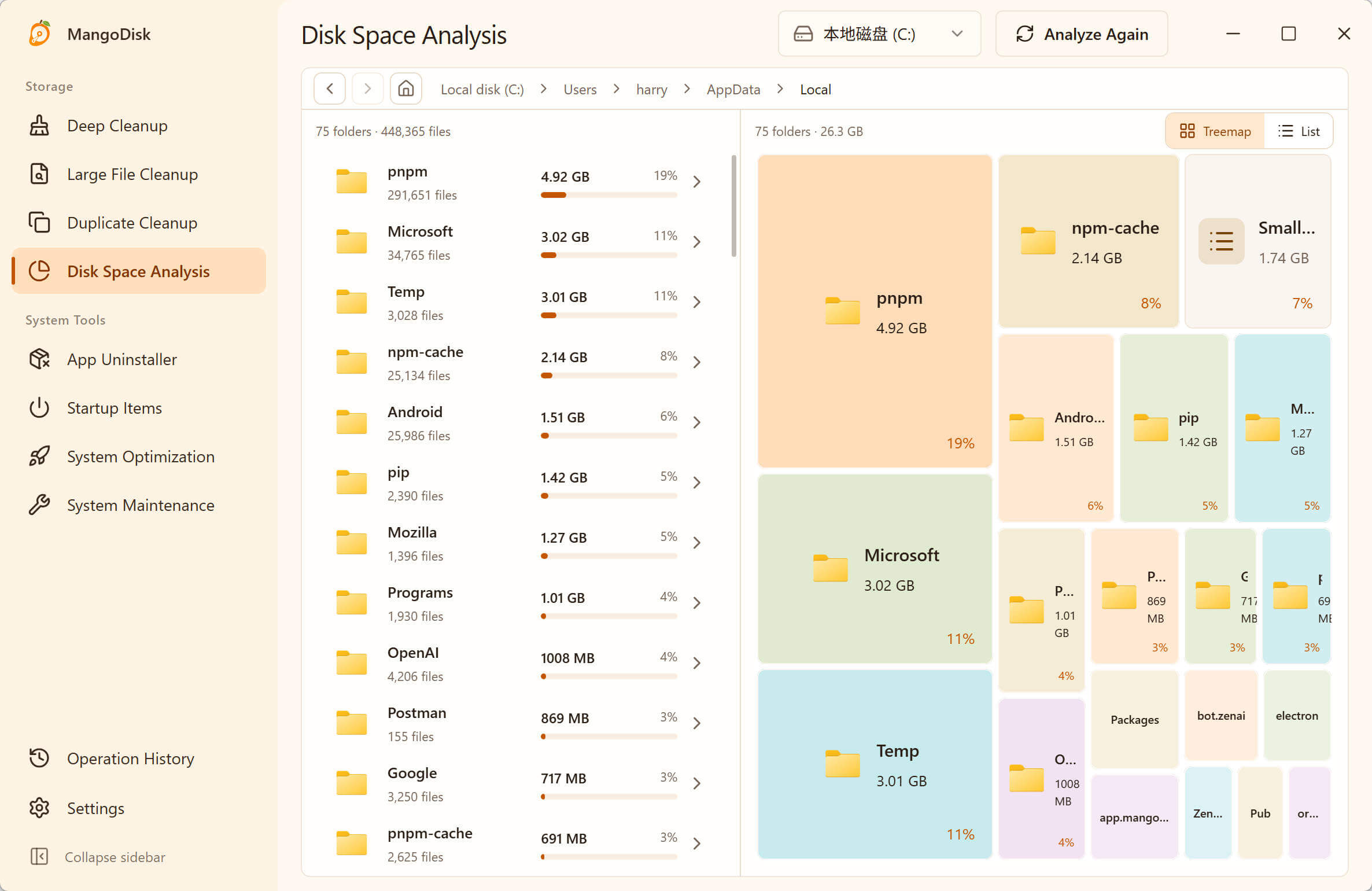
If a category is too broad to tell what’s inside, use MangoDisk’s Disk Space Analysis to scan your C: drive or a folder you use often. Open one of the larger blocks to check what it contains and where it’s stored. Then decide what to keep, move, or delete. Check what app data and unfamiliar system folders are used for before changing them. How to free up space on your C: drive
Reduce animations if switching windows feels sluggish
If your apps run normally and Task Manager shows no sustained spike, you can try reducing window transitions. Go to Settings → Accessibility → Visual effects, turn off Animation effects, and try switching windows again. Microsoft’s guide to visual effects
To review a range of settings in one place, download MangoDisk and open System Optimization. Choose a setting that matches what you’ve noticed. Make sure Pending contains only the changes you want, then apply the changes. Repeat the same action afterward. Changing a couple of settings at a time makes it easier to tell what helped and to find the settings again if you want to restore them.
If you’re dealing with broken search, missing audio, or Windows Update errors, see the steps for your specific issue. Fix common Windows 11 problems