
How to Clear Cache on Mac
Use MangoDisk to compare app and browser caches on your Mac, review what to keep, and clear selected items. Includes built-in options and advice on site data.
If your Mac is running low on storage and you want to keep your photos and documents, app caches are worth checking. Browsers and everyday apps save temporary content that they can often recreate. Removing some of it can free space, as long as you keep offline downloads, messages and other app data out of the cleanup.
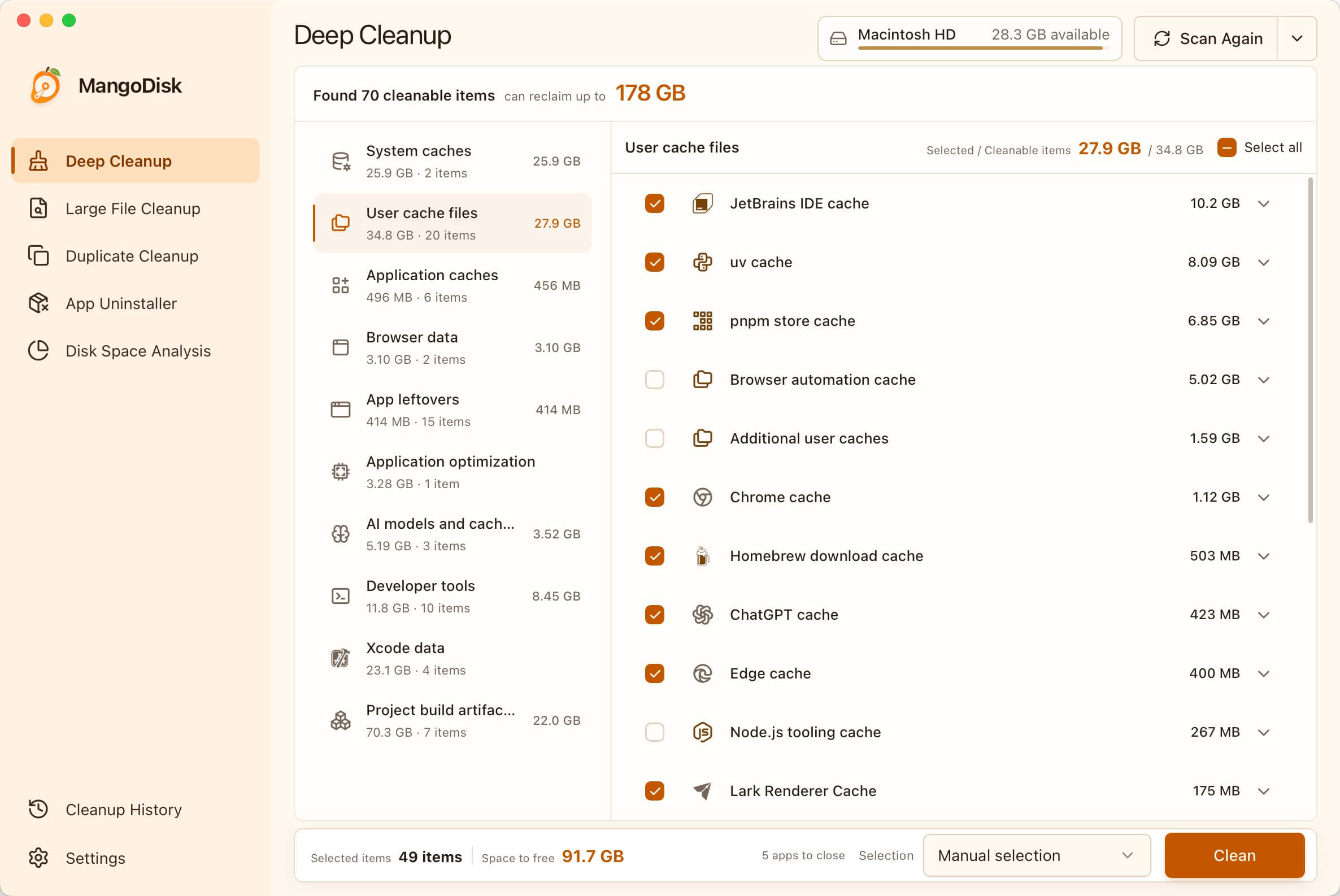
MangoDisk lets you review supported app caches in one place instead of opening every app or hunting through folders. Its Deep Cleanup view shows the caches it finds and their sizes, so you can inspect each item before selecting it. Scans run locally and do not delete files. MangoDisk is free and open source, with no signup required.
Clear Mac caches with MangoDisk
Find out which apps have the largest caches
Open Deep Cleanup and run a Standard Scan. When it finishes, look through items under categories such as User cache files, Application caches and Browser data.
You can compare cache sizes without knowing where each app stores its files. Start with larger items from apps you recognize, then expand them to check the names, paths and cleanup effects. What appears depends on your installed apps, their cache locations and access permissions.
The total estimate at the top includes several types of cleanable content. It is not a recommendation to delete everything. If you only want to clear caches, focus on those specific items.
Select the caches you want to remove
For a cache-only cleanup, switch the selection mode to Select none, then check the items you want. This keeps unrelated cleanup categories out of the selection.
For example, to clear Chrome's cache, find its entry, expand it and select it on its own. The Mac Chrome cache rule in MangoDisk 1.2.0 targets known cache locations. Cookies, browsing history, passwords and bookmarks are outside that rule's scope. Selecting website data separately in Privacy Cleanup is a different operation.
You can also start with Smart recommendation, but review what is selected. Leave unfamiliar items unchecked rather than selecting everything to increase the total.
Save your work and confirm the cleanup
Review the selected items and estimated space at the bottom. Save your work, quit the apps that MangoDisk identifies as needing to close, then choose Clean.
Check the selection again in the confirmation dialog before continuing. Items still in use by running apps are skipped. Afterward, open Operation History to review the outcome. Estimates can differ from the completed result; use the result to see what was actually removed.
The benefit is less searching and comparing: app caches are listed together, and you can see what you plan to remove before you proceed. The Deep Cleanup guide explains the controls in more detail.
Will clearing caches delete useful data?
It depends on what you select. Caches, account data and offline downloads may sit inside the same app folder. A large folder is not necessarily full of disposable files.
| Content | How to handle it |
|---|---|
| Identified browser or app caches | Read the cleanup effects, quit the relevant app and select only what you need |
| Cookies, website data and sign-in information | Decide separately; removing them may sign you out |
| Downloaded videos, music and other offline content | Check whether you still need offline access; manage downloads inside the original app where possible |
| Messages, local databases, photos, documents and entire app data folders | Do not clear them in bulk as though they were caches |
MangoDisk sets a specific scope for each cleanup item. For example, its Slack cache rule includes designated cache locations, leaving account, session, workspace data and downloads outside the scope. Clearing those caches has different consequences from deleting Slack's entire data folder.
Some cleanup actions cannot be undone, and you should not assume deleted files will be in the Trash. Deselect anything you are unsure about and back up important data first. See the cleanup safety guide.
Use an app's own cache controls for a single app
If you already know which app needs attention, its built-in controls may be all you need.
In Chrome, open the top-right menu and choose Delete browsing data. Pick a time range and select only Cached images and files for a cache-only cleanup. Review the other options, including Cookies and other site data, and leave data you want to keep unchecked. Google's desktop guide distinguishes these data types and their effects.
In Safari, Settings → Privacy → Manage Website Data needs a different kind of review. Removing website data there may sign you out of sites; it is not simply another name for clearing cached files. Apple explains what this removal affects.
For app-specific steps, see clearing Slack's cache on Mac or clearing Outlook's cache on Mac. An app's own control is useful for a single cleanup; MangoDisk is useful when you want to compare caches across several apps.
Avoid emptying an entire Library or Application Support folder just to clear caches. Those folders also contain settings and local app data.
Why does the cache grow again after cleanup?
Caches reduce repeated loading. As you browse websites and use apps, needed content is cached again. Some content may need to download again after cleanup, making the first load slower. Google describes this effect.
Check caches when storage is tight, or follow an app's official troubleshooting steps if it has loading problems. There is no need to keep every cache empty, and clearing caches is not a guaranteed way to speed up your Mac.
If the scan shows that caches are only a small part of the problem, look elsewhere. MangoDisk's Disk Space Analysis uses treemaps and sunburst charts to show folder sizes and help you decide what to inspect. To look directly for large videos, installers and other files, follow the guide to finding large files on Mac.
Download MangoDisk to see how much space your app caches use, then choose what is worth clearing. You can explore the source code and cleanup rules on GitHub.