
Mac Storage
How to Clear Slack Cache on Mac
Clear Slack cache on your Mac using Slack's built-in option, or check its size and location with MangoDisk before deleting it. See what stays untouched.

To clear Slack's cache on a Mac, open Slack and choose Help → Troubleshooting → Clear Cache and Restart from the menu bar. There's no need to uninstall the app.
But if you're trying to free up storage, you probably want to know how much space Slack's cache actually takes up before clearing it. MangoDisk shows the Slack cache it finds alongside caches from other supported apps. You can see which ones are worth clearing without digging through each app's settings.
Check and clear Slack cache with MangoDisk
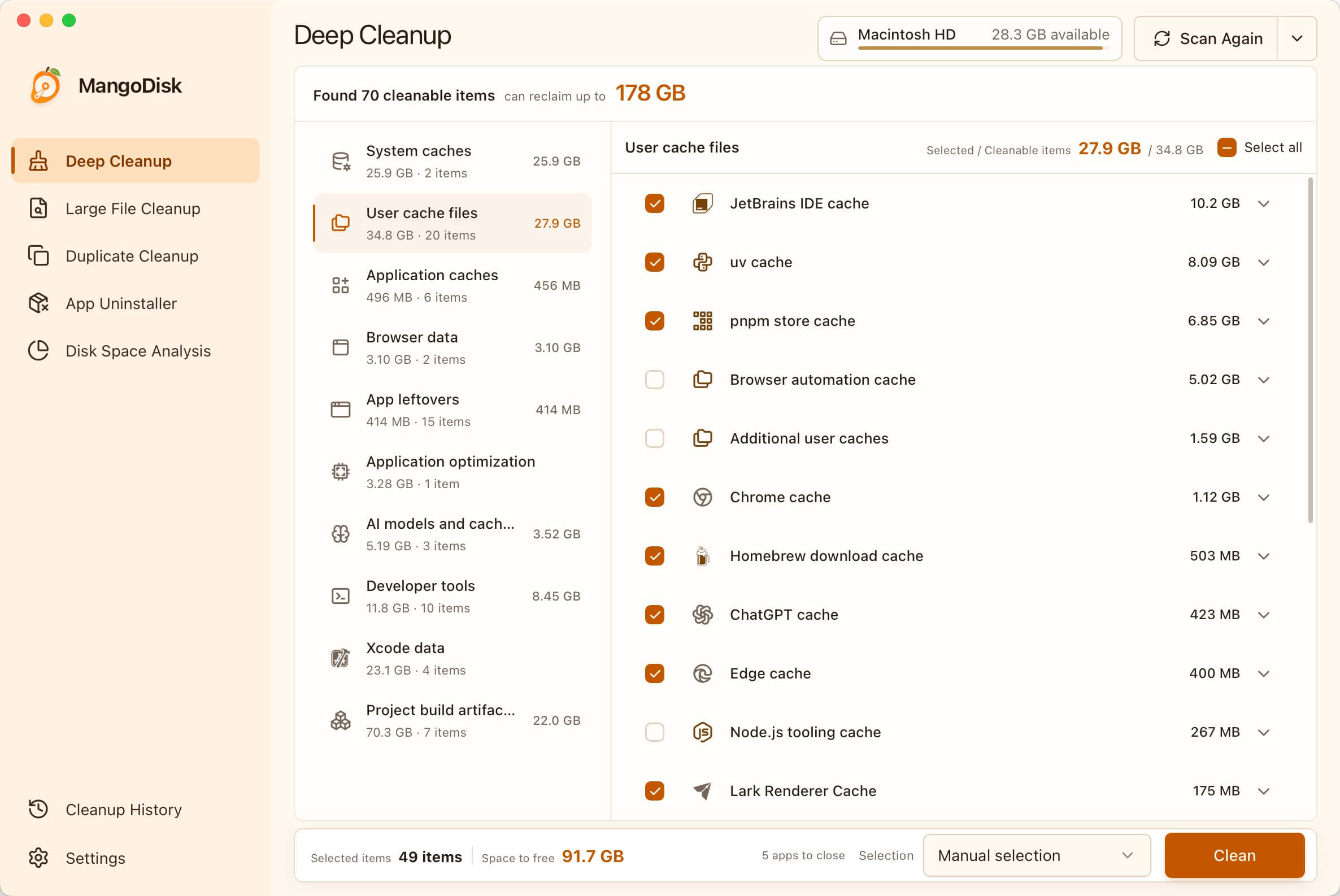
Open Deep Cleanup in MangoDisk and run a standard scan. Find the Slack entry and expand it to check the size and paths. That figure is the cache available for cleanup, not the total size of everything Slack stores.
If you only want to clean Slack, deselect the other items. Quit Slack completely, review your selection in the confirmation window, then run the cleanup. Scanning alone doesn't delete anything.
The useful part is having Slack and other app caches in one place. You don't have to remember where each app stores them, and you can check exactly what's selected before deleting it.
Slack will rebuild the cache it needs as you use it. Some content may take a little longer to load the first time afterward. This isn't something you need to do daily; check when you're short on space.
Will this delete my messages?
MangoDisk's Slack cache rule does not target account, session or workspace data, or files you've downloaded. It covers specific cache locations, including Cache, Code Cache, GPUCache and Service Worker/CacheStorage. The exact scope is in the public cleanup rule.
If you find a large ~/Library/Application Support/Slack folder in Finder, don't delete the whole thing. It also holds other local Slack data. Removing that folder is not the same as clearing the cache.
Cache locations can vary by installation. If MangoDisk doesn't find a Slack entry, use Slack's built-in option at the top of this article. Slack's official troubleshooting guide also recommends that option for loading problems. If Slack still won't open afterward, follow its connection checks.
Still short on space?
If Slack's cache was small to begin with, clearing it won't make much difference. MangoDisk's Disk Space Analysis shows folder sizes so you can find where the space is really going.
For space listed under System Data, see how to investigate large System Data on Mac. For old videos, installers or backups, finding large files is a more direct route. Disk analysis also shows personal files, so check what they are and whether you have a backup before deleting them. The safe cleanup guide explains what to review.
Download MangoDisk to see how much space Slack and your other app caches are using. Free and open source, with no signup or login required.