
How to Clean Up the WinSxS Folder in Windows 11
WinSxS taking up space? Review Windows Update cleanup with MangoDisk, use Disk Cleanup, and check why the folder may stay large after removing old updates.
When checking a full C: drive, you may find that C:\Windows\WinSxS is surprisingly large. You can reduce its size using supported Windows cleanup tools, but do not empty or delete the folder yourself. It holds components Windows needs for updates and repairs; only some older files may be eligible for removal.
MangoDisk includes Windows Update cleanup in Deep Cleanup. It checks for superseded update files that Windows reports as removable, so you can review that item before choosing to clean it. You can also check supported app and developer caches on the same page if they are taking up space on C:.
Clear old update files with MangoDisk
Open Deep Cleanup in MangoDisk. Run a scan first, then select what you want to remove.
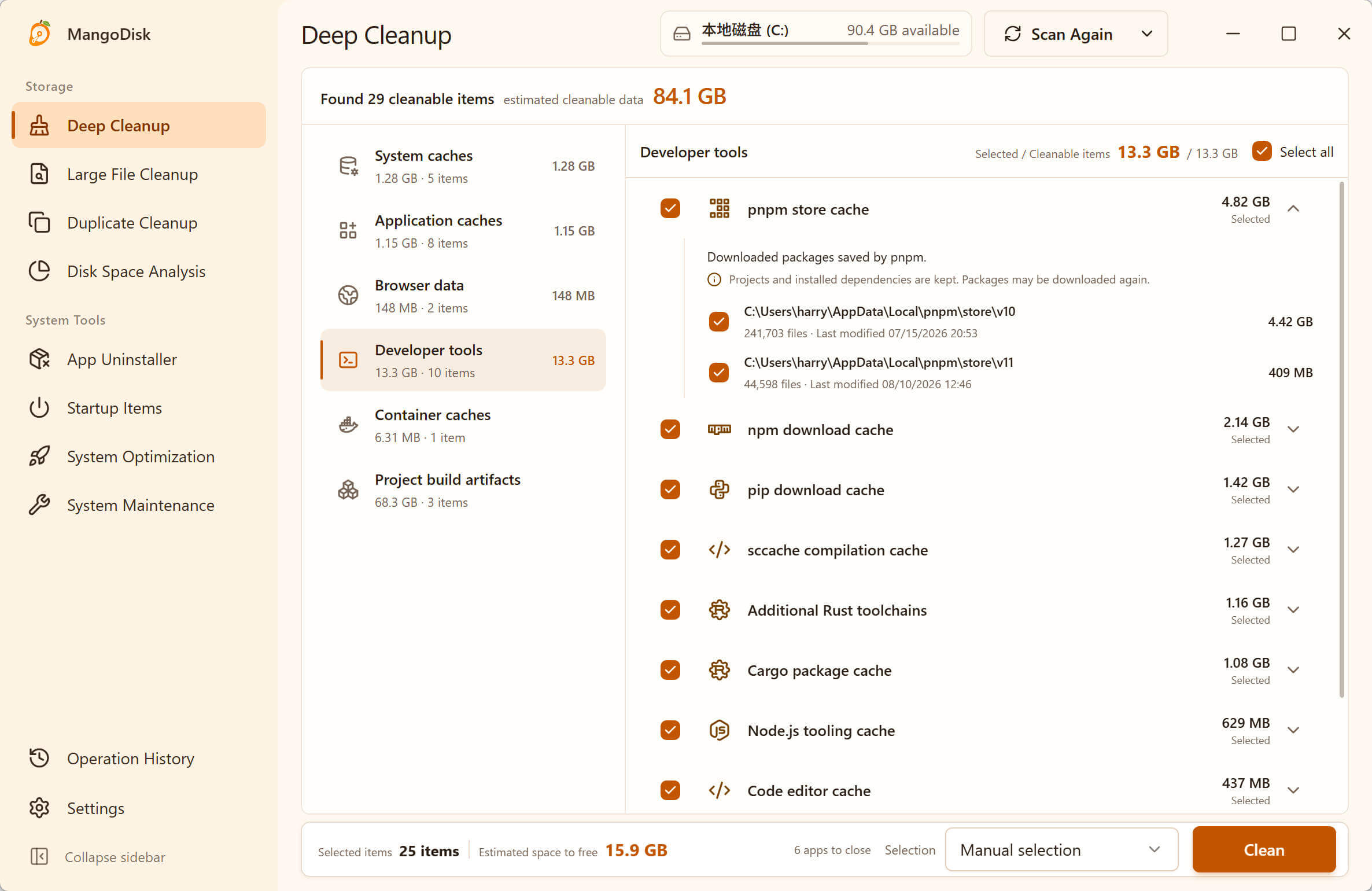
- Run a Standard scan.
- In the selection menu at the bottom, choose Select none to clear the current selection.
- Open System caches, find Windows Update cleanup, and check its status and cleanup impact.
- Select only that item, click Clean, and review the confirmation dialog before continuing.
If administrator access is required, follow the prompt to Restart as administrator, then scan again. If there is nothing eligible to clean, leave it as it is.
Removing old update files may limit your ability to roll back some updates. Wait until the update has finished and the PC is working normally. Complete any requested restart first. Keep these files while troubleshooting a failed update or preparing to uninstall a recent one. The MangoDisk safety guide explains how to review cleanup choices.
Why does the WinSxS folder look so big?
WinSxS is the Windows component store: a collection of files used for system updates, optional features, and repairs.
Some system files are referenced from more than one location through hard links, even though there is only one copy of the content. File Explorer's folder-size calculation can therefore make WinSxS look larger than the extra space it actually uses. The size shown in folder properties is not the amount you can reclaim. Microsoft's explanation of WinSxS size
If most of that space is used by components Windows still needs, the folder can remain large after cleanup.
Use Windows Disk Cleanup instead
Windows also has a built-in option for removing old update files. Microsoft lists update cleanup in Disk Cleanup as one way to reduce the component store's size. Microsoft's WinSxS cleanup guide
- Search for Disk Cleanup in Start and open it.
- Select the drive where Windows is installed, usually C:.
- Click Clean up system files. If asked to select a drive again, choose the system drive.
- Wait for the scan, select Windows Update Cleanup, and clear any other items you do not intend to remove.
- Click OK, confirm deletion, and let cleanup finish.
If the item is missing, there may be no eligible files at the moment. Do not switch to manually emptying Windows system folders just to find something to delete.
What if WinSxS is still large after cleanup?
Check the free space on C: rather than relying only on the folder's Properties window. Cleanup keeps the components Windows still uses. Its purpose is to remove outdated content, not to leave an empty folder.
If you want to check whether further cleanup is worthwhile, Windows can analyze the component store. This step only reports information; it does not delete files:
- Right-click Start and open Terminal (Admin).
- Run:
DISM.exe /Online /Cleanup-Image /AnalyzeComponentStore
Look at Actual Size of Component Store, Number of Reclaimable Packages, and Component Store Cleanup Recommended. The actual size still includes files shared with Windows, so it is not all reclaimable space. Microsoft's guide to reading the results
If there are no reclaimable packages or cleanup is not recommended, there is no need to keep repeating it. Windows also maintains older components automatically. Windows component cleanup
If you still need room, return to MangoDisk to review other caches, or follow the Windows 11 C: drive cleanup guide to find what is actually using the space.
Keep other system folders separate
Windows.old holds a previous Windows installation. C:\Windows\Installer holds files needed to install and maintain software. They serve different purposes from WinSxS and need different cleanup decisions.
If one of those folders is taking up space, see the Windows.old cleanup guide or what to do about a large Installer folder.
Download MangoDisk to review Windows Update cleanup and other supported caches before selecting what to remove. For related storage tasks, browse the Windows cleanup guides.