
dupeGuru vs Czkawka: Which Duplicate File Finder Should You Use?
Compare dupeGuru and Czkawka for exact duplicates, similar photos, music, and deletion options. See where MangoDisk fits for reviewing and removing identical copies.
dupeGuru and Czkawka are free, open-source duplicate file finders. dupeGuru offers separate modes for general files, music, and pictures. Czkawka has a broader set of tools if you also want to look for similar videos, empty folders, and other file problems. Start by deciding whether you need to find identical copies or photos that look alike but contain different data.
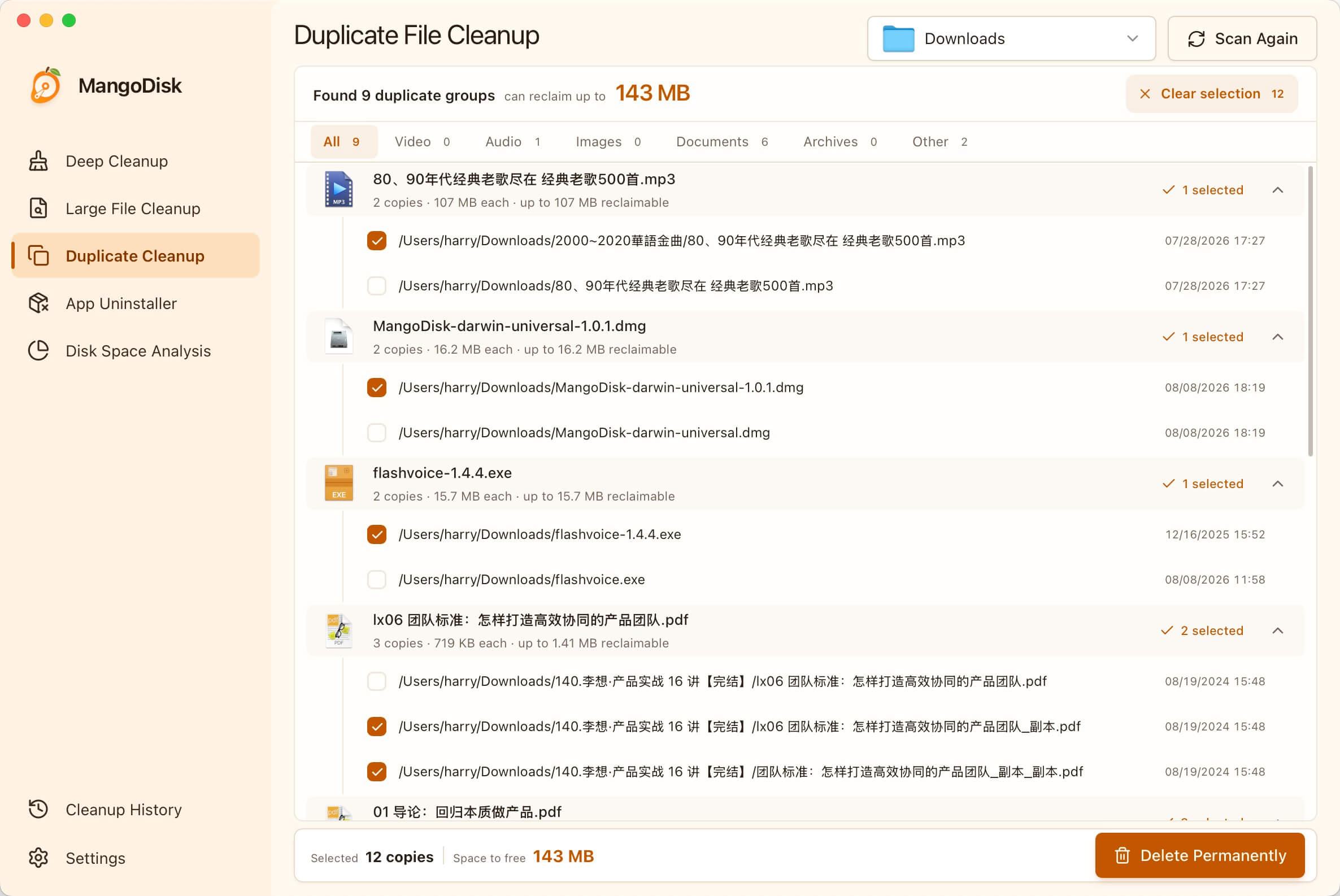
If you're mainly sorting repeated downloads and old folders full of videos, documents, or installers, MangoDisk is another option. Its Duplicate File Cleanup groups files by their contents and shows their paths, sizes, and estimated reclaimable space. Smart Select reduces repetitive checkbox clicks, while the full paths help you decide which copy belongs where.
What do you need to organize?
Several copies of one photo and several similar shots are different problems. The first calls for matching identical contents. The second needs a similar-image tool, followed by your own judgment about which pictures to keep.
| What you want to do | dupeGuru | Czkawka |
|---|---|---|
| Find files with identical contents | Standard mode with the Contents scan | Duplicate Files with the Hash check method |
| Find similar photos | Picture mode | Similar Images tool |
| Organize duplicate music | Music mode, including tag-based comparisons | Same Music tool |
| Also check empty folders, empty files, or similar videos | Focuses on duplicate-file management | Separate tools for these tasks |
| Keep an established collection as a reference | Reference folder setting | Reference paths, with controls that vary by interface |
The matching method changes what a result means. Files with the same name or size aren't necessarily identical, and similar-looking photos aren't automatically expendable. See dupeGuru's mode and folder guide and the official Czkawka project overview.
dupeGuru: separate modes for files, music, and pictures
For repeated archives, videos, and documents, start with Standard → Contents in dupeGuru. This finds matching contents even when the filenames differ.
Music and Picture modes are worth considering when you're comparing different versions of a song or photos that still look similar after resizing or editing. Their matching options serve different purposes; don't treat every match as a byte-for-byte copy. The official scanning guide explains those differences.
Reference folders are useful when you already have an organized collection. For example, set your established Documents folder to Reference while comparing it with Downloads. Its files participate in the comparison but are protected from deletion in dupeGuru. Still check that each group's reference is the copy you intend to keep. See the reference-folder settings.
Czkawka: more tools for a wider folder cleanup
Czkawka includes similar-image and similar-video tools, plus checks for empty folders and empty files. If you're organizing years of files on an old drive, you can work through each kind of problem separately.
For identical copies, choose Duplicate Files and the Hash check method. Hashing checks file contents; comparing names or sizes alone doesn't establish that two documents contain the same data. See the official duplicate-file workflow.
You'll also encounter the name Krokiet when downloading Czkawka. It's the same project's newer desktop interface. The project recommends moving to Krokiet and has ended further releases of the older Czkawka GTK interface. Their layouts and controls differ, so check which app you're using before following an older tutorial. The project overview explains the change.
Both projects offer Windows, macOS, and Linux builds or installation instructions. On a Mac, check the processor architecture and any runtime requirements too: support for macOS doesn't mean every download opens on every Mac. Start at the dupeGuru website or Czkawka's release page.
Check where deleted files go
Removing an entry from a results list, sending a file to the Trash, and permanently deleting it are different actions.
- dupeGuru offers sending marked files to the Trash or Recycle Bin, along with a direct-deletion option. Direct deletion bypasses the Trash; don't switch it on just to skip a step. See its deletion options.
- Krokiet, the newer Czkawka interface, has separate Trash and Delete actions. Trash moves files to the system trash; Delete removes them permanently. Don't assume those controls apply to the older GTK interface. Check the app you're using. See the Krokiet action bar.
- MangoDisk's Delete Permanently bypasses the Trash or Recycle Bin. Back up important files and review both the paths and selected copies before confirming. The cleanup safety guide covers what to check.
Keeping one copy doesn't make every other copy unnecessary. A video-editing project may depend on a particular path, and a copy on an external drive may be an intentional backup. Sometimes the location matters as much as the contents.
MangoDisk for reviewing and removing identical copies
Repeated installers, temporary video copies, and documents left in Downloads after filing them away usually don't need similarity matching. You need to see matching contents together, compare their locations, and remove the copies you know you no longer need.
With MangoDisk's Duplicate File Cleanup:
- Scan a familiar folder first. Start with Downloads or an old personal folder. Raise the minimum file size to focus on larger copies, or filter the results by videos, images, documents, and other file types.
- Expand a group and compare its paths. Check which copies are filed away and which are temporary extras. Files can appear together even if they've been renamed, provided their contents are identical.
- Use Smart Select, then review what stays. Smart Select follows the keep rule, leaving at least one copy in each group and selecting the others. It changes the selection without deleting anything. Uncheck additional copies if you want to keep them too.
MangoDisk finds files with identical contents. It doesn't choose the best shot from a burst or compare photos that have been cropped or color-adjusted. If similar photos or specialized music matching are your main concern, dupeGuru and Czkawka's corresponding modes are more relevant.
For platform-specific steps, see finding duplicate files on Mac or removing duplicates in Windows 11. The Mac cleanup and storage guides cover related file-organization tasks.
Download MangoDisk and start with a folder you're ready to organize. Review the duplicate groups and keep locations before removing unwanted copies. MangoDisk is free and open source, with no account or login required.