
How to Clear Cache on Windows 11
Use MangoDisk to compare Windows app, browser, and system caches in one place. Review what takes up space and choose what to clear while keeping personal files.

Windows caches are spread across different folders. Browsers, messaging apps, and office software each keep their own temporary files. Finding them one by one takes time, and deleting an entire app folder can take personal data with it.
To review them together, use MangoDisk's Deep Cleanup. It brings supported system, app, and browser caches into one set of scan results, with their sizes and locations. See what takes up space, then choose what to clear without hunting through folders yourself.
MangoDisk is free and open source, with no account required. Scans run locally on your computer. Reviewing the results does not delete anything.
Find caches without digging through hidden folders
Open Deep Cleanup in MangoDisk and run a Standard Scan. When it finishes, look through categories such as Application caches and Browser data to see individual items.
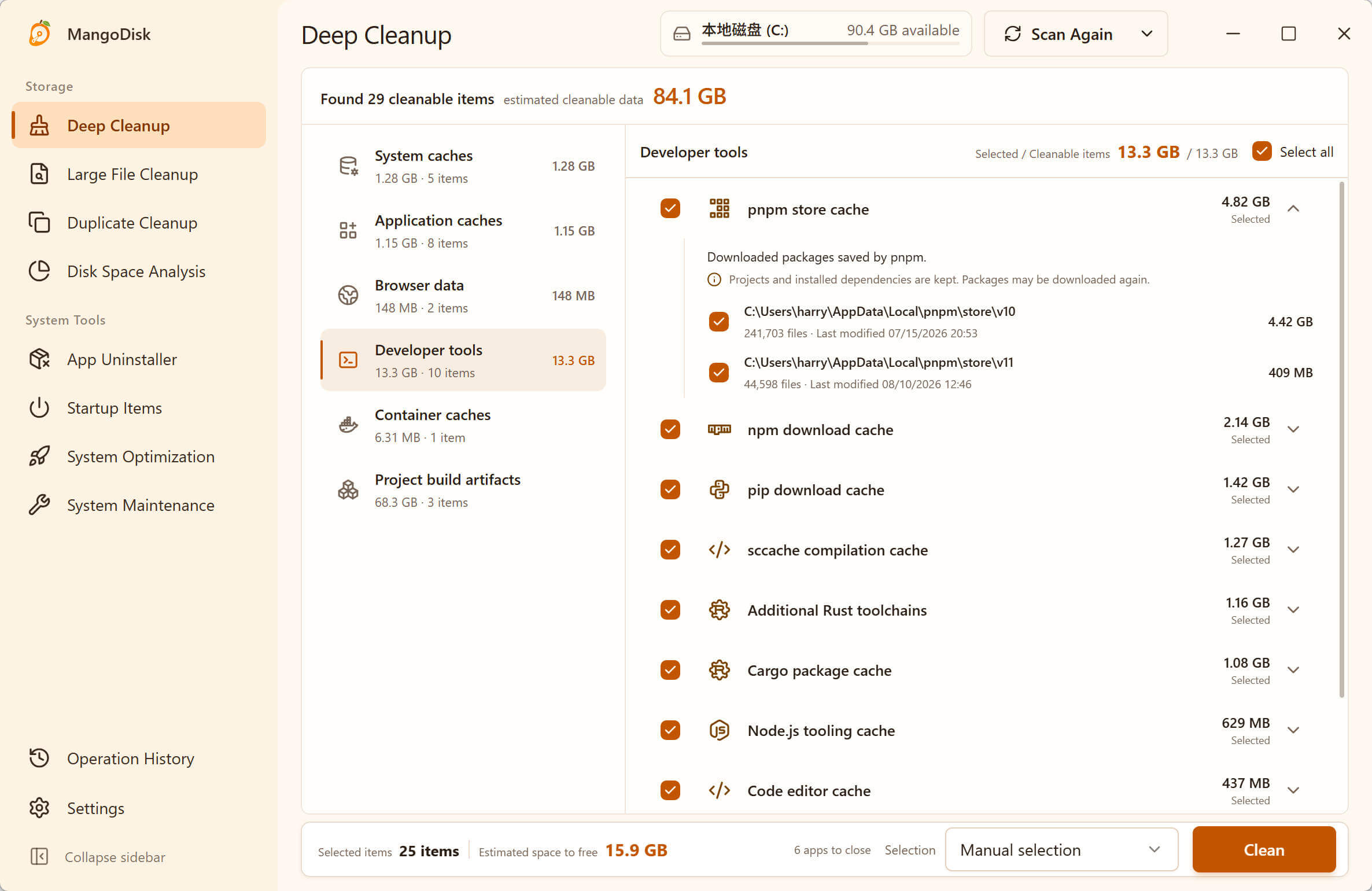
General Deep Cleanup interface example, with Developer tools currently open. Everyday app caches are available through the categories on the left. Your scan results and sizes will vary.
Start with the larger items. Expand one to check its description and path before selecting it. If an app has only a small cache and works normally, you can leave it alone.
Find the few items worth clearing instead of cleaning every app. Keeping the results together saves you from switching between apps to find their cleanup settings and compare sizes. What MangoDisk can detect depends on your installed apps, cache locations, and access permissions.
Keep messages and documents while clearing caches
If a messaging or office app takes up space, the obvious concern is whether clearing it will also remove conversations or documents. An app's cache and its personal data need to be treated separately.
For example, MangoDisk 1.2.0's Windows cache item for WeChat's interface and mini programs excludes chat history, received files, and account data. Its WPS interface-cache item also excludes documents, document-recovery data, and cloud files. Those personal files do not have to be removed to clear these particular caches. The exact scope is documented in the public Windows cleanup rules.
Those exclusions apply to the corresponding cache items. Read other items' descriptions separately rather than selecting everything related to an app. A large app folder is not a reason to delete the whole folder.
Choose what to clear, then confirm
If you only want caches from a few apps, start with Select none, then check the items you need. Default selections differ between items, so review the current selection before proceeding.
The bottom of the window summarizes the selected items and estimated space to reclaim. Save your work, close the apps indicated by MangoDisk, and click Clean. Review the selected content once more in the confirmation dialog before continuing.
Afterward, check Operation History for the results. The estimate helps you decide whether to proceed; the actual amount reclaimed depends on the outcome. Some cleanup operations cannot be undone. Back up important files and leave uncertain items unchecked. See the Deep Cleanup guide and safety guide for details.
Use built-in tools when you only need one cache
If you already know which browser needs attention, its own cleanup option may be all you need. Chrome, for example, lists Cached images and files separately from cookies and other site data, so you can choose which to remove. Google's explanation of browsing-data types describes the differences.
Windows Storage settings can also remove some temporary content. For that route, see our Windows temporary-files guide. For browser-specific steps, use the Chrome and Edge cache-cleanup guide.
MangoDisk is useful when you do not yet know where to start, or want to check several apps at once. Review the caches together and choose the ones you need without switching between each app's settings.
Do you need to clear a cache again when it returns?
Not just because normal use has recreated it. Browsing websites and using apps builds up caches again. Some content may load more slowly immediately after cleanup because it needs to be fetched again. Caches help apps work efficiently; they do not need to be emptied every day.
When space is tight, check for caches that have grown enough to be worth clearing. If the scan finds very little, repeatedly clearing the same small amounts will not address storage used by other files.
Download MangoDisk for free and see which caches are worth checking on your PC. The source code and cleanup rules are available on GitHub.