
Clear Chrome and Edge Cache Without Deleting Passwords
Free up space on Windows 11 with MangoDisk. Review Chrome and Edge caches together, choose what to clear, and leave passwords, bookmarks, and cookies alone.

You want some disk space back—not an afternoon spent signing in to every website again.
Clearing the cache doesn't mean resetting your browser. On Windows 11, Chrome and Edge store ordinary cached files separately from cookies and saved passwords. You can remove those caches without selecting your account data.
Deep Cleanup in MangoDisk brings caches from supported browsers into one view, shows how much space they use, and lets you choose what to remove. Its ordinary Chrome and Edge cache rules exclude passwords, bookmarks, browsing history, and cookies. There's no need to start your browser setup over just to reclaim some space.
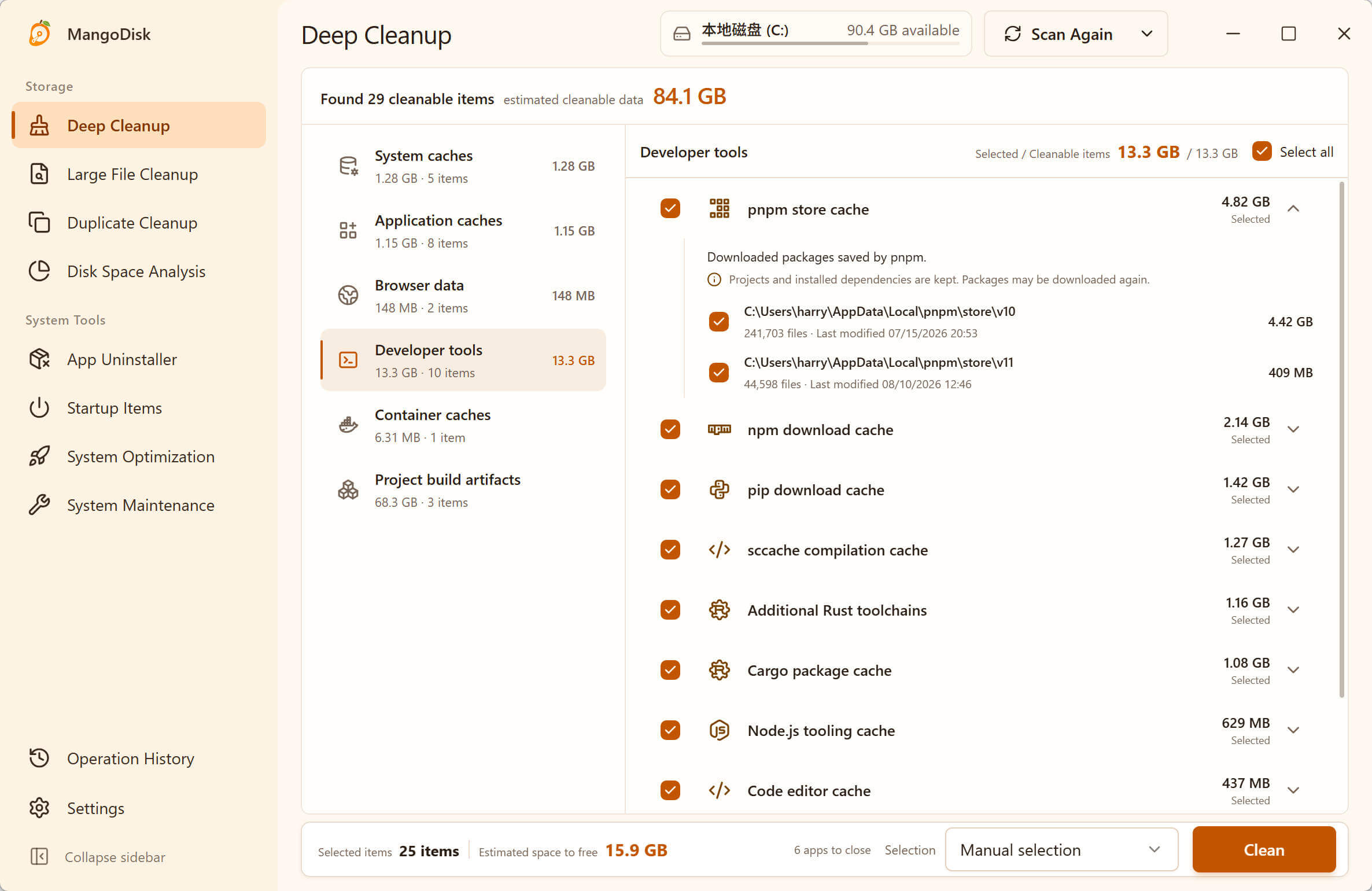
See which browser is worth cleaning—without opening every settings menu
Perhaps you use Chrome for work and Edge for a separate set of accounts. You might also have several profiles within each browser. Each can build up its own cache, so clearing your current profile may leave others untouched.
MangoDisk lists the caches it recognizes in a single set of scan results. Check the sizes first, then choose where to clean. You don't have to keep opening browsers, switching profiles, and finding the same settings again.
It also recognizes more than cached web images: the Chrome and Edge rules include rebuildable code and graphics caches. You don't need to identify their folders yourself or paste a deletion command from a forum.
The benefit is less hunting through folders and less guessing about what they contain. A scan doesn't delete files. If browser caches aren't taking up much room, there's no reason to clear them just for the sake of it.
Does clearing the cache delete passwords?
Not if you select only ordinary cache files. The trouble starts when “clear cache” turns into “select every kind of browsing data.”
| Data | What to know before clearing it |
|---|---|
| Ordinary web, code, and graphics caches | These can be rebuilt. Some pages may load more slowly on the next visit; removing these files is not the same as deleting passwords or cookies. |
| Cookies and site data | These may keep you signed in, store preferences, or hold local website content. Clearing them can sign you out or remove that content. |
| Saved passwords and bookmarks | These are personal data, not junk to delete for a little extra space. |
| Offline website caches | Web apps may rely on these to work offline. Review them separately from ordinary caches. |
Chrome and Edge also separate these data types in their built-in cleanup controls. See Google's browsing-data guide and Microsoft's Edge data reference.
In MangoDisk, start with the ordinary Chrome and Edge cache items in Deep Cleanup if you want to keep your account data. Don't select every browser-related item. Offline data—and the account, site-storage, and session items in Privacy Cleanup—need separate decisions. Leave anything you're unsure about unselected.
Clear browser caches with MangoDisk in three steps
- Scan and check the sizes. Open Deep Cleanup, run a scan, and find the browser items. See how much room the recognized Chrome, Edge, and other browser caches take up.
- Select only the caches you want to clear. Read the item descriptions and paths. Deselect unrelated items rather than using Select All.
- Save your work and confirm. Save any unsubmitted work in web pages, then close the affected browsers when prompted. Review the selection, confirm cleanup, and check the results.
Caches will build up again as you browse; they don't need to be emptied every day. For cleanup behavior and recovery limits, see the Deep Cleanup guide and safety guide.
For a single browser, its built-in controls may be all you need. In Chrome, open Delete browsing data from the menu; in Edge, find the option to clear browsing data in Settings. Choose a time range and select Cached images and files only, leaving cookies, passwords, and other items unchecked. MangoDisk saves the repeated setup when you want to review several browsers and profiles together.
The browser folder is huge, but clearing caches barely helped
Don't delete the whole folder to make up the difference. Extensions, offline website data, and personal profiles can also take up space. A large browser folder isn't necessarily a large disposable cache.
Use MangoDisk's Disk Space Analysis to see which subfolders are responsible. Larger blocks in the treemap mean more space used. Look through the folders, then decide whether to manage a particular site's data or an extension within the browser.
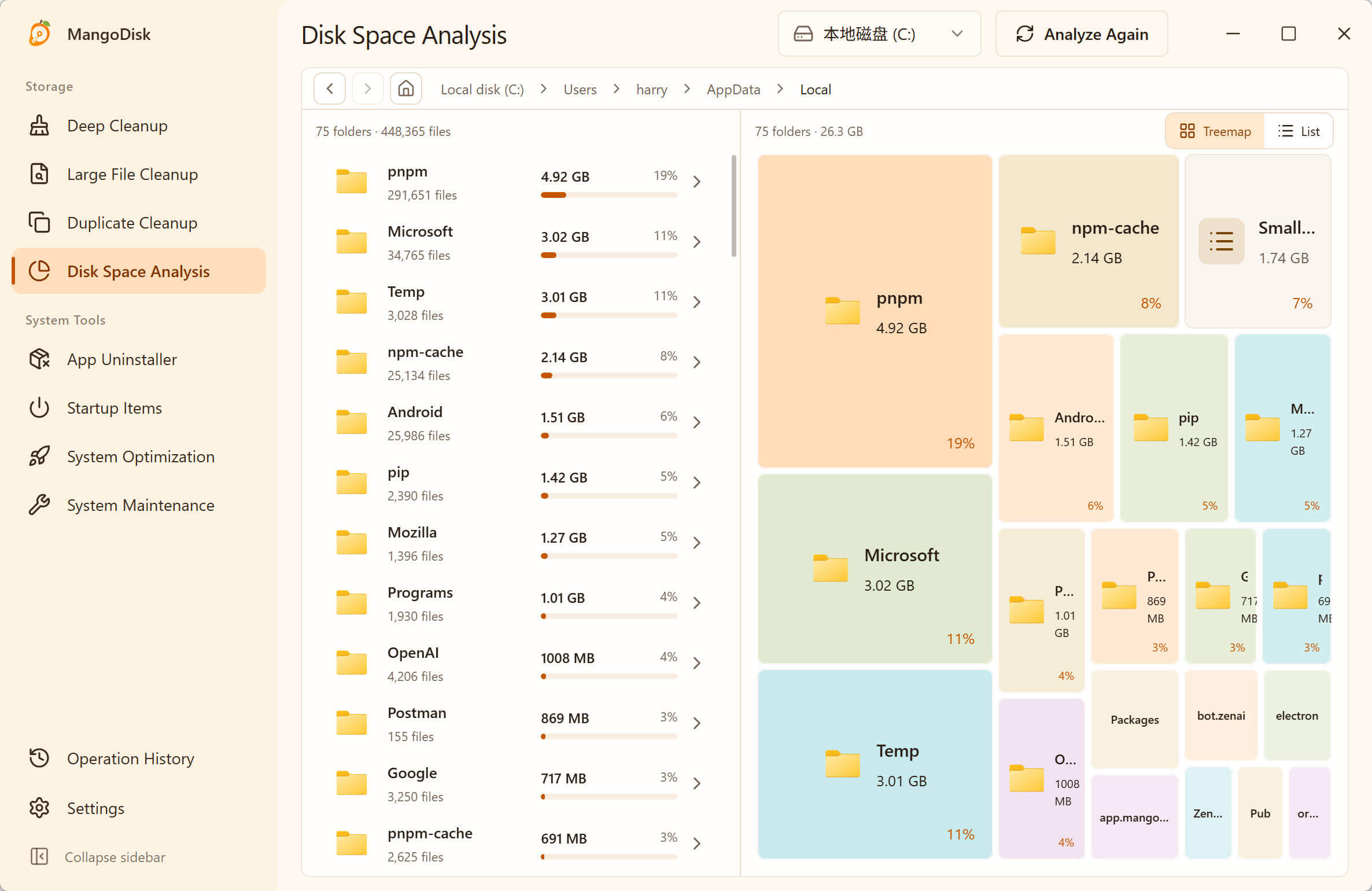
Size alone doesn't tell you whether a folder is safe to delete. Don't remove Chrome or Edge's entire User Data or Default folder: those contain personal data and browser settings too. Manual deletion in Disk Space Analysis is permanent, so use the view to investigate before deciding what to remove.
For storage problems beyond the browser, see how to handle a large AppData folder. If your goal is to remove activity records rather than reclaim disk space, use Privacy Cleanup and choose items for that purpose instead.
Get space back without starting over
MangoDisk puts cache sizes, selection, and cleanup in one tool. Check what's taking up room, clear the caches you choose, and leave the account data you still need alone. No hidden-folder hunt—and no new account to create.
Download MangoDisk for free and see how much space your browser caches use. It supports Windows and macOS, is open source, and scans and cleans files locally.
If you're choosing a cleaner rather than looking for a single cleanup step, see MangoDisk as a free CCleaner alternative for the everyday tasks it covers and its limits.
Using Teams on this PC? See how to clear Teams cache without reinstalling, including what differs from resetting the app.