
Can You Delete the Unity Library Folder?
Compare Unity Library folder sizes with MangoDisk and clear caches from old projects. Keep source assets, settings and memory snapshots, and understand the cost of reimporting.
Yes, once you've saved your work, closed the Unity project and checked that its source assets and settings are intact. A project's Library normally holds internal data generated by Unity. When you remove it, Unity regenerates that data and reimports assets the next time you open the project. This can be useful for older projects you rarely use; it isn't something to do every day. See Unity's asset import documentation.
If you have several Unity projects on your computer, MangoDisk can show the paths and sizes of build artifacts in projects it recognizes. Compare them before deciding which old Library folders to clear. It's free and open source, requires no signup or login, and scans files locally.
Compare old project sizes with MangoDisk
Clearing one project by hand is straightforward. With several projects, the work is finding each folder, checking its size and remembering which projects are still active. MangoDisk puts recognized Unity artifacts in one view. Expand the results to select individual paths instead of clearing every project at once.
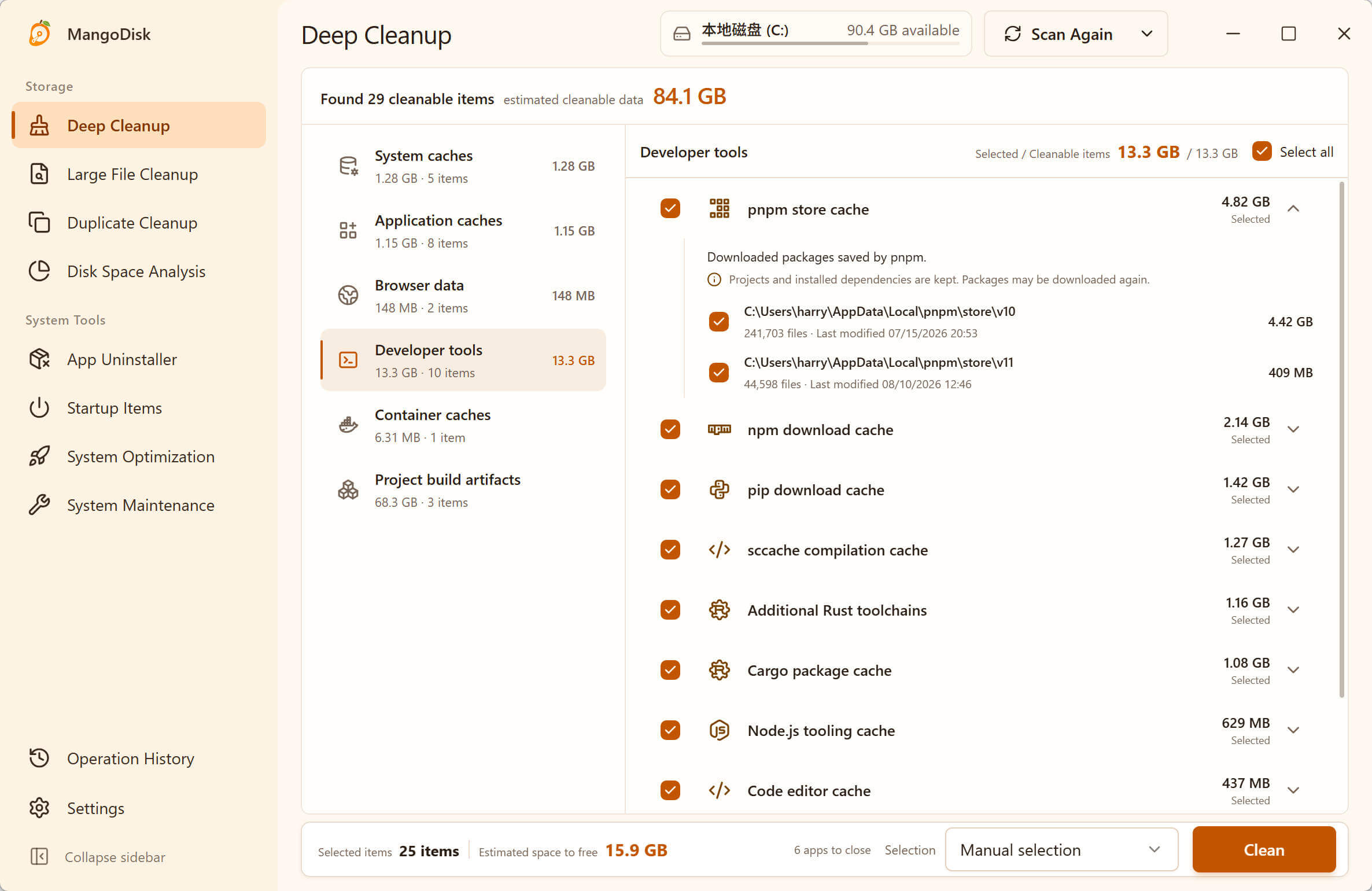
This is an example of the Deep Cleanup interface. The projects shown depend on your scan results.
Run a Standard Scan in Deep Cleanup, then look for Unity build artifacts under Project build artifacts. If your projects are on another drive, use Choose Disks beside the scan button to include it.
When you're ready to clear files:
- Compare paths and sizes, and identify old projects you won't be working on soon.
- Save scenes and code, stop builds, and quit Unity Editor. Back up important assets, settings and any changes you've made yourself.
- Choose Select none, expand the Unity entry, and select only the old projects'
Librarypaths you've checked. - Review the selected paths and estimated space to recover, then confirm the cleanup.
The Unity entry can also include Temp, Obj, Logs and MemoryCaptures. Don't select the whole group just to clear Library. Decide separately whether you still need its logs and memory snapshots.
Unity build artifacts aren't selected by default, and scanning doesn't delete anything. Once you confirm cleanup, MangoDisk permanently deletes the selected content, bypassing the Recycle Bin or Trash. See the cleanup safety guide. Make sure Unity has quit and builds have stopped; don't rely solely on prompts in the cleanup interface.
Where Library lives and why it takes up space
The Library discussed here sits in the Unity project root, alongside Assets, Packages and ProjectSettings. It isn't your Mac's ~/Library folder. Don't delete a different folder just because it has the same name.
Unity converts source assets into internal data suitable for the Editor and the target platform, then stores that data in the project's Library. Each project has its own copy. Several projects can therefore leave substantial generated data on disk even when you haven't added much source code.
A large Library doesn't necessarily mean something is wrong. For a project you use every day, those files save Unity from repeating work. Deleting them frees space now, but opening the project will generate them again. Weigh the space against the time you'll spend waiting for the next import.
| Project situation | What to do |
|---|---|
| Old practice, demo or archived project you rarely open | Back it up, then check whether its Library is worth clearing |
| Project you'll soon be developing, testing or building | Usually keep the cache to avoid repeating the import |
| Personal files or modified package code inside Library | Preserve your changes before treating the folder as disposable |
Keep source files and diagnostic data
Being able to regenerate Library doesn't make the other folders in the project root disposable.
| Content | How to handle it |
|---|---|
Library | Clear it as needed after closing the project and checking that it can be regenerated without losing your own files |
Assets and their .meta files | Keep them: they hold project assets, scripts, asset identifiers and related data |
Packages | Keep it: it contains dependency configuration and may contain embedded package source |
ProjectSettings | Keep it: it contains project settings |
Temp and Obj | Check their contents and the project's state separately; clearing Library doesn't require deleting them |
Logs | Keep logs needed for troubleshooting; an older log can still be useful |
MemoryCaptures | Keep memory snapshots you still need; they aren't caches Unity can simply regenerate |
.meta files may look insignificant, but they store asset identifiers and import-related information. Keep them with their assets. See Unity's asset metadata guide.
Also check for package source you've edited directly in Library/PackageCache. Preserve those changes before cleanup. Unity's documented URP workflow is to copy the package from the cache into the project's Packages folder and modify the embedded copy. Don't leave your only copy of custom changes in a cache. See Unity's instructions for modifying URP source.
MemoryCaptures serves a different purpose. Unity Memory Profiler stores captured or imported snapshots there so you can analyze and compare memory usage at a particular moment. Reopening the project won't recreate the same historical snapshot. See the Memory Profiler snapshot guide.
Clear a single project manually
Save your work and quit Unity, then open the project root in File Explorer on Windows or Finder on Mac. Check that you're alongside Assets, Packages and ProjectSettings. Use Properties or Get Info on Library to see whether its size makes cleanup worthwhile.
After backing up and checking the contents, remove only that project's Library and leave the other folders alone. To retain a recovery option, move it to the Recycle Bin or Trash first. It will still occupy space there; reclaiming that space also requires removing the discarded copy.
File Explorer or Finder is enough for a single project. MangoDisk is useful when you want to compare several old projects, see their artifact sizes together and choose paths individually.
If MangoDisk doesn't list a project, that doesn't mean it has no generated data. The current Unity rule recognizes projects using Assembly-CSharp.csproj, Assets and ProjectSettings. Missing markers or a folder outside the scan scope can prevent it from appearing. Use Disk Space Analysis to inspect the directory rather than changing a project just to make a cleanup tool recognize it. See MangoDisk's Unity cleanup rule.
Why Library grows again after cleanup
Unity creates a new Library when you reopen the project. That's expected: cleanup removed the existing cache without changing the project's need for generated data.
Reopening the project for the first time after cleanup may take longer while Unity imports assets. Let the import finish, then check scenes, asset references and builds. Don't repeatedly empty the folder just to keep it small, or expect clearing Library to fix every Unity error.
If your drive is still full, use MangoDisk's Disk Space Analysis to find the directories that actually take up space. Source assets, old installers or another tool's build output may be larger. If Assets is large, check which assets the project still uses; don't apply cache cleanup rules to source content.
For other development tools, see the Gradle cache guide and Cargo cache versus target. Their data serves different purposes, so handle each according to its actual path and contents.
Download MangoDisk to compare old projects' artifact sizes before choosing which Library folders are worth clearing. Keep the caches for active projects and the diagnostic data you still need.
More: Developer cleanup guides.