
How to Stop Apps from Opening on Startup on Mac
Stop Mac apps from opening at startup, review login items and background helpers with MangoDisk, and check why an app keeps reopening after you disable it.
To stop an app from opening on startup on your Mac, go to System Settings → General → Login Items & Extensions and remove it from the list of apps that open at login. If it still opens, check the app's own startup preference and whether macOS is reopening windows from your last session.
MangoDisk groups the startup entries it finds by app in Startup Items. You can see which apps are set to launch automatically, expand an app to review its startup sources, and turn off the entries you do not need. For unfamiliar names, AI explanations can help you understand their purpose without searching for each one separately.
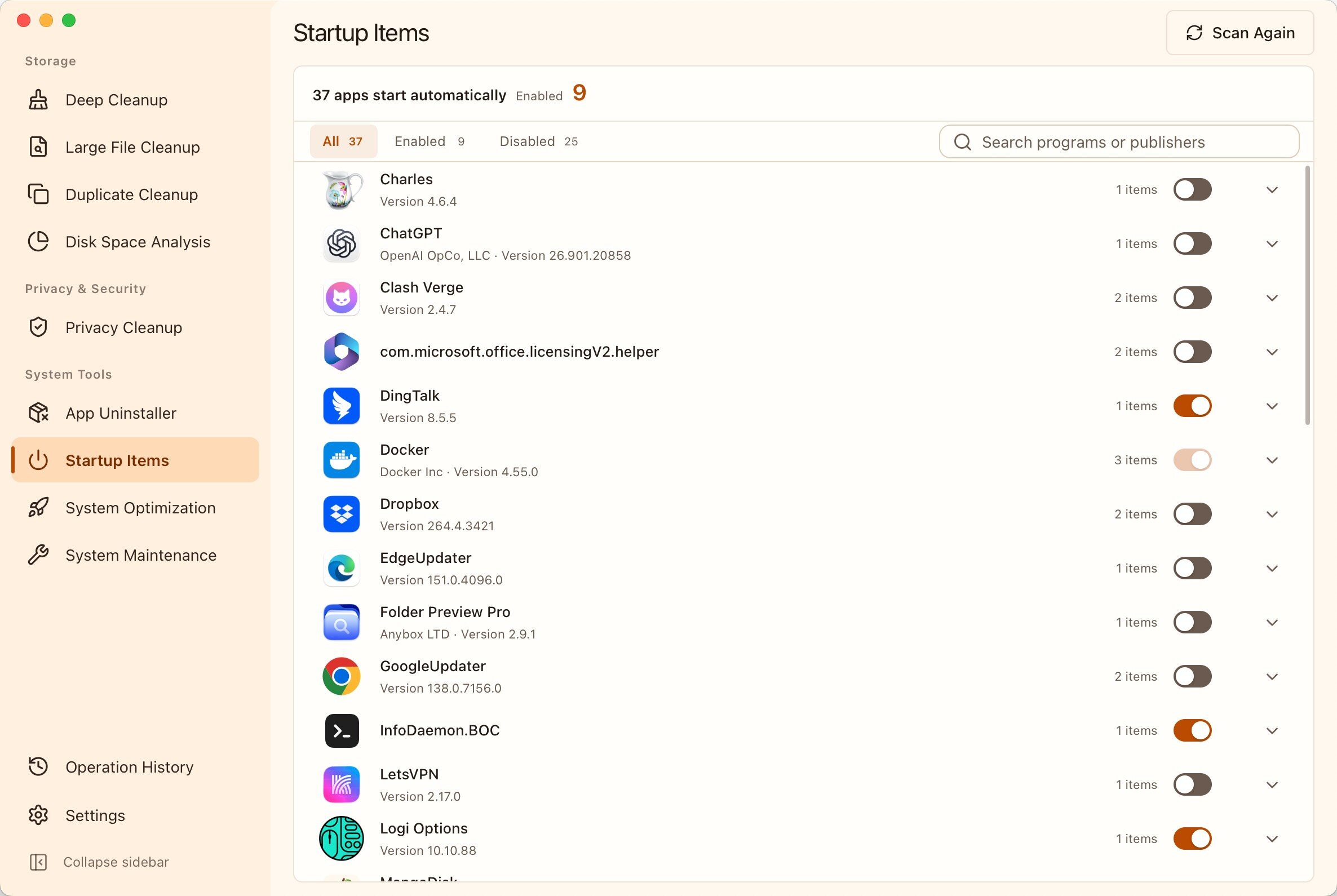
Review and disable Mac startup apps with MangoDisk
Chat apps, meeting tools, cloud drives, and game launchers may all start when you log in. That is useful for tools you rely on every day. Apps you only use occasionally can often wait until you open them yourself.
In MangoDisk:
- Open Startup Items in the sidebar and scan the current configuration. Scanning only reads settings; it does not disable anything.
- Select Enabled to review apps currently set to start automatically. You can also search by app name or publisher.
- Expand an app you want to change. Check its startup entries, when they run, and where their settings come from.
- Turn off the switch for an entry you are sure you do not need. If an app has several entries, review them individually.
For example, you might prefer to open a meeting app only when a call is coming up. Review its login entry first. If you rely on its meeting reminders, check what you would lose before disabling it.
Disabling startup does not uninstall the app or delete its files. It also does not quit an app that is already running. Check the new startup behavior the next time you start your Mac or log in. You can still open the app manually from Applications.
Some entries are managed by macOS and are view-only. If a switch is unavailable, read the explanation rather than changing system files to stop an ordinary app. See the MangoDisk Startup Items guide for more details.
Which login items should you disable or keep?
Start with one question: does this app need to be working as soon as I log in?
| Type of startup item | What to consider |
|---|---|
| Meeting, chat, or game apps you use occasionally | Consider opening them when needed, but messages or reminders may not arrive until then |
| Music players, download tools, and other utilities | Check whether you need them immediately after signing in |
| Cloud sync and backup tools | Keep the relevant helpers enabled if you depend on automatic syncing or scheduled backups |
| Input tools, accessibility apps, security software, and work network tools | Identify their role and dependencies before changing them |
| Background services you do not recognize | Check the app and source before deciding that an entry is unnecessary |
An app can have more than one startup entry: one may open its main window while another provides a background feature. If you only want to stop the window from appearing, review that entry first instead of switching off everything under the app.
Use startup details and AI explanations for unfamiliar items
Mac login items sometimes show a developer or component name rather than the app name you recognize. An unfamiliar name does not mean the item is unnecessary.
Expand the app in MangoDisk to review its startup configuration and what it runs. If the details are still unclear, hover over the item and click AI explanation. It uses information about the selected item to explain its purpose and what disabling it could affect.
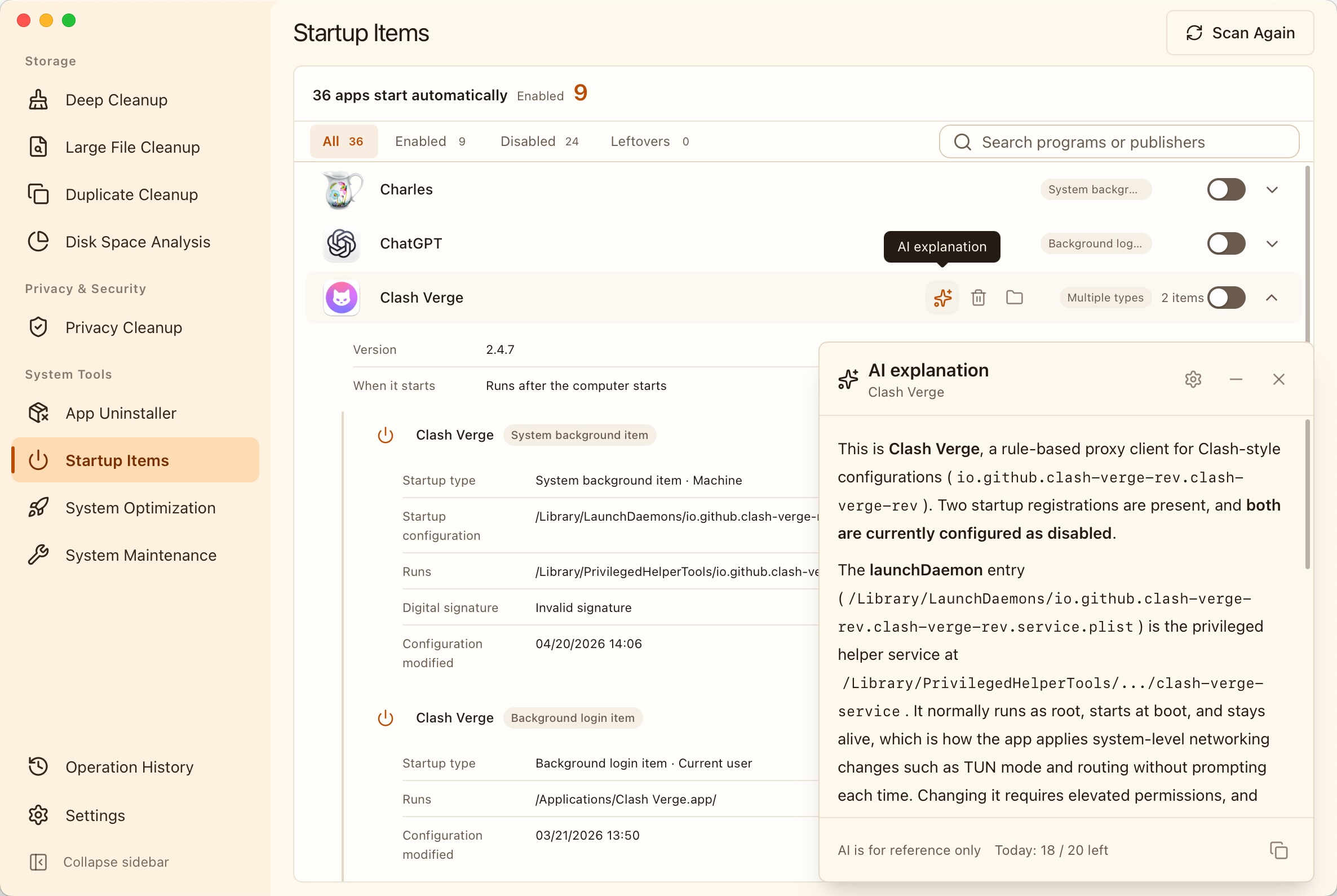
AI explanations require you to enable the feature and connect to the internet. Use the explanation as a reference; you decide whether to change the setting. Leave an item enabled if you are unsure. See the AI explanations setup guide.
Remove a login item in macOS System Settings
If you only need to stop one or two apps already listed in macOS, you can use the built-in controls:
- Open System Settings from the Apple menu.
- Go to General → Login Items & Extensions.
- Select the app you do not want under Open at Login.
- Click the minus (−) button below the list to remove the login item.
The same settings page also controls apps allowed to run in the background. These helpers may sync data or check for updates without opening a window. If your main concern is too many windows at login, review the apps that open at login first, then check background items according to what you need. Apple's login items guide
Why does an app still open after you disable startup?
An app reopening does not always mean your change failed to save. Check the following sources in order.
Check the app's own startup preference
Look in the app's settings for Open at login, Launch at startup, or a similar option. Some apps can add a startup entry again through their own preference, so removing it from the system list may not address the cause.
Check whether macOS is reopening your previous windows
If the same apps you used last time return after a restart, check Reopen windows when logging back in in the shut down, restart, or log out dialog.
Deselect it and check the next session. Restoring previous windows is separate from an app's startup setting, so turning off a login item may not prevent it. Apple's guide to apps and windows reopening
Review the app's other startup entries
If its window still opens, scan again in MangoDisk and expand the app to check for other enabled entries. Understand each entry before turning it off.
If you have already uninstalled an app but its startup configuration remains, check whether MangoDisk labels it as a leftover. Do not delete configuration files just because their names are unfamiliar; an app you still use may depend on those helpers.
Check the features you rely on after making changes
Change a small number of clearly unnecessary entries at a time. Save your work, then log out and back in, or restart your Mac when convenient.
Along with checking whether the target app still opens, test the features you depend on: input tools, cloud syncing, backups, and your work network connection. If something stops working as expected, re-enable the related startup entry and check again. See MangoDisk's safety guide.
Reducing unnecessary startup activity can mean fewer interruptions and less work at login. The number of entries alone is not a useful target, and disabling startup apps cannot fix every slowdown. Keep tools that need to work automatically.
If you still use an app, disabling an unwanted startup entry may be enough. If you no longer need it, continue with uninstalling Mac apps and reviewing related files. For help understanding unfamiliar items, read how MangoDisk AI explanations work. More guides are available in Mac app and storage management.
Download MangoDisk and review the enabled apps in Startup Items. Keep the tools you need running automatically, and open the rest when you need them.