
A Free, Open-Source Revo Uninstaller Alternative for Windows
Looking for a Revo Uninstaller alternative for Windows? Compare app sizes, review related files and keep the settings you need with MangoDisk.
Looking for a free Revo Uninstaller alternative for Windows? MangoDisk lists your installed apps with their estimated sizes and uninstall status. You can review any caches, settings and local data it finds for an app, then choose what to remove and what to keep. MangoDisk is free and open source, with no account required.
That comes in handy when you've tried several editors and settled on one, or when you're removing a work app but want to keep its settings for a future reinstall.
When does MangoDisk make sense as a Revo alternative?
Revo Uninstaller Free scans for leftover files after a standard uninstall. If that workflow suits you, the free edition may already cover what you need.
MangoDisk is a good fit if you want to review installed apps and see what's using disk space in the same tool. Start with the apps themselves, check the data you want to keep, and look for large folders if uninstalling doesn't free up as much space as you expected.
| What you need | Which tool to consider |
|---|---|
| A standard uninstall followed by a leftover scan | Revo Uninstaller Free |
| An open-source uninstaller that shows app sizes and lets you review related files before removal | MangoDisk |
| App removal and a visual breakdown of disk usage in one tool | MangoDisk |
| Forced uninstall or logs of changes made during installation | Revo Uninstaller Pro |
If you rely on forced uninstall or installation tracking, check that the tool you switch to supports the workflow you need. Revo Uninstaller Pro manual
Compare app sizes before deciding what to remove
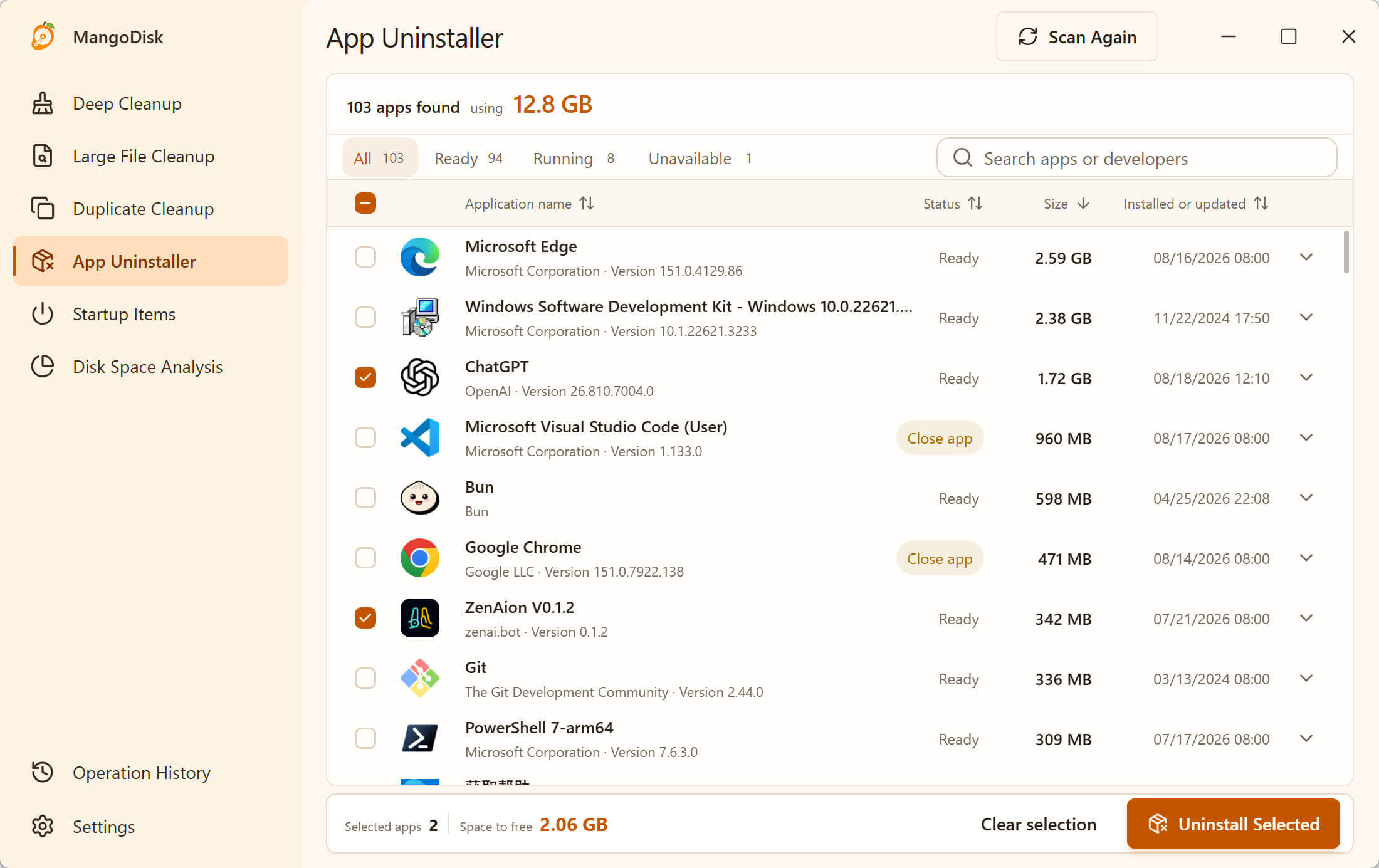
Open App Uninstaller and scan your PC. Search by app or publisher, or sort by size, name, status or date. Size helps you prioritize which apps to review. An app you use only a few times a year may still be worth keeping.
Save your work and quit any apps marked as running before you remove them. You can select several apps and check each one's related files. Each program follows its own Windows uninstall process, so you may still see confirmation prompts, an administrator request or a restart prompt.
Keep the settings and local data you still need
Removing a design app doesn't have to mean giving up the presets you made for it. Expand an app in MangoDisk to see the related files it can identify, along with their paths and sizes. Review the selections before continuing.
You can consider removing app-specific caches and logs you no longer need. Check preferences, templates, saves and local files separately. Items that may contain user data are kept by default. If a folder may be shared by several apps, MangoDisk shows you where it is so you can inspect it.
On Windows, MangoDisk uses the system or publisher's uninstall method where available. Confirmed related file removals are permanent, so back up any settings or data you may need. App Uninstaller guide · Safety guide
See what's still using space after an uninstall
An app's listed size may leave out downloaded assets, video projects or saved games stored elsewhere. If the drive is still full, open Disk Space Analysis and scan the drive or folder you want to check. Use the folder list and treemap to find the largest items, then open them to see what they contain.
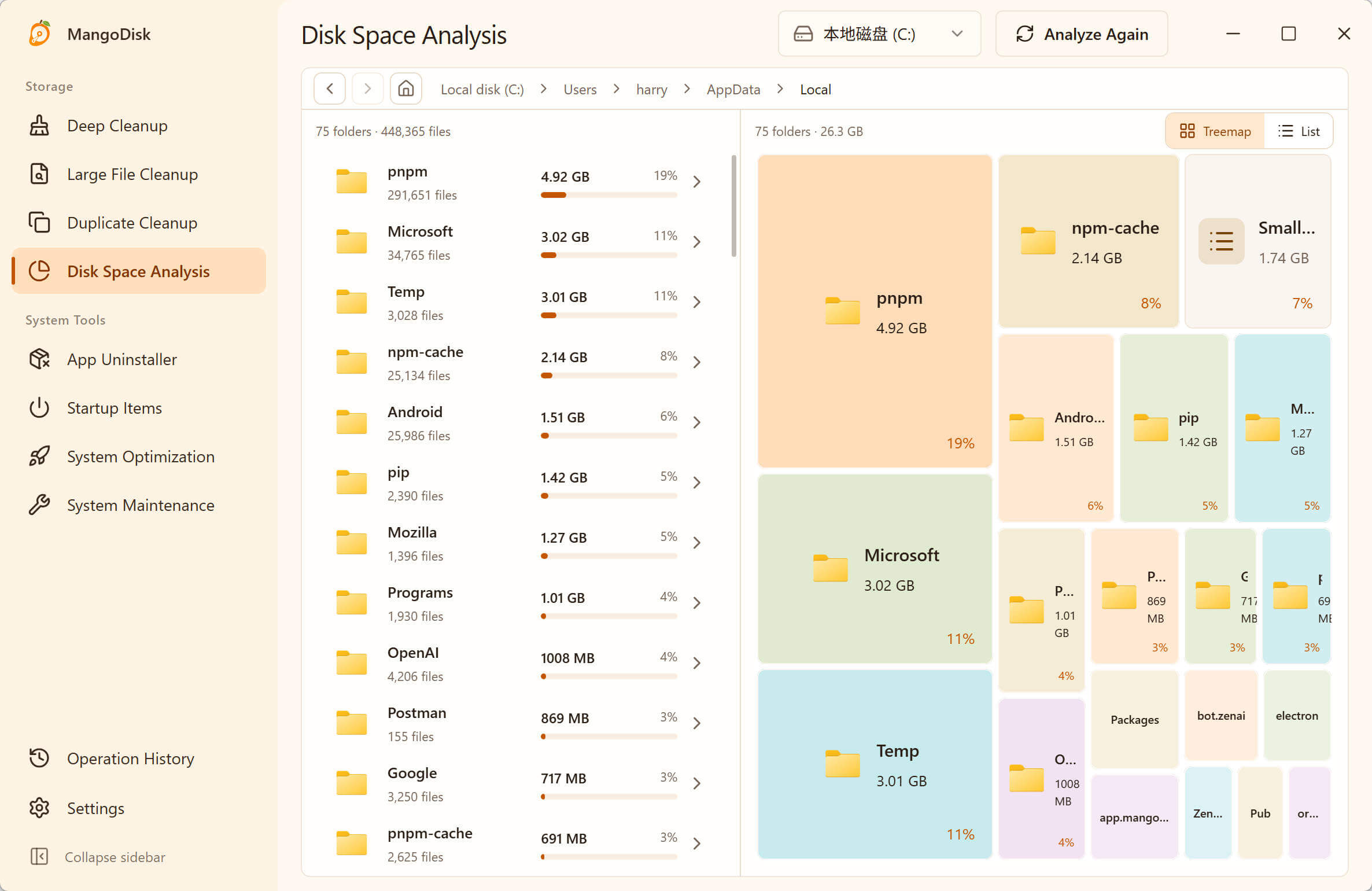
Check what you find before removing it. A large folder may hold work you still need, data that an uninstaller kept on purpose or files unrelated to the app you just removed.
For the full process, see how to uninstall apps and review leftovers on Windows 11. If your main concern is storage, see the C drive cleanup guide or browse more Windows cleanup guides.
What if the app won't uninstall?
If the uninstaller is missing or fails, start with the software publisher's instructions. This is especially useful for apps that install drivers or services. If Windows or the uninstaller asks you to restart, do that before trying again. Leave the install folder in place while you troubleshoot. Microsoft's Windows uninstall guide
If your priority is to remove unused apps, keep the data you need and see what's taking up disk space, download MangoDisk and start with App Uninstaller.