
How to Free Up Storage on Mac
See what's filling up your Mac, then decide what to delete, move to an external drive, or uninstall. Free up space for everyday use or a macOS update.
If your Mac says the startup disk is almost full, go to Apple menu → System Settings → General → Storage and see which categories take up the most room. Delete files you no longer need, move files you want to keep to an external drive, and uninstall apps you rarely use. Start with a large category whose contents you recognize.
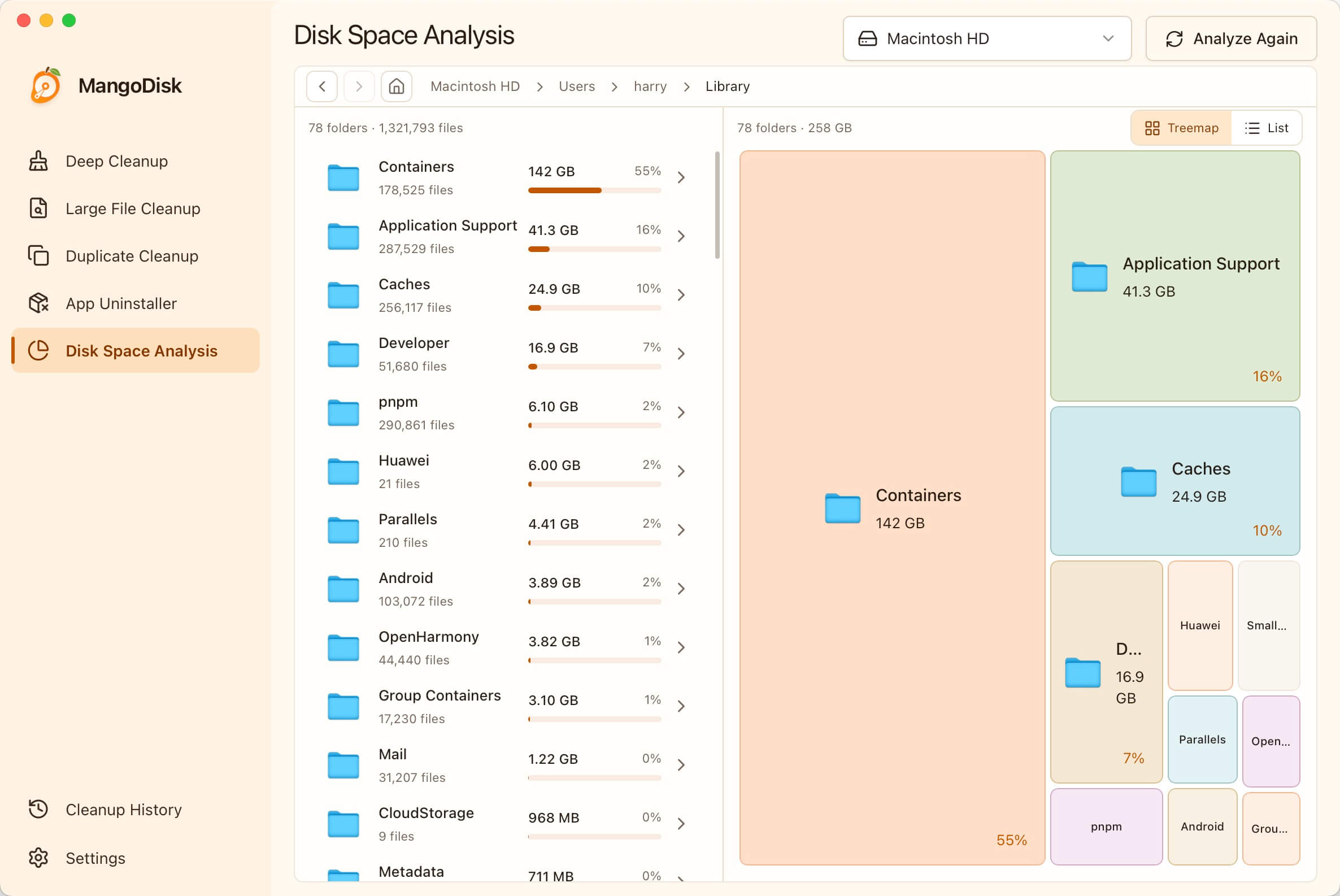
If Documents takes up tens of gigabytes and you can't tell where they went, MangoDisk's Disk Space Analysis shows folder sizes in a list and a treemap. Open a large folder and follow it down to the files inside. That gives you a better idea of what you can move or remove.
See what's taking up space on your Mac
Let Storage finish calculating, then look for the largest categories, such as Applications, Documents, Photos, or System Data. If a category has an Info button, click it for details. On macOS Monterey and earlier, open About This Mac from the Apple menu and select Storage. Apple's Mac storage guide
To check just your own files, select your home folder in MangoDisk's Disk Space Analysis. In Space distribution, larger tiles take up more space. Click a tile or a folder in the list to see what's inside. The path at the top shows where you are.
What should you delete, move, or uninstall?
| What's taking up space | What to do |
|---|---|
| Downloaded installers and archives | Move them to the Trash if the software is installed, you've extracted what you need, and you no longer need the originals. |
| Screen recordings, movies, and exported videos | Copy any files you want to keep to an external drive. Open the copies to check them before removing the originals. Keep the source footage for any projects you're still editing. |
| Photos library | To keep your whole library, follow Apple's steps for moving it to an external drive. If you use iCloud Photos, deleting a photo also removes it from devices signed in to the same Apple Account. Move your Photos library · How iCloud Photos handles deletions |
| Old iPhone or iPad backups | Check the device and date under Manage Backups in Finder. Keep any backups you might still need to restore from. Find and manage device backups |
| Apps you no longer use | Check whether you need to keep projects, settings, or other local data. If an app comes with an uninstaller, use it first. How to uninstall Mac apps |
If System Data is the biggest category, first find out what's contributing to it. It can include data from several apps, so check the contents before removing anything. How to clear System Data on Mac
How to free up space for a macOS update
If a macOS update says your MacBook Air or MacBook Pro is short on space, check the prompt for how much room you need. Start with large items you know you can move or remove, such as archived screen recordings, used installers, or apps you no longer open. How to find large files on Mac
After moving files to the Trash in Finder, check that you've kept everything you need before emptying it. Go back to Storage to check the available space, then try the update again. Apple's macOS update troubleshooting guide
Still looking at one large category in Storage? Download MangoDisk to see which folders are taking up room and decide where to start.