
4 Free Disk Space Analyzers for Mac
Compare macOS Storage and three free Mac disk space analyzers. See which tools show folder sizes, map disk usage, and find what’s grown since your last scan.
What’s taking up space on your Mac? Start in System Settings → General → Storage to see how much you use for Documents, Photos, and Applications. If a category is much larger than you expected, look inside it for the files or folders responsible.
OmniDiskSweeper is a good fit if you prefer a list sorted by size. GrandPerspective lets you spot big files on a visual map. Use MangoDisk’s Disk Space Analysis if you want the chart and the list together, or want to see how the same folder changes over time.
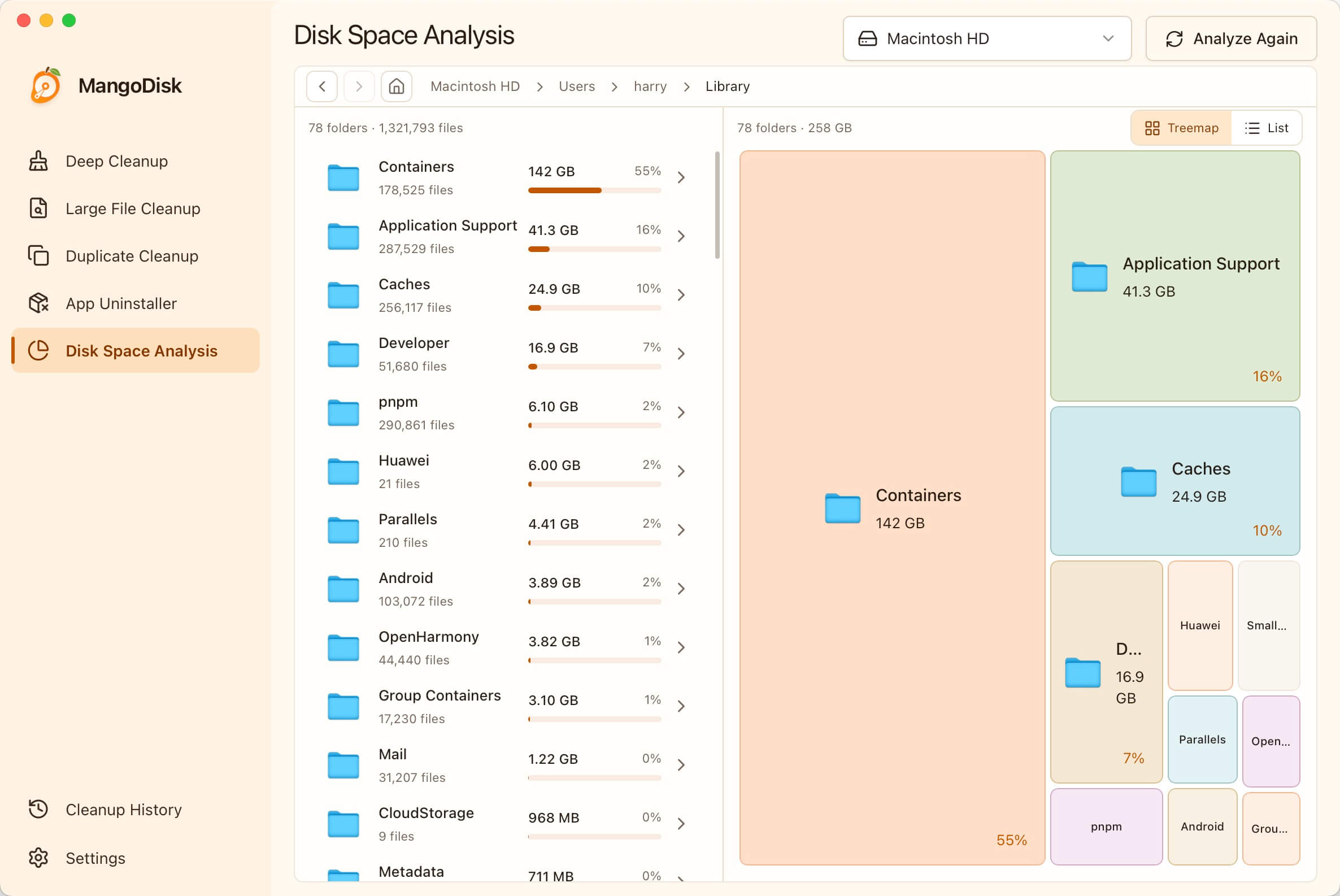
Take Downloads, for example. When you scan it with MangoDisk, the list on the left shows the largest items first, and the treemap on the right shows how much space they take up relative to each other. If your Mac fills up again after a cleanup, compare two scans of the same location to see which folders grew.
Which Mac disk space analyzer should you use?
Say you want to check what’s piled up in Downloads. Start with the built-in view to see where to look, then choose a tool that presents the files the way you prefer.
| Tool | When to use it |
|---|---|
| macOS Storage | Start here for a quick look by category. Open Documents to check downloads or view folder sizes in File Browser. Apple’s Storage settings guide |
| OmniDiskSweeper | Choose it for a size-sorted list. Scan the disk, open Downloads, and work your way through its subfolders. Free to download and use. OmniDiskSweeper |
| GrandPerspective | Scan Downloads to see big files as large rectangles. Hover over a rectangle to check the file name and size. Free from SourceForge and paid on the Mac App Store. GrandPerspective · Quick start |
| MangoDisk | Use a chart and a list together. Scan Downloads, switch between the treemap and sunburst chart, and save scans for later comparisons. Disk Space Analysis is free. Download MangoDisk |
If you’re looking at DaisyDisk too, its free trial lets you scan disks and browse the disk map. Deleting files from within the app requires a paid license. If you’re familiar with DaisyDisk and want a similar way to explore folders, see our DaisyDisk alternative guide. DaisyDisk’s trial and full version comparison
Treemap or sunburst chart?
Use a treemap to see which folders at the same level take up the most space. In MangoDisk, open Disk Space Analysis, choose your home folder or another location, and select Start Analysis. Find the largest tiles and check their names and sizes in the list. Open a folder to see the large files inside it.
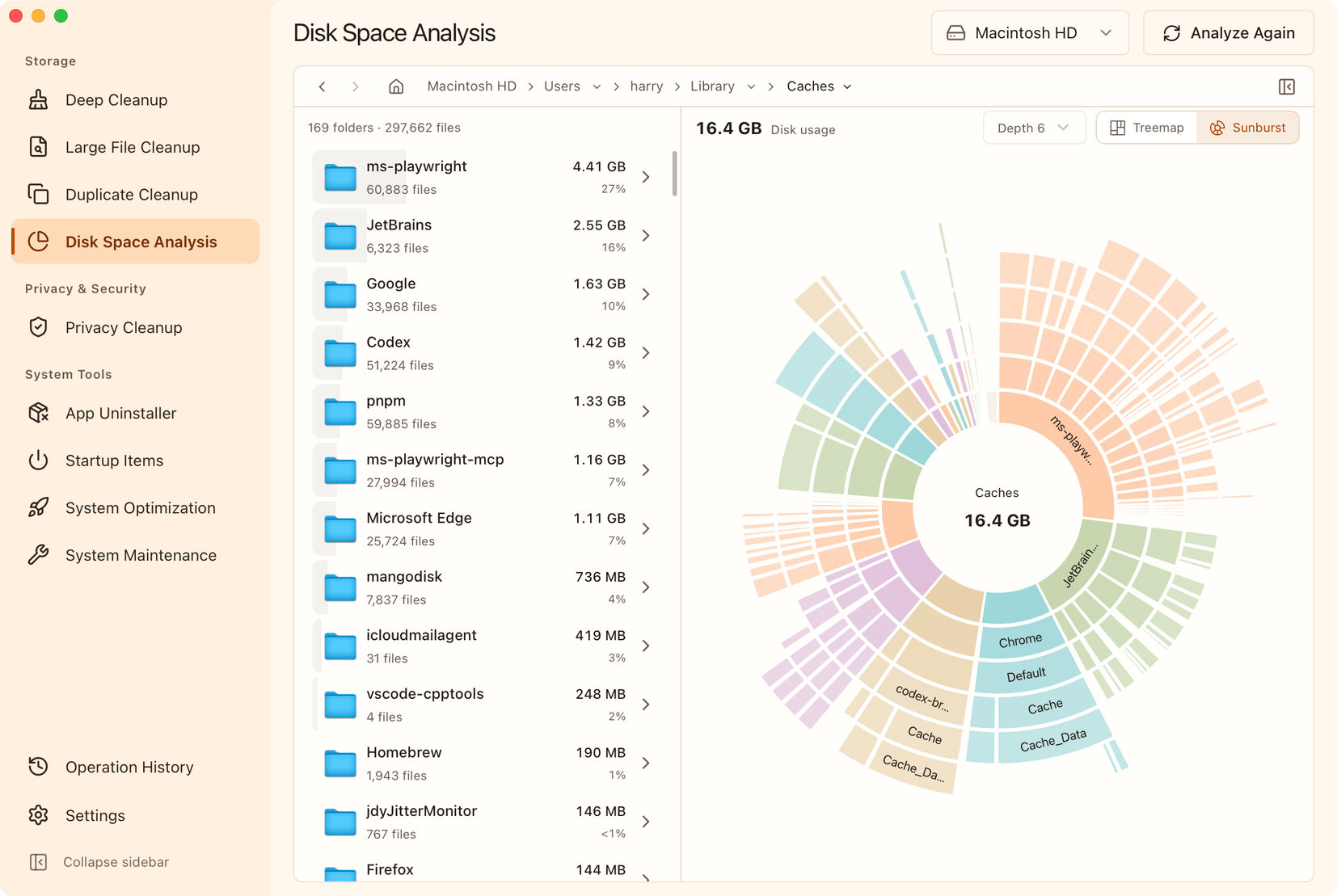
A sunburst chart helps when a folder has several levels of subfolders. The center shows the folder you’re in. Each ring outward shows another level below it. For example, find a large app cache in the inner ring, then follow its section outward to see which subfolder accounts for most of that space. See the sunburst chart
Find what’s grown since the last scan
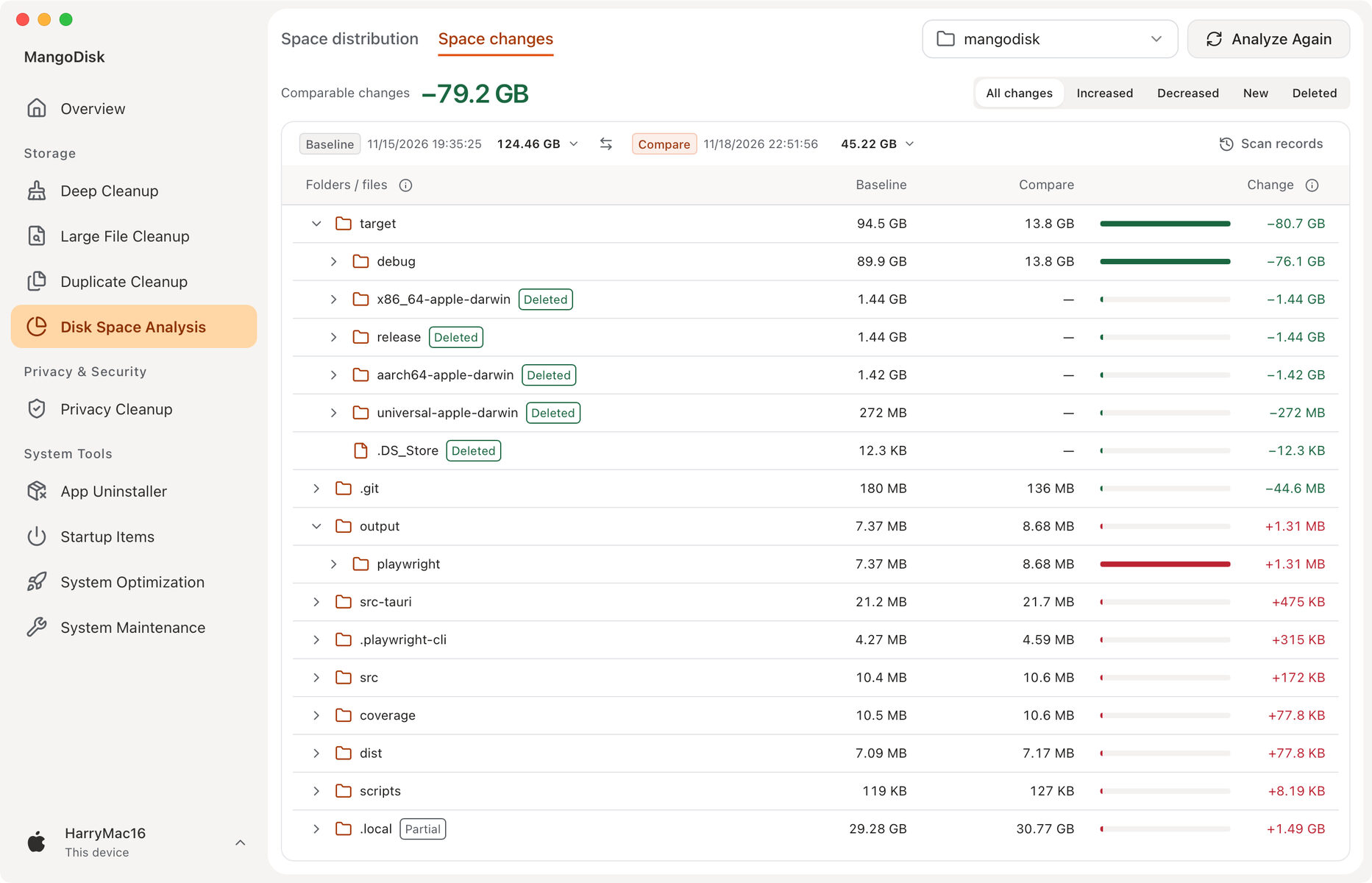
The biggest folder on your Mac might have been that size for months. If you’re losing free space again, use MangoDisk’s Space changes to see what grew. Turn on scan records, scan a location, then scan the same location again after a few days. If your video archive stayed about the same size and your export folder gained several gigabytes, you know where to look first. How to compare scan records
Download MangoDisk and start with Downloads or a project folder you know well. Once you’ve found what’s taking up space, decide whether to keep it, move it, or delete it. More ways to free up storage on Mac