
How to Delete ComfyUI Models and Free Up Disk Space
Find and delete unused ComfyUI models with MangoDisk. Locate model folders, check shared libraries, and find out why uninstalling ComfyUI may leave files behind.
To free up disk space used by ComfyUI, find and delete the model files you no longer need. Quitting ComfyUI, or uninstalling the desktop app, may leave downloaded models on your drive.
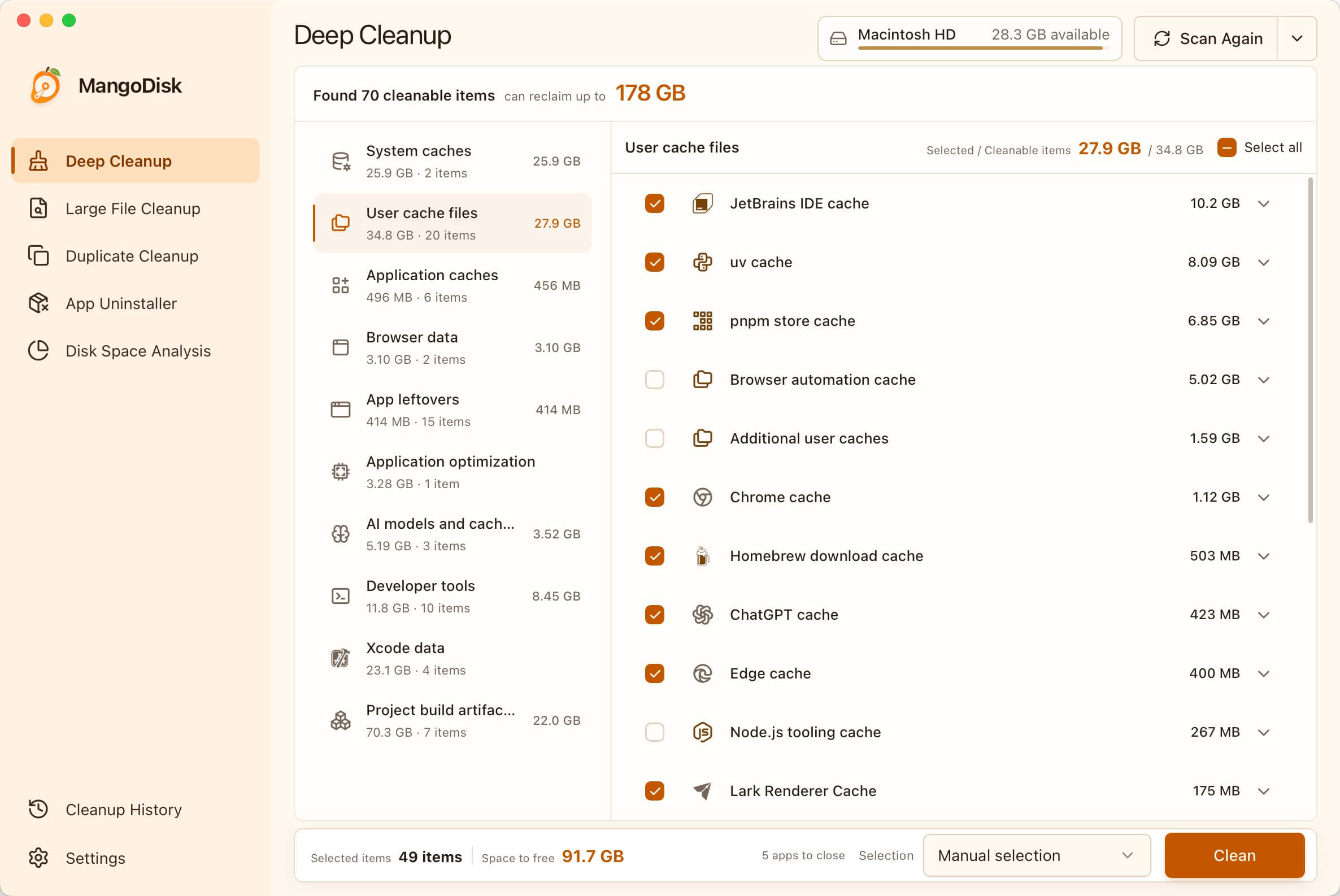
MangoDisk can show your ComfyUI local models in Deep Cleanup. Check the paths and sizes it finds, expand the entry, and select individual models to remove without clearing your entire library.
Find and delete ComfyUI models with MangoDisk
Check where your models are stored and how much space they use
Run MangoDisk's Deep Cleanup. Once the scan finishes, select AI models and caches and expand ComfyUI local models.
The results list detected model files or packages with their paths and sizes. Open the containing folder to check whether a model belongs to a particular installation or a shared library before deciding what to keep. MangoDisk checks common ComfyUI installation locations, along with shared libraries and custom model paths it can recognize.
This is useful if you've tried several ComfyUI installations or spread your models across different drives. If a model doesn't appear in the results, check its location in ComfyUI itself; a missing entry doesn't mean the file isn't there.
Select only models you know you no longer need
Choose Select none to clear the current cleanup selection, then select the models you want to remove. This keeps the operation focused on ComfyUI instead of including other cleanup categories.
For example, you might remove an older model you tried and replaced, after checking that none of the workflows you want to keep depend on it. Keep the main models and supporting models you still use. Back up your own trained models and LoRAs before removing anything you can't download again.
For a shared model library, also check whether another ComfyUI installation or local AI app uses those files. Deleting a model from a shared folder affects every app that points to it. MangoDisk shows the files and their paths; you still need to decide whether your workflows need them.
Review the selection before cleaning
Finish any generation or download tasks, then quit ComfyUI and other apps using these models. Review the selected items and estimated space at the bottom, click Clean, and check the scope in the confirmation dialog before continuing.
MangoDisk permanently deletes the models you confirm; it doesn't move them to the Trash or Recycle Bin. You'll usually need to download them again to use them later. Back up custom-trained weights and anything you can't replace first. Check the results for failed or skipped items rather than assuming all the estimated space was freed. The cleanup safety guide explains what to review before you start.
Which ComfyUI files can you remove?
Folders such as checkpoints, diffusion_models, loras, and vae contain different kinds of models. A workflow may need files from several of them, so keeping only the largest main model may not be enough. The official ComfyUI model guide explains how models fit into a workflow.
Start with files you can identify confidently:
- Model versions you tried and decided not to use.
- Models you've replaced, once you've checked that no workflows still need them.
- Duplicate copies whose contents you've verified, after confirming that your apps use the copy you're keeping.
A large size, an old modification date, or a similar filename doesn't prove that a model is unused. If you're unsure, open the workflows you want to keep and check the model names they use. Finish those tasks before organizing the files.
Keep your own work separate from the models. Source material in input, generated images and videos in output, and saved workflows shouldn't be cleared along with a model library. Treat your own trained models and LoRAs as work to preserve, not disposable cache.
Where is the ComfyUI models folder?
If you already know where your models live, you can also open the folder in Finder or File Explorer and delete individual files manually. ComfyUI's official removal instructions describe deleting the relevant files from the model directory.
The location depends on how you installed ComfyUI:
| Setup | Where to look |
|---|---|
| Manual installation or Windows portable version | ComfyUI/models inside the installation folder |
| Current Comfy Desktop | Check the model directory in storage settings; a common shared location on Mac is ~/ComfyUI-Shared/models |
| Shared library or external drive | Check the location you configured; manual installations can point to other folders through extra_model_paths.yaml |
On a Mac, ~ means your home folder. If you've changed the location, follow ComfyUI's actual settings. Older Desktop versions and custom nodes may use other folders. The official extra model paths guide can help you check your configuration.
Files you move to the Trash or Recycle Bin still occupy space on their original drive. Once you're sure you don't need them and have backed up important models, remove them from there as well.
Why didn't uninstalling ComfyUI free up the space?
Uninstalling Comfy Desktop doesn't remove your model library. The official documentation says uninstalling the desktop app removes the launcher, while installations, shared models, generated work, and settings can remain. The macOS uninstall guide and Windows uninstall guide list these data locations.
If you've stopped using ComfyUI, use MangoDisk to check for local models it can still detect, then review your old installation folders. Shared folders may also contain input files and generated work. Sort those separately instead of deleting the entire ComfyUI-Shared folder.
If you're removing just one installation but another still needs the shared models, keep the library. Removing one installation doesn't require removing models that other installations still use.
Can't find a model, or still running out of space?
Check whether the actual model folder is on another drive, in an older installation, or in a shared location. If MangoDisk reports an incomplete scan or an entry can't be selected, check access to the folder or look up the path in ComfyUI's storage settings.
You can also open MangoDisk's Disk Space Analysis and select the model folder you've located or the drive containing it. The file list and treemap help you see whether the space is going to models, another installation, or accumulated output videos. Analysis shows storage usage; you decide what to delete.
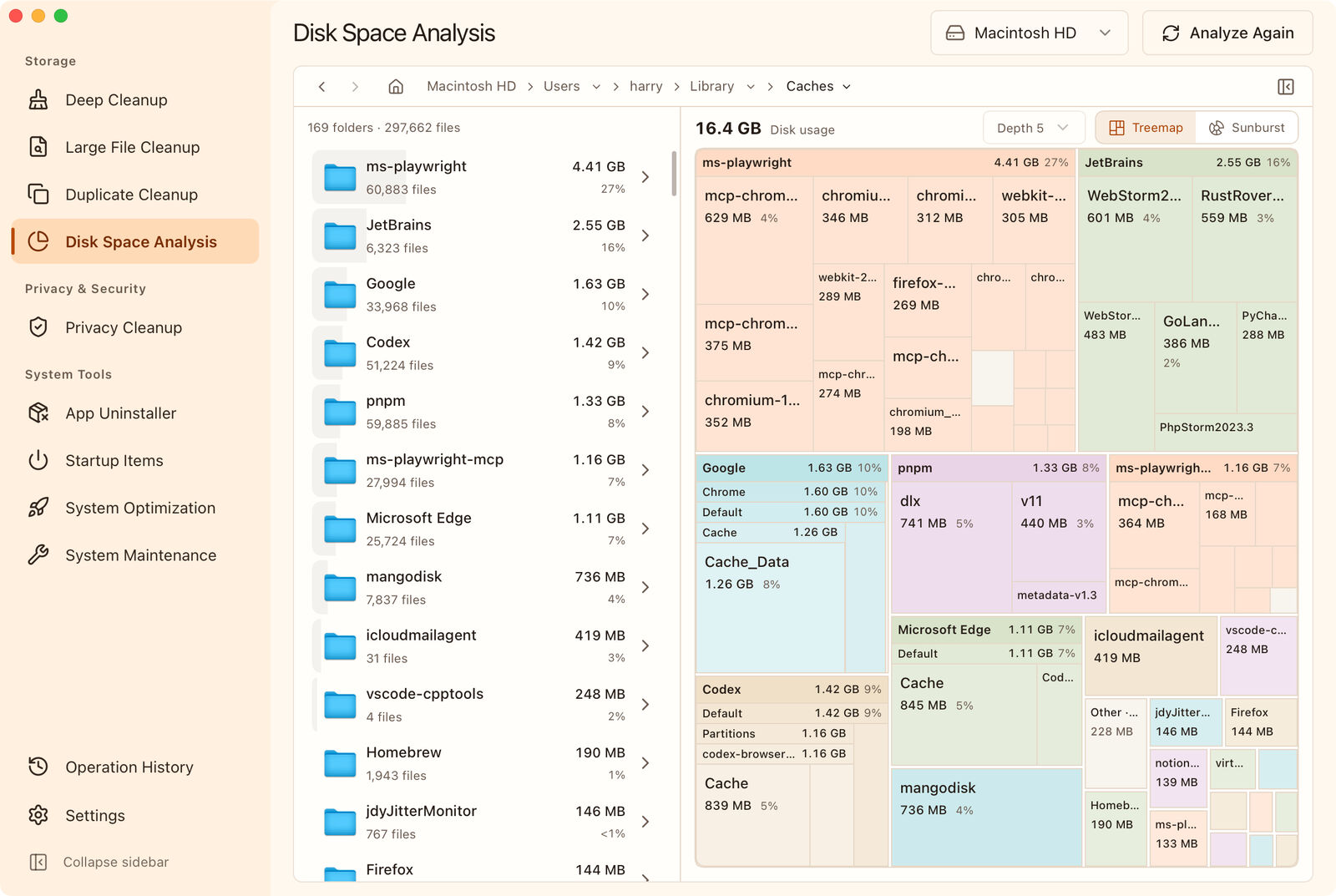
If the space freed doesn't match what you expected, check for files still in the Trash or Recycle Bin, failed or skipped cleanup items, another downloaded copy of a model, and large generated images or videos.
If you want to keep your models but need space on your internal drive, consider moving the library to an external drive. Update ComfyUI's model paths and confirm that your existing workflows can load models from the new location before deleting the old copies. Moving the files alone isn't enough.
Frequently asked questions
Does deleting a model uninstall ComfyUI?
No. Deleting model files leaves ComfyUI installed. To run a workflow that needs a removed model, download or restore it, or switch to a compatible model.
Does deleting models free up VRAM?
This guide deals with model files stored on disk. Ending a generation task, quitting the app, or unloading a model from memory is a separate operation. Quitting ComfyUI doesn't delete the model files on your drive.
Download MangoDisk to check where your ComfyUI models are stored and how much space they use, then select the files you no longer need. It's free and open source, with no registration or login required.
If you use other local model tools, see how to remove Ollama models. For files beyond your model library, explore the guide to finding large files on Mac or the developer cleanup collection.