
Codex Disk Usage Too High? Free Up Space, Keep Your Projects
Codex disk usage growing? Find what's taking up space with MangoDisk, clean supported caches and build files, and keep your code and chat history out of the cleanup.

You've been building things with Codex, and now your drive is running short of space. A look inside .codex turns up a folder much larger than you expected. What can you actually remove?
Not everything in there is a cache. Project copies, downloaded dependencies, build files, and chat history can all contribute. Wiping the folder could take unfinished work with it.
Start with caches and rebuildable files you no longer need, not the projects themselves. MangoDisk helps you find the biggest folders, then review the items its cleanup rules support. You don't have to hunt through every project or learn a set of terminal commands first.
Why is it so big when the code is so small?
When Codex runs tasks in separate worktrees, each copy of a project can accumulate its own dependencies and build files. OpenAI's worktree documentation explains this extra disk usage.
For a web project, node_modules holds packages the project needs to run. A Rust project's target folder holds compiled output. Even after you put a project aside, those files may still be there.
But don't assume they're the biggest problem on your computer. Session history or the app's own caches might account for more. Check the largest folders first so you spend time cleaning something that will actually make a difference.
See where the space is going
Open Disk Space Analysis in MangoDisk and scan the relevant drive or user folder. The larger a rectangle, the more space that folder takes up. Click through to see what's inside.
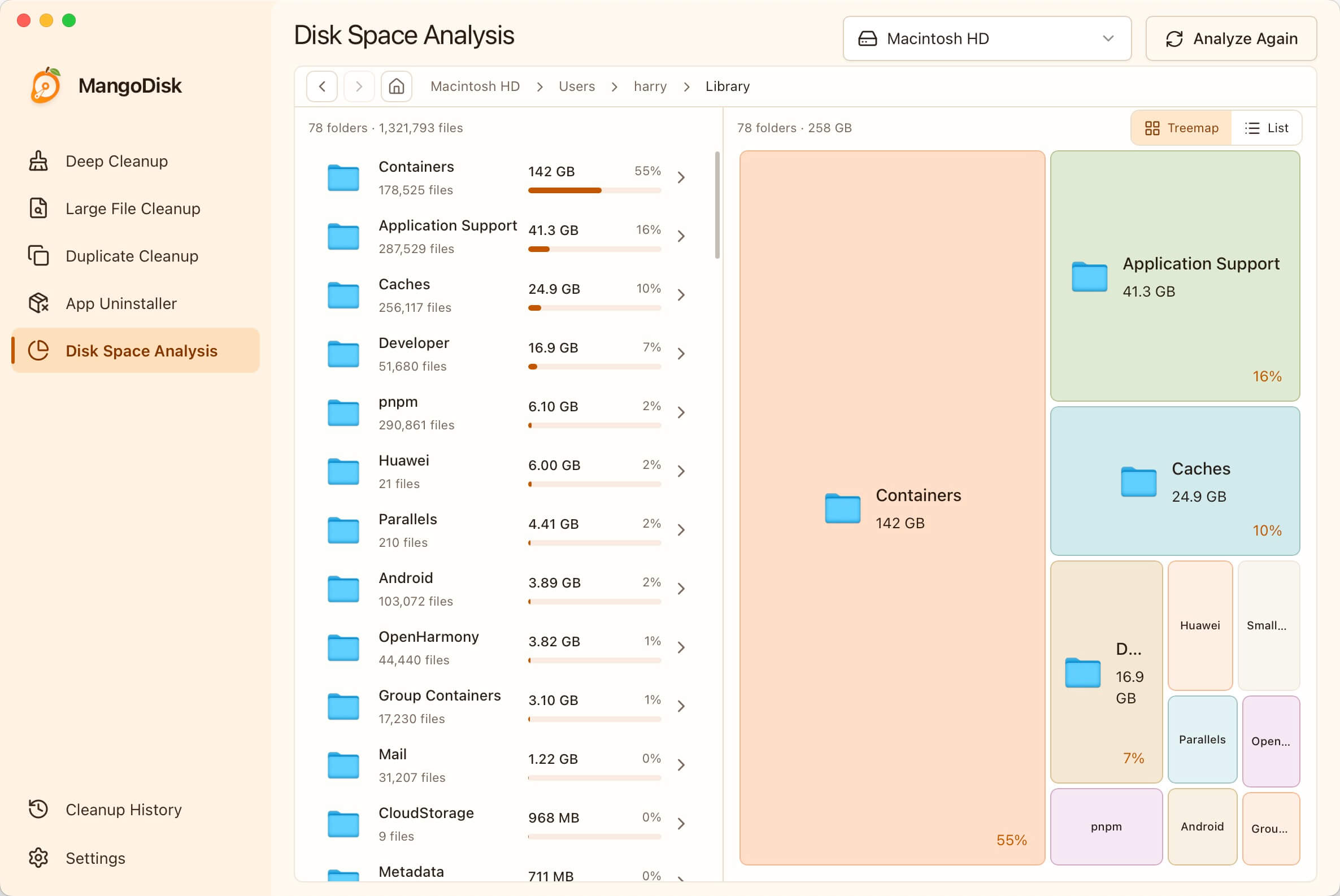
For Codex, look for .codex in your user folder. If you've changed its storage location, check that location instead. Tasks running in WSL or on a remote computer need to be checked in that environment, not just on your local drive.
If worktrees is large, open the projects inside it and see whether dependencies, build output, or your own files account for most of the space. If sessions is the large folder, that's conversation history; it needs different treatment.
You haven't deleted anything at this point. You've just found where a cleanup is worth considering.
Keep the project. Remove what you can rebuild later.
MangoDisk 1.1.0 added cleanup support for Codex worktrees. Deep Cleanup checks recognized worktrees for supported dependencies and build files, including node_modules, certain framework caches, and target. It also checks supported Codex-related caches and some diagnostic files.
Expand the scan results to see paths, sizes, and cleanup notes. Projects you won't be running again soon are a good place to start.
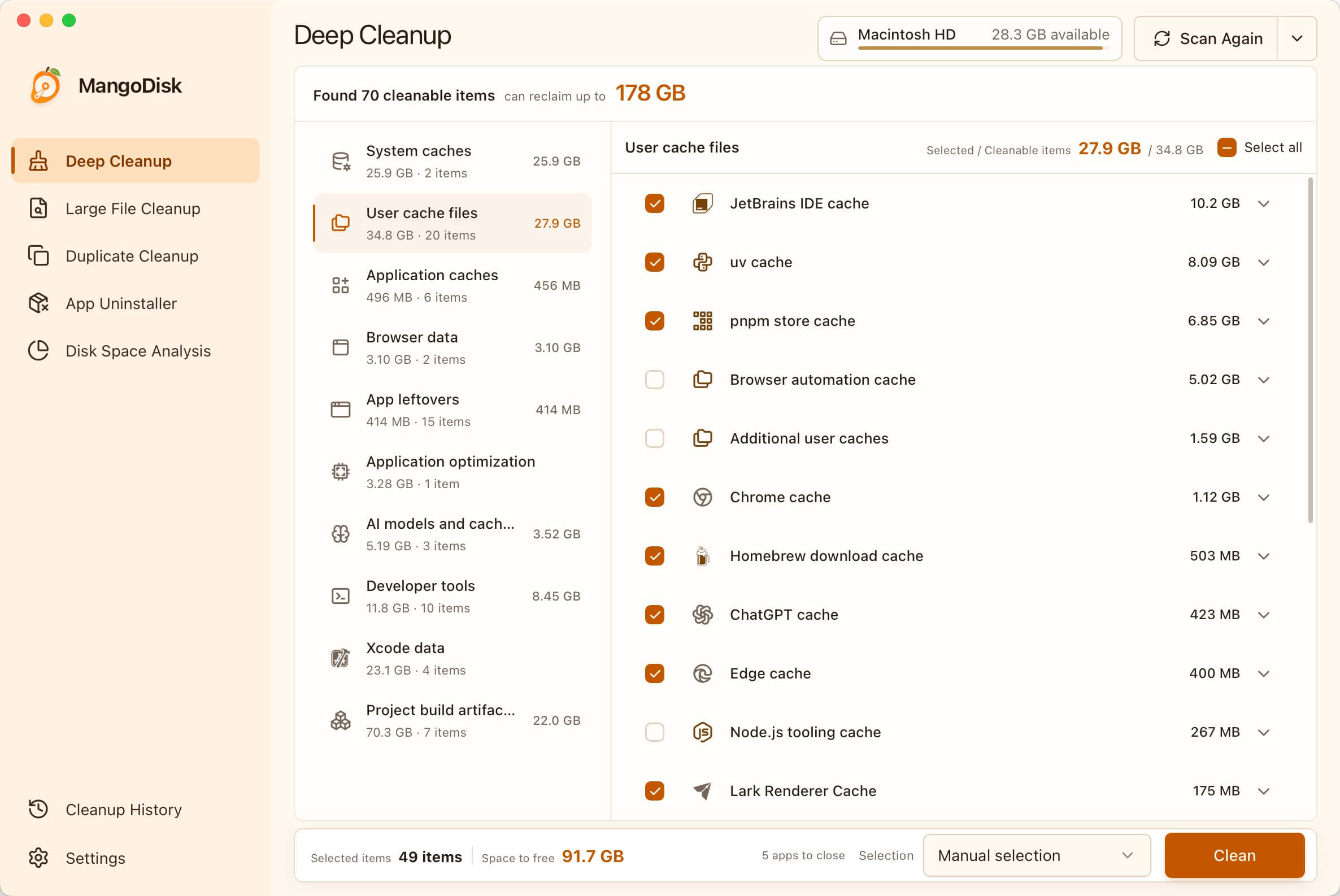
Project build artifacts are unchecked by default. These rules remove only the supported items you select, not source code, Git data, or whole worktrees. You can keep a project without also keeping all of its installed dependencies and build output on disk.
The trade-off is time: when you return to it, you'll need to reinstall dependencies or rebuild, which may require an internet connection. Leave today's active projects alone. If you've manually edited anything inside a dependency folder, save those changes elsewhere first.
Before cleaning, save your work, let tasks finish, close Codex or ChatGPT when prompted, and stop the relevant builds and tests. Check the selection before confirming; there's no need to select every result.
What if chat history is taking up the space?
Don't treat it like a download you can simply fetch again. Session files may be needed to recover or continue earlier tasks.
MangoDisk can show how much space those folders use, but Deep Cleanup does not currently delete Codex session history. If that's where most of the space has gone, clearing caches will only help so much. Check for Codex updates and review its current history-management options, keeping the tasks you need and backing up important data.
For entire worktrees you no longer need, review Codex's worktree retention and cleanup settings after saving your changes. Don't delete the whole .codex folder or assume that archiving a task clears all its history.
One important distinction: Disk Space Analysis shows readable files, not a list of junk. Manually deleting from the treemap is permanent and bypasses the Trash or Recycle Bin. Leave anything you're unsure about in place; the safety guide explains the difference.
Make room without starting over
The more projects you work on, the less appealing it becomes to track every cache by hand. Let MangoDisk find the big folders, then review the dependencies and build files from projects you've put aside.
Download or update MangoDisk to see what's worth cleaning on your computer. It's free and open source, runs on Windows and macOS, and needs no account or login. Disk analysis and Deep Cleanup run locally; you don't need to enable AI explanations.
Related: Cargo Cache vs target Folder: What Can You Delete? · Is AI Disk Cleanup Safe?
If npm's separate download cache is also taking up space, see how to clear npm cache without uninstalling your project's dependencies.