
How to Check CPU Usage on Mac
Check Mac CPU usage with MangoDisk or Activity Monitor, find busy processes, and keep CPU stats in the menu bar. Learn what high usage and readings over 100% mean.

To check CPU usage on your Mac, open CPU in MangoDisk's System status panel. You can see the current load, recent changes, and CPU usage by app and process. Menu bar stats and floating desktop monitors keep that information visible while you work.
If your fans get louder, a few browser tabs seem to slow things down, or you want to see how busy your Mac is during a video export, start with the overall load. Then look for processes that stay busy. You can also use the Mac's built-in Activity Monitor, covered below.
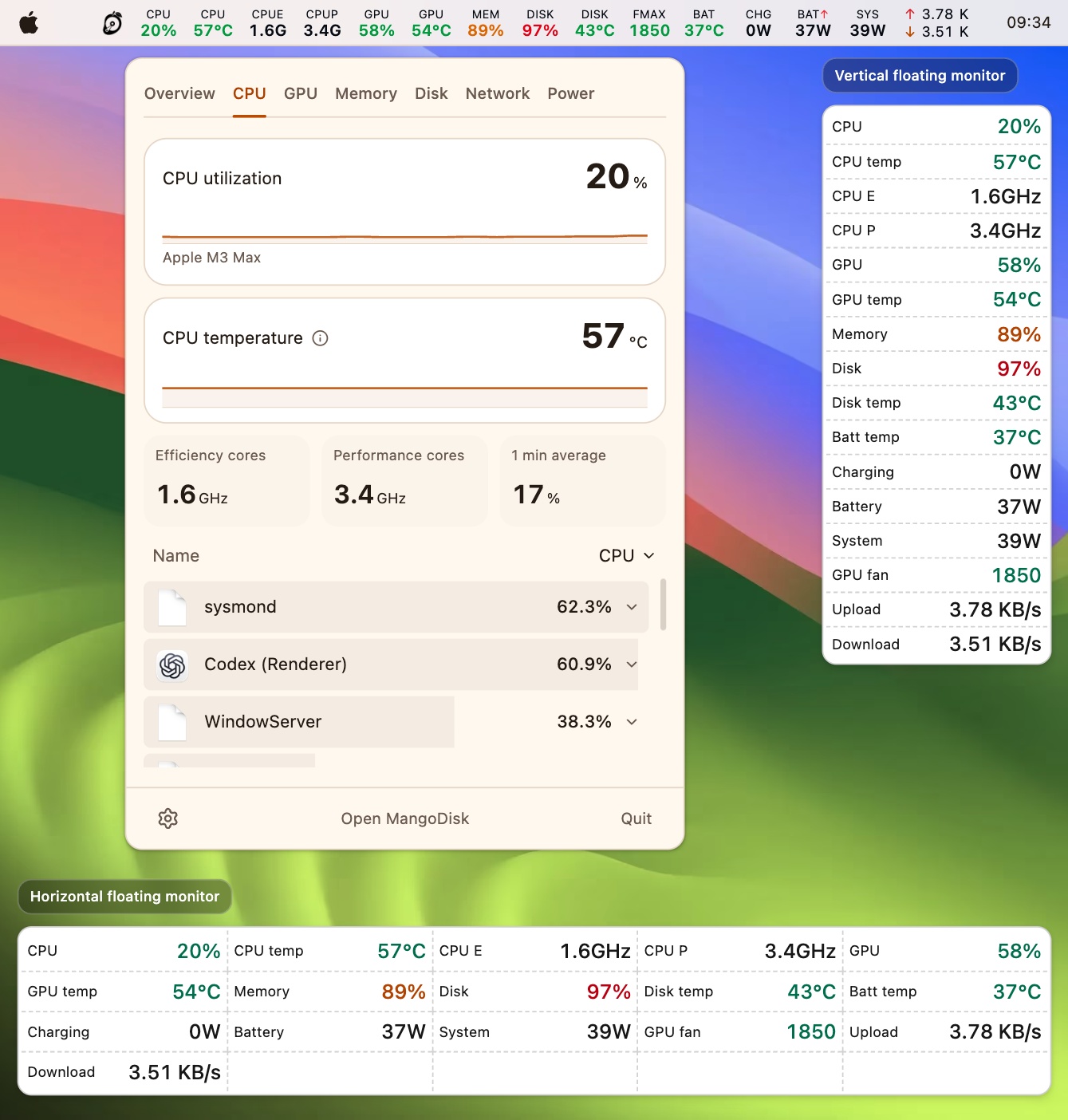
Check CPU usage with MangoDisk
With MangoDisk running:
- Click the MangoDisk status icon in the macOS menu bar to open System status. If the icon is missing, enable the menu bar display in MangoDisk's system status settings first.
- Select CPU to see the current load and recent usage graph.
- Look through the apps and processes below. Click the CPU column to put the busiest entries at the top when you need to compare them.
- Watch for a little longer to tell a brief spike when opening an app from a process that keeps using the CPU.
A video editor using more CPU during an export is usually expected. The more useful question is whether its usage falls when the export finishes, or whether the same process stays near the top after your Mac has settled down.
You may see browser helpers or unfamiliar system components in the list. Identify the app they belong to and what they are doing before deciding to take action.
Monitor CPU usage in the menu bar or a floating window
For a quick check while working, choose a display mode in MangoDisk's system status settings to show CPU stats in the menu bar or a floating monitor.
The menu bar works well for an occasional glance. A floating desktop monitor can be moved to a convenient spot and arranged horizontally or vertically. You can keep an eye on the load while coding, editing photos, or exporting video, then open the CPU panel when you need to identify a specific process.
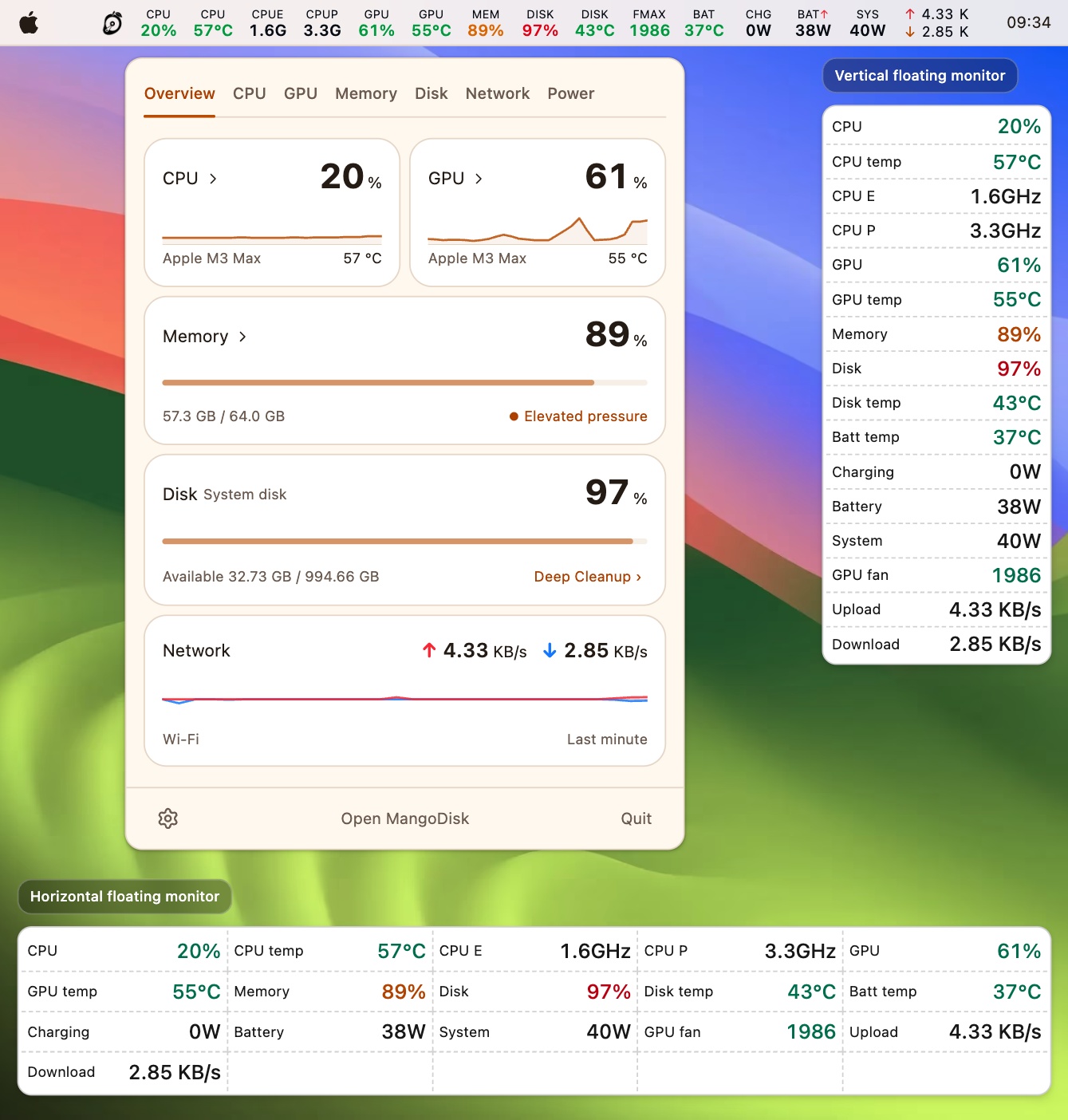
The overview also brings memory, disk, and network information together. If CPU usage has dropped but your Mac still feels slow, check memory pressure and available disk space for other possible causes. Try the system monitoring demo to explore the panels and layouts.
Use Activity Monitor to see Mac CPU usage
For a one-off check, macOS already includes Activity Monitor:
- Press Command + Space, search for Activity Monitor, and open it.
- Select the CPU tab.
- Click the % CPU column to sort the busiest processes to the top.
- Check System, User, and Idle at the bottom of the window for your Mac's overall load.
These figures describe:
| Reading | What it means |
|---|---|
| System | CPU capacity used by macOS system processes |
| User | CPU capacity used by your apps and their related processes |
| Idle | CPU capacity that is not currently in use |
A lower Idle reading means more of the CPU is busy. Choose Window → CPU History to see changes over time. To show CPU activity in the Dock, choose a display option under View → Dock Icon. Apple's CPU activity guide
Why can a process use more than 100% CPU?
In Activity Monitor, a process using several CPU cores can show more than 100%. It has not exceeded your Mac's total processing capacity: the per-process figure uses a different scale from the overall CPU percentage. How CPU percentages are reported
Use the summary at the bottom of the window to assess how busy the whole Mac is, and the % CPU column to see which processes are doing the work. Video exports and code builds can use several cores at once. Whether you need to intervene depends on the task and how long the activity continues.
What to check when CPU usage stays high
There is no single normal CPU percentage for every Mac and every task. More useful than one reading is whether something needs that processing power, and whether usage falls when the work finishes.
| What you notice | What to check first |
|---|---|
| You are exporting video, compiling code, or processing files in bulk | Watch the task's progress, then see whether CPU usage falls when it finishes |
| A familiar app stays busy without an obvious task | Check its background work, pause tasks you do not need, or save your work and quit and reopen the app normally |
| Several apps stay busy after every login | Review apps that do not need to start automatically; see how to stop Mac apps from opening on startup |
| CPU usage is low but the Mac still feels slow | Check memory pressure, free disk space, and whether the problem happens in only one app |
Before quitting an app, save your work and try its own Quit command first. Consider Activity Monitor's Force Quit only if the app is unresponsive and a normal quit does not work. Unsaved work may be lost, and other apps that depend on the process may be affected. Apple's guide to quitting processes
Leave unfamiliar system processes alone until you understand them. Being at the top of the list only shows that a process was busy at that moment; it does not make it unnecessary or faulty. See the MangoDisk safety guide for more guidance.
If an app does not need to run when you log in, use Startup Items to change its future startup behavior. For software you no longer use, see how to uninstall Mac apps and review related files. Disabling a startup item does not stop a program that is already running.
To keep an eye on CPU usage while you work, download MangoDisk and put CPU stats in your menu bar or a floating desktop monitor. Open the details when you need to check individual apps and processes. MangoDisk is free and open source, with no account required. Explore more Mac guides.