
How to Rebuild the Spotlight Index on Mac
Rebuild the Spotlight index with MangoDisk, check why files are missing from Mac search, and learn how to reindex a folder or disk and allow time for results to return.
A file is on your Mac and opens normally in Finder, yet Command–Space cannot find it. Or recent files keep missing from the results. In either case, check Spotlight's search settings and index.
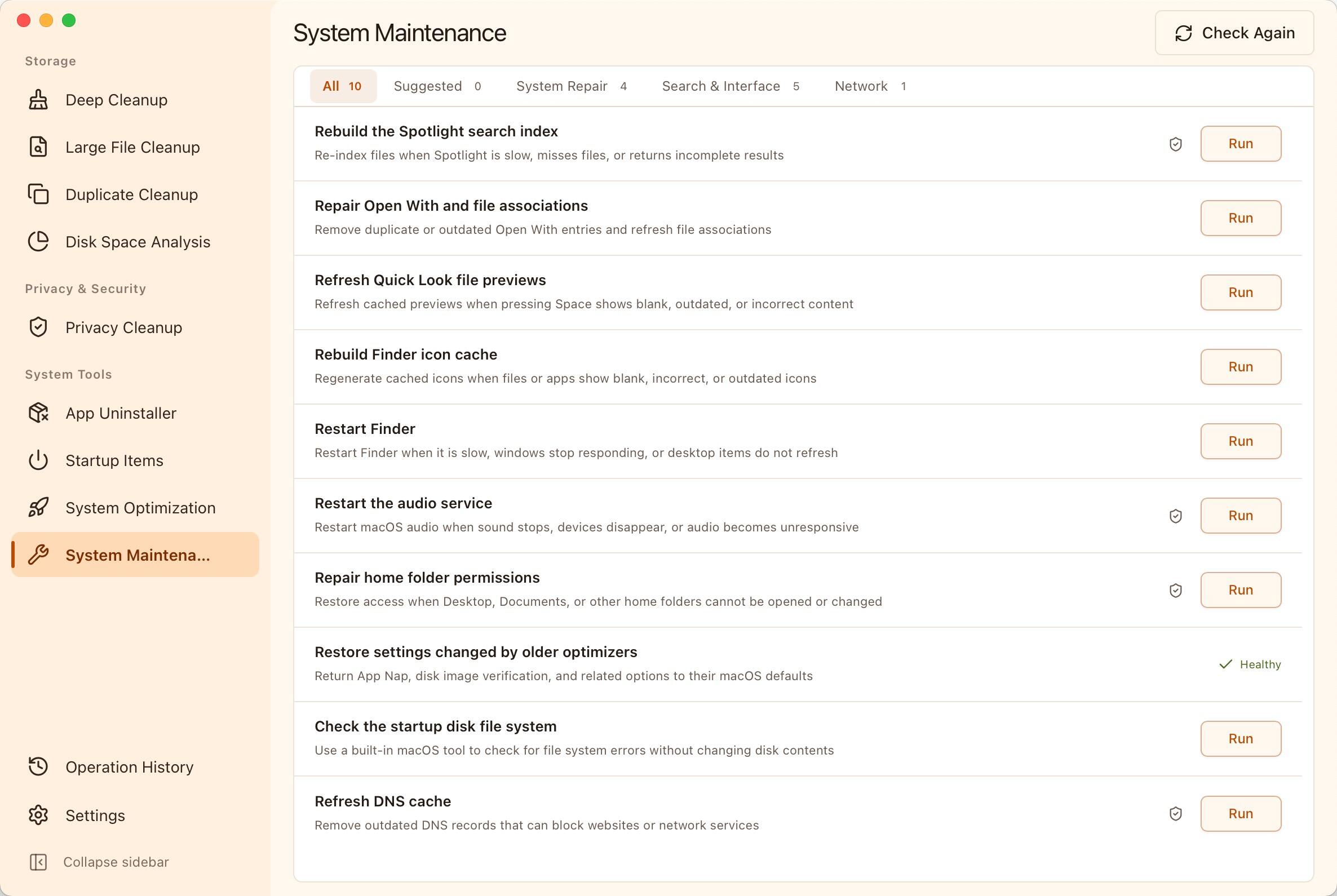
MangoDisk can rebuild the Spotlight search index from System Maintenance. Find the task, confirm it, and start the rebuild without looking up Terminal commands. First, check that the location is included in search and give any indexing already in progress time to finish.
Check these three things before rebuilding
Make sure the file opens. Browse to it in Finder and open it directly. If it has moved, an external disk is disconnected, or a cloud file has not downloaded to your Mac, address that first.
Review search settings. Open System Settings → Spotlight, called Siri & Spotlight on some macOS versions. Make sure the result types you need are enabled, then check Search Privacy or Spotlight Privacy at the bottom. Spotlight will not search a folder excluded there. Change only the locations you want searchable and keep other privacy exclusions in place.
Check whether indexing is underway. After setting up a Mac, updating macOS, or moving a large amount of data, results may take time to become complete. If Spotlight shows an indexing indicator, wait and then search for the same known file again. Apple's indexing and search guidance
Consider rebuilding if the file exists, search settings are correct, and results remain incomplete.
Rebuild the Spotlight index with MangoDisk
- Open MangoDisk, select System Maintenance in the sidebar, and let the checks finish.
- Find Rebuild the Spotlight search index and click Run.
- Read the confirmation message and confirm the task.
- Approve the administrator request from macOS and review the task feedback.
- Once the task finishes, allow Spotlight to continue indexing, then test your search again.
The maintenance checks only read status. Rebuilding requires you to run the task separately. See the MangoDisk System Maintenance guide for more about the interface.
This task targets your Mac's startup disk. To reindex just one folder or a specific external disk, use the macOS method in the next section.
Rebuilding works on the search index and does not delete your documents or photos. Some results may be missing while indexing continues. A completed maintenance task does not mean every file has already returned to search, so avoid starting repeated rebuilds simply because results are not back immediately.
If the task is unavailable or authorization is followed by an error, read the message first, then check the relevant location and system settings.
Reindex a specific folder or disk
If only your work folder is missing from search, for example, you can choose that location in macOS:
- Open System Settings → Spotlight, or Siri & Spotlight.
- Open Search Privacy or Spotlight Privacy.
- Use the add button to add the folder or disk you want to reindex.
- Wait a few seconds, select the location you just added, and use the remove button to take it out of the list.
- Click Done, close System Settings, and allow indexing to run.
Remove the location after adding it. Leaving it in the list keeps it excluded from search. Work only with the item you just added and leave other existing exclusions unchanged. Apple's steps
How long does rebuilding the Spotlight index take?
There is no fixed time for every Mac. Apple says indexing can take hours or even days, depending on how much data is on the device. Connecting to power and leaving the Mac idle when convenient can help it finish. Apple's indexing time guidance
Occasionally search for a file you know exists to see whether results are returning. If Spotlight shows indexing progress, use that as another clue. There is no need to run the task again every few minutes.
You can also check CPU usage on your Mac to see what the computer is doing. CPU activity, or a return to idle, does not by itself tell you whether the index is complete.
What if Spotlight still cannot find the file?
Retest with the same filename, then narrow down the problem:
- Only one folder or external disk is affected: Make sure it is accessible and check its search exclusion again.
- Only content inside one app is missing: Review that app's search, sync, and local download status rather than repeatedly rebuilding the startup disk's index.
- A permission or “unknown” error appears: Note the exact message and location, then follow Apple's permissions guidance.
If rebuilding does not help, keep your macOS version, the file's location, and the exact search terms handy for further troubleshooting or Apple Support.
If you are looking for large files with MangoDisk and Quick Scan misses an expected file, you can switch to Full Scan to scan the selected location directly. Access permissions and exclusions still apply. See how to find large files on Mac for the steps.
To rebuild the Spotlight index on your startup disk, download MangoDisk and find the task in System Maintenance. It is free and open source, with no account required. Browse more Mac guides.