
How to Check Battery Cycle Count on a Mac
Check your Mac battery cycle count with MangoDisk or System Information. Understand capacity health, full-charge capacity, and battery and adapter power readings.
To check your Mac's battery cycle count, open Power in MangoDisk's System status panel. You can also see capacity health, full-charge capacity, and charging status in the same place.
This is a useful starting point if your MacBook does not last as long between charges, or you want to check the battery in a used Mac. The cycle count tells you about accumulated battery use. Reading it alongside capacity and actual battery life gives you more context than a single number.
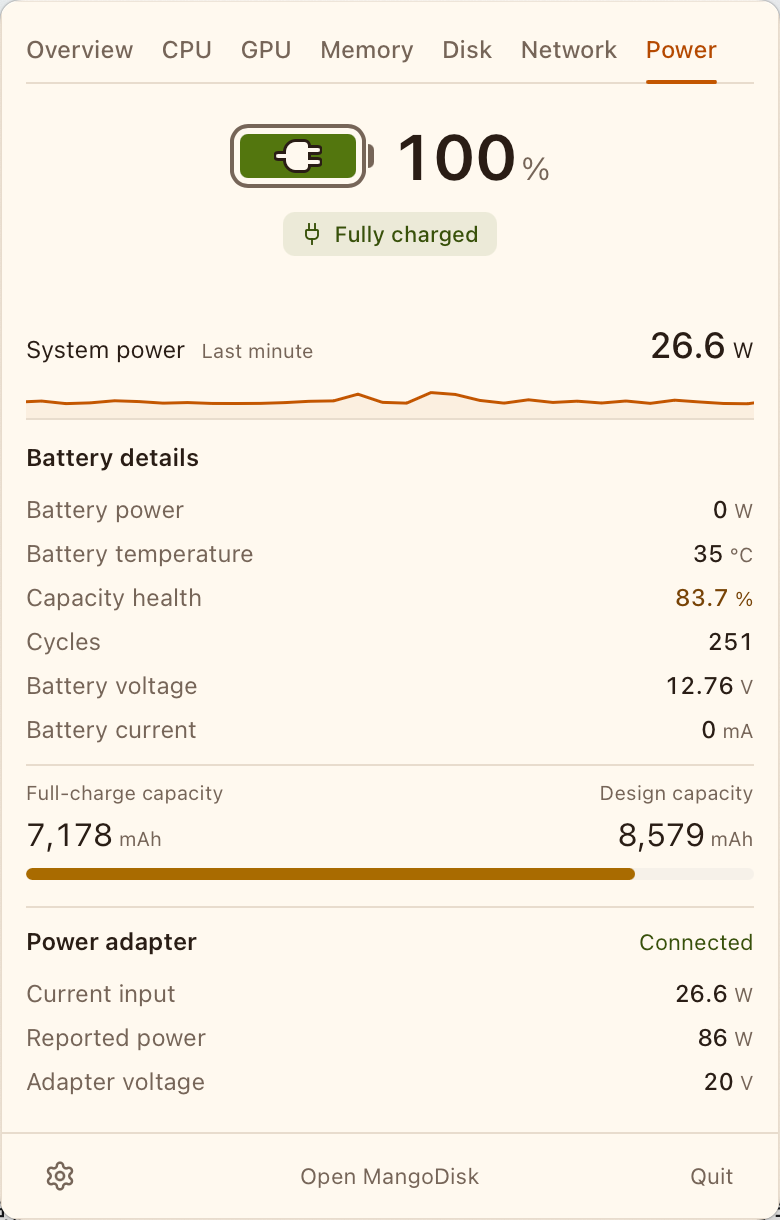
Check your Mac battery cycle count with MangoDisk
- With MangoDisk running, click its status icon in the macOS menu bar to open System status.
- Select the Power tab.
- Find Cycles under Battery details. Check Capacity health, then the Full-charge capacity and Design capacity figures below.
If the menu bar icon is missing, enable the menu bar display in MangoDisk's system status settings. Some readings depend on what your device and operating system provide. A dash means that a reading is unavailable, rather than zero.
Use Cycles to see accumulated battery use, and full-charge capacity and capacity health to understand how much charge the battery can currently hold. When you plug in, the same panel also shows charging status and power adapter information.
What counts as a battery cycle?
Plugging in your charger does not automatically add a cycle. One cycle is completed when the battery has supplied the equivalent of its full capacity, which can happen across several sessions.
For example, using about half the charge today and half tomorrow adds up to roughly one cycle, even if you recharge in between. Charge when you need to; you do not have to drain the battery completely to finish a cycle. Apple's explanation of charge cycles
The number of times you connect the charger is therefore not a useful measure of battery wear on its own.
Why does a fully charged battery show 83.7% capacity health?
The percentages describe different things:
| Reading | What it tells you |
|---|---|
| Charge: 100% | The battery is full relative to the charge it can currently hold |
| Capacity health: 83.7% | Full-charge capacity is about 83.7% of design capacity |
| Cycles: 251 | The battery's recorded charge cycle count |
Full-charge capacity is the amount of charge the battery can currently hold when full. Design capacity is its original design reference. For example, dividing 7,178 mAh by 8,579 mAh gives about 83.7%.
A battery can be fully charged while holding less energy than when it was new. MangoDisk puts these readings together so you can distinguish the current charge level from capacity and accumulated use.
MangoDisk calculates capacity health from full-charge capacity divided by design capacity. To check whether macOS recommends service, also look at System Settings → Battery → Battery Health. A percentage from a third-party app should not be your only reason for replacing a battery. Apple's battery health guidance
When should you look more closely at the cycle count?
The cycle count limit varies by Mac model. Apple lists 1,000 cycles for many MacBook Air and MacBook Pro models, while some older models have limits of 300 or 500. Check your model in Apple's maximum cycle count table. A battery may still work beyond its limit, although battery life can be shorter.
Alongside the count, consider:
- Whether battery life is affecting your work. For example, you now need a charger partway through a task you previously finished on battery.
- What macOS reports for Battery Health. If it shows Service Recommended, or charging and battery behavior seem abnormal, follow Apple's guidance for further checks. About Service Recommended
The cycle count describes use; it cannot tell you exactly how much useful life is left. When checking a used Mac, look at capacity, the system's battery health information, and actual use as well.
Read battery and power adapter information together
To find out whether the battery is charging or how much power the Mac is using while plugged in, check the other readings in the same panel:
| Reading | Meaning |
|---|---|
| Battery power | Power currently flowing into or out of the battery |
| System power | System power reported by hardware sensors |
| Power adapter: Current input | Power currently being supplied from the adapter |
| Power adapter: Reported power | The adapter's reported power capability, rather than the Mac's constant consumption |
With the battery full and the adapter powering the Mac, Battery power can be 0 W while System power still has a reading. An adapter reporting 86 W does not mean the Mac is currently consuming 86 W.
Reading these figures alongside charging status makes it easier to understand whether the battery is charging and how the Mac is being powered.
If the battery drains noticeably faster after you unplug, also check CPU usage on your Mac for tasks that stay busy. If unwanted apps keep running after every login, review your Mac's startup apps.
Find the cycle count in macOS System Information
For a one-off check, use the tool already included with macOS:
- Hold Option and click the Apple menu.
- Choose System Information.
- Select Power under Hardware in the sidebar.
- Look for Cycle Count in the battery information.
This is Apple's built-in route for checking a MacBook's recorded battery cycles. Apple's instructions
For convenient access to cycle count, capacity, and power readings, download MangoDisk and open the Power panel. It is free and open source, with no account required. Browse more Mac guides.